BOQ Integration
After creating a BOQ in PrismERP, users can link the associated project to transactions such as Purchase Orders, Sale Orders, Fund Requisitions, Fund Transfers, and Vouchers. This allows users to track project-related purchases, sales, fund requirements, and expenses through the related transactions.
1. Link a Project to a Purchase Order
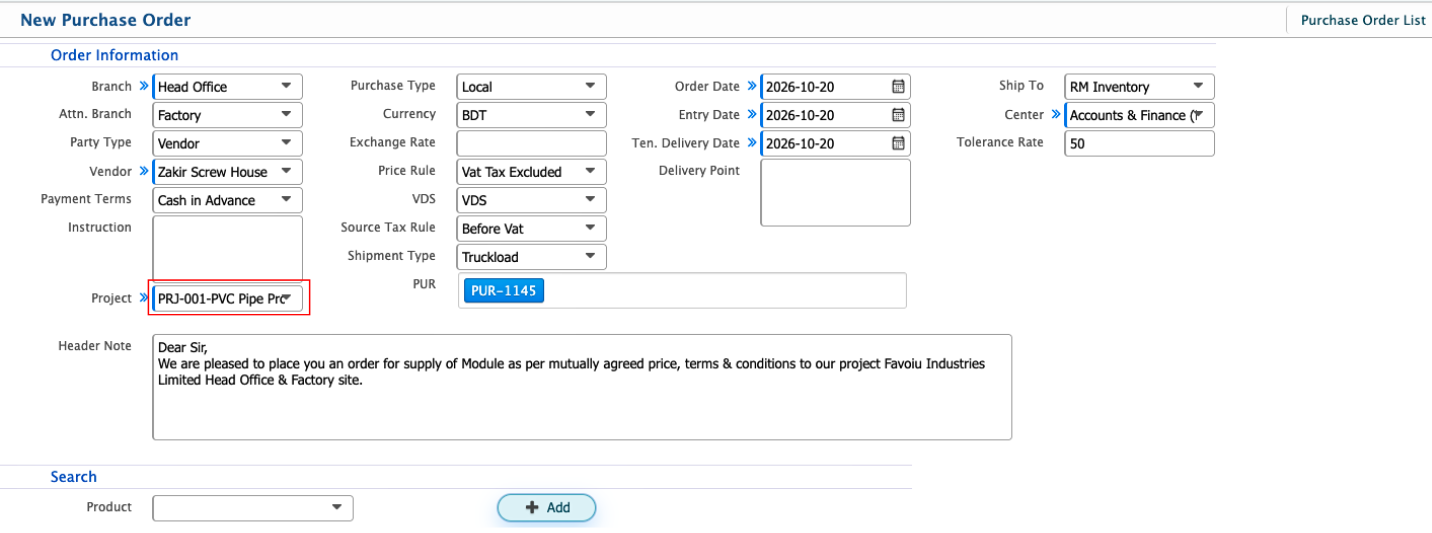
- Navigate to the Purchase Order section and click New Purchase Order.
- In the Order Information section, select the required Branch, Vendor, and other order details.
- In the Project field, select the project associated with the BOQ.
- Complete the remaining fields, including Purchase Type, Currency, Order Date, and Delivery Date, as required.
- Add the products and enter their required quantities and prices.
- Review the order details and submit the Purchase Order for approval.
2. Link a Project to a Sale Order
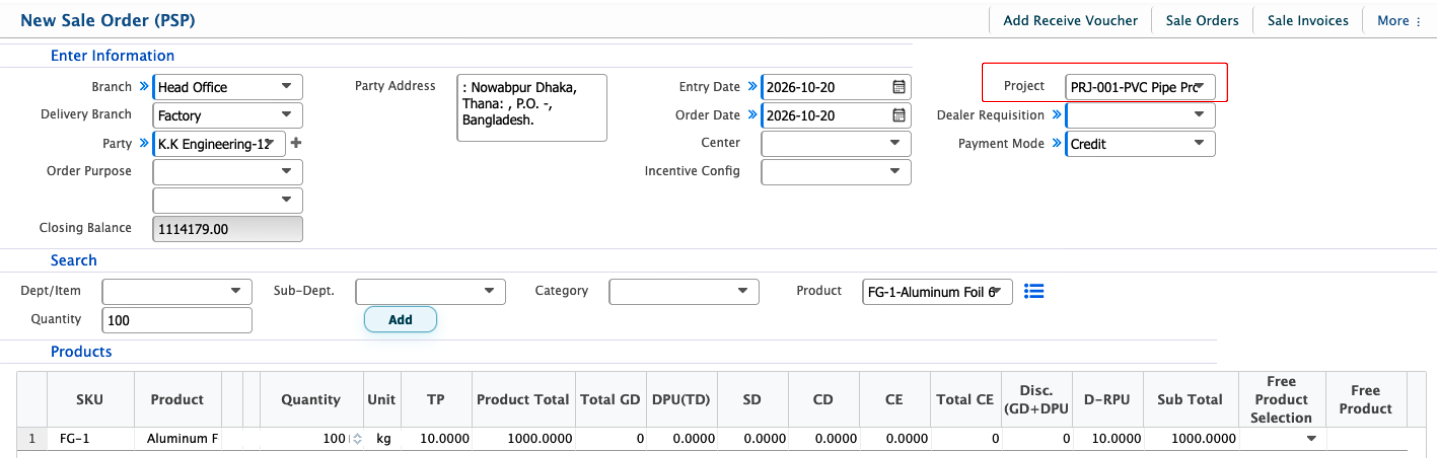
- Navigate to the Sale Order section and create a new Sale Order.
- In the Enter Information section, select the Branch, Delivery Branch, and Party.
- In the Project field, select the relevant project.
- Enter the remaining details, such as Order Purpose, Entry Date, Order Date, and Payment Mode, as applicable.
- Add the required products and specify their quantities.
- Review the order and submit it for approval.
3. Link a Project to a Fund Requisition
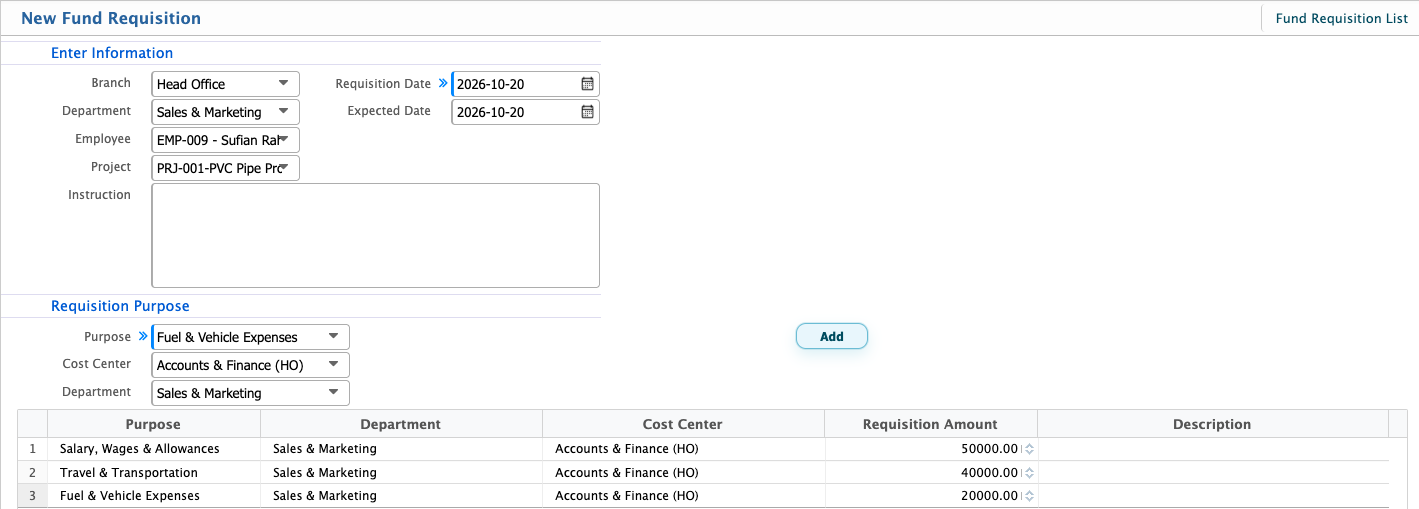
- Navigate to the Fund Requisition section and create a new Fund Requisition.
- In the Enter Information section, select the Branch, Department, and Employee.
- In the Project field, select the relevant project.
- Enter the Requisition Date, Expected Date, and Instruction, if applicable.
- Under Requisition Purpose, specify the purpose of the fund request and select the appropriate Cost Center and Department.
- Complete the remaining required information and submit the Fund Requisition.
Note: Before submitting a Purchase Order or Sale Order, check the BOQ quantities. If a product quantity exceeds the permitted quantity under the applicable BOQ rules, the transaction will not be approved.