Project BOQ
BOQ (Bill of Quantities) in PrismERP is used to define the products, required quantities, and estimated costs associated with a project. Users can create BOQ categories, prepare templates with predefined products, and create a BOQ for a specific project. They can also track planned quantities, costs, spending, and remaining amounts to monitor project requirements and expenses.
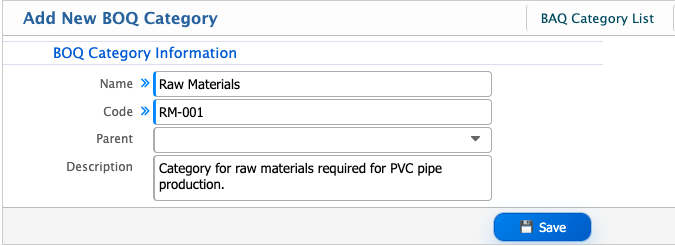
Add BOQ Category
| Field | Action |
|---|---|
| Name | Enter the name of the BOQ category. |
| Code | Enter a unique code for the BOQ category. |
| Parent | Select a parent category if the BOQ category belongs to an existing category hierarchy. |
| Description | Enter a brief description of the BOQ category. |
BOQ Category List
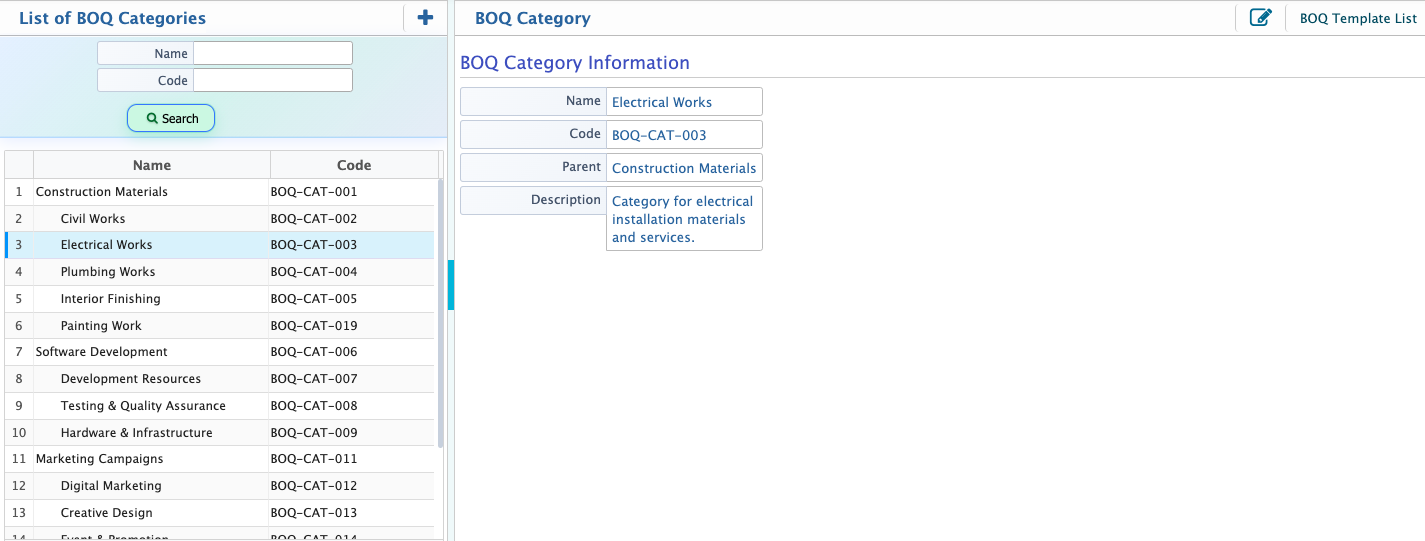
After adding a BOQ category, it appears in the BOQ Category List, which displays the name and code of each category. Users can search for a specific category and select it to view its details. They can also edit the category information, including the name, code, parent category, and description.
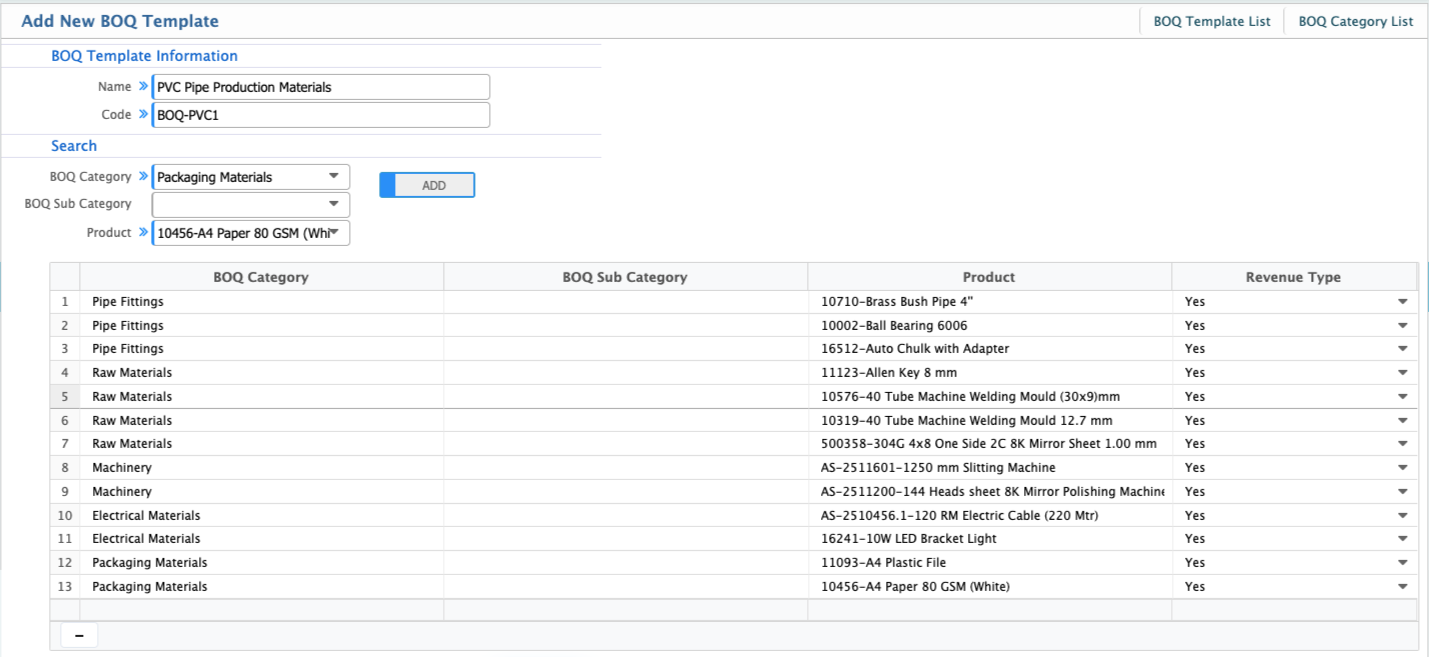
Add BOQ Template
| Field | Action |
|---|---|
| Name | Enter the name of the BOQ template. |
| Code | Enter a unique code for the BOQ template. |
| BOQ Category | Select the BOQ category associated with the template. |
| BOQ Sub Category | Select the BOQ sub-category, if applicable. |
| Product | Select the product to include in the BOQ template. |
| Revenue Type | Select Yes or No to specify whether the product is associated with revenue. |
BOQ Template List
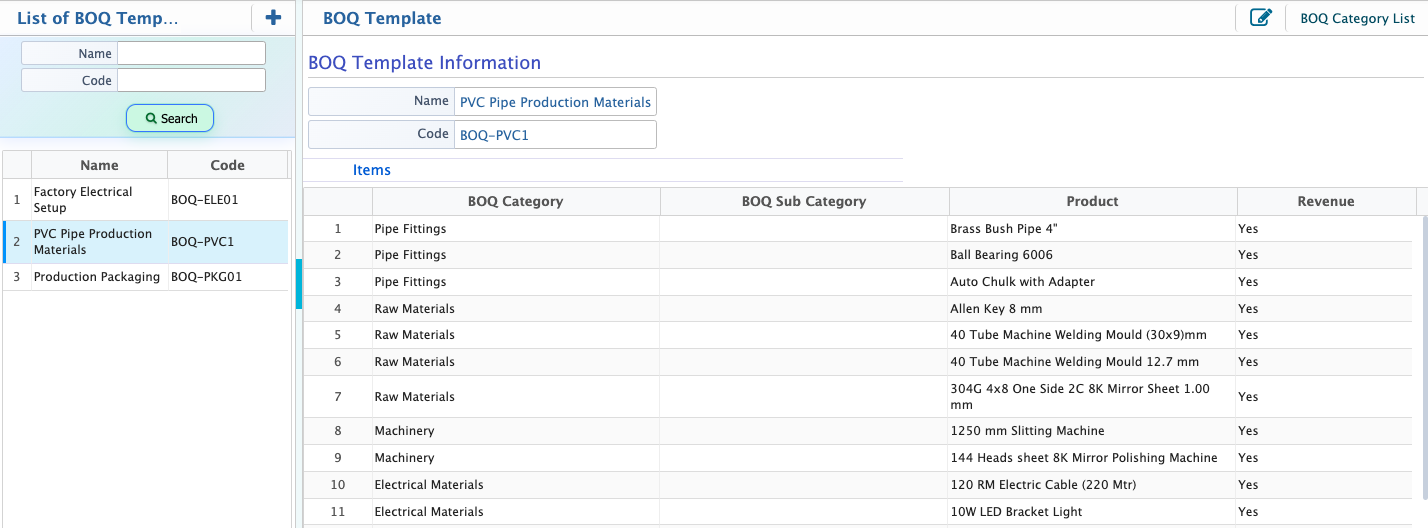
After adding a BOQ template, it appears in the BOQ Template List, which displays the name and code of each template. Users can search for a template by name or code and select it to view its details, including the associated BOQ categories, sub-categories, products, and revenue information. They can also edit the template name, code, and included items as needed.
Add New BOQ
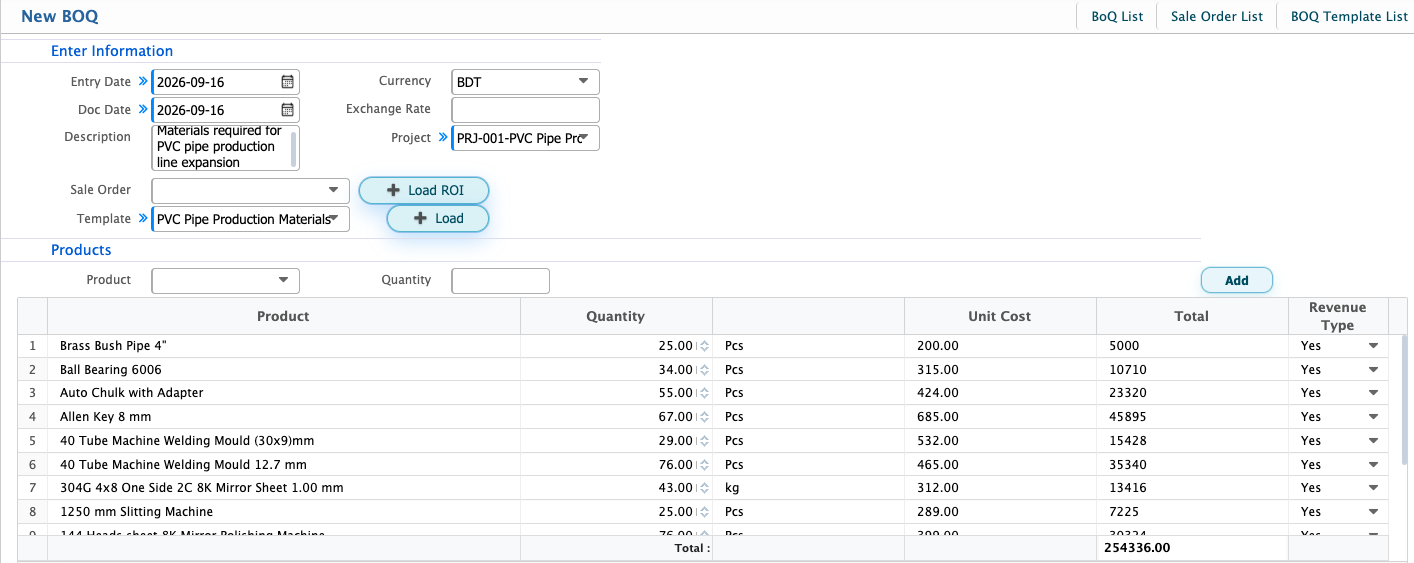
| Field | Action |
|---|---|
| Entry Date | Select the date on which the BOQ is entered. |
| Doc Date | Select the document date of the BOQ. |
| Description | Enter a description for the BOQ. |
| Currency | Select the currency used for the BOQ. |
| Exchange Rate | Enter the exchange rate applicable to the selected currency. |
| Project | Select the project associated with the BOQ. |
| Sale Order | Select the related sales order, if applicable. |
| Template | Select a BOQ template to add its predefined products to the BOQ. |
| Product | Select the product to include in the BOQ. |
| Quantity | Enter the required quantity of the product. |
| Unit Cost | Enter the cost per unit of the product. |
| Total | The total amount is calculated based on the quantity and unit cost. |
| Revenue Type | Select Yes or No to specify whether the product is a revenue item. |
BOQ List
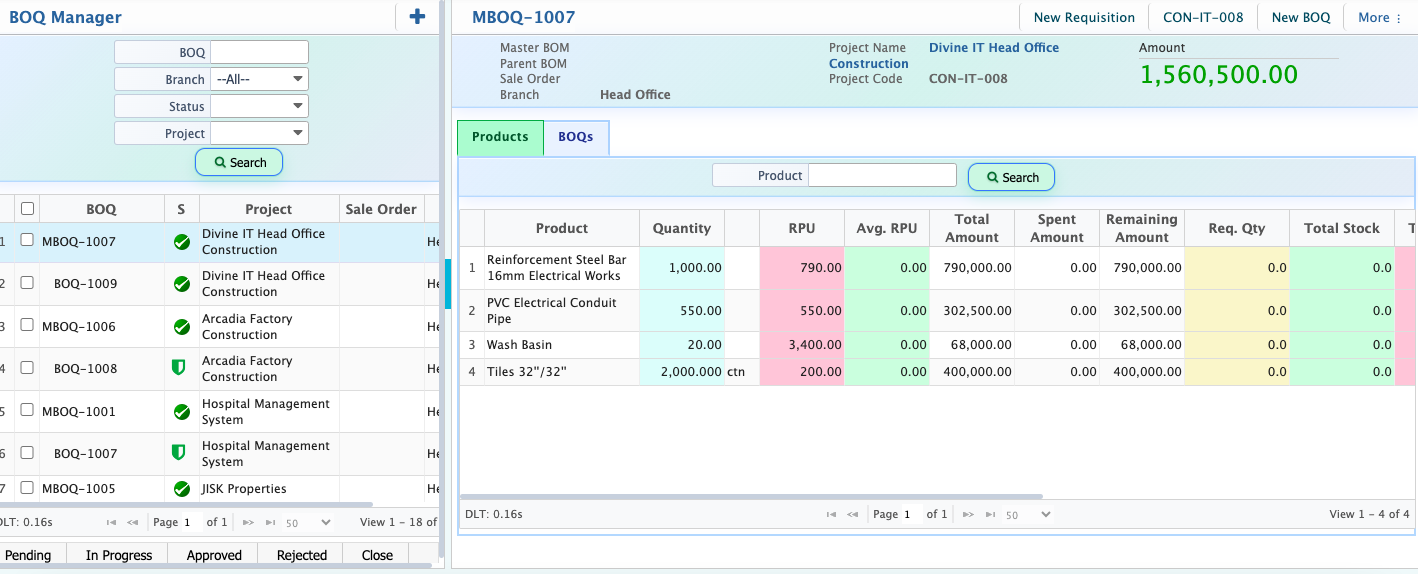
After saving a BOQ, it appears in the BOQ List. By selecting a BOQ, users can view its details, including the project name and code, total amount, and associated products. Product details include the planned quantity, average rate per unit (RPU), total amount, spent amount, and remaining amount.
Users can also review related requisition, stock, and purchase information to track the materials and costs associated with the BOQ. From the selected BOQ, they can create a new requisition or add another BOQ as needed.