Sales Target
Add Sales Target: Defining a sales target for a specific time interval for the sales department
Sales Target Add Sales Target
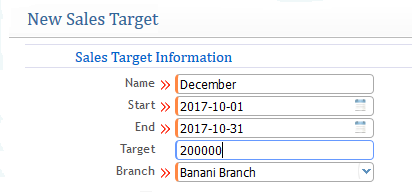
- Name: Name of the Specified Sales Target to recognize (It can be any name for example, month of December sales target so we provided the name "December").
- Start: Start time of the sales target for the sales group.
- End Time: End time to meet up the target.
- Target: Target amount of sales.
- Branch: Branch Assigning.
After adding the sales target, it will appear in the sales target list as shown below: (Also the list page view of Sales Target)
Sales Target List Sales Target

As you can see after creating the sales target, it will appear or be visible in the sales target list (Sales Target --> List Sales Target). From the list page, you can go to the specific sales target profile by clicking on the name of the sales target. Also, you can add a new sales target from the list page as well as print (report) the list.
Adding Employee Target to the Specific Sales Target:
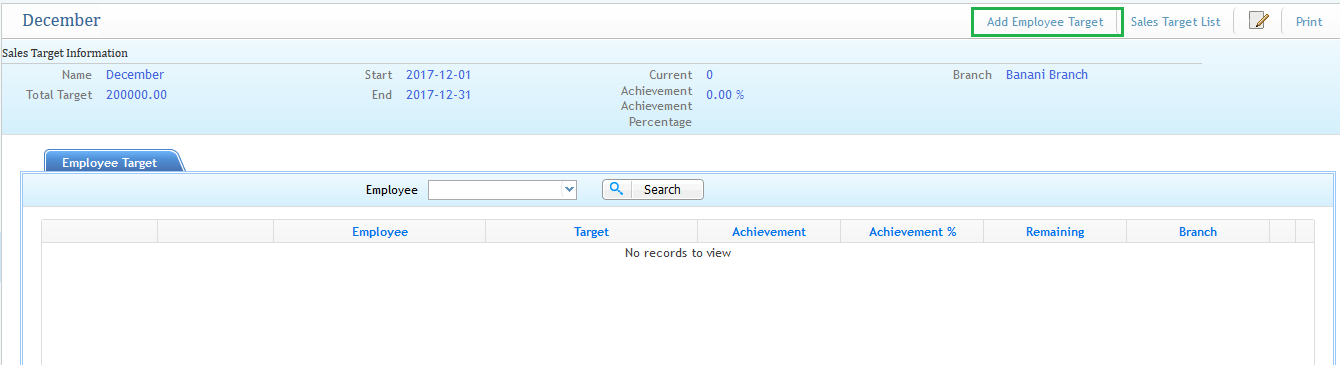
It can be done in two processes: either you visit a specific sales target and from that page click on the "Add Employee Target" or you can directly go to Sales Target --> Add Employee Target.
Both ways it is possible and the process is the same.
A) Adding Employee Target from the Specific Sales Target Profile:
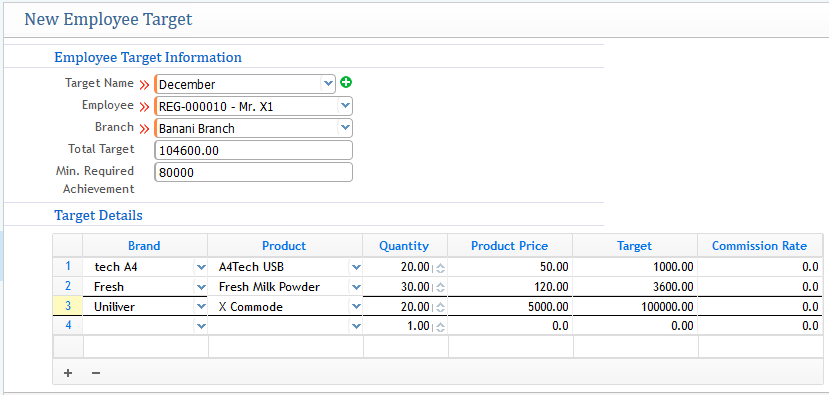
- Target Name: Selecting the Sales Target group where you will assign the employee.
- Employee: Selecting the employee.
- Branch: Assigning the Branch of the company.
- Total Target: The total target will be filled up automatically once you provide the target details of that employee.
- Minimum Required: From the total target, the minimum the employee needs to achieve to get the commission rate for each product.
- Target Details: Details show the name of the product brand along with quantity product price. The target amount will automatically be calculated. Also, assigning the commission rate for each product sell if the employee achieves the minimum target from the total target set.
B) After Generating the Employee Target it will Appear in the Employee Target List Shown Below: (List page view of employee target)
Sales Target List Employee Target

From the list, you can see when you added an employee target, it has been provided under that specific sales target with the detailed information of target amount, achievement amount, and its percentage achieved.
- Minimum Required Achievement: (Note that minimum required will decrease as soon as the employee starts to sell).
- Total Commission Achieved: (It will start after crossing the minimum required).
All are visible so clearly in the list page, as well as the ability to modify or edit specific employee target options for changing the target, adding a new employee target from the list page, and reporting the list of employee target page.