Receipts & Payment Entry
Users can manage all loan-related transactions in PrismERP through the Receipts and Payment Entry section. This includes recording when a loan is received, making loan repayments, and paying any processing fees.
For each transaction, users can create a voucher to post the payment in the system. The vouchers automatically populate relevant loan and account details, making it easy to record payments without missing any information. Once saved, the voucher updates the loan balance and ensures all financial records remain accurate.
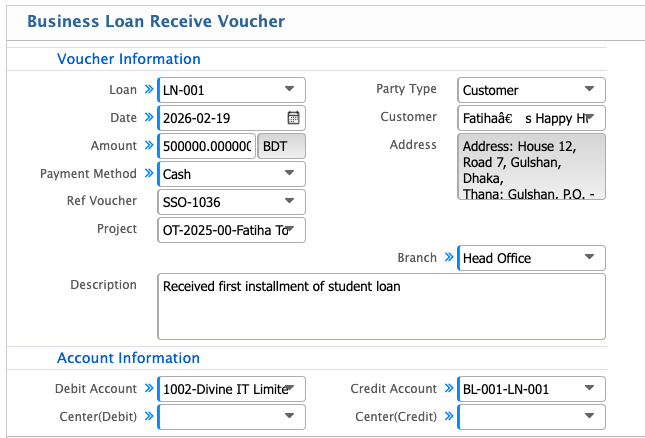
Add Business Loan Receive Voucher
| Field | Action |
|---|---|
| Loan | Select the loan for which the receipt is being recorded. |
| Date | Enter the date of the voucher or receipt. |
| Amount | Enter the amount received against the loan. |
| Payment Method | Select the payment mode (e.g., Cash, Bank Transfer). |
| Ref Voucher | Enter any reference voucher number, if applicable. |
| Project | Select the related project, if any. |
| Party Type | Select the type of party (Customer, Supplier, etc.). |
| Customer | Select the customer or party from whom the loan is received. |
| Address | Enter the party’s address for record purposes. |
| Branch | Select the branch applicable to the transaction. |
| Description | Enter any notes or details about the loan receipt. |
| Debit Account | Select the ledger account to debit (Cash/Bank). |
| Credit Account | Select the loan receivable account to credit. |
| Center (Debit) | Select the cost/department center, if applicable. |
| Center (Credit) | Select the cost/department center, if applicable. |
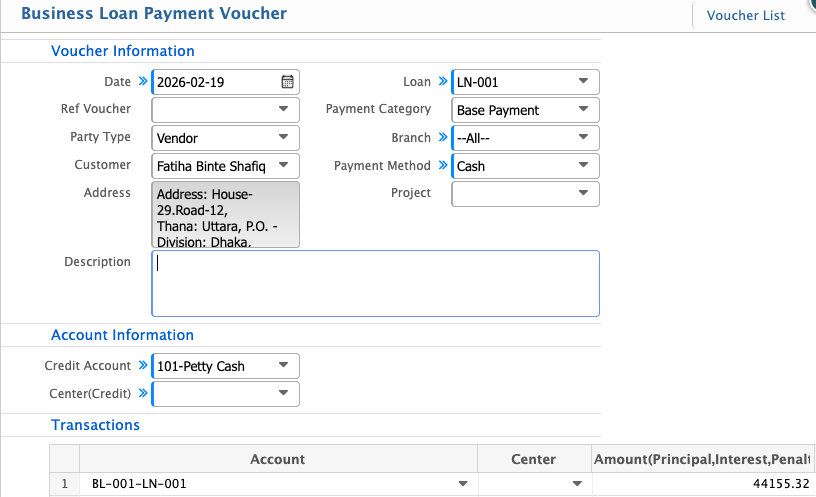
Add Business Loan Payment Voucher
| Field | Action |
|---|---|
| Date | Enter the date of the payment voucher. |
| Ref Voucher | Enter any reference voucher number, if applicable. |
| Party Type | Select the type of party (Vendor, Customer, etc.). |
| Loan | Select the loan associated with this payment. |
| Payment Category | Select the category of payment. |
| Branch | Select the branch responsible for this payment. |
| Payment Method | Select the mode of payment (e.g., Cash, Bank Transfer). |
| Project | Select the project associated with the payment, if applicable. |
| Description | Enter any notes or details about the payment. |
| Credit Account | Select the ledger account to credit. |
| Center (Credit) | Select the cost/department center, if applicable. |
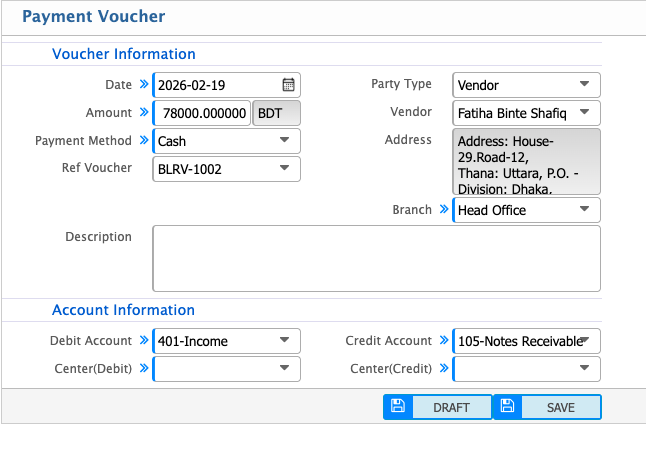
Processing Fee Payment Voucher
| Field | Action |
|---|---|
| Date | Enter the date of the payment voucher. |
| Amount | Enter the amount to be paid. |
| Payment Method | Select the mode of payment (e.g., Cash, Bank Transfer). |
| Ref Voucher | Enter any reference voucher number, if applicable. |
| Party Type | Select the type of party (Vendor, Customer, etc.). |
| Vendor | Select the vendor or party to whom the payment is made. |
| Address | Enter the vendor’s address for record purposes. |
| Branch | Select the branch responsible for this payment. |
| Description | Enter any notes or details about the payment. |
| Debit Account | Select the ledger account to debit (e.g., Accounts Payable). |
| Credit Account | Select the ledger account to credit (e.g., Cash, Bank). |
| Center (Debit) | Select the cost/department center, if applicable. |
| Center (Credit) | Select the cost/department center, if applicable. |