Vendor Management
The PrismERP Vendor Management feature makes managing vendors simple and organized. It lets businesses add new vendors, keep track of detailed profiles, and monitor financial transactions like vouchers, ledgers, and opening balances. Users can manage company and contact information, categorize vendors, and handle accounts all in one place. With smart search, filter, and reporting tools, PrismERP helps keep vendor information accurate, accessible, and easy to manage, making procurement and vendor operations smoother.
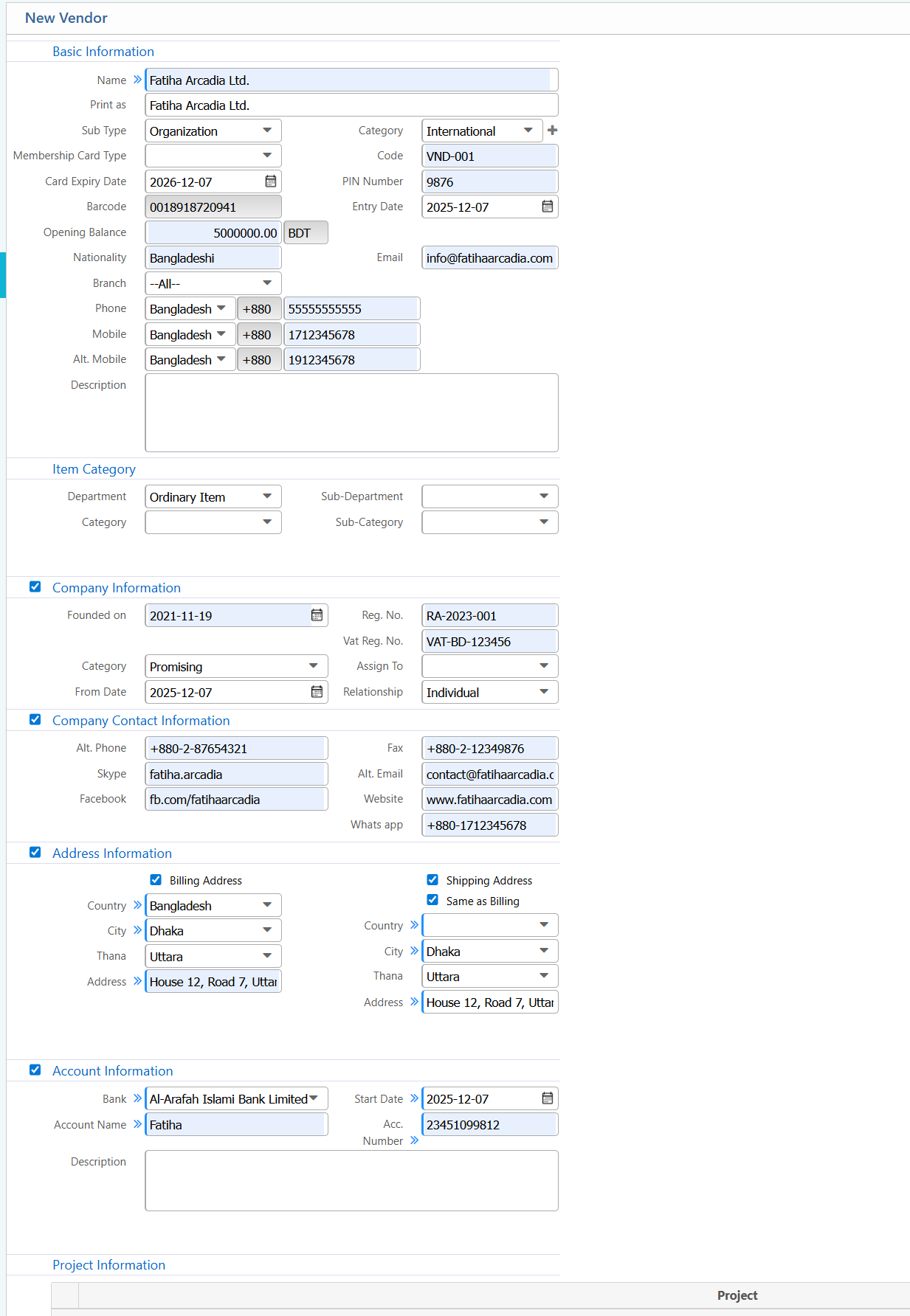
1. Add New Vendor
Basic Information:
| Field | Description |
|---|---|
| Customer NID/Mobile | Enter the vendor's NID or mobile number to search or register. |
| Name | Enter the vendor’s full name. |
| Print As | Specify how the vendor name will appear in print documents. |
| Sub Type | Select the vendor subtype |
| Organization | Enter the organization name if applicable. |
| Category | Choose the vendor category/group. |
| Membership Card Type | Select the type of membership card (if any). |
| Card Expiry Date | Enter the card’s expiry date. |
| Barcode | System-generated or manually assigned barcode. |
| Opening Balance (BDT) | Enter the vendor’s opening balance. |
| Code | Enter Vendor Code |
| PIN Number | Enter the vendor’s PIN number. |
| Entry Date | The date the vendor record is created. |
| Nationality | Select the vendor’s nationality. |
| Enter the vendor’s email address. | |
| Branch | Select the branch where the vendor will be managed. |
| Phone | Enter the vendor’s landline number. |
| Mobile | Enter the vendor’s mobile number. |
| Alt. Mobile | Enter an alternative mobile number. |
| Description | Add any additional notes about the vendor. |
Item Category / Department:
| Field | Description |
|---|---|
| Department | Select the relevant department. |
| Sub-Department | Select the sub-department. |
| Category | Select the category. |
| Sub-Category | Select the sub-category. |
Company Information:
| Field | Description |
|---|---|
| Founded On | Enter the company founding date. |
| Reg. No. | Enter company registration number. |
| VAT Reg. No. | Enter VAT registration number. |
| Category | Select company category (e.g., Promising). |
| From Date | Enter the start date for the category or assignment. |
| Assign To | Specify the person or department assigned. |
| Relationship | Specify the relationship type (Individual/Company). |
Company Contact Information:
| Field | Description |
|---|---|
| Alt. Phone | Enter an alternative phone number. |
| Skype | Enter Skype ID if available. |
| Enter Facebook profile or page link. | |
| Fax | Enter fax number (if any). |
| Alt. Email | Enter an alternative email. |
| Website | Enter company website URL. |
| Enter WhatsApp number. |
Address Information:
| Field | Description |
|---|---|
| Billing Address | Enter full billing address. |
| Country | Select billing country. |
| City | Enter billing city. |
| Thana | Enter billing thana. |
| Address | Enter detailed billing address. |
| Shipping Address | Enter shipping address if different from billing. |
Account Information:
| Field | Description |
|---|---|
| Bank | Select bank name. |
| Account Name | Enter account holder name. |
| Start Date | Enter account start date. |
| Account Number | Enter bank account number. |
| Description | Add notes or description about the account. |
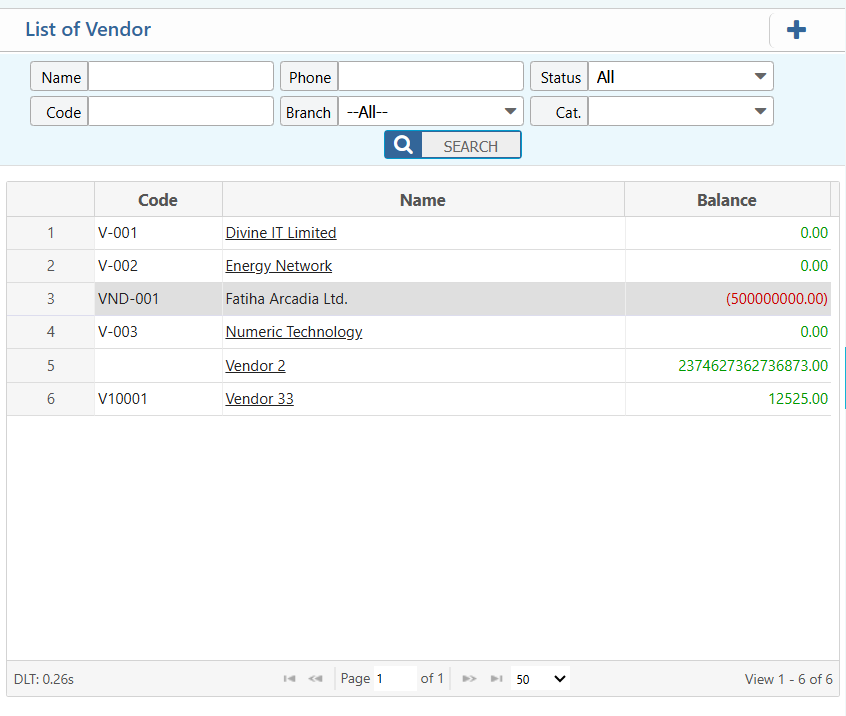
2. Vendor List
2.1 Vendor Search & Filter Options
| Field | Description |
|---|---|
| Name | Search vendors by full or partial name. |
| Code | Search vendors by their unique code. |
| Phone | Search vendors by phone number. |
| Status | Filter vendors by status (Active, Inactive, All). |
| Branch | Select a specific branch. |
| Category (Cat.) | Filter vendors by category/group. |
2.2 Vendor Details View
| Field | Description |
|---|---|
| Details | Shows all basic and extended vendor information. |
| Voucher | Access all vouchers related to this vendor. |
| Ledger | View ledger and balance details for the vendor. |
| Attachments | Upload or view documents related to the vendor. |
| Transactions | View all financial transactions linked to the vendor. |
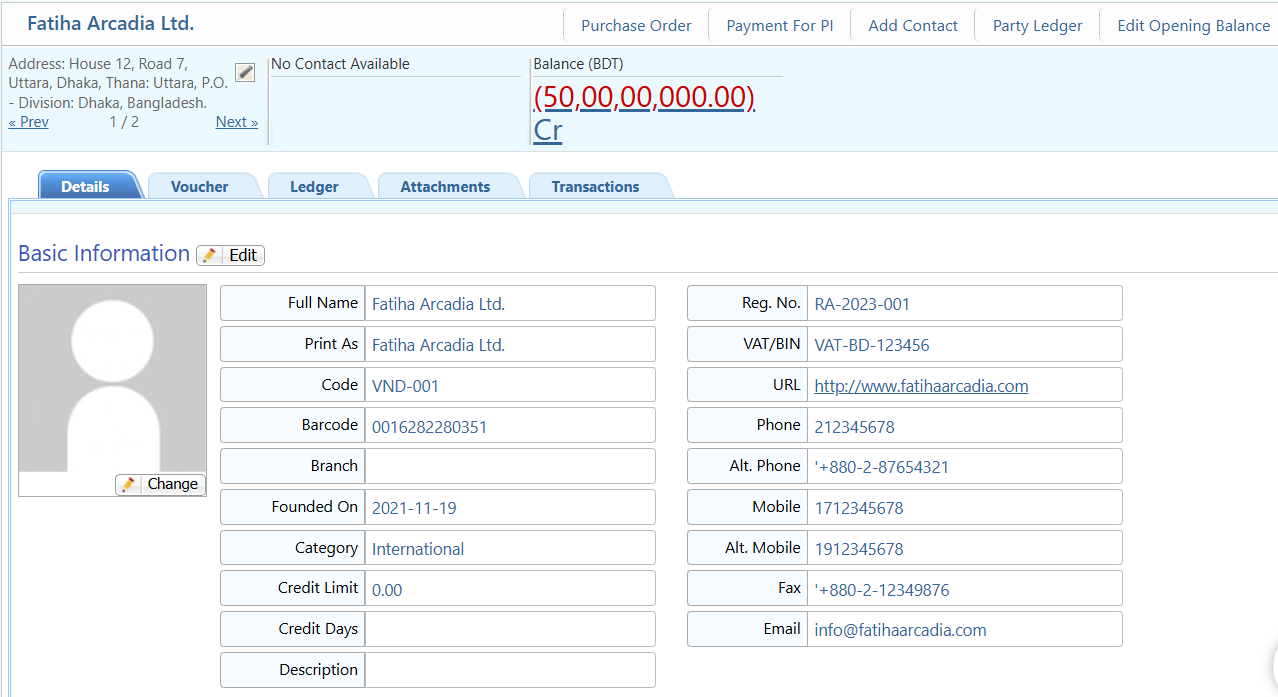
2.3 Vendor Action Item
| Field | Description |
|---|---|
| Purchase Order | Create a new purchase order for the vendor. |
| Payment for PI | Record a payment made for a purchase invoice. |
| Add Contact | Add or update contact information for the vendor. |
| View Party Ledger | Open the ledger to see all debit/credit transactions for the vendor. |
| Edit Opening Balance | Modify the vendor’s opening balance. |