HR Cost Center
The HR Cost Center module in PrismERP is used to manage HR-related financial records within a defined structure. It connects HR budgeting with operational areas such as recruitment, payroll processing, employee benefits, allowances, and other HR transactions. The setup is organized through cost categories and cost centers, which are used to classify and group different HR expenses under specific heads.It also includes HR budget creation and maintenance, where allocations are defined for different cost categories over a selected time period. These budgets are linked with organizational units such as branches, departments, sections, and positions, and are maintained along with their related records within PrismERP.
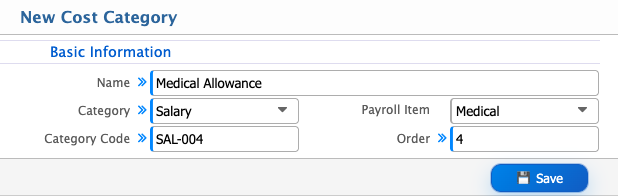
Add Cost Category
| Field | Action |
|---|---|
| Name | Enter the name of the cost category. |
| Category | Select the category under which the cost category will be grouped. |
| Payroll Item | Select the payroll item associated with the cost category, if applicable. |
| Category Code | Enter a unique code for the cost category. |
| Order | Enter the display or processing order of the cost category. |
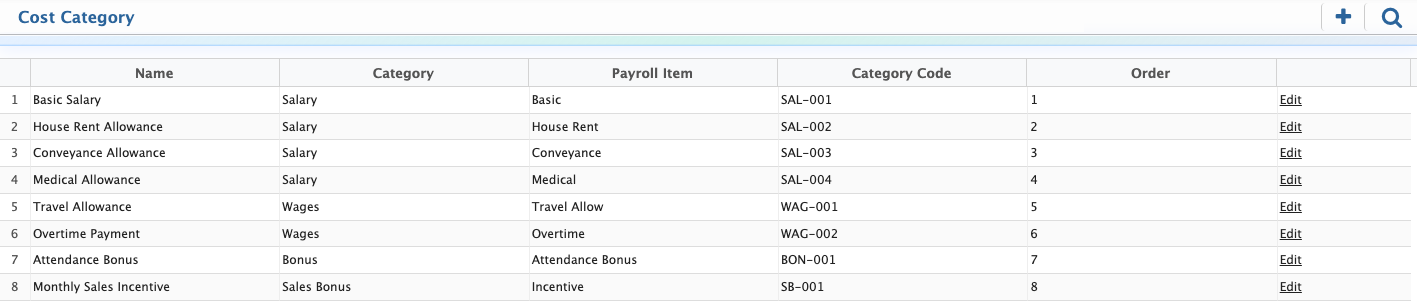
After creating a Cost Category, the record becomes available in the Cost Category List. Users can view all configured cost categories along with their associated category, payroll item, category code, and order. The Search Panel can be used to locate a specific cost category by entering relevant search criteria. Selecting a record displays its details, and users can edit the cost category information whenever updates are required.
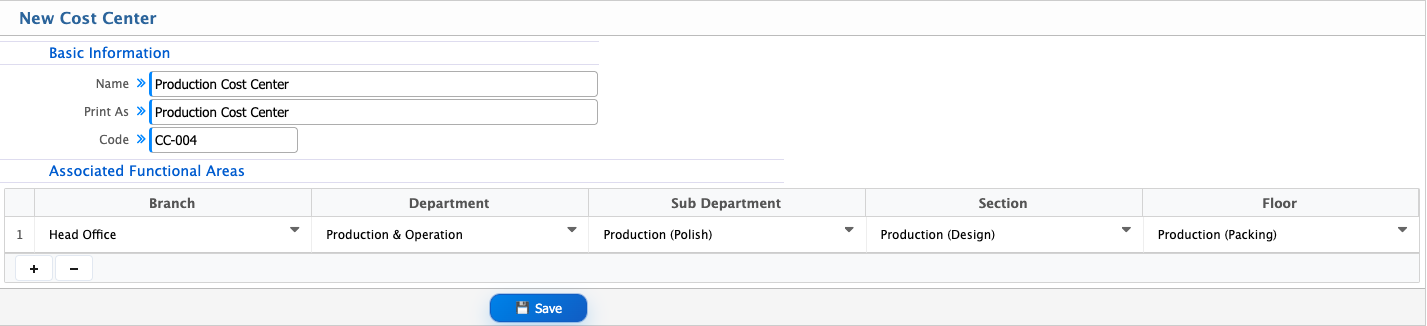
Add Cost Center
| Field | Action |
|---|---|
| Name | Enter the name of the cost center. |
| Print As | Enter the display name to be used in reports and system outputs. |
| Code | Enter a unique code for the cost center. |
| Branch | Select the branch associated with the cost center. |
| Department | Select the department associated with the cost center. |
| Sub Department | Select the sub-department associated with the cost center. |
| Section | Select the section associated with the cost center. |
| Floor | Select the floor associated with the cost center. |
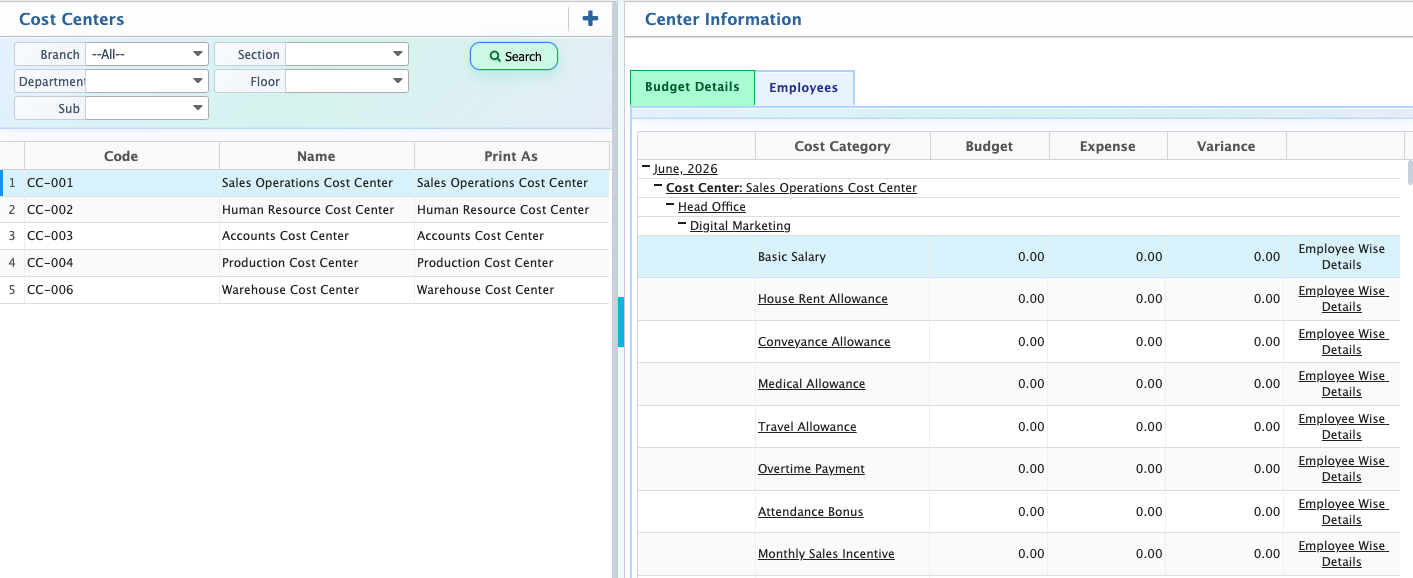
After a Cost Center is added, it becomes available in the Cost Center List in PrismERP. Users can view all configured cost centers along with their code, name, and print name, and use the Search Panel to quickly find specific records based on organizational filters such as branch, department, sub-department, section, and floor.When a cost center is selected, the right-side panel displays detailed budget and expense breakdowns, including cost category-wise amounts, monthly distribution, and variance analysis. Users can also review employee-wise and cost segment-wise details to understand how the cost center is being utilized across the organization.
Add HR Budget
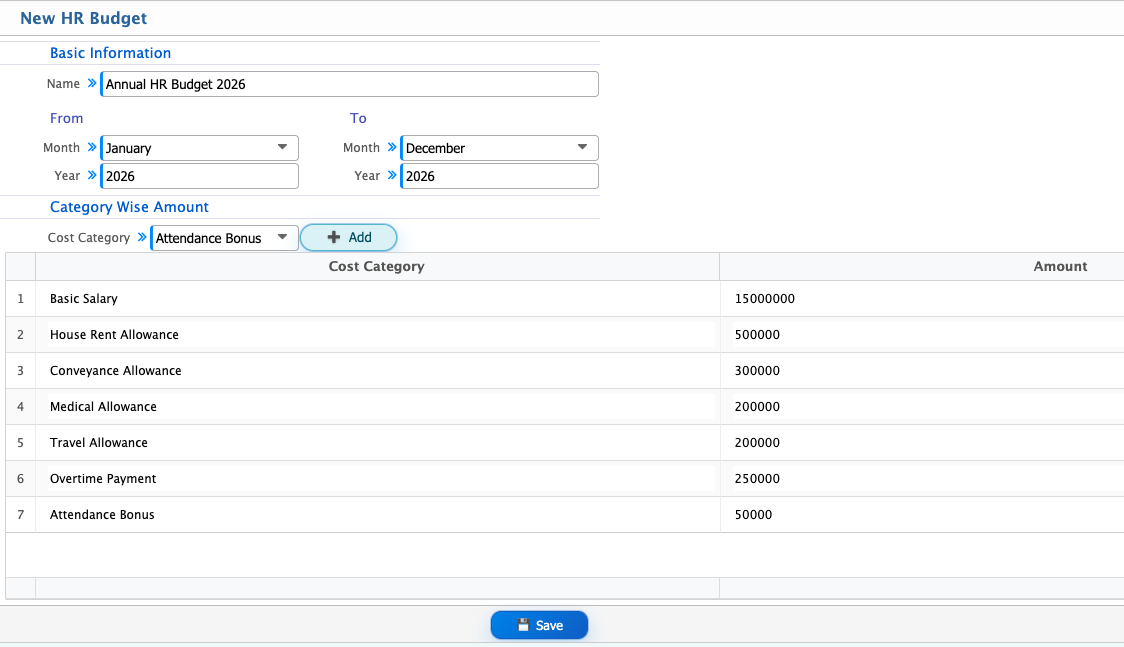
| Field | Action |
|---|---|
| Name | Enter a name that identifies the HR budget. |
| From Month | Select the starting month for the budget period. |
| From Year | Select the starting year for the budget period. |
| To Month | Select the ending month for the budget period. |
| To Year | Select the ending year for the budget period. |
| Cost Category | Select the cost category for which the budget amount will be allocated. |
| Amount | Enter the allocated budget amount for the selected cost category. |
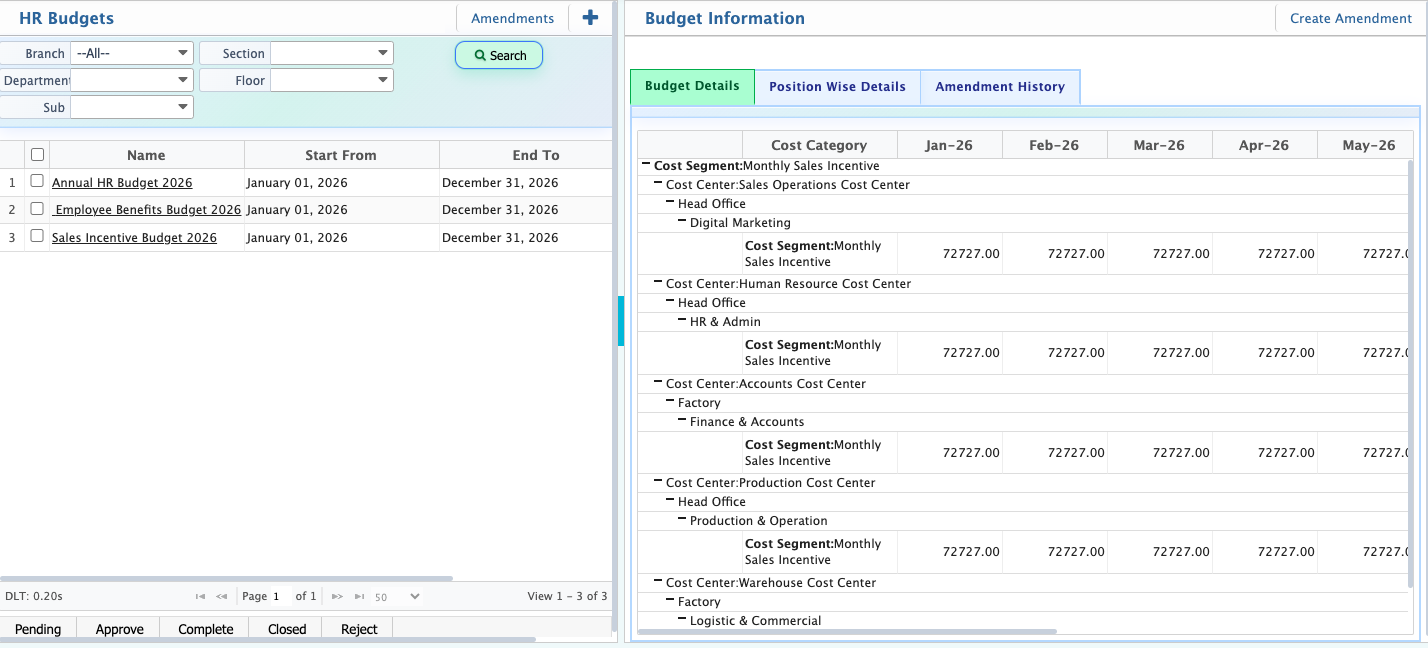
After creating an HR Budget, the record becomes available in the HR Budgets list. Users can use the available filters such as Branch, Department, Sub Department, Section, and Floor to locate specific budget records. The list displays key information including the budget name, budget period, and total budget amount.
From the budget list, users can manage the budget workflow through different statuses:
- Pending – The budget has been created and is awaiting review or approval.
- Approved – The budget has been reviewed and authorized for use.
- Completed – The budget period or budgeting process has been successfully completed.
- Rejected – The budget was reviewed but not approved and may require corrections or resubmission.
- Closed – The budget is finalized and no further processing or modifications are expected.
When a budget is selected, the right-side details panel displays additional information through multiple tabs. The Budget Details tab provides a detailed breakdown of budget allocations by cost category, cost center, and monthly distribution. The Position Wise Details tab displays budget allocations based on organizational positions and workforce planning. The Amendment History tab shows all modifications made to the budget over time, allowing users to review previous changes and maintain a complete audit trail.
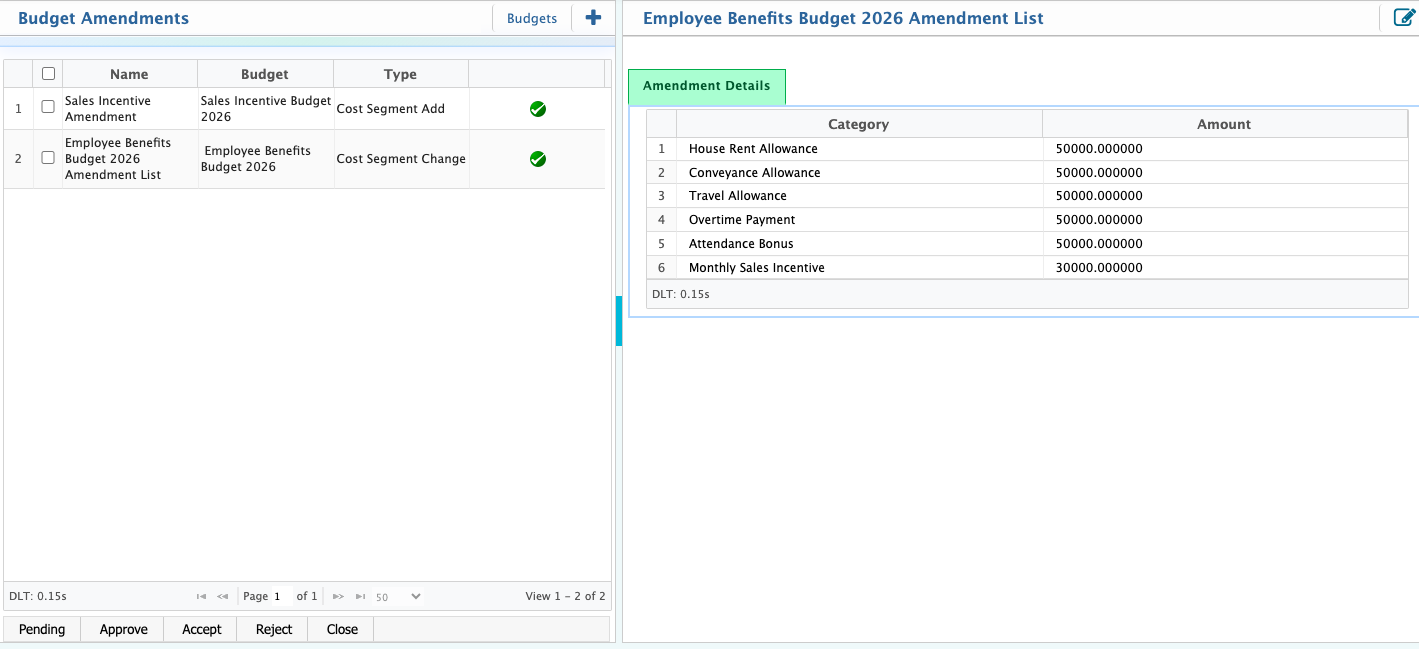
If changes are required after a budget has been created, users can create a Budget Amendment from the selected HR Budget. Amendments are used to update budget allocations without creating a new budget, while maintaining a history of all changes.
PrismERP supports four types of budget amendments:
- Cost Segment Add – Used to add a new cost segment to an existing budget that was not included during the original budget preparation.
- Cost Segment Change – Used to modify the allocation amount of an existing cost segment within the budget.
- Department Allocation Change – Used to reallocate budget amounts between departments while keeping the overall budget structure intact.
- Designation Allocation Change – Used to adjust budget allocations among different employee designations or positions based on updated workforce planning requirements.
All amendments are recorded in the Amendment History section of the budget, allowing users to track what changes were made, when they were made, and how the budget evolved over time.After creating a budget amendment in PrismERP, it must be reviewed and approved before it becomes effective. Once it is approved and accepted, the changes are applied to the HR Budget and recorded in the system.