Bonus Configuration & Setup
The Bonus configuration & Setup in PrismERP Payroll is used to define, calculate, and process employee bonus payments within the payroll system. It allows users to set bonus rules based on factors such as department, designation, employment type, and other eligibility criteria.
Once configured, the bonus is used during calculation to identify eligible employees for a selected period. The system generates bonus amounts based on the defined rules and calculation settings.
Users can then review the results, select employees, and adjust bonus amounts if required, including partial or full values. The process continues through approval, accounting entry creation, and payment processing.
Finally, the bonus is recorded through voucher generation and becomes available for review in the payroll records.
Bonus Configuration
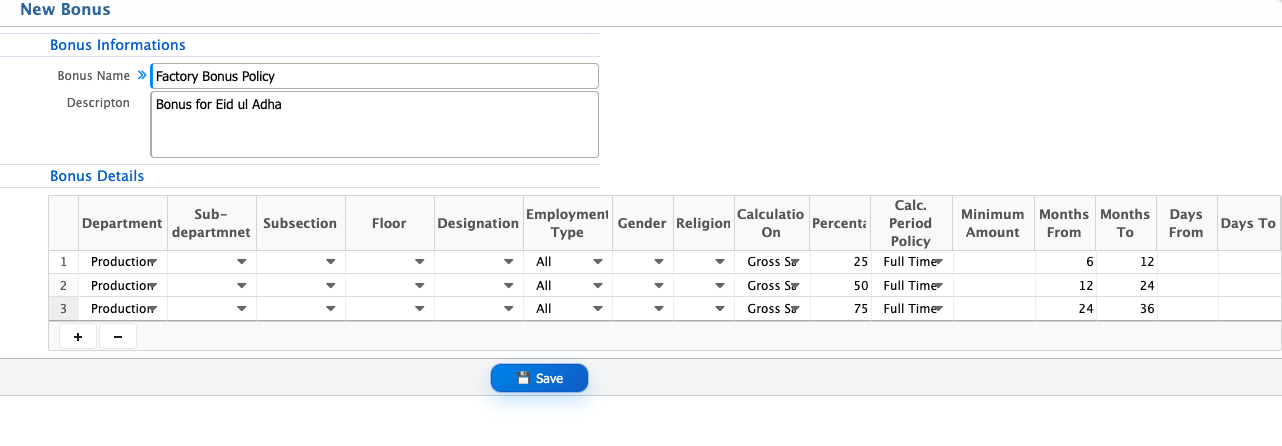
For bonus payment, the process starts by configuring the bonus setup in the system. In this step, users define the basic structure of the bonus, including eligibility rules, calculation method, and applicable conditions.
| Field | Action |
|---|---|
| Bonus Informations | Section used to define the basic details of the bonus setup. |
| Bonus Name | Enter a clear name to identify the bonus. |
| Description | Enter details describing the purpose of the bonus. |
| Bonus Details | Section used to define eligibility and calculation rules for the bonus. |
| Department | Select the department to which the bonus will apply. |
| Sub-department | Select the sub-department under the selected department. |
| Subsection | Select the subsection if applicable. |
| Floor | Select the floor or location if applicable. |
| Designation | Select the designation of employees eligible for the bonus. |
| Employment Type | Select the employment type (e.g., Full Time). |
| Gender | Select gender if the bonus is restricted by gender. |
| Religion | Select religion if the bonus is restricted by religion. |
| Calculation On | Select the salary component (e.g., Basic Salary) on which the bonus will be calculated. |
| Percentage | Enter the percentage to calculate the bonus amount. |
| Calc. Period Policy | Select the calculation period policy for bonus eligibility. |
| Minimum Amount | Enter the minimum bonus amount if applicable. |
| Months From | Enter the starting month range for eligibility. |
| Months To | Enter the ending month range for eligibility. |
| Days From | Enter the starting day range for eligibility. |
| Days To | Enter the ending day range for eligibility. |
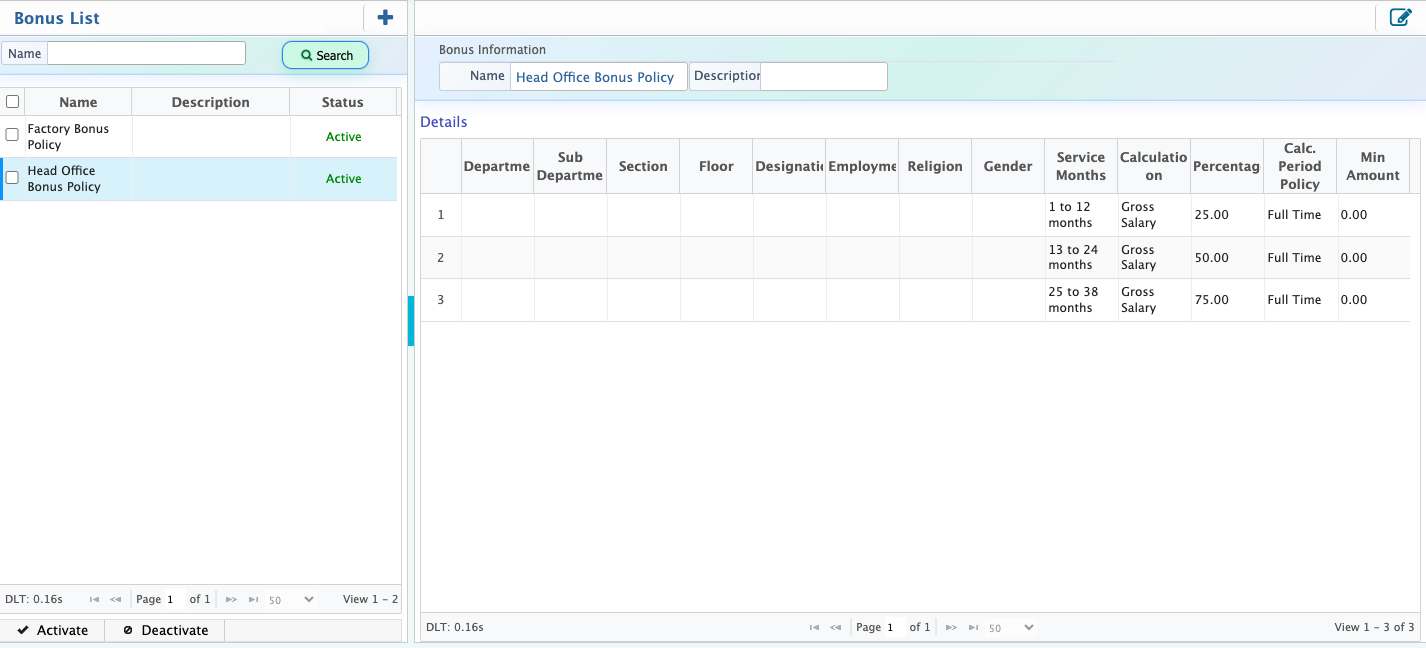
After a bonus is created in PrismERP, it appears in the Bonus List, where users can view all bonus setups along with their key details at a glance. From this view, users can quickly identify and review each bonus policy.
Users can also use the search panel to locate a specific bonus when needed. Each bonus can be opened for editing if any changes are required.
Users can also activate or deactivate a bonus when required. If a bonus is deactivated, it is removed from active use and will no longer be applied in related payroll calculations.
Calculate Bonus
| Field | Action |
|---|---|
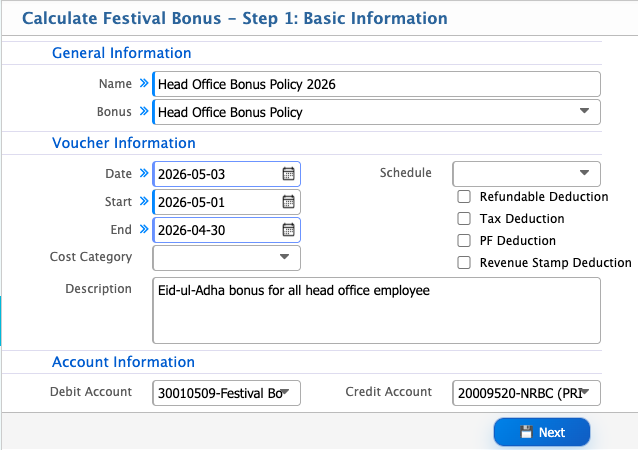
| General Information Name | Enter a name to identify the festival bonus calculation process. |
| Bonus | Select or enter the bonus type being calculated. |
| Voucher Information Date | Select the date of the bonus calculation voucher. |
| Start | Select the starting date of the bonus calculation period. |
| End | Select the ending date of the bonus calculation period. |
| Cost Category | Select the cost category for accounting allocation. |
| Schedule | Select the payroll schedule linked with the bonus calculation. |
| Refundable Deduction | Select if any refundable deduction applies to the bonus. |
| Tax Deduction | Select if tax deduction is applicable to the bonus amount. |
| PF Deduction | Select if provident fund deduction applies. |
| Revenue Stamp Deduction | Select if revenue stamp deduction is applicable. |
| Description | Enter additional notes related to the bonus calculation. |
| Debit Account | Select the account to be debited for bonus payment. |
| Credit Account | Select the account to be credited for bonus payment. |
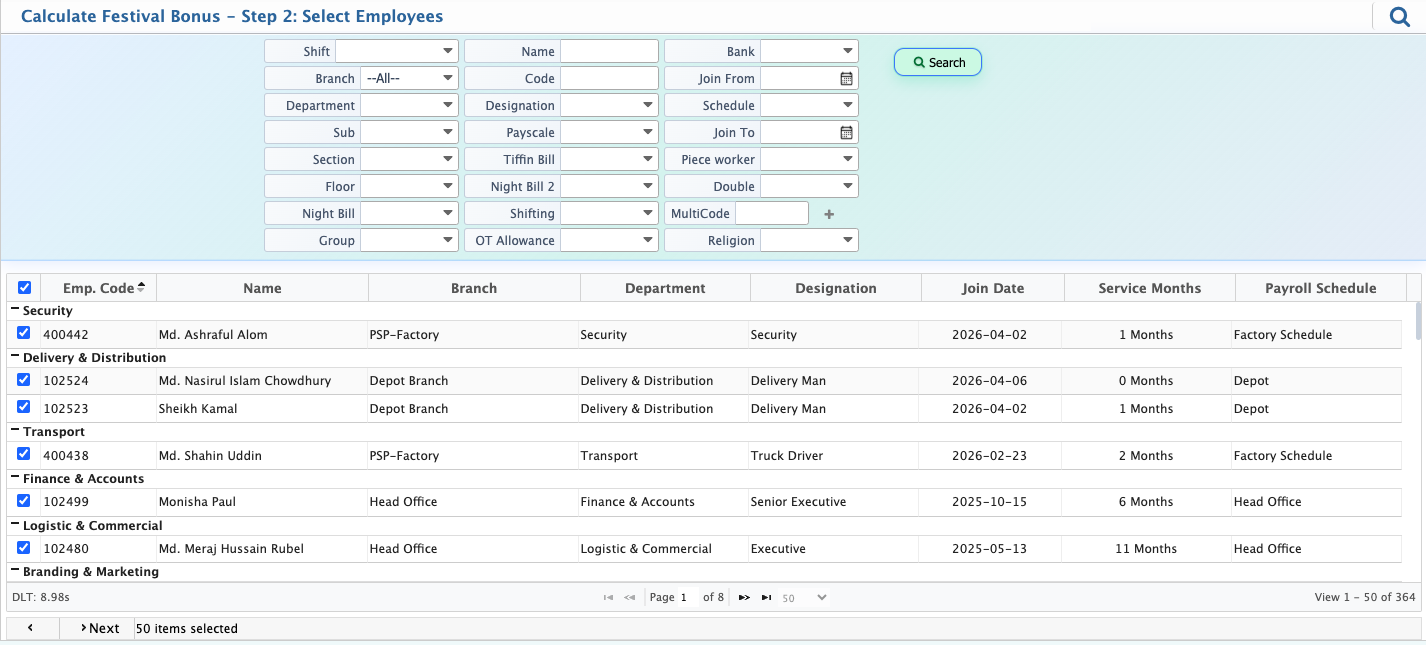
After calculating the bonus, the system loads all eligible employee data for the selected period. From this list, users need to review and select the employees who qualify for the bonus and click Next to proceed with the process.
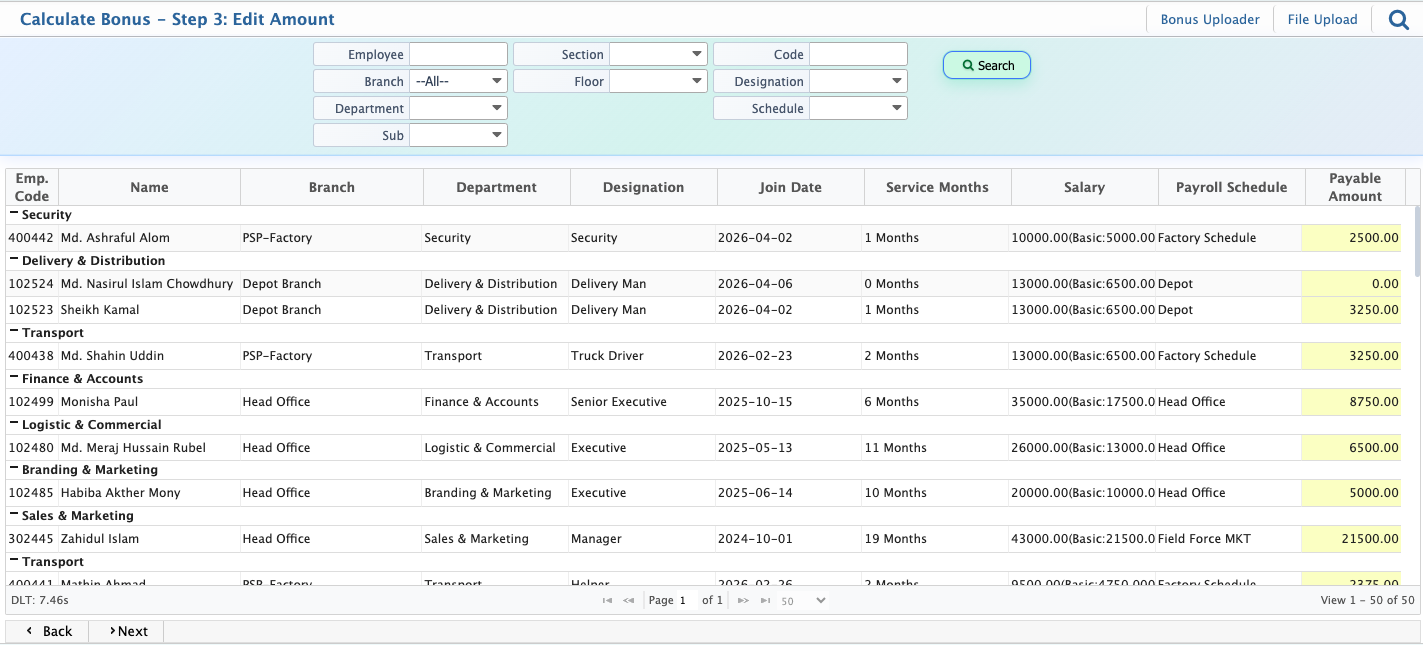
Next, users move to the Edit Amount step, where the calculated bonus amount for each selected employee is displayed. From this view, users can adjust the payment by assigning either a full amount or a partial amount to each employee.
If a partial amount is entered, the remaining balance is automatically recorded as a due amount, which can be processed later.
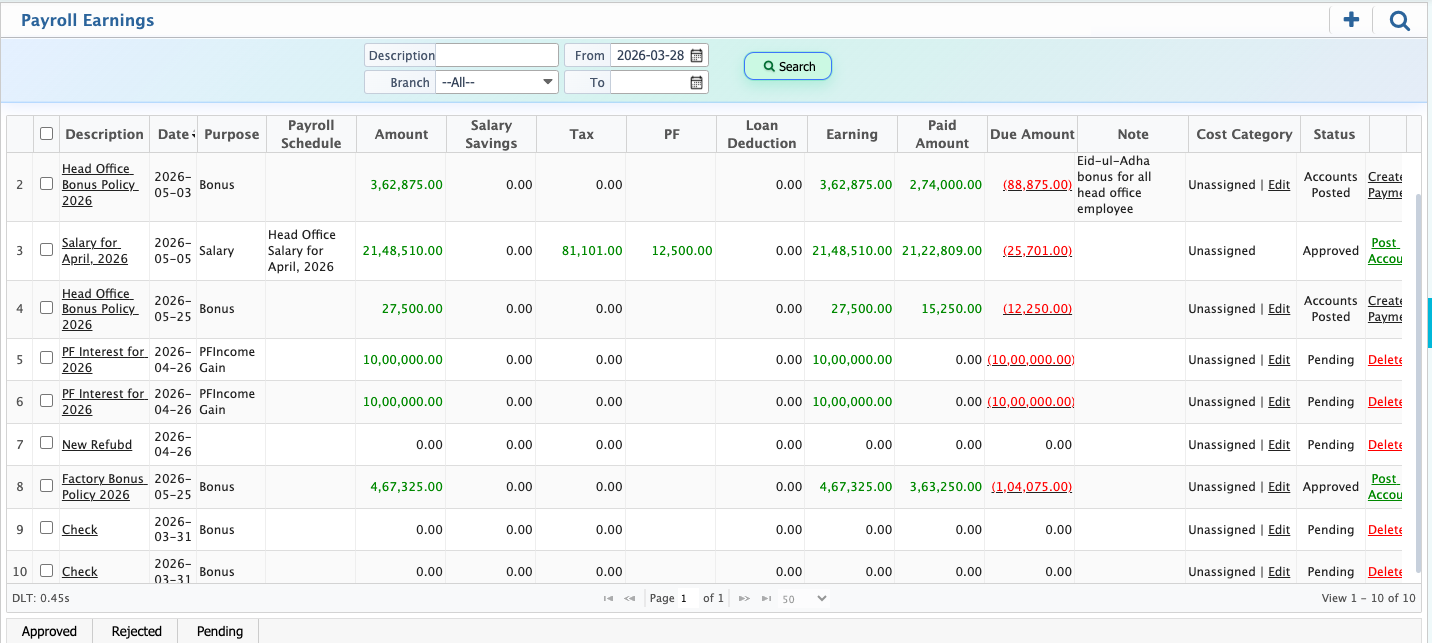
After this step, the newly created bonus appears in the Payroll Earnings List, where users can review it. From here, users can either approve the bonus to proceed to the next stage or reject it if any corrections are needed.
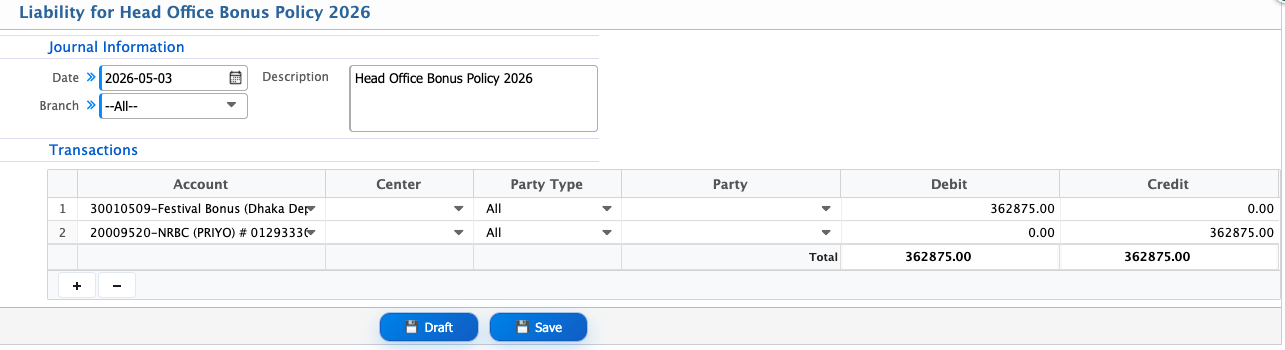
After approval, users can post the account. This action opens the liability page, where the accounting entry for the bonus is prepared. Users can review the details and save it to complete the posting process.
After saving the liabilities, users can proceed to create the payment. At this stage, users need to select the payment date and define the debit and credit accounts. Once the required information is set, users click Save to complete the payment creation process.
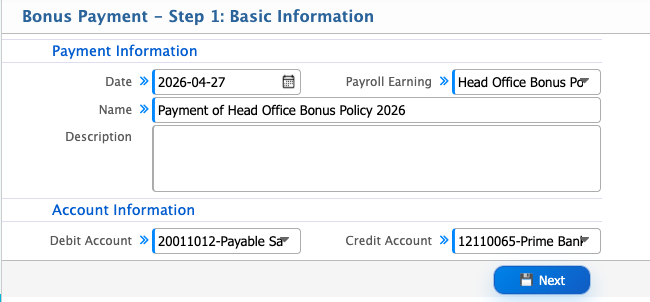
After that, users need to select the employees and post the payment. Once posted, it appears in the Payment List, where users can review the entries.
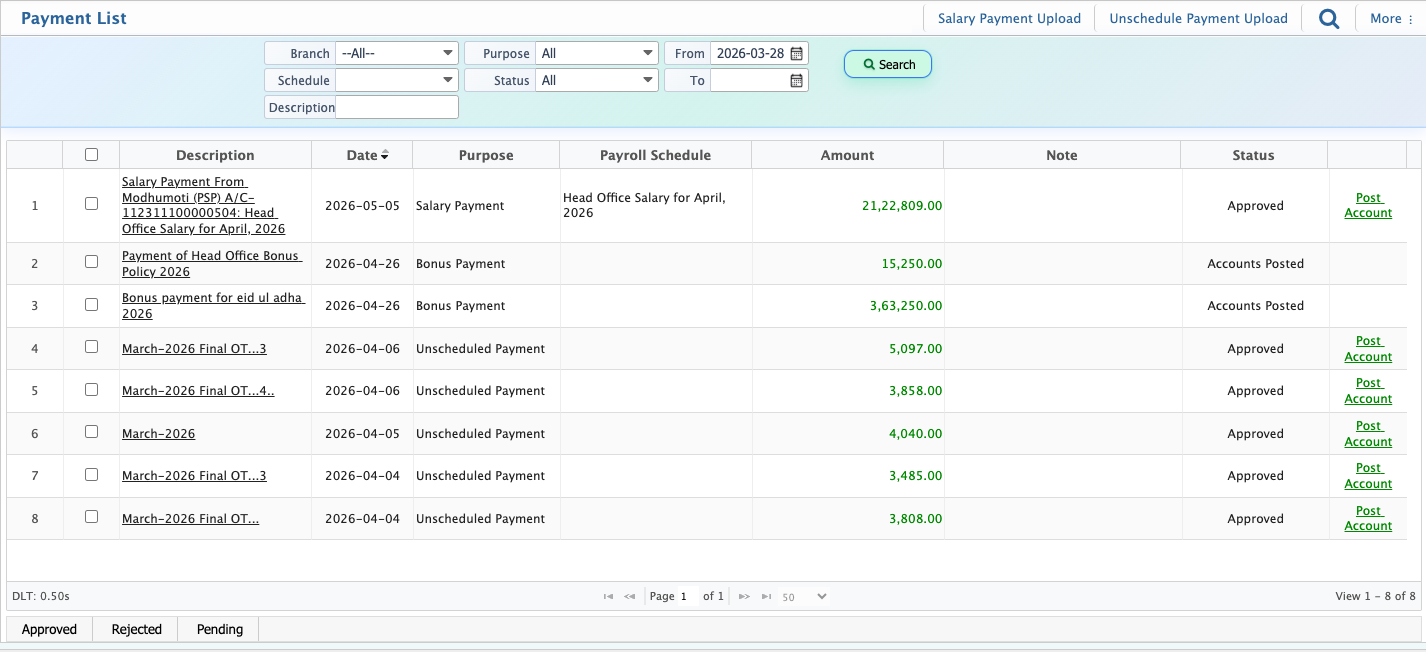
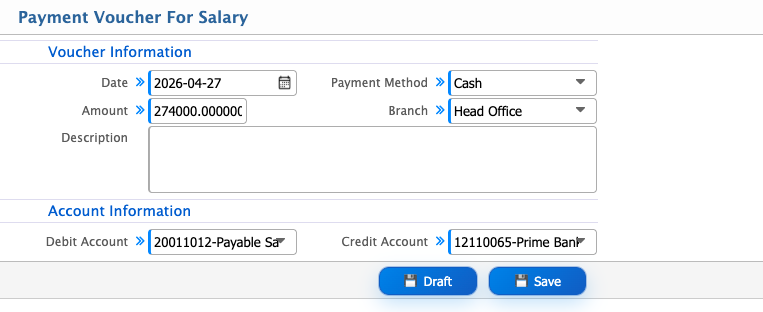
From the Payment List, users can post the account and proceed to create the payment voucher. In the voucher step, users need to select the branch and payment method, then click Save to complete the process.
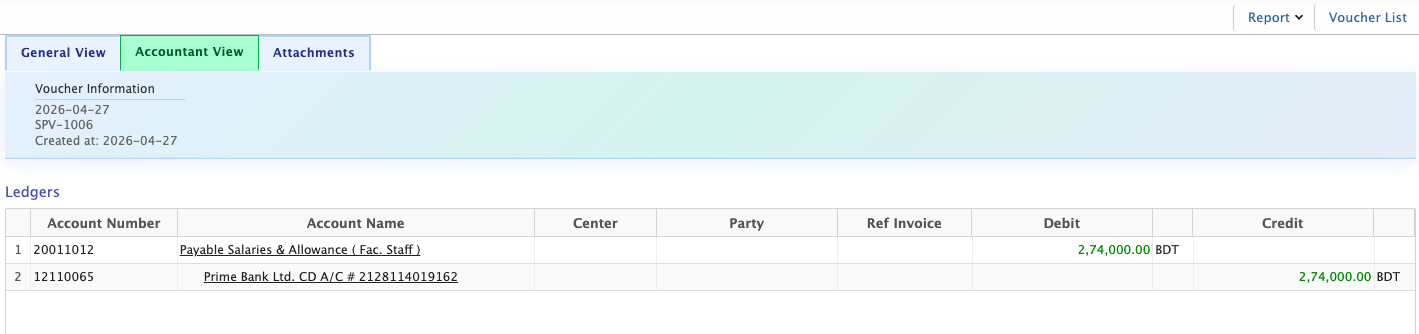
The newly created bonus voucher appears in the Voucher List, where users can view and review all voucher details. From this list, users can open the voucher in both General View and Accountant View to check the information from different perspectives. Users can also add attachments if any supporting documents need to be included with the voucher.