Work Order
Receive Work Order is similar to send worker, just with a few additional options. The screenshot is given below for better understanding. From this application, you can easily receive a work order, and Export LC is possible too.
Export LC Receive Work Order
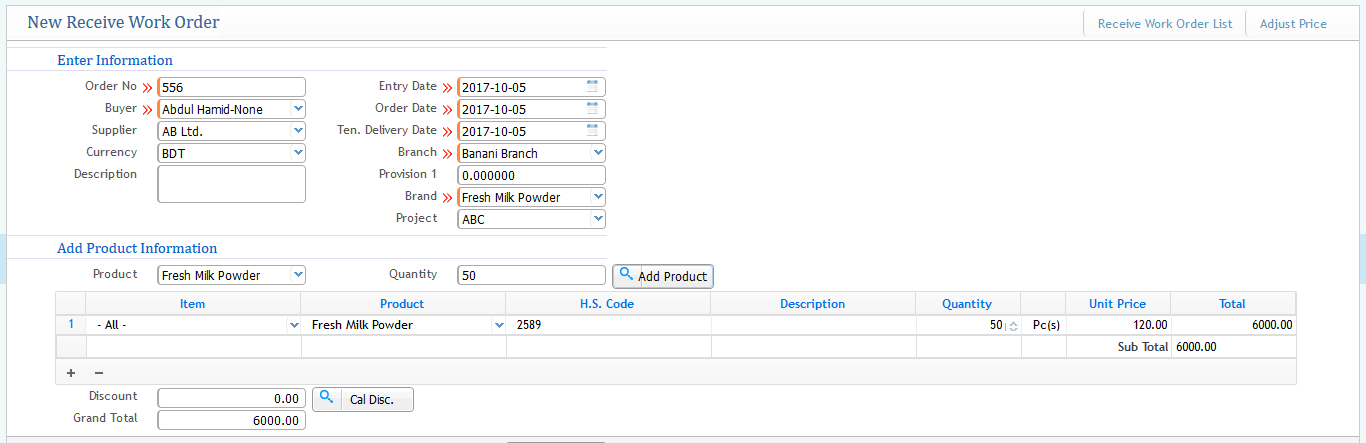
- Order No: Work Order number of a receiving order to track.
- Buyer: Name of the Buyer.
- Supplier: Name of the Company that supplies.
- Currency: Assigning specific currency.
- Entry, Order & Tentative Delivery Date: Putting all the assigned dates as per your function.
- Branch: Branch Assigning.
- Brand: Which brand product will the importer take from the exporter.
- Product: Name of the product to be exported.
- Quantity: Amount of product.
The "Add product" button will automatically put all the information into the product information box and finally will show the total amount of money for the work order.
Send Work Order
With PrismERP’s LC management, the importer can send a new work order to the exporter with product information. Basically, sending a work order is done for import LC.
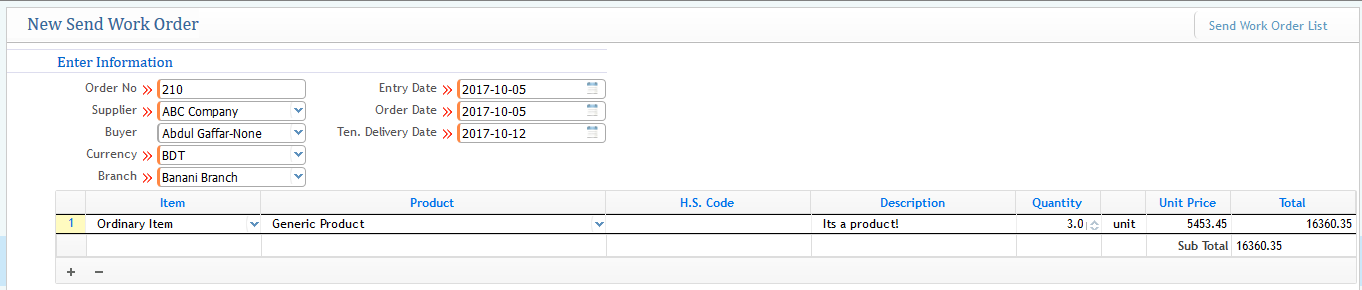
Work Order contains the following information:
- Order Number: Generating an order number to the exporter in order to track the work order against the buyer in the system.
- Supplier Name: Name of the Company.
- Buyer Name: Name of the exporter to whom you are sending the work order for importing products.
- Currency: Type of currency under which the work order is performed.
- Entry Date: Date of Entry.
- Order Date: Date of Order.
- Tentative Delivery Date: Expected delivery date of the goods or products.
LIST PAGE VIEW OF SEND WORK ORDER:
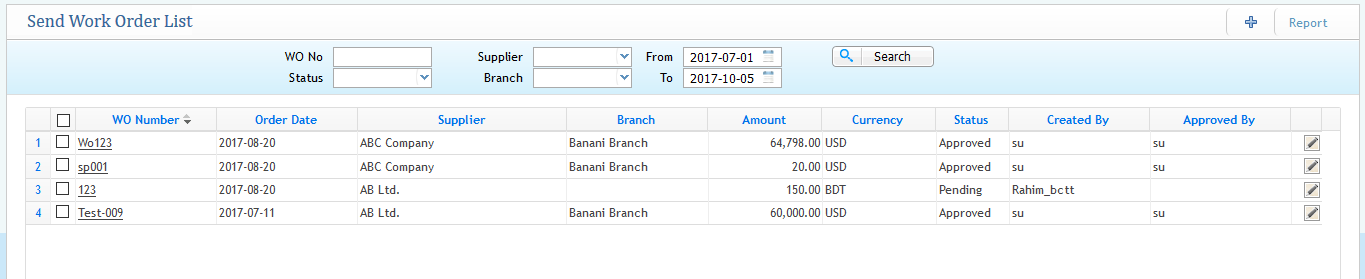
From the list page, we can see all the sending work order lists with WO number, order date, amount, branch, currency, created under which user, and approved by which user from the system. All of these can be visible easily with a better interface on the page. You can also check the status of the work order for tracking. Additionally, you can modify or change the status of the work order depending on your LC condition (i.e., approved, pending, complete, closed).