Proforma Invoice Generation
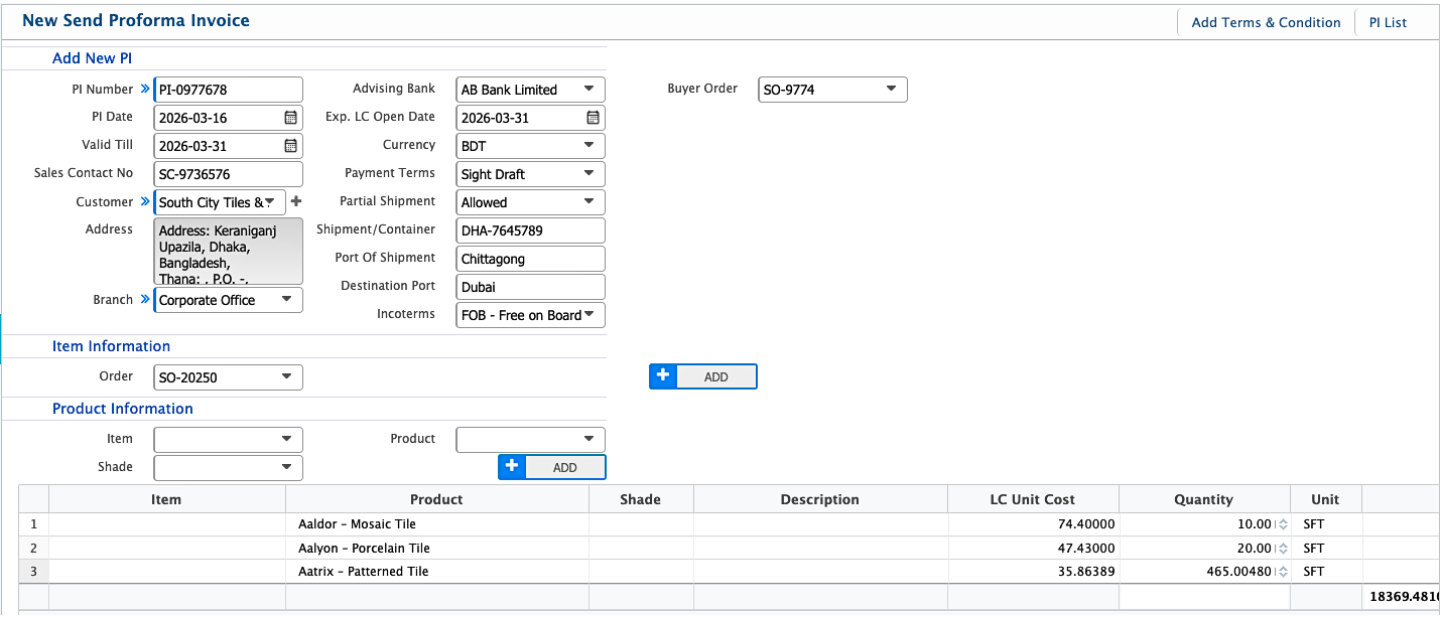
The Proforma Invoice feature in PrismERP is used to create, send, and manage proforma invoices for customers. It captures all relevant details such as branch, customer, product information, shipment instructions, payment terms, and associated orders.Users can track the status of each PI, edit it while pending, and access all related information in a structured details view. The PI List enables searching, filtering, and locating specific records efficiently, ensuring accurate documentation and operational tracking.
Add Send Proforma Invoice
| Field | Action |
|---|---|
| PI Number | Enter the Proforma Invoice number. |
| PI Date | Enter the date when the Proforma Invoice is created. |
| Valid Till | Enter the date until which the PI is valid. |
| Sales Contact No | Enter the contact number of the sales representative. |
| Customer | Select the customer who will receive the PI. |
| Address | Enter or select the customer’s address. |
| Branch | Select the branch associated with sending the PI. |
| Advising Bank | Select the advising bank if the PI is linked to an LC. |
| Exp. LC Open Date | Enter the expected LC opening date. |
| Currency | Select the currency used for the PI. |
| Payment Terms | Select the payment terms agreed with the customer. |
| Partial Shipment | Select whether partial shipment is allowed. |
| Shipment/Container | Enter shipment or container details. |
| Port Of Shipment | Enter the port from which goods will be shipped. |
| Destination Port | Enter the port where the goods will be delivered. |
| Incoterms | Select applicable Incoterms for shipment. |
| Buyer Order | Select the related sales order number. |
| Order | Select the sale order associated with it. |
| Instruction | Enter any specific instructions for the PI. |
| Terms & Condition | Select predefined terms and conditions for the PI. |
| Additional Clause | Enter any additional clauses related to the PI. |
| Description | Enter additional notes or explanations related to the PI. |
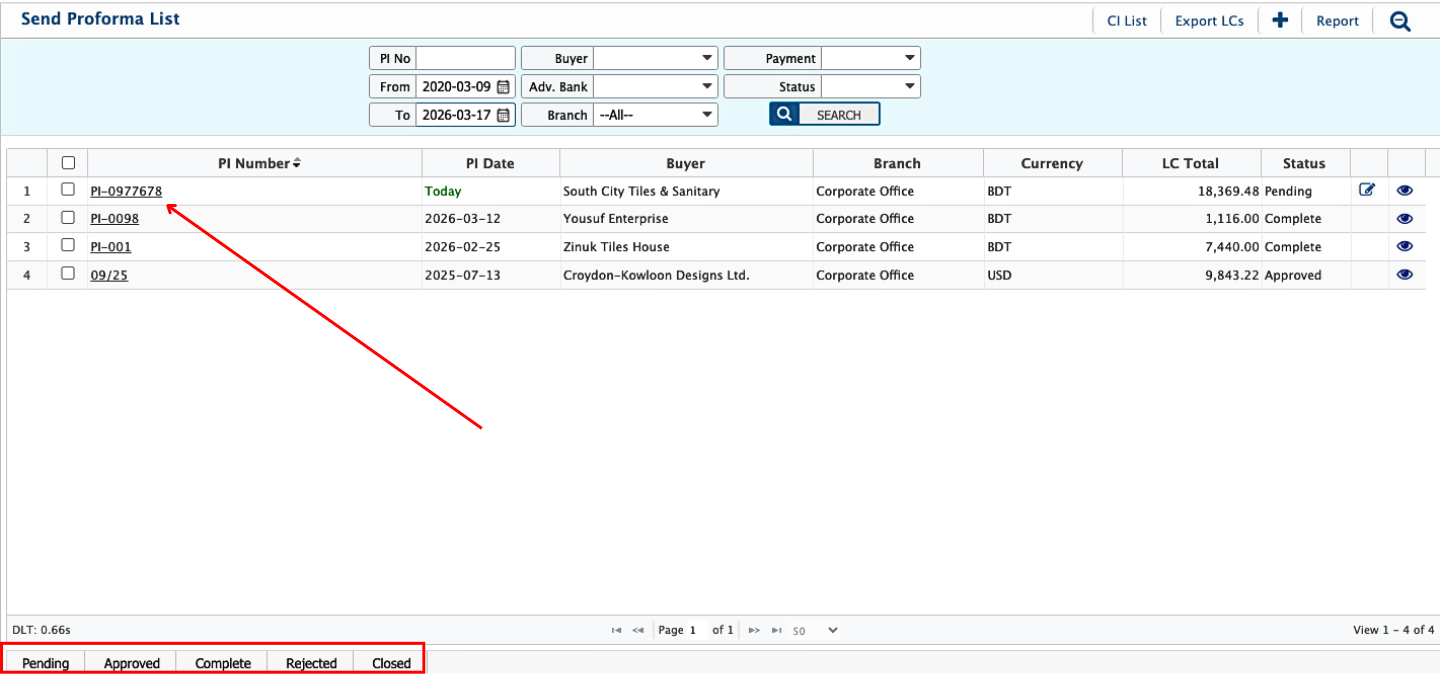
After creating the Send Proforma Invoice, it appears in the PI List, where users can search, filter, and track records using multiple criteria. The list allows users to search and filter Proforma Invoices to quickly locate a specific record.Users can change the status of a Proforma Invoice as it progresses through the process. The available statuses include Pending, Completed, Rejected, and Closed. A Proforma Invoice can be edited while it remains in the Pending state.
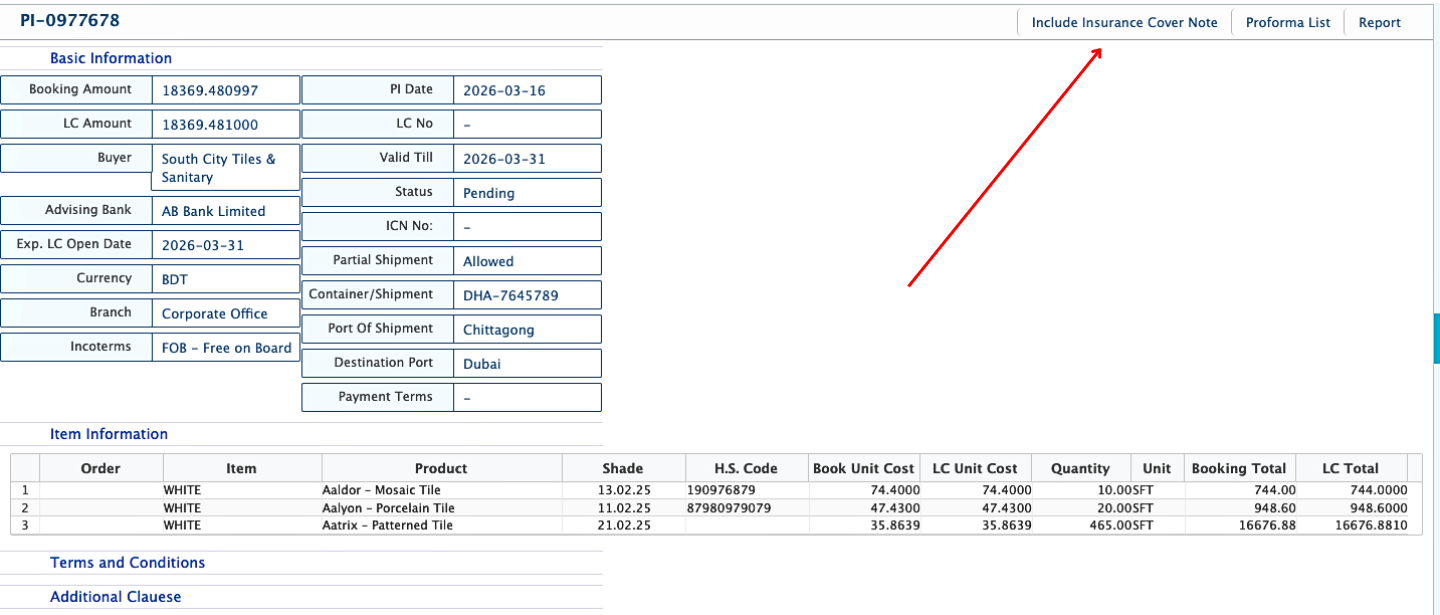
Clicking the PI Number opens the Details View, showing complete information including order details, product information, vouchers, attachments, and associated shipment data.
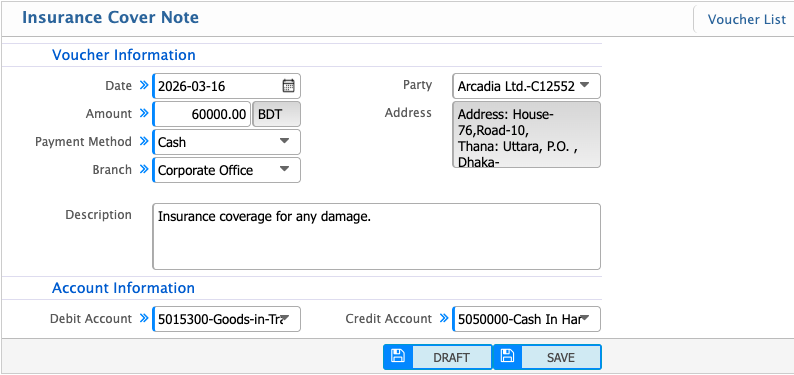
Add Insurance Cover Note
Users can add an Insurance Cover Note directly from the Details View of a Send Proforma Invoice. This allows all insurance-related vouchers to be linked to the PI, ensuring that the financial and insurance information for the shipment is properly recorded and tracked.From the details page, users can enter voucher information, select debit and credit accounts, and provide descriptive notes. This ensures that all insurance transactions are clearly documented for reporting and audit purposes.
| Field | Action |
|---|---|
| Date | Enter the date when the insurance voucher is created. |
| Amount | Enter the total insured amount. |
| Payment Method | Select the payment method for the insurance. |
| Branch | Select the branch responsible for the insurance transaction. |
| Party | Enter or select the insurance company or party. |
| Address | Enter the address of the insurance party. |
| Description | Enter notes describing the purpose of the insurance. |
| Debit Account | Select the account to debit the insurance amount. |
| Credit Account | Select the account to credit the payment. |