Customer Promotion
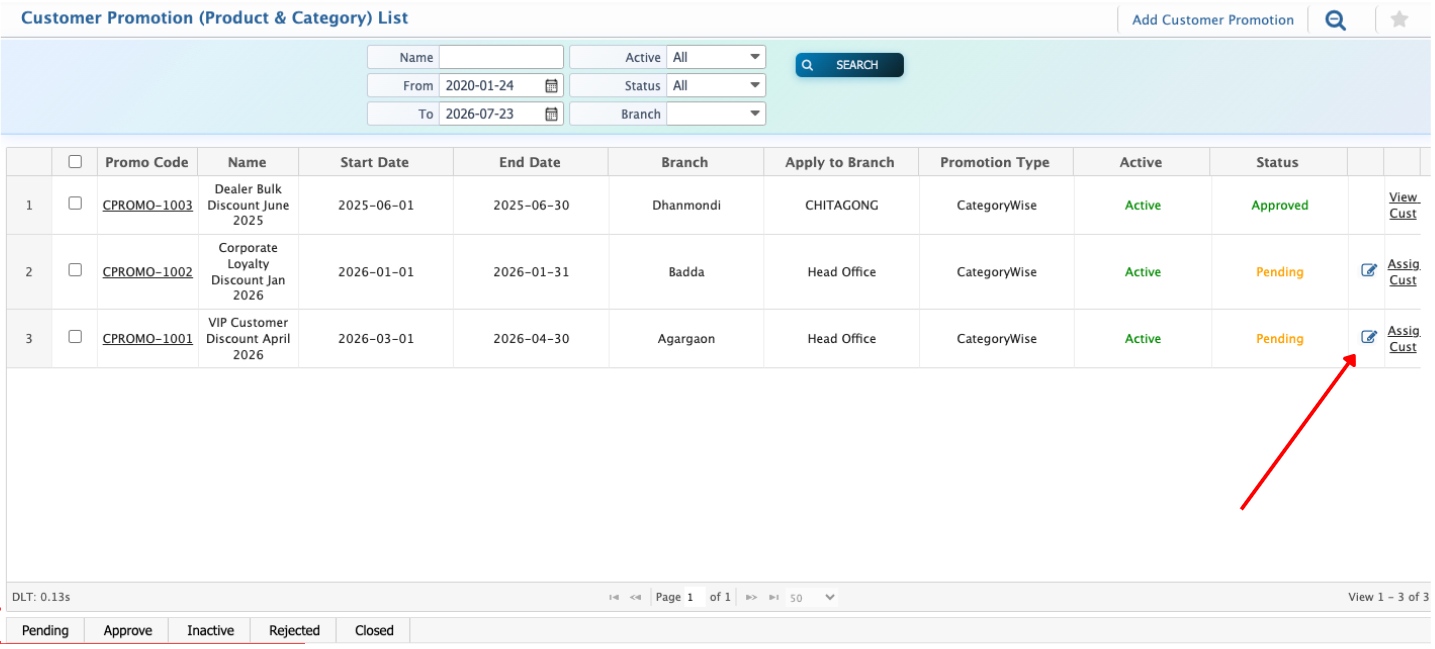
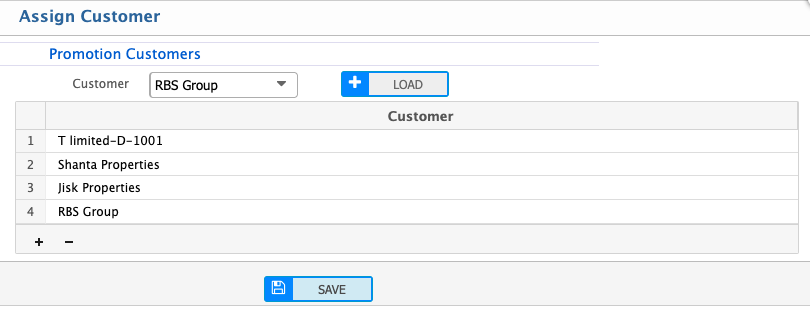
Customer Promotion in PrismERP allows users to create targeted promotions for specific customer categories, branches, and products. Users can configure multiple discount layers, set payment methods, and define the promotion period. The Customer Promotion list can be searched and filtered by Name, Code, Dates, and Branch, with the ability to update status or edit details while pending. Users can view full details by clicking the Promotional Code and assign multiple customers to a single promotion to apply it simultaneously.
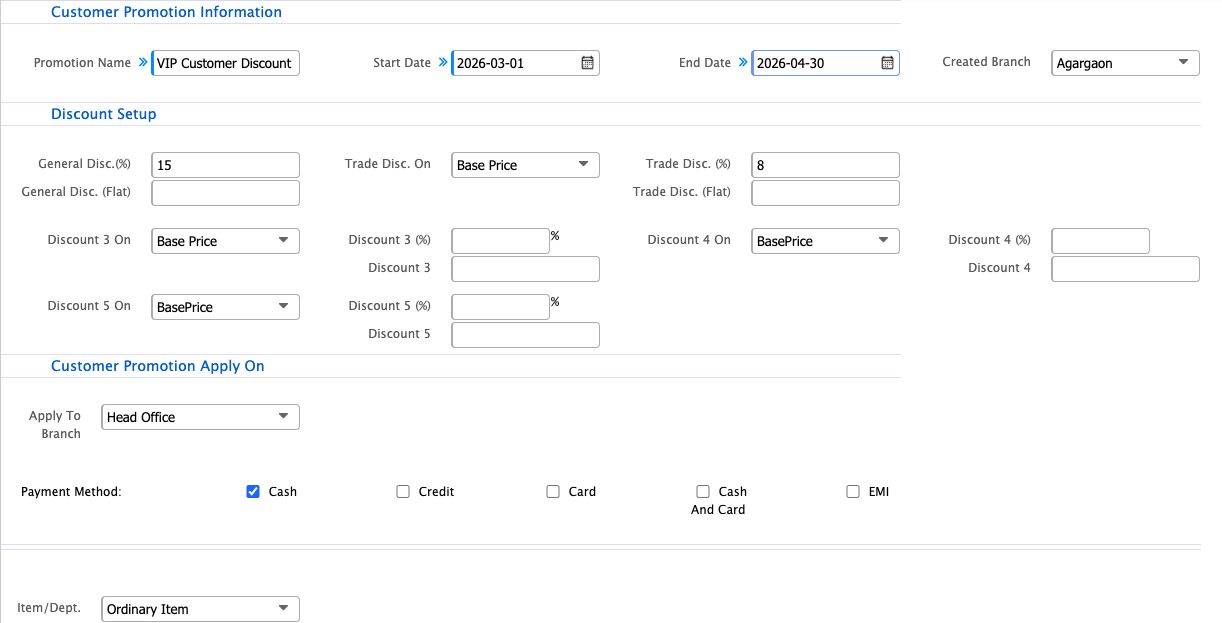
| Field | Action |
|---|---|
| Promotion Name | Enter a descriptive name for the promotion. |
| Sale Type | Select the type of sale to which the promotion applies. |
| Start Date | Select the date when the promotion will become active. |
| End Date | Select the date when the promotion will expire. |
| Created Branch | Select the branch where the promotion was created. |
| General Disc. (%) | Enter a percentage discount applicable to the promotion as a general discount. |
| General Disc. (Flat) | Enter a fixed flat discount amount applicable to all products in the selected categories. |
| Trade Disc. On | Select the base price on which the trade discount will be calculated. |
| Trade Disc. (%) | Enter the trade discount percentage for the promotion. |
| Trade Disc. (Flat) | Enter a flat trade discount amount. |
| Discount 3 On | Select the base price for applying the third discount layer. |
| Discount 3 (%) | Enter the percentage for the third discount. |
| Discount 4 On | Select the base price for applying the fourth discount layer. |
| Discount 4 (%) | Enter the percentage for the fourth discount. |
| Discount 5 On | Select the base price for applying the fifth discount layer. |
| Discount 5 (%) | Enter the percentage for the fifth discount. |
| Apply To Branch | Select the branch or branches where the promotion will be applied. |
| Customer Category | Select the customer categories eligible for the promotion (e.g., Dealer, Corporate, Retail). |
| Payment Method | Select applicable payment methods for the promotion (Cash, Credit, Card, Cash and Card, EMI). |
| Item/Dept | Select the product item/dept on which the promotion will be applied. |
| Sub-Dept. | Select the product sub-dept on which the promotion will be applied. |
| Category | Select the product category on which the promotion will be applied (if applicable). |
Users can search and filter the Customer Promotion list based on Name, Code, Start Date, End Date, and Branch to quickly locate specific promotions. They can update the status of a promotion to Pending, Complete, Rejected, or Closed, and edit the promotion details while it remains in the Pending state. Additionally, users can view all basic details of a promotion by clicking on the Promotional Code hyperlink, which opens the full information for review. Users can assign multiple customers to a single Customer Promotion from the list, allowing the promotion to apply to several customers simultaneously.