Product Wise Promotion
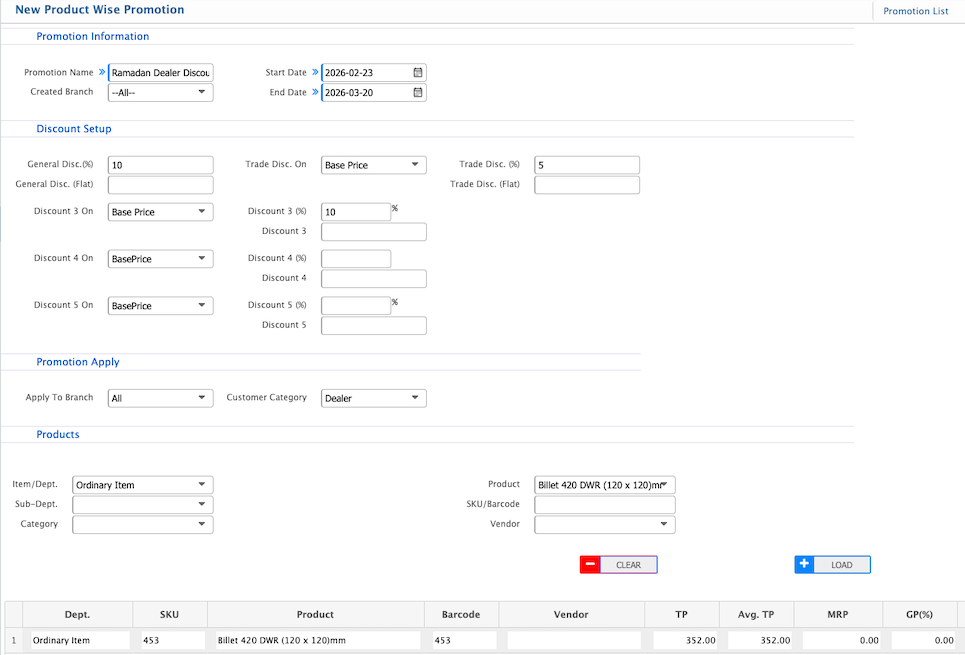
Product Wise Promotion in PrismERP lets users create discounts and offers for specific products, categories, or sub-departments. Multiple discount layers, validity periods, branches, and customer categories can be configured for precise promotion control. Users can search, filter, and manage promotions, update their status, and view all details by clicking on the Promotion Name for full information.
| Field | Action |
|---|---|
| Promotion Name | Enter a descriptive name for the promotion. |
| Start Date | Select the date when the promotion will become active. |
| End Date | Select the date when the promotion will expire. |
| Created Branch | Select the branch where the promotion was created. |
| General Disc. (%) | Enter a percentage discount applicable to the promotion as a general discount. |
| General Disc. (Flat) | Enter a fixed flat discount amount applicable to all applicable products. |
| Trade Disc. On | Select the base price on which the trade discount will be calculated. |
| Trade Disc. (%) | Enter the trade discount percentage for the promotion. |
| Trade Disc. (Flat) | Enter a flat trade discount amount. |
| Discount 3 On | Select the base price for applying the third discount layer. |
| Discount 3 (%) | Enter the percentage for the third discount. |
| Discount 4 On | Select the base price for applying the fourth discount layer. |
| Discount 4 (%) | Enter the percentage for the fourth discount. |
| Discount 5 On | Select the base price for applying the fifth discount layer. |
| Discount 5 (%) | Enter the percentage for the fifth discount. |
| Apply To Branch | Select the branch or branches where the promotion will be applied. |
| Customer Category | Select the customer categories eligible for the promotion (e.g., Dealer, Corporate, Retail). |
| Sub-Dept. | Filter by sub-department of products. |
| Category | Filter by product category. |
| Product | Select specific products to apply for the promotion. “All” applies to all filtered products. |
| SKU/Barcode | Enter or scan specific SKUs or barcodes to apply the promotion to individual items. |
| Vendor | Filter products supplied by a specific vendor for promotion application. |
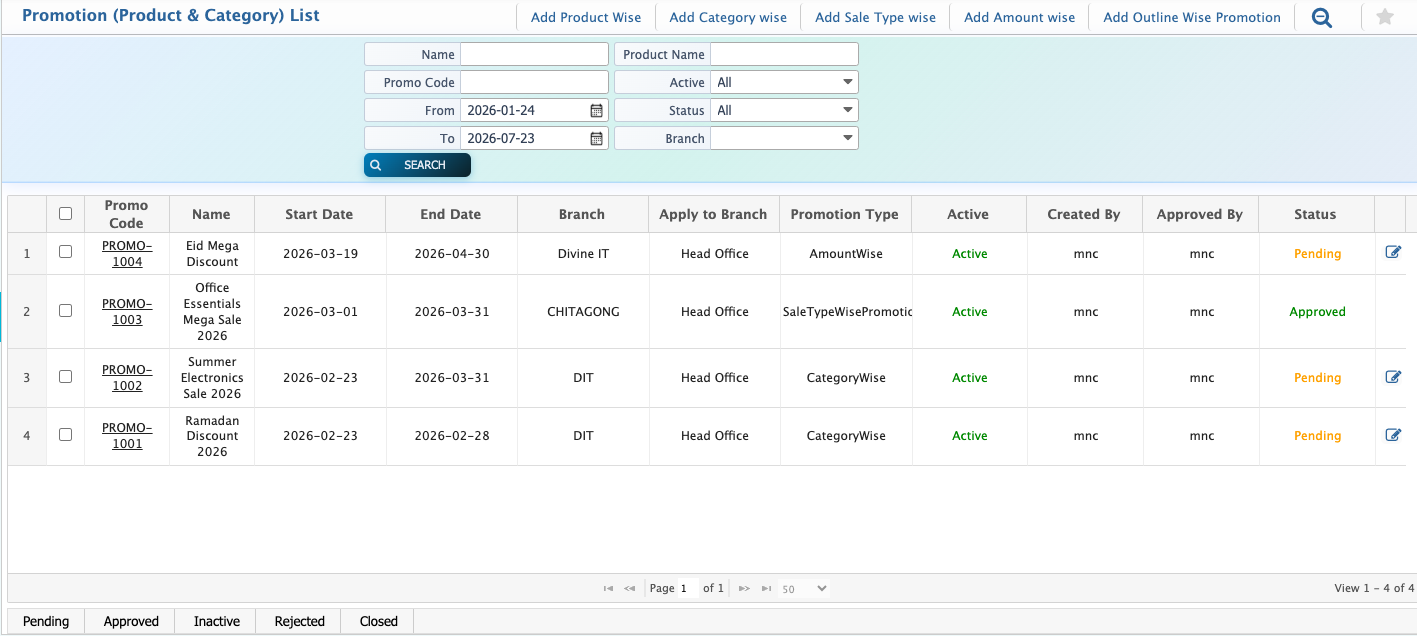
Users can search and filter the promotion list based on Name, Promo Code, From date, To date, Product Name, Status, and Branch to quickly locate specific promotions. They can update the status of a promotion to Pending, Complete, Rejected, or Closed, and edit the promotion details while it remains in the Pending state. Additionally, users can view all basic details of a promotion by clicking on the Promotion Name, which opens the full information for review.