🎁 Promotional Gift Setup
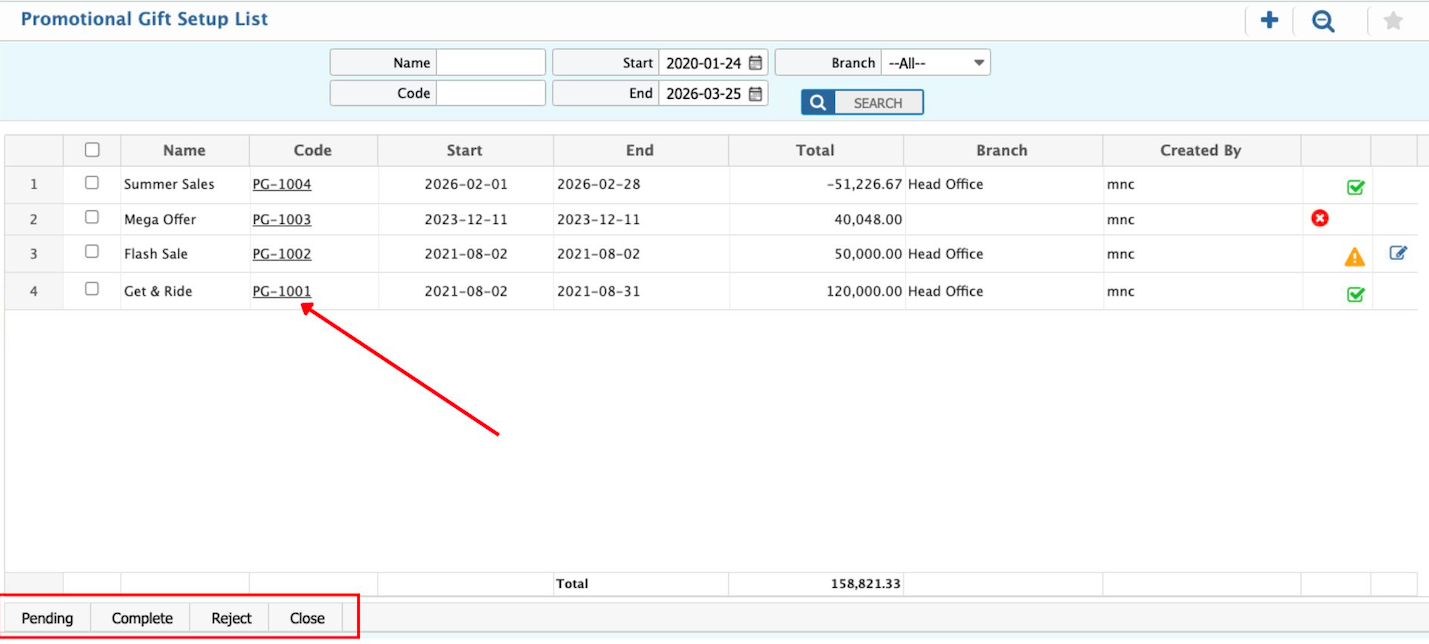
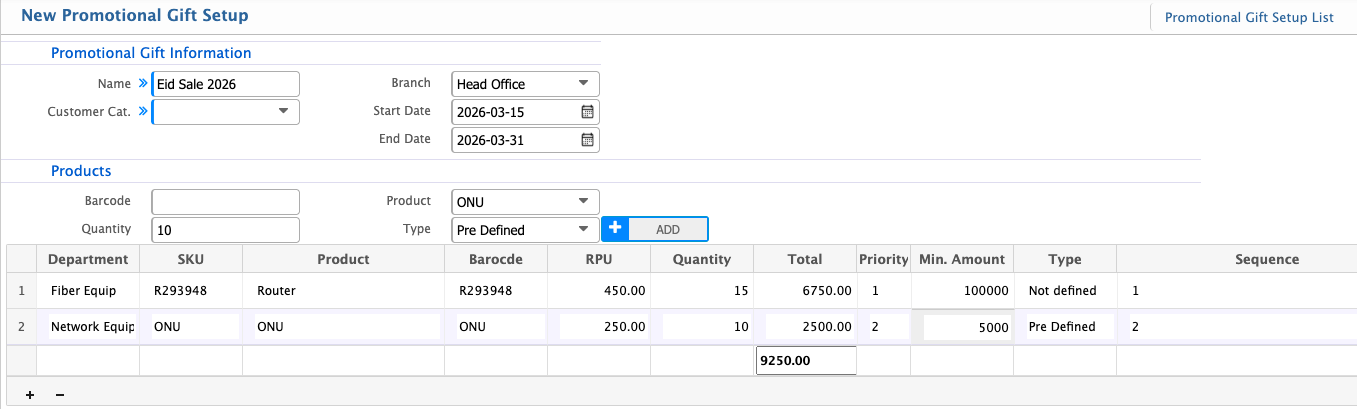
Promotional Gift Setup in PrismERP lets users create gifts for customers based on category, branch, and promotion period. Products, quantities, gift types, and minimum requirements can be defined. Users can search and filter the list, update the status, edit pending promotions, and view full details by clicking the Promotional Code.
| Field | Action |
|---|---|
| Name | Enter a descriptive name for the promotional gift setup. |
| Customer Cat. | Select the customer category eligible for the gift. |
| Branch | Select the branch where the promotional gift is applicable. “All” applies to all branches. |
| Start Date | Select the date when the promotional gift will become active. |
| End Date | Select the date when the promotional gift will expire. |
| Products | Section header. Define the products included in the promotional gift. |
| Barcode | Enter or scan the product barcode for the gift item. |
| Product | Select the product to be given as a promotional gift. |
| Quantity | Enter the number of units of the product to be given as a gift. |
| Type | Select the type of gift. Options may include Pre-Defined or defined. |
| Min. Amount | Enter the minimum quantity for a promotional gift. |
Users can search and filter the Promotional Gift Setup list based on Name, Start Date, End Date, and Branch to quickly locate specific promotions. They can update the status of a promotion to Pending, Complete, Rejected, or Closed, and edit the promotion details while it remains in the Pending state. Additionally, users can view all basic details of a promotion by clicking on the Promotional Code hyperlink, which opens the full information for review.