Quantity Wise Promotion
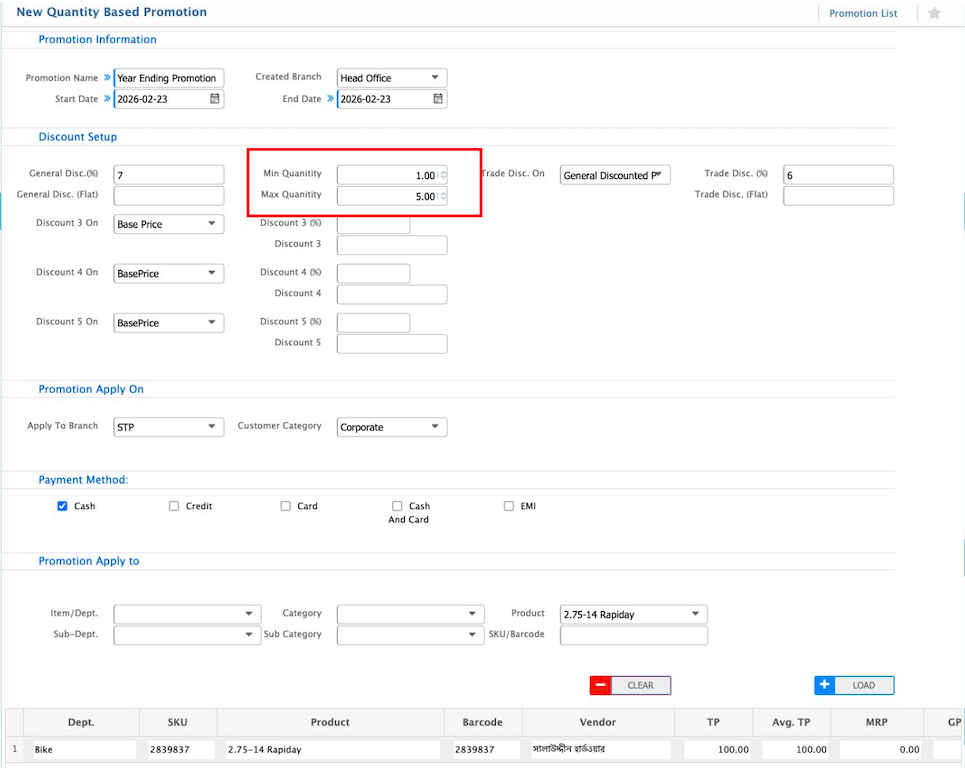
Quantity Wise Promotion in PrismERP allows users to create promotions based on the quantity of products purchased. Users can set the minimum and maximum quantities required for the promotion to apply, define the promotion period, select eligible branches and customer categories, and configure multiple discount layers. Promotions can be applied to specific items, categories, sub-categories, or SKUs, and payment methods can also be specified.
| Field | Action |
|---|---|
| Promotion Name | Enter a descriptive name for the promotion. |
| Created Branch | Select the branch where the promotion was created. |
| Start Date | Select the date when the promotion will become active. |
| End Date | Select the date when the promotion will expire. |
| General Disc. (%) | Enter a percentage discount applicable when the purchased quantity falls within the defined range. |
| General Disc. (Flat) | Enter a fixed flat discount amount applicable when the purchased quantity falls within the defined range. |
| Min Quantity | Enter the minimum quantity of items required to qualify for the promotion. |
| Max Quantity | Enter the maximum quantity of items allowed for the promotion to apply. |
| Trade Disc. On | Select the base price on which trade discount will be calculated. |
| Trade Disc. (%) | Enter the trade discount percentage for the promotion. |
| Trade Disc. (Flat) | Enter a flat trade discount amount. |
| Discount 3 On | Select the base price for applying the third discount layer. |
| Discount 3 (%) | Enter the percentage for the third discount. |
| Discount 4 On | Select the base price for applying the fourth discount layer. |
| Discount 4 (%) | Enter the percentage for the fourth discount. |
| Discount 5 On | Select the base price for applying the fifth discount layer. |
| Discount 5 (%) | Enter the percentage for the fifth discount. |
| Apply To Branch | Select the branch or branches where the promotion will be applied. |
| Customer Category | Select the customer categories eligible for the promotion (e.g., Dealer, Corporate, Retail). |
| Payment Method | Select applicable payment methods for the promotion (Cash, Credit, Card, Cash and Card, EMI). |
| Item/Dept. | Select the product item/dept on which the promotion will be applied. |
| Sub-Dept. | Select the product sub-dept on which the promotion will be applied. |
| Category | Select the product category on which the promotion will be applied. |
| Sub Category | Select the product sub-category on which the promotion will be applied. |
| Product | Select specific products to apply the promotion. |
| SKU/Barcode | Enter specific SKUs or barcodes to apply the promotion to individual items. |