Product Comparative Statement (PCS)
In a standard quotation comparison, the required products are purchased from the vendor selected as the overall winner. However, there may be situations where the purchase needs to be split between multiple vendors.For example, a purchase request may require 30 units of a product, but 20 units may be purchased from one vendor and the remaining 10 units from another. Similarly, if the request contains multiple products, one product may be purchased from one vendor while another product is purchased from a different vendor.For these situations, Product Comparative Statement (PCS) can be used. PCS allows the required quantity of each product to be distributed among different vendors and creates separate winners based on the quantities assigned to them.
Create a Product Comparative Statement
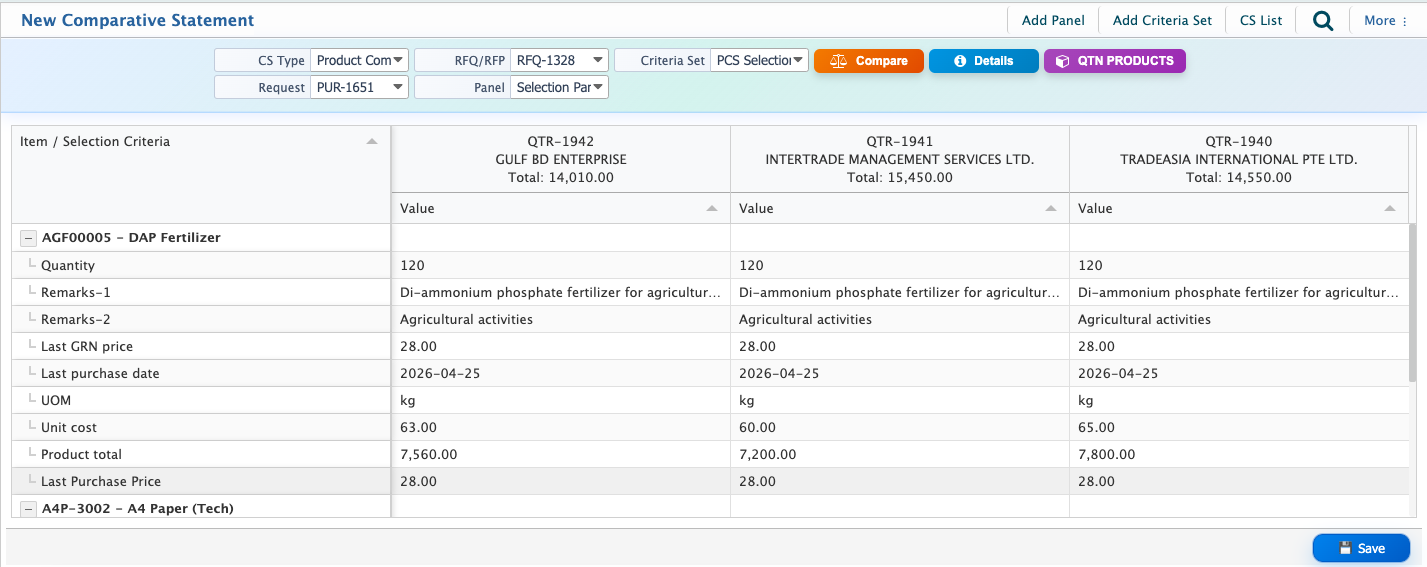
Go to the Comparative Statement page and select Product Comparative Statement as the CS Type.Select the relevant Request, RFQ/RFP, Panel, and Criteria Set. The comparison can then be saved and the winners can be selected based on the required product quantities.
Select Winners
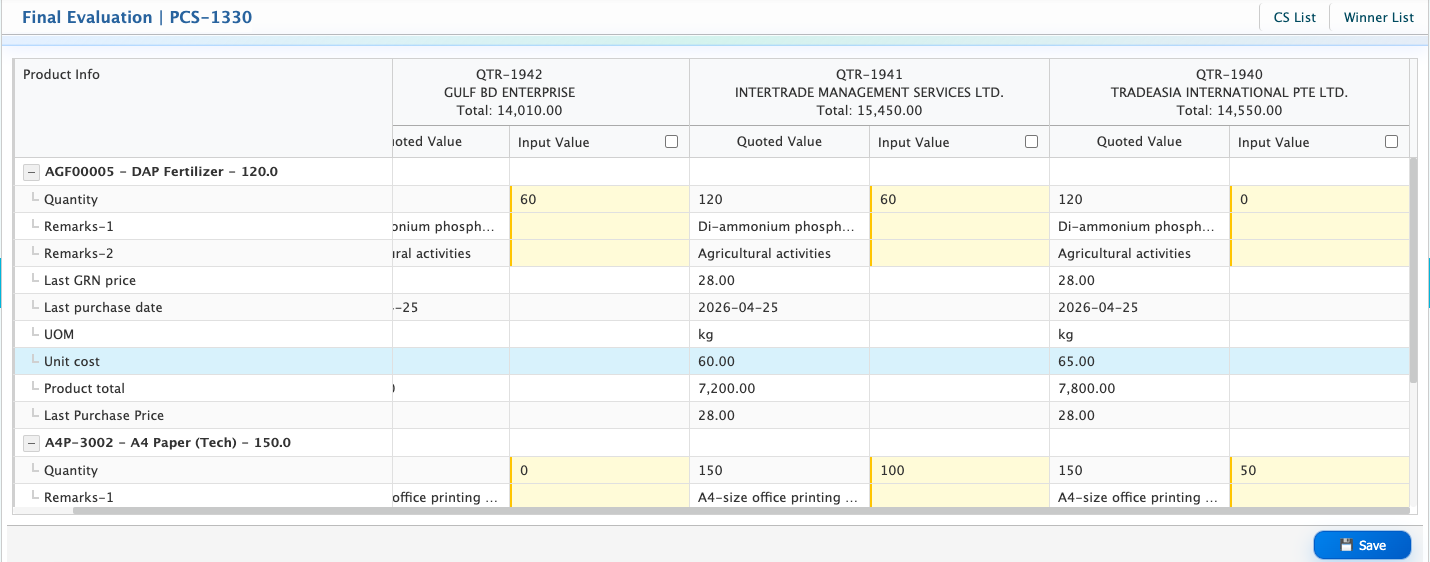
After saving the Product Comparative Statement, click Select Winners.The system displays the products and the vendors who submitted quotations. The required quantity can then be assigned to one or more vendors. For example:
- If 30 units of a product are required, 20 units can be assigned to one vendor and the remaining 10 units to another vendor.
- If another product requires 20 units, the entire quantity can be assigned to a single vendor.
After entering the required quantities, save the selection. The system will declare the vendors as winners based on the quantities assigned to them.
Approve the Comparison
Once the winners have been selected, approve the Product Comparative Statement to finalize the comparison.After approval, go to the Winner Details page. The system will display all vendors selected as winners along with their respective products and quantities.
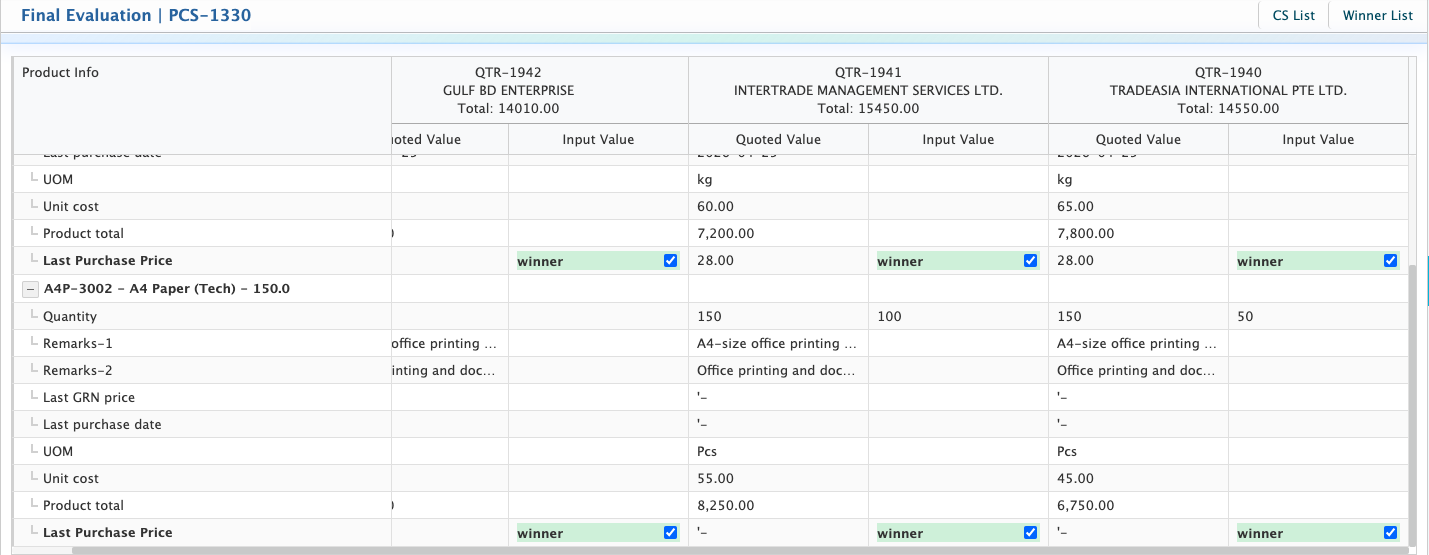
Each winning vendor will have a separate Create PO option. A Purchase Order can therefore be created individually for each vendor based on the products and quantities assigned to them.This allows a single Purchase Request to be divided among multiple vendors, with a separate Purchase Order created for each vendor.
