Special Type Vouchers
Special Type Vouchers in PrismERP are designed to handle financial transactions that go beyond the standard payments, receipts, and journal entries. They help manage tasks such as tax deductions, expenses, advance payments, refunds, multi-customer receipts, and project-specific transactions with accuracy and clarity.The main Special Type Vouchers include Withholding Payment Voucher, Expense Voucher, Advance Receive Voucher, Refund Voucher, Payment Journal Voucher, Receive Journal Voucher, Custom Payment Journal Voucher, Custom Receive Journal Voucher, Receipt for Multi-Customer, Receipt for Multi-Customer (Fixed Account), Receive Against Multiple Sales Orders, and Cash Point Adjustment.
With these vouchers, PrismERP ensures that even the most complex transactions are recorded properly, keeping financial management organized, reliable, and easy to follow.
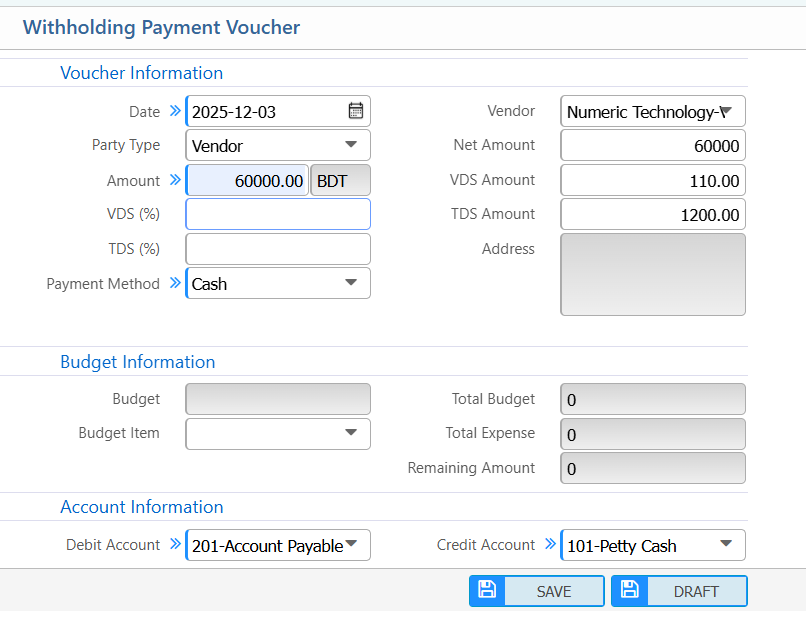
1. Withholding Payment Voucher
| Field | Description / Action |
|---|---|
| Date | Enter the voucher date. |
| Party Type | Select the type of party (Vendor, Customer, Employee, All). |
| Vendor | Select the vendor linked to this voucher. |
| Amount | Enter the gross payment amount before deductions. |
| VDS (%) | Enter the Withholding VAT/Tax percentage (VDS) applicable. |
| TDS (%) | Enter the Tax Deducted at Source (TDS) percentage applicable. |
| Payment Method | Select the payment method (Cash, Bank, Cheque, Mobile Banking, etc.). |
| Budget Item | Select the specific budget item. |
| Debit Account | Select the account to debit for this voucher (e.g., Accounts Payable). |
| Credit Account | Select the account to credit for this voucher (e.g., Cash, Petty Cash). |
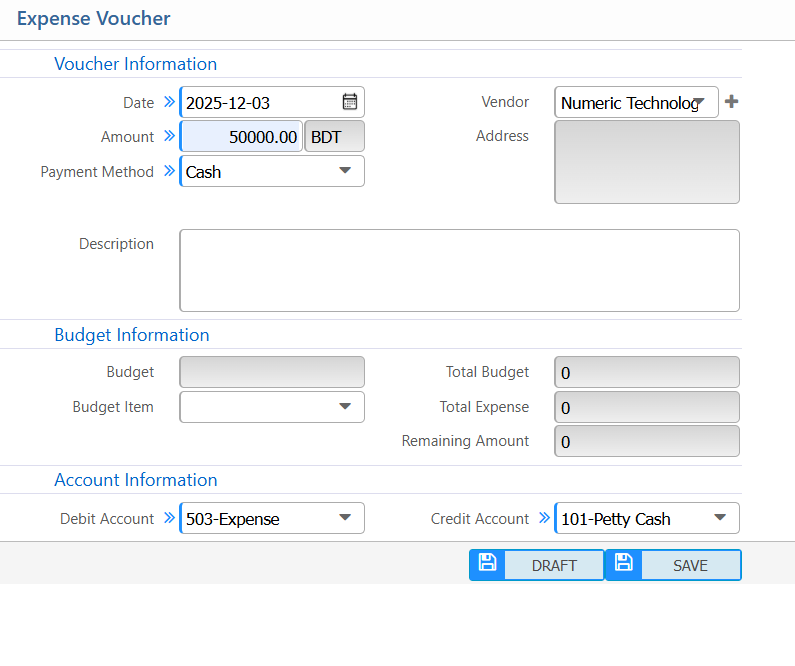
2. Expense Voucher
| Field / Section | Description / Action |
|---|---|
| Date | Enter the voucher date. |
| Amount | Enter the expense amount in BDT. |
| Payment Method | Select the method (Cash, Bank, Mobile Banking, etc.). |
| Vendor | Select the vendor linked to this expense. |
| Budget Item | Select the specific budget item. |
| Debit Account | Select the account to record the expense (e.g., Expense Ledger). |
| Credit Account | Select the account from which the money is paid (e.g., Cash, Bank). |
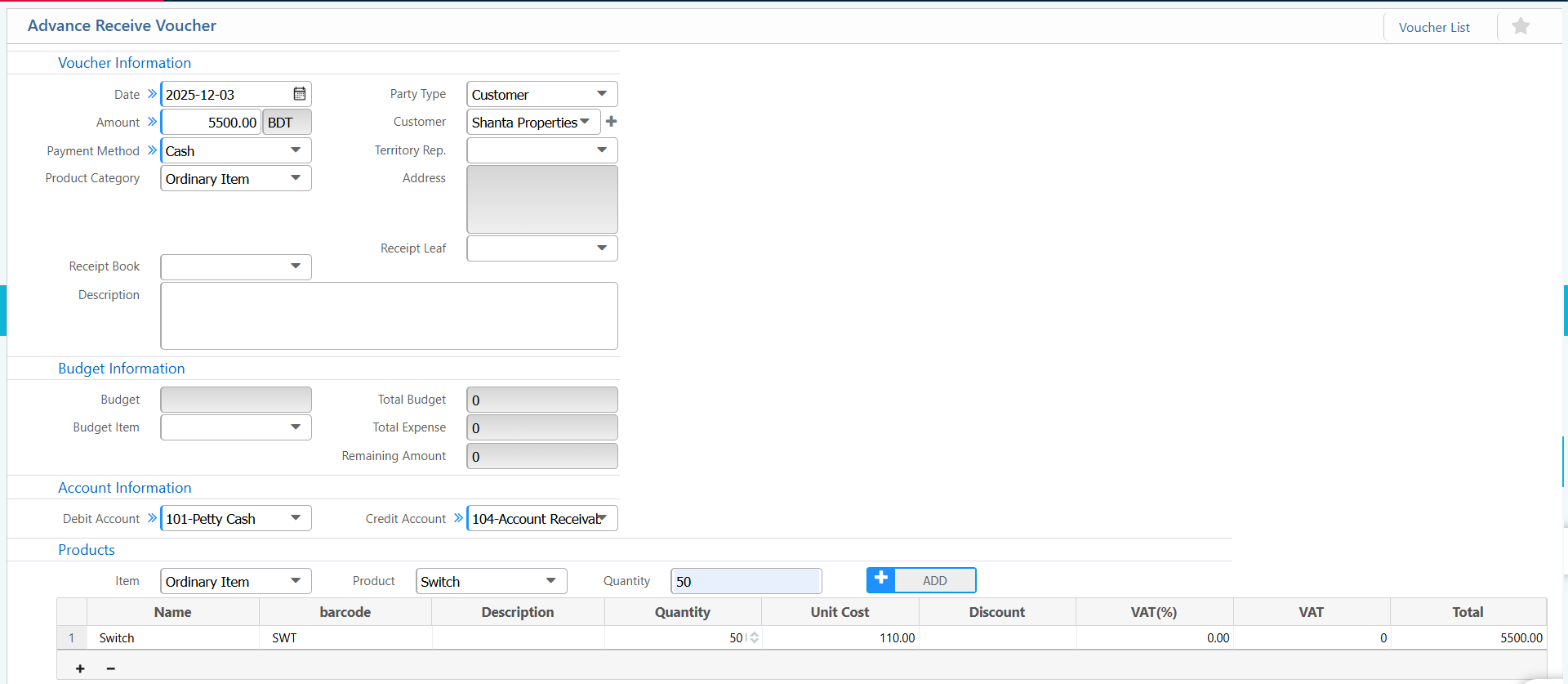
3. Advance Receive Voucher
| Field | Action |
|---|---|
| Date | Enter the voucher date. |
| Amount | Enter the received amount in BDT. |
| Payment Method | Select the method (Cash, Bank, Mobile Banking, etc.). |
| Product Category | Select the product category. |
| Party Type | Select the party type (Customer, Vendor, Employee, All). |
| Customer | Select the customer linked to this advance receipt. |
| Territory Rep. | Select the responsible sales/territory representative. |
| Address | Enter or system auto-fills the address. |
| Receipt Book | Select the receipt book. (if applicable) |
| Receipt Leaf | Enter the receipt leaf number. (if applicable) |
| Budget Item | Select the specific budget item. |
| Debit Account | Select the account receiving the money. |
| Credit Account | Select the account to credit. |
| Products | Select the product being received in advance. |
| Products-Quantity | Enter the quantity of the product. |
| Products–Unit Cost | Enter the unit cost of the product. |
| Products –Discount | Enter any discount applied. |
| Products – VAT(%) | Enter VAT percentage if applicable. |
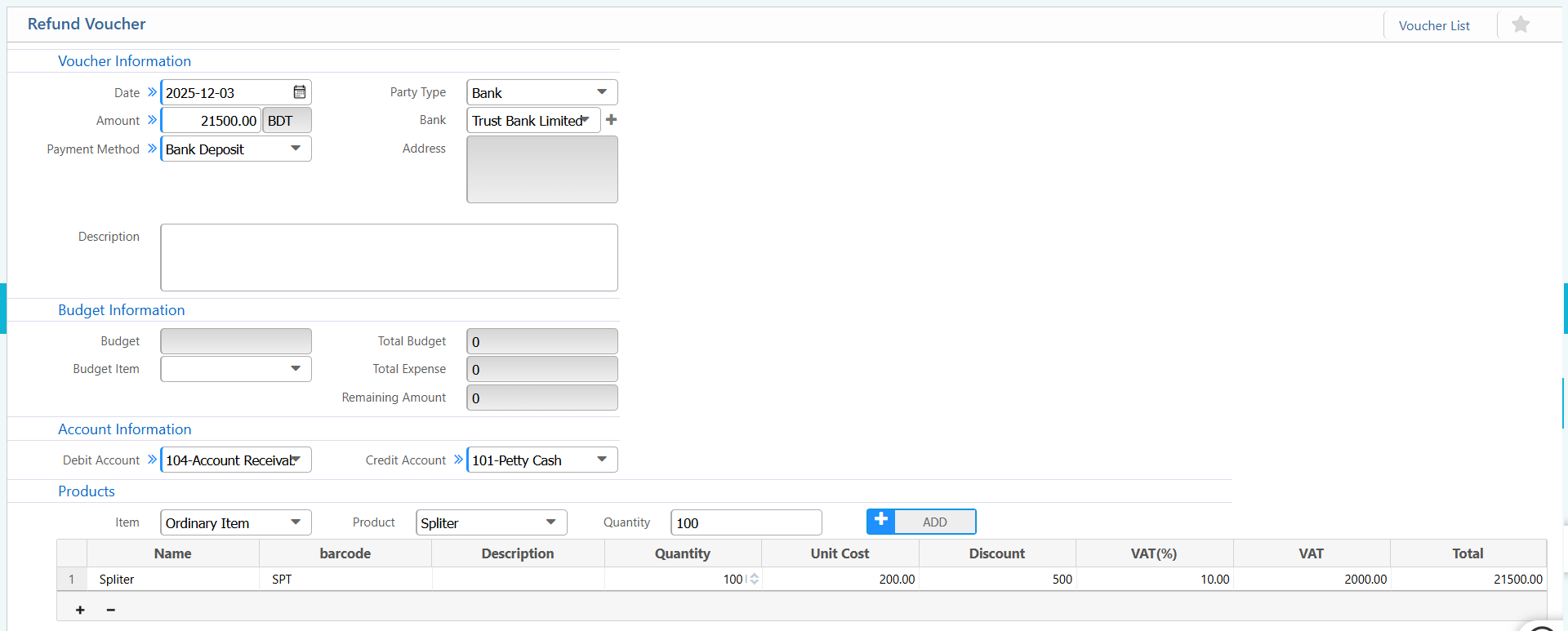
4. Refund Voucher
| Field | Action |
|---|---|
| Date | Enter the voucher date. |
| Amount | Enter the refund amount in BDT. |
| Payment Method | Select the method (Cash, Bank Deposit, Mobile Banking, etc.). |
| Party Type | Select the party type (Customer, Vendor, Bank, Employee, All). |
| Bank | Select the bank linked to this refund (if Party Type = Bank). |
| Address | Enter or system auto-fills the address. |
| Budget Item | Select the specific budget item. |
| Debit Account | Select the account receiving the refund (e.g., Accounts Receivable). |
| Credit Account | Select the account to credit (e.g., Cash, Bank). |
| Products - Item | Select the product item |
| Product | Select the product being refunded. |
| Products – Quantity | Enter the quantity of the product. |
| Products – Unit Cost | Enter the unit cost of the product. |
| Products – Discount | Enter any discount applied. |
| Products – VAT(%) | Enter VAT percentage if applicable. |
5. Payment Journal Voucher
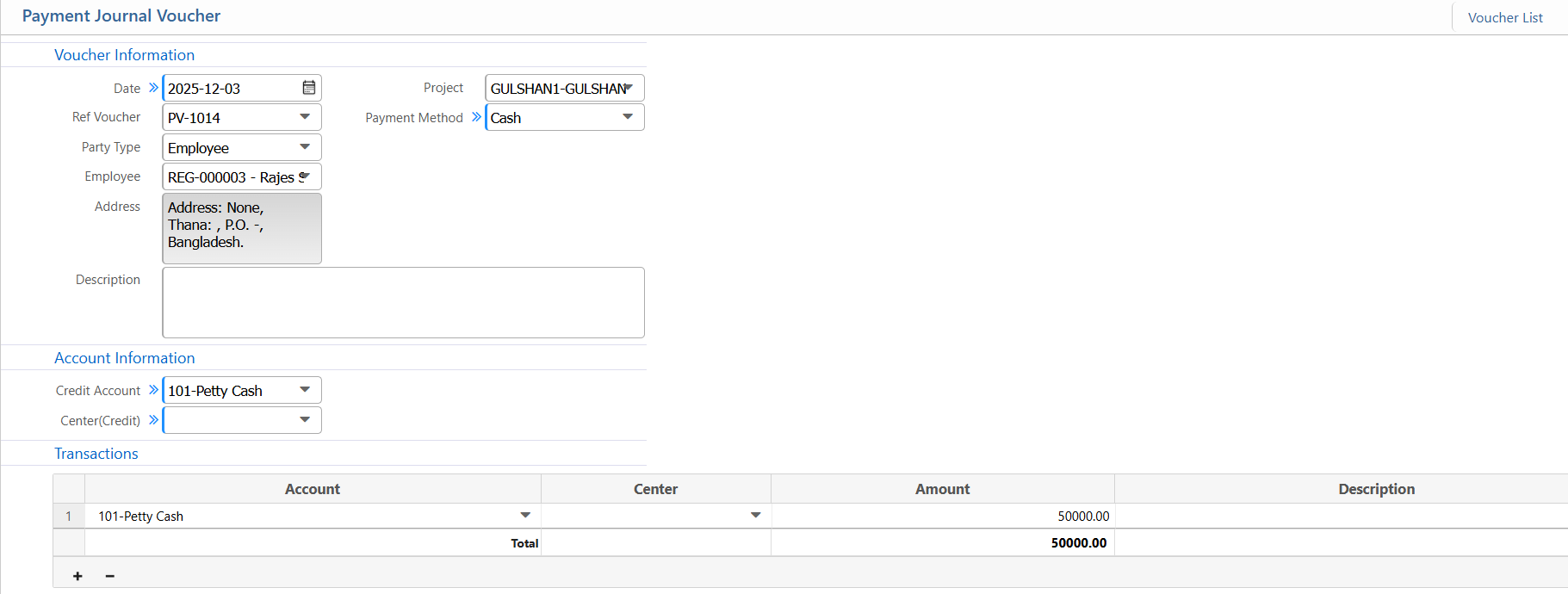
| Field | Action |
|---|---|
| Date | Enter the voucher date. |
| Ref Voucher | Enter reference voucher number (if applicable). |
| Party Type | Select the party type (Customer, Vendor, Employee, All). |
| Vendor | Select the vendor linked to this payment journal voucher. |
| Project | Select the project linked to this payment (if applicable). |
| Payment Method | Select the payment method (Cash, Bank, Mobile Banking, etc.). |
| Credit Account | Select the credit account for the outgoing payment. |
| Center (Credit) | Select the cost/department center for the credit account (if applicable). |
| Transactions – Account | Select the ledger account for each transaction line. |
| Transactions – Center | Select the cost/department center for each transaction line. |
| Transactions – Amount | Enter the amount for each transaction line. |
| Transactions – Description | Add a note or remark for the transaction line. |
6. Receive Journal Voucher
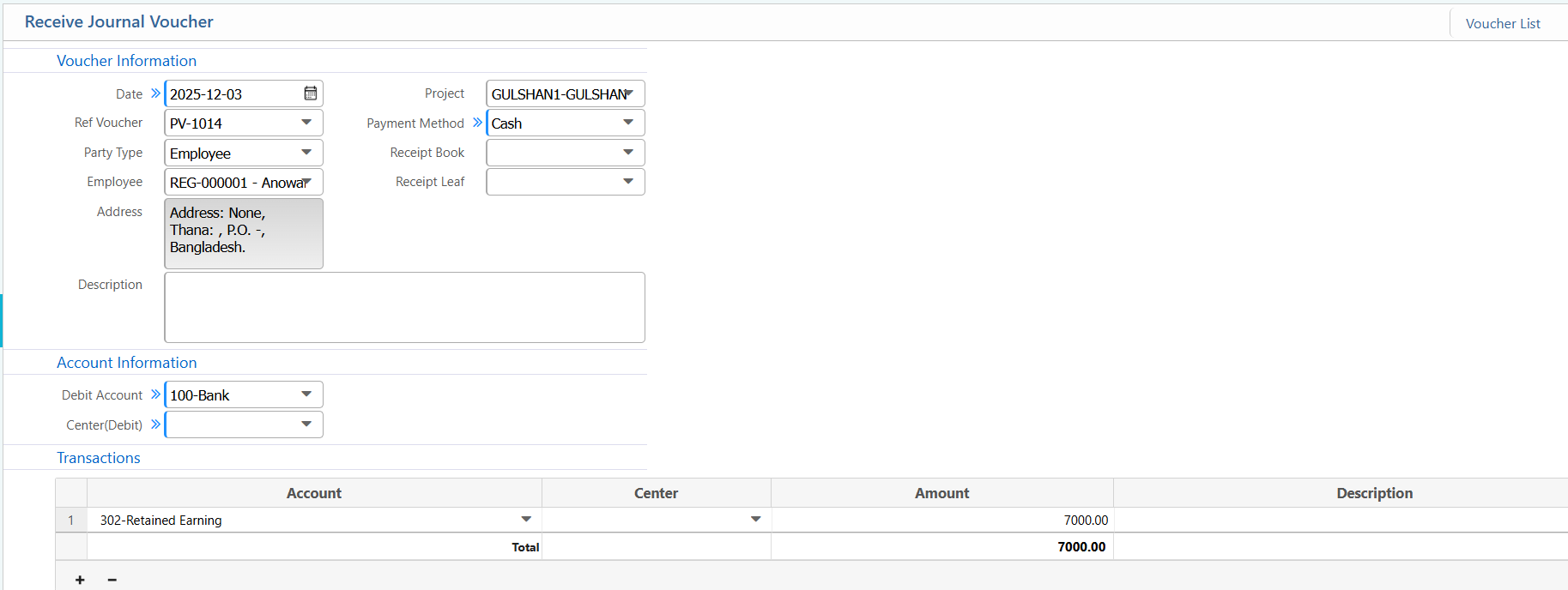
| Field | Action |
|---|---|
| Date | Enter the voucher date. |
| Ref Voucher | Enter the reference voucher number (if applicable). |
| Party Type | Select the party type (Customer, Vendor, Employee, All). |
| Employee | Select the employee linked to this voucher (if Party Type = Employee). |
| Project | Select the project linked to this voucher (if applicable). |
| Payment Method | Select the payment method (Cash, Bank, Mobile Banking, etc.). |
| Receipt Book | Select the receipt book (if applicable). |
| Receipt Leaf | Enter the receipt leaf number (if applicable). |
| Debit Account | Select the account receiving the money (e.g., Bank, Cash). |
| Center (Debit) | Select the cost/department center for the debit account (if applicable). |
| Transactions – Account | Select the ledger account for each transaction line. |
| Transactions – Center | Select the cost/department center for each transaction line. |
| Transactions – Amount | Enter the amount for each transaction line. |
| Transactions – Description | Add a note or remark for the transaction line. |
7. Custom Payment Journal Voucher
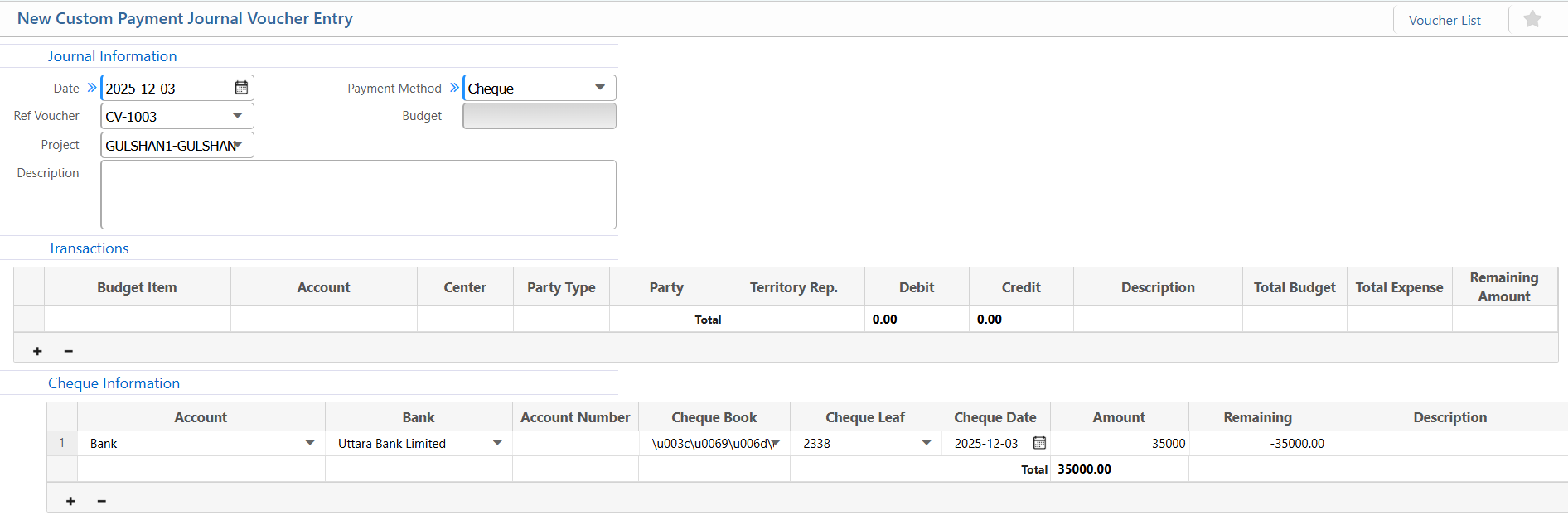
| Field | Action |
|---|---|
| Date | Enter the journal voucher date. |
| Ref Voucher | Enter the reference voucher number (if applicable). |
| Project | Select the project linked to this voucher. |
| Payment Method | Select the payment method (Cash, Bank, Cheque, Mobile Banking, etc.). |
| Transactions – Budget Item | Select the budget item for the transaction line. |
| Transactions – Account | Select the ledger account for this transaction line. |
| Transactions – Center | Select cost/department center (if applicable). |
| Transactions – Party Type | Select party type (Customer, Vendor, Employee, Bank, All). |
| Transactions – Party | Select the specific party linked to the transaction line. |
| Transactions – Territory Rep. | Select territory/sales representative (if applicable). |
| Transactions – Debit | Enter the debit amount for this line. |
| Transactions – Credit | Enter the credit amount for this line. |
| Cheque Information – Account | Select the bank account used for the cheque.(if applicable) |
| Cheque – Bank | Select the bank name. |
| Cheque – Account Number | Enter the account number from which the cheque is issued. |
| Cheque – Cheque Book | Select the cheque book. |
| Cheque – Cheque Leaf | Select the cheque leaf number. |
| Cheque – Cheque Date | Enter the cheque date. |
| Cheque – Amount | Enter the cheque amount. |
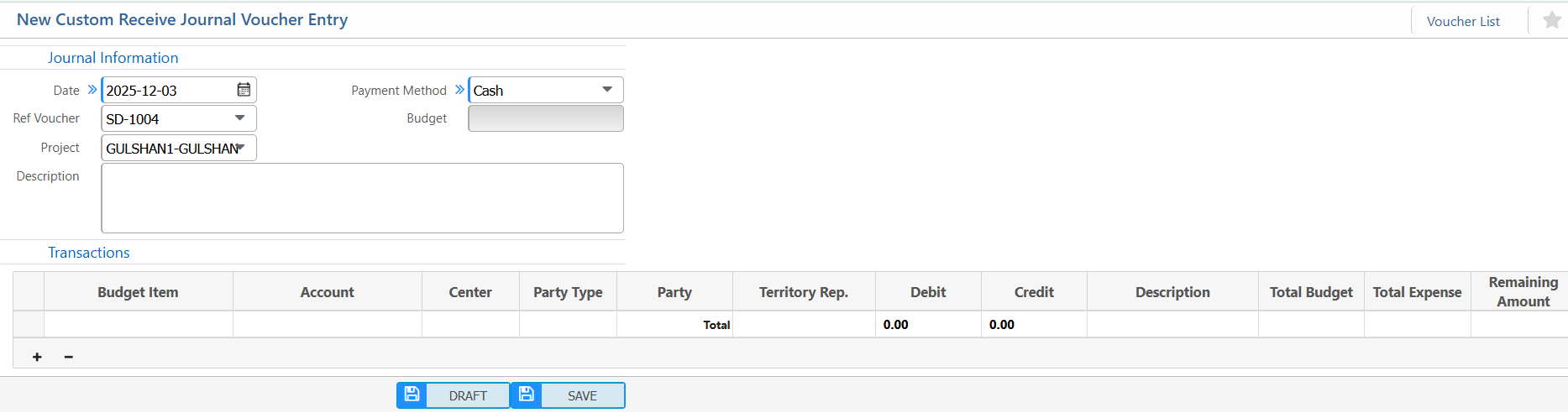
8. Custom Receive Journal Voucher
| Field | Action |
|---|---|
| Date | Enter the journal voucher date. |
| Ref Voucher | Enter the reference voucher number (if applicable). |
| Project | Select the project linked to this voucher. |
| Payment Method | Select the payment method (Cash, Bank, Mobile Banking, etc.). |
| Transactions – Budget Item | Select the budget item for the transaction line. |
| Transactions – Account | Select the ledger account for this transaction line. |
| Transactions – Center | Select cost/department center (if applicable). |
| Transactions – Party Type | Select party type (Customer, Vendor, Employee, Bank, All). |
| Transactions – Party | Select the specific party linked to the transaction line. |
| Transactions –Territory Rep. | Select territory/sales representative (if applicable). |
| Transactions – Debit | Enter the debit amount for this line. |
| Transactions – Credit | Enter the credit amount for this line. |
9. Receipt for Multi-Customer
| Field | Action |
|---|---|
| Date | Enter the date of the receipt. |
| Amount | Enter the total received amount in BDT. |
| Payment Method | Select the method of payment (Cash, Bank, Mobile Banking, etc.). |
| Account Information – Account (Dr) | Select the debit account receiving the money |
| Party | Select the customer for this receipt line. |
| Date (Receipt Line) | Enter the receipt date for each customer line. |
| Amount (Receipt Line) | Enter the received amount for each customer line. |
| Collection Person | Select the person who collected the money for each line. |
| Receipt Book | Select the receipt book used for each line (if applicable). |
| Receipt Leaf | Enter the receipt leaf number for each line (if applicable). |

10. Receipt for Multi-Customer (Fixed Account)
| Field | Action |
|---|---|
| Date | Enter the date of the receipt. |
| Payment Method | Select the method of payment (Cash, Bank, Mobile Banking, etc.). |
| Debit Account | Select the fixed debit account receiving the money |
| Party | Select the customer for this receipt line. |
| Territory Rep. | Select the sales/territory representative for each line (if applicable). |
| Date (Receipt Line) | Enter the receipt date for each customer line. |
| Amount (Receipt Line) | Enter the received amount for each customer line. |
| Collection Person | Select the person who collected the money for each line. |
| Receipt Book | Select the receipt book used for each line (if applicable). |
| Receipt Leaf | Enter the receipt leaf number for each line (if applicable). |

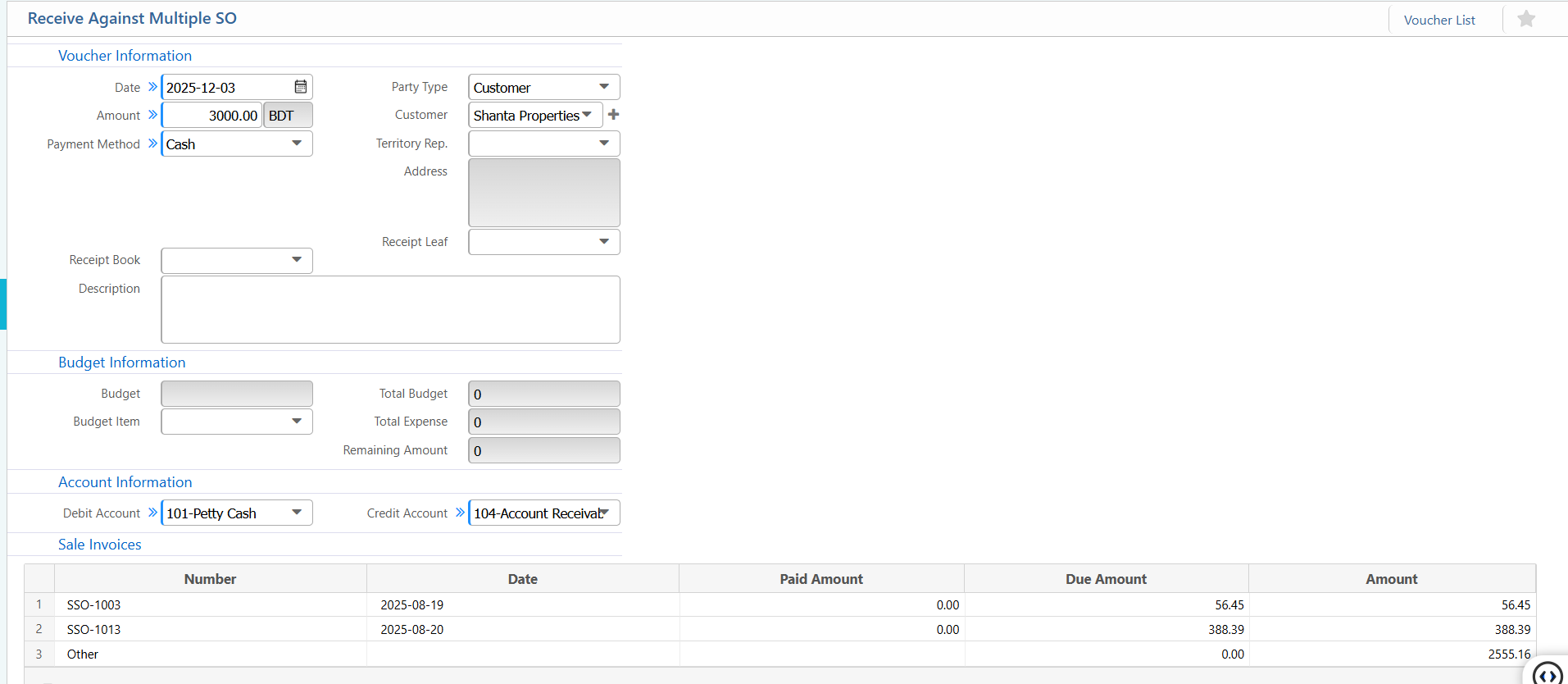
11. Receive Against Multiple SO
| Field / Section | Description / Action |
|---|---|
| Date | Enter the voucher date. |
| Amount | Enter the total received amount in BDT. |
| Payment Method | Select the method of payment (Cash, Bank, Mobile Banking, etc.). |
| Party Type | Select the party type (Customer, Vendor, Employee, All). |
| Customer | Select the customer linked to this receipt. |
| Territory Rep. | Select the sales/territory representative for the customer. |
| Receipt Book | Select the receipt book used. (if applicable) |
| Receipt Leaf | Enter the receipt leaf number. (if applicable) |
| Budget Item | Select the specific budget item. |
| Total Expense | Shows total expense already used from the budget. |
| Debit Account | Select the account receiving the payment |
| Credit Account | Select the account to credit |
| Sale Invoices – Number | Select or enter the sales invoice number for which the payment is applied. |
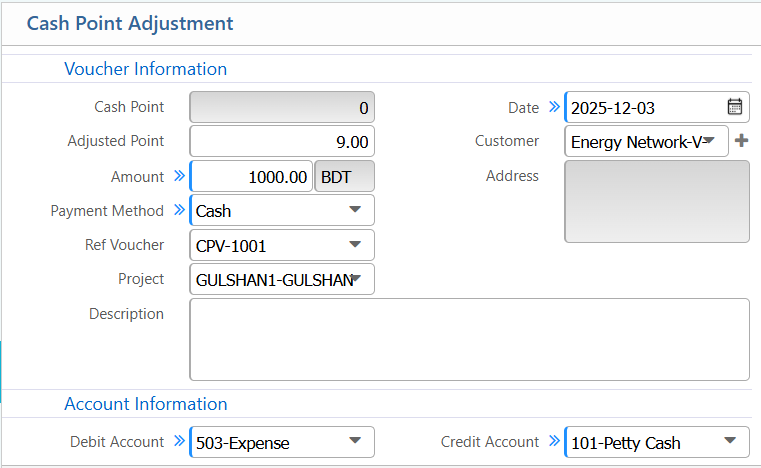
12. Cash Point Adjustment
| Field | Action |
|---|---|
| Cash Point | Enter the current cash point balance. |
| Adjusted Point | Enter the points being adjusted. |
| Amount | Enter the monetary value of the adjusted points in BDT. |
| Payment Method | Select the payment method (Cash, Bank, etc.). |
| Ref Voucher | Enter the reference voucher number (if applicable). |
| Project | Select the project linked to this adjustment (if applicable). |
| Date | Enter the voucher date. |
| Customer | Select the customer linked to this adjustment. |
| Address | Enter or system auto-fills the customer’s address. |
| Description | Enter a short note for the adjustment. |
| Debit Account | Select the account to debit for this adjustment (e.g., Expense). |
| Credit Account | Select the account to credit for this adjustment (e.g., Cash, Petty Cash). |
| Total | Shows the total adjusted amount. |