Fund Request Entry
The Prism Fund Requisition feature is designed to manage requests for funds before incurring any expenses. It ensures that employees or users receive the required financial resources in a structured manner, enabling them to carry out their activities without disruptions. This feature also tracks fund utilization, ensuring accountability and transparency.
Add Fund Requisition
To create a fund requisition in PrismERP, follow these steps:
Navigation:
- Go to the Accounts module in the main menu.
- Select Fund Requisition.
- Click on Add Fund Requisition.
Fields to Be Filled:
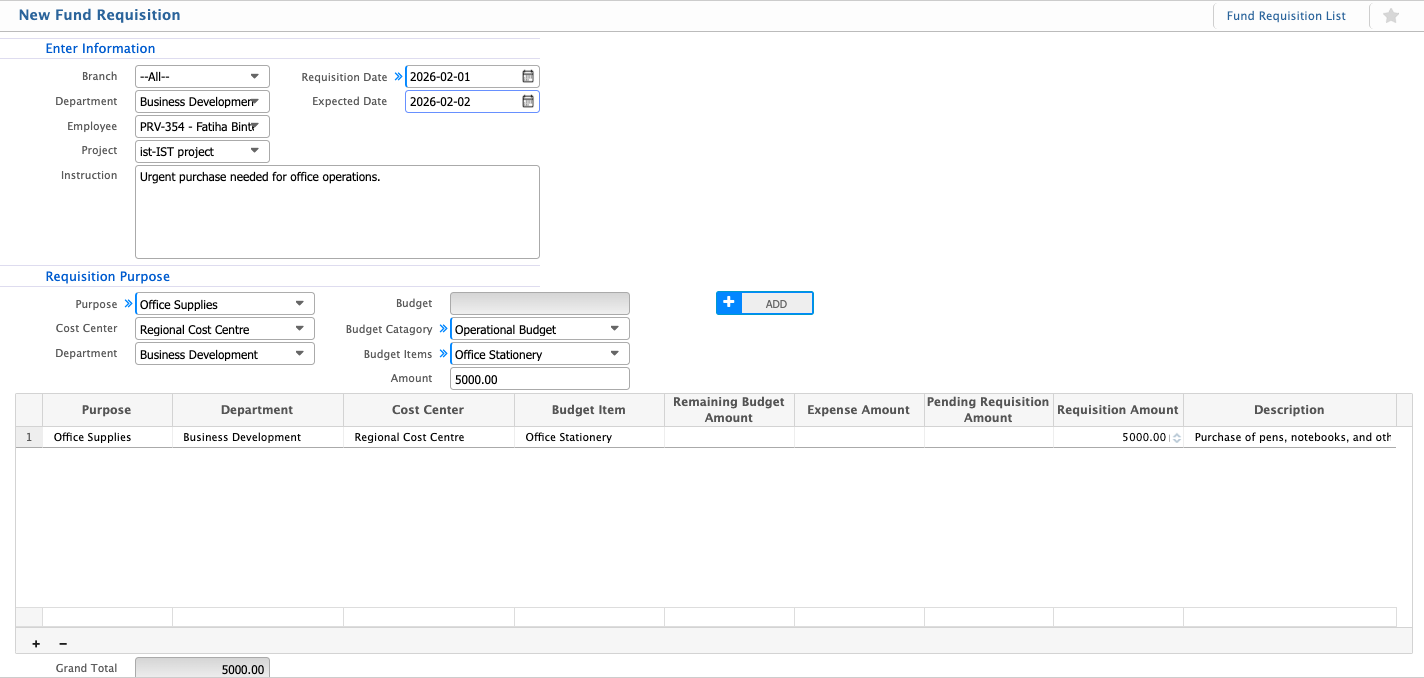
- Branch: Select the branch from which the fund requisition is being created.
- Department: Choose the department associated with the employee making the requisition.
- Employee: Select the employee creating the fund requisition. This links the requisition to the individual.
- Requisition Date: Enter the date on which the fund requisition is being created.
- Expected Date: Specify the expected date for the fund to be made available.
- Project: (Optional) If the requisition is related to a specific project, select the project name.
- Purpose: Provide the purpose of the fund requisition. Examples include:
- Entertainment
- Travel
- Office Supplies
- Any other expense type.
- Cost Center: (Optional) Choose the cost center if the requisition is tied to a specific cost center.
- Budget Category: (Optional) Select the budget category if the fund requisition falls under an allocated budget.
- Budget Item: (Optional) Choose the budget item if the requisition is linked to a particular budget item.
- Amount: Enter the total amount requested for the requisition.

Fund Requisition List

The Fund requisition list Page provides a user-friendly interface for managing all requisition lists. Key features include:
- Search fields: Department, branch, project, status, from date, to date.
Fund Requisition Details Page
The Fund Requisition Details Page in PrismERP provides an in-depth view of individual fund requisitions, enabling users to review, track, and manage the requisition's specifics.
- Project: Displays the project associated with the fund requisition (if applicable).
- Branch: Shows the branch from which the fund requisition was created.
- Employee: Indicates the name of the employee who submitted the requisition.
- Department: Identifies the department associated with the requisition.
- Requisition Amount: The total amount requested in the fund requisition.
- Recommended Amount: The amount that has been recommended for approval after review.
- Disbursed Amount: The total amount of funds that have already been disbursed based on this requisition.
- Requisition Date: The date when the fund requisition was created.
- Expected Date: The date by which the requested funds are expected to be available.

After creating a new fund requisition, the following actions can be performed directly from the Fund Requisition List Page, located under the Action Column:
1. Recommendation for Fund Requisition
To recommend a fund requisition for approval:
- Click on the "Recommendation" Button: Located in the action column of the respective requisition row.
- View the Recommendation Window: Upon clicking, a new window will open displaying:
- Requisition Amount: The amount initially requested by the employee.
- Recommendation Amount: The amount suggested for approval based on the review.
- Fill in the Recommendation Amount: Enter the recommended amount for this requisition. This may differ from the requisition amount based on organizational policies or budget constraints.
- Save the Recommendation: Click on the Save button to proceed to the next step in the fund requisition process, which is the Approval Stage.

2. Approve Fund Requisition
Once a fund requisition has been recommended, the Approval Button becomes available under the Action Column of the Fund Requisition List Page.
- Click on the "Approve" Button: Locate the specific requisition in the list and click the Approve button in the action column.
- View the Approval Window: A new window will open, displaying:
- Requisition Amount: The amount initially requested.
- Recommended Amount: The amount suggested during the recommendation step.
- Approved Amount: The final amount to be approved.
- Modify the Approved Amount (if needed): You can adjust the Approved Amount in this window based on organizational discretion or further review.
- Save the Approval: After confirming or adjusting the approved amount, click the Save button to finalize the approval process.

3. Disburse Fund Requisition
Once a fund requisition has been approved, the Disburse Button becomes available under the Action Column on the Fund Requisition List Page. This marks the final step in the fund requisition process, where the approved funds are allocated or paid out.
- Click on the "Disburse" Button: Locate the approved requisition in the list and click the Disburse button in the action column.
- Fill Out the Disbursement Details: A new window will open, where you need to provide the following information:
- Disburse Amount: Enter the amount to be disbursed (should align with or be less than the approved amount).
- Debit Account: Select the account to which the expense will be charged.
- Credit Account: Select the account from which the disbursement will be made (e.g., cash account, bank account).
- Save the Disbursement: After entering all required details, click the Save button to finalize the disbursement.

Upon saving the disbursement for a fund requisition, a Voucher is automatically generated in the system. This voucher records the financial transaction and ensures proper accounting for the disbursed funds. The voucher can be reviewed and approved from the Details View Page under the Voucher Tab.

4. Voucher Review
- Navigate to the Details View Page: Locate the fund requisition from the Fund Requisition List Page and open its Details View.
- Open the Voucher Tab: In the details view, go to the Voucher Tab to see the voucher generated for the disbursement.
- Review the Voucher: Check the voucher for the following details:
- Disbursement Amount: Verify that the disbursed amount is correct.
- Debit and Credit Accounts: Ensure the accounts selected during disbursement are reflected accurately.
- Narration or Description: Confirm that the purpose of the voucher is properly documented.
- Accept the Voucher: Click the Accept button to finalize the voucher. This step is crucial as it triggers the necessary accounting entries in the system.
Accounting Journals
Once the voucher is accepted:
- The associated accounting journal entries are created automatically.
- Debit Entry: To the account where the expense is recorded.
- Credit Entry: To the account from which the funds were disbursed (e.g., bank or cash account).
These journal entries ensure that the financial transaction is accurately recorded in the system, maintaining the integrity of the accounts.
Completion
After the voucher is accepted and the journal entries are posted, the fund requisition process is complete. You can review the voucher and its journal impact anytime from the Accounting Module.