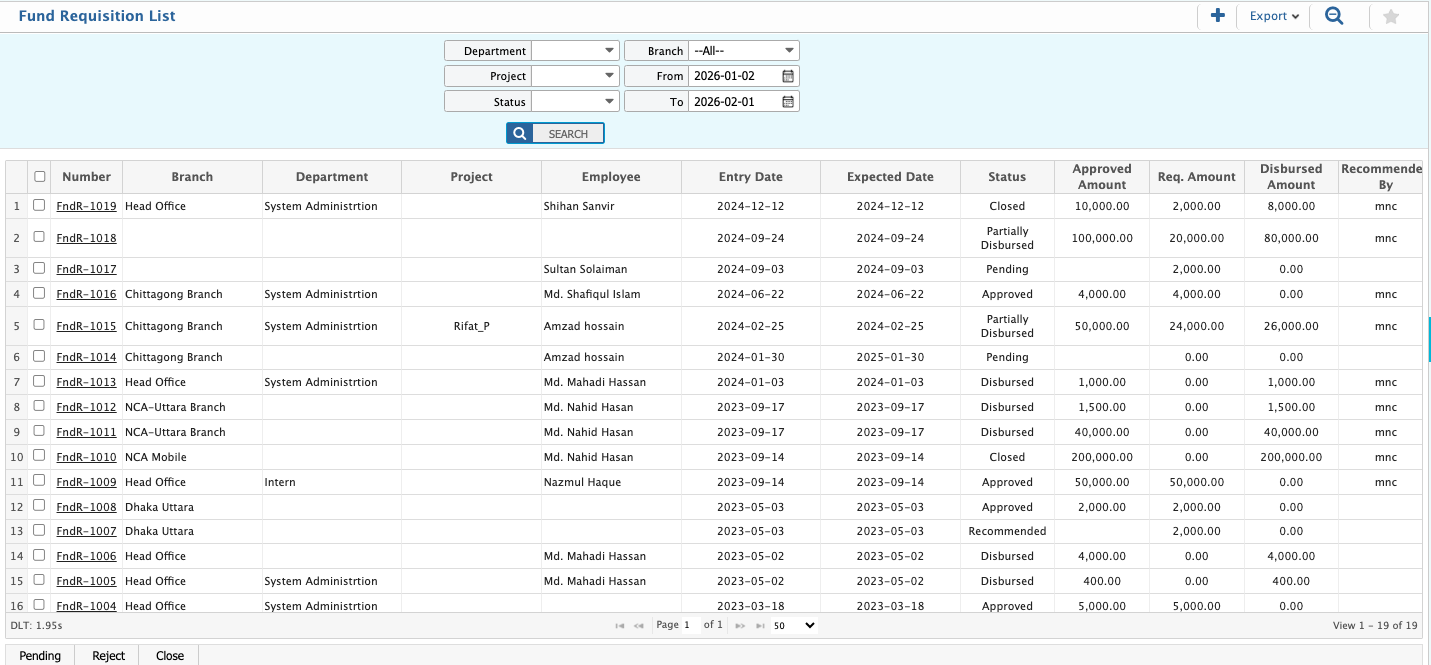
Fund Requisition List -Search & Action
| Field | Action |
|---|---|
| Department | Filter by department to display fund requisitions raised by a specific department. |
| Project | Filter by project to display requisitions associated with a particular project. |
| Status | Filter by status to display fund requisitions based on their current status and approve status as needed. |
| Branch | Filter by branch to view fund requisitions created under a specific branch. |
| From | Select the start date to display requisitions created on or after a specific date. |
| To | Select the end date to display requisitions created on or before a specific date. |
| Add New | Add a new fund requisition directly from the requisition list. |
| Report | Preview, generate, and download fund requisition reports in multiple formats such as PDF, Excel, or CSV. |
Recommend Fund Requisition
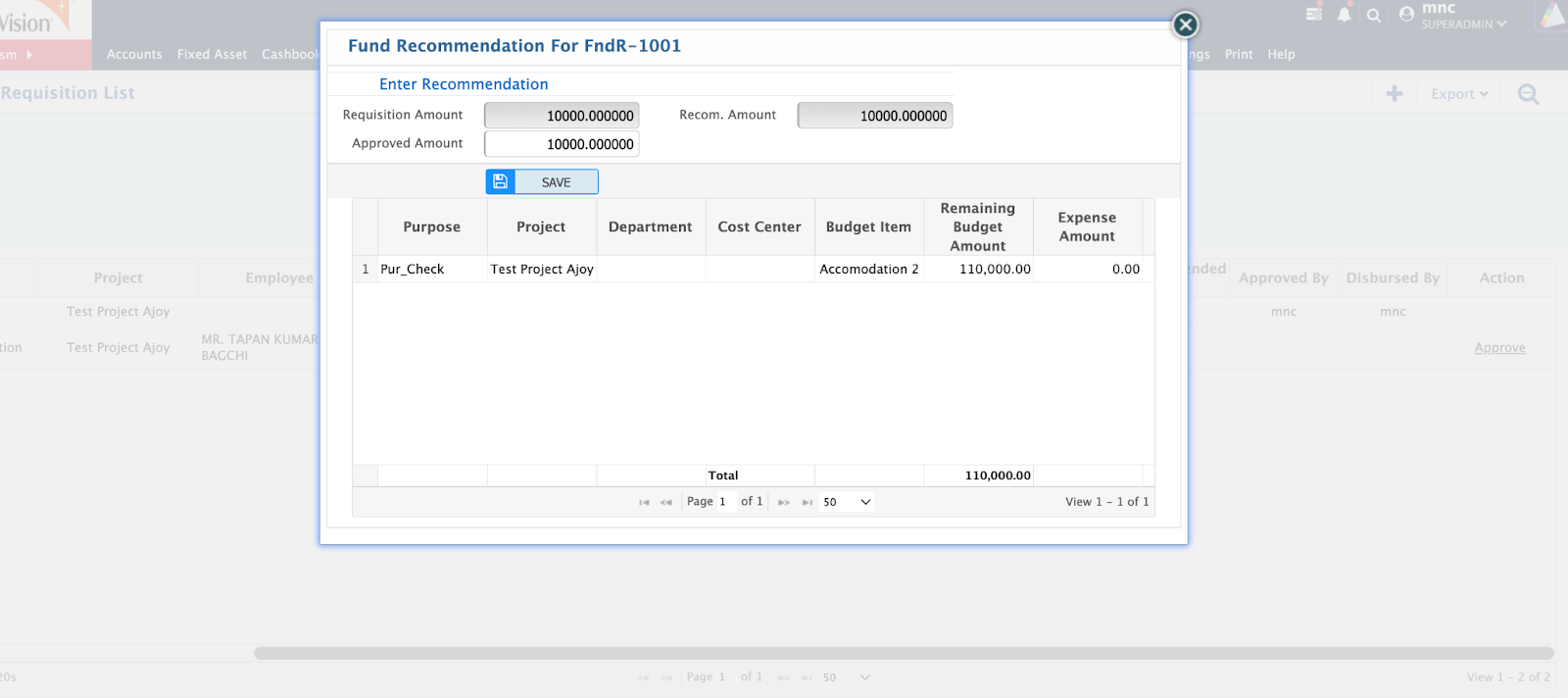
To recommend a fund requisition, click the Recommendation option in the action column for the chosen requisition, which will open a window showing the requested amount and a field to enter your recommended amount. Once the recommendation is entered, Save to submit it and move the requisition to the Approval Stage.

Approve Fund Requisition
Once a fund requisition has been recommended, the Approve option appears in the action column of the Fund Requisition List. Click it to review the requested, recommended, and approved amounts, make any necessary adjustments then finalize the approval.
Disburse Fund Requisition
After a fund requisition is approved, the Disburse option becomes available in the action column on the Fund Requisition List page, allowing the approved funds to be allocated or paid. Clicking this button opens a window where the disbursement details can be entered, including the amount to disburse, the debit account to charge, and the credit account to pay from.

Fund Requisition Voucher
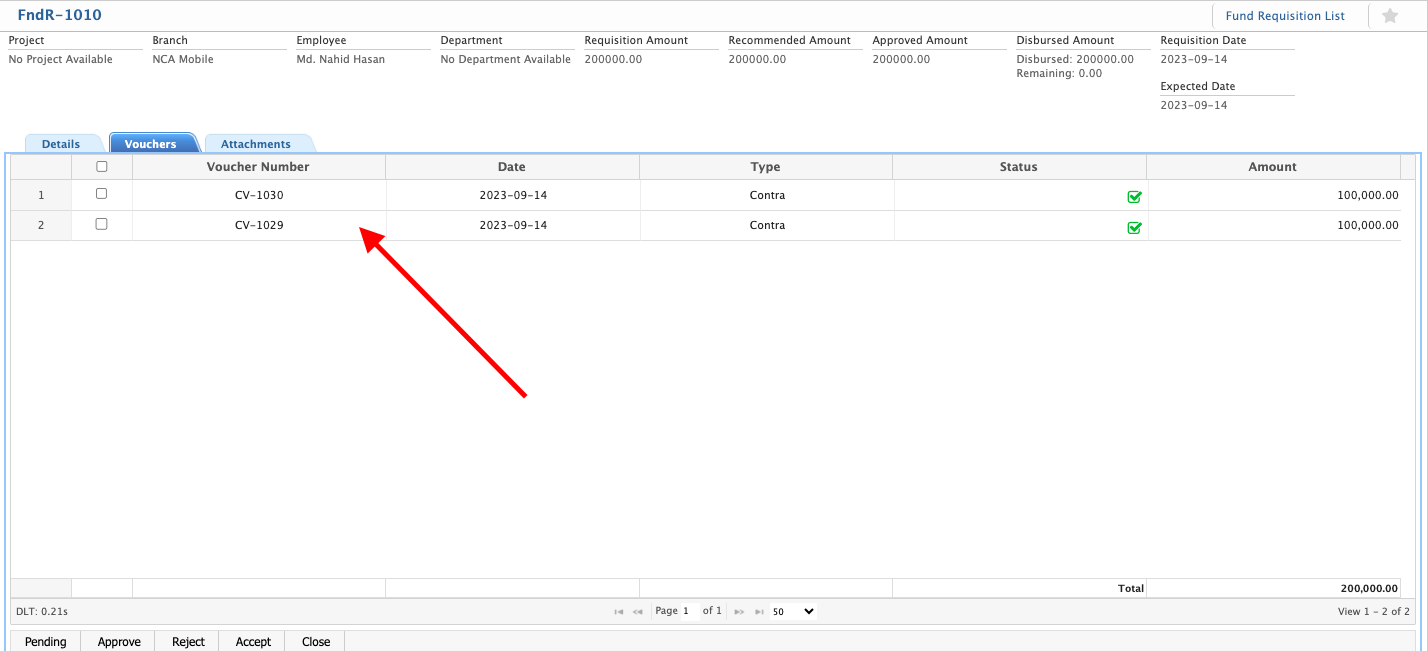
When a fund requisition disbursement is saved, the system automatically generates a voucher to record the transaction and ensure proper accounting of the disbursed funds. To review it, navigate to the Details View Page from the Fund Requisition List, open the Voucher Tab, and check that the disbursement amount, debit and credit accounts, and narration or description are correct. Once verified, accept it to finalize the voucher, which completes the accounting entries in the system.