Training Schedule
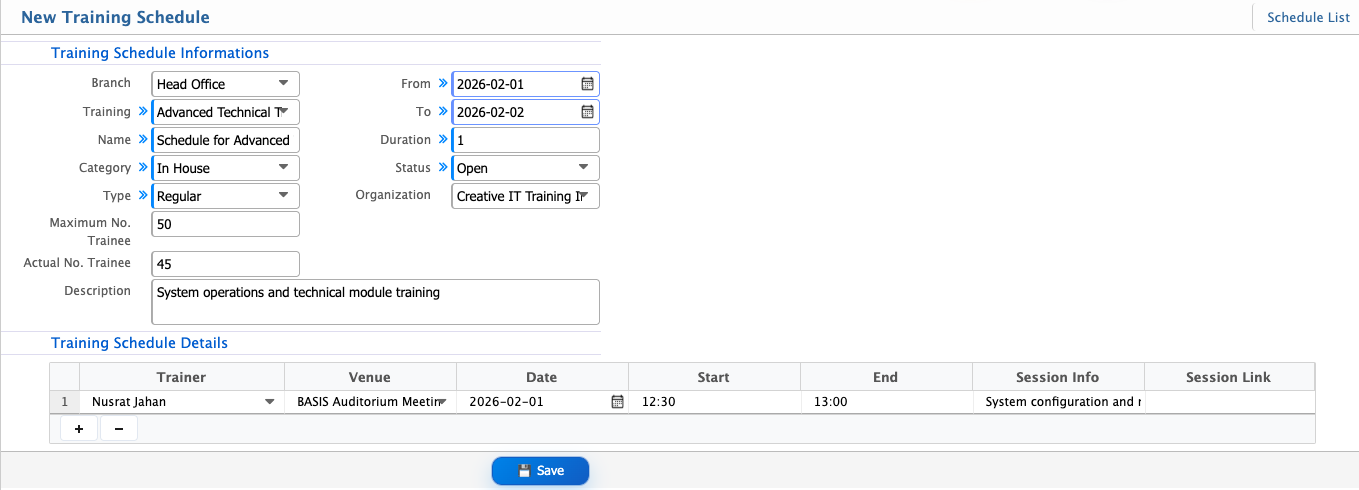
Training Schedule in PrismERP is used to define and manage training sessions by setting key details such as branch, training, category, type, duration, trainer, venue, and session timing. It also includes participant limits, organization details, and session links for online training when required.
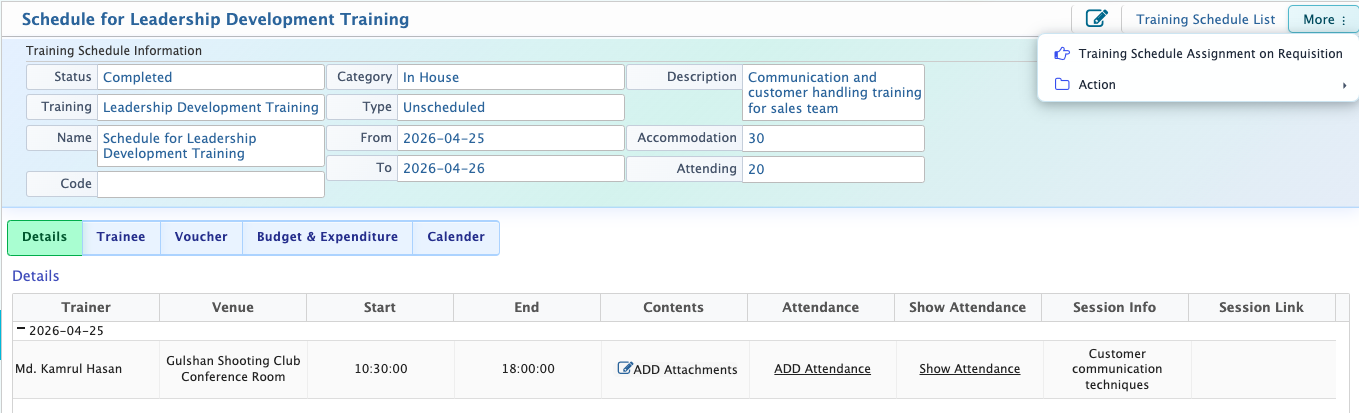
After creation, the schedule appears in the Schedule List and moves through different statuses including Open, Requisition, In Progress, Completed, and Closed based on its lifecycle. Each schedule can be opened to view detailed information such as trainees, budget, vouchers, calendar, and attendance records.
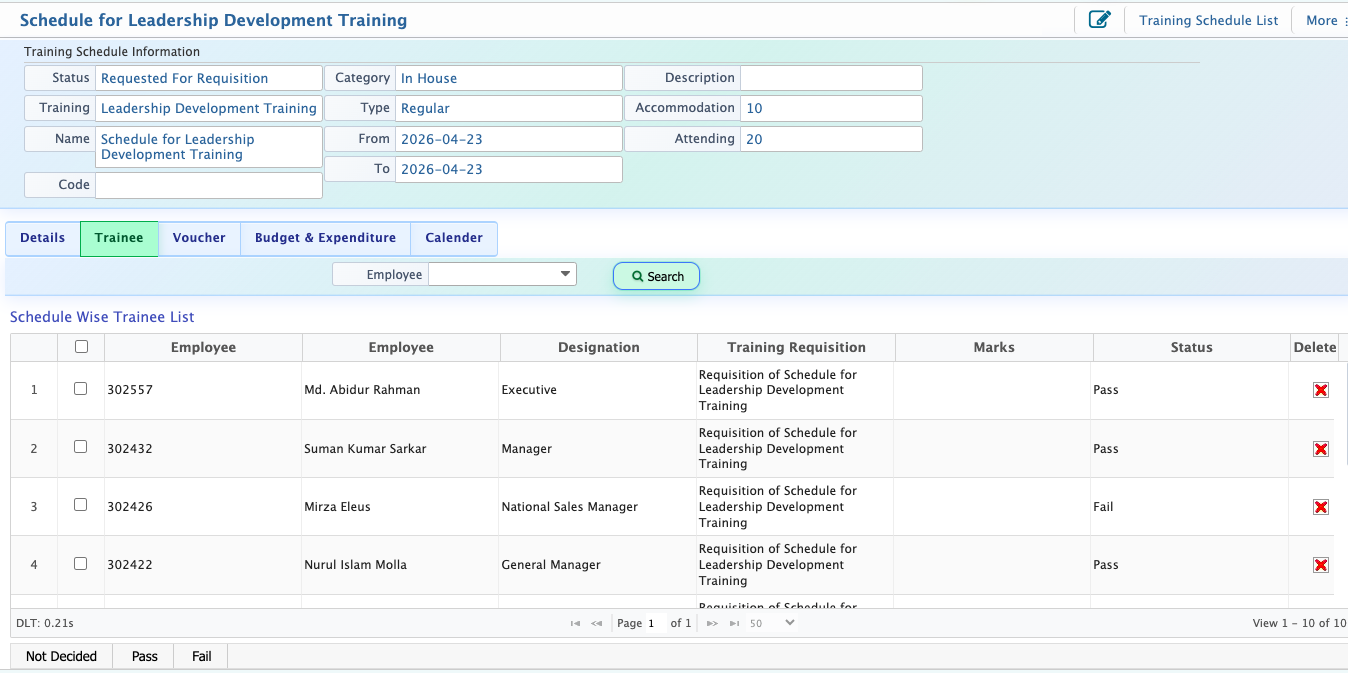
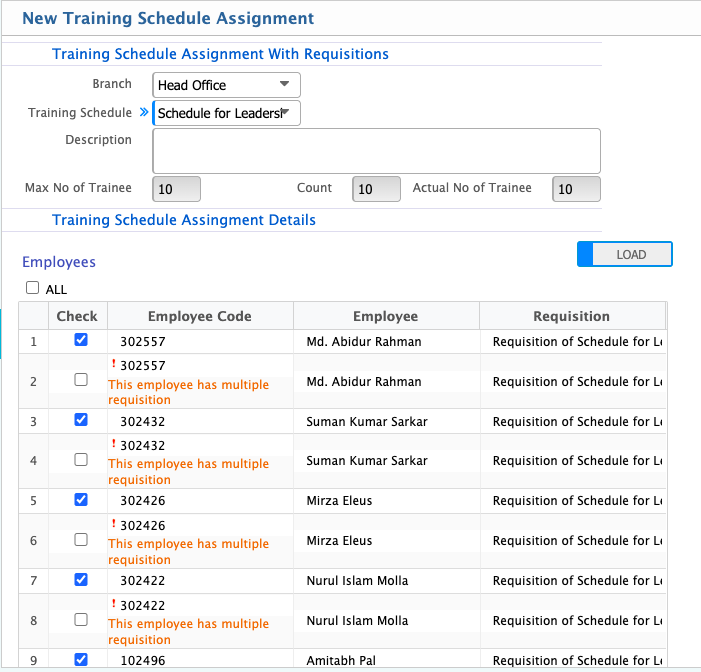
Users can assign employees to a schedule from a training requisition by loading the relevant list and selecting participants. During and after training, trainee outcomes can be managed by marking them as Passed or Failed, or removing them if necessary.
Add Training Schedule
| Field | Action |
|---|---|
| Branch | Select the branch where the training schedule will be created. “All” indicates applicability across all branches. |
| Training | Select the training program that will be conducted. |
| Category | Select the category of the training such as in house or out-bound. |
| Type | Select the training type such as regular or pre-scheduled. |
| Maximum No. Trainee | Enter the maximum number of trainees allowed in the session. |
| Actual No. Trainee | Enter the actual number of trainees enrolled in the session. |
| From | Select the start date of the training schedule. |
| To | Select the end date of the training schedule. |
| Duration | Enter or system-calculate the total duration of the training. |
| Status | Select the current status of the schedule (e.g., Open, Closed, Ongoing). |
| Organization | Select the training organization responsible for conducting the session (if applicable). |
| Description | Enter additional details or notes about the training schedule. |
| Trainer | Select the assigned trainer for the session. |
| Venue | Select the venue where the training will be conducted. |
| Date | Select the specific date of the training session. |
| Start | Enter the start time of the session. |
| End | Enter the end time of the session. |
| Session Info | Enter additional session details or notes. |
| Session Link | Enter the online session link if the training is conducted virtually. |
After adding a training schedule, it will appear in the Schedule List where users can manage its lifecycle. The schedule status can be updated as Open (newly created and ready for setup), Requisition (training request process is initiated), In Progress (training is currently ongoing), Completed (training has finished successfully), and Closed (final stage where the schedule is fully finalized and no further changes are allowed). If the user clicks on the schedule name, it will open the details page where they can view associated trainees, vouchers, budgets, and the training calendar. From this page, users can also edit the schedule, add attendance for participants, and view attendance records.
A user can assign a training schedule to a requisition raised by a department by selecting the relevant branch and training schedule. After selecting these, the user needs to click Load so that all employees included in the selected requisition are displayed in a list. From this list, the user can then select the employees who will attend the training and assign them to the schedule accordingly.
After assigning a training schedule, the user can manage trainee outcomes from the schedule details. The user can mark each trainee as Passed or Failed based on their performance. If required, the user can also remove a trainee from the list by deleting them from the assigned participants.