Appraisal Form Configuration
In PrismERP, users can create and configure an employee appraisal form to define the structure of the performance evaluation process. Users can select the appraisal type, rating system, and map it to specific organizational levels such as department and designation. Users can also set KPI weightage and assign appraisers to control how the final performance score will be calculated.
Add Appraisal Form
| Field | Action |
|---|---|
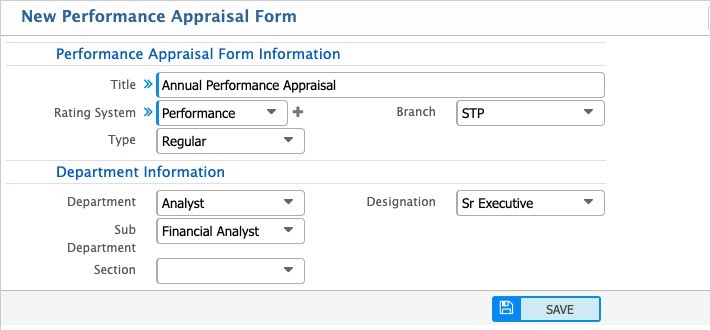
| Title | Enter a clear and unique title for the performance appraisal form to identify the evaluation cycle. |
| Rating System | Select the predefined rating system used to evaluate employee performance. |
| Branch | Select the branch where the appraisal form will be applied or select “All” for organization-wide applicability. |
| Type | Select the appraisal type to define the evaluation structure (regular, 360 degree, functional). |
| Department | Select the department for which the appraisal form is being created. |
| Sub-department | Select the relevant sub-department under the chosen department. |
| Subsection | Select the subsection under the sub-department for more granular evaluation mapping. |
| Floor | Select the working floor/location of the employee group being evaluated. |
| Designation | Select the job designation to define which employee roles are included in this appraisal form. |
Appraisal Type defines the overall structure of how an employee’s performance will be evaluated. Users can select the type based on the organization’s evaluation method and requirement.Regular appraisal is a standard performance evaluation where the employee is assessed based on predefined KPIs and targets within a fixed period. 360 Degree appraisal includes feedback from multiple sources such as supervisors, peers, and sometimes self-evaluation to get a more complete view of performance. Functional appraisal is based on specific job functions or roles, where performance is measured according to functional responsibilities rather than general KPIs. Users can choose the appropriate type depending on how the appraisal process is designed for different employees or departments.
Configure KPI Weightage
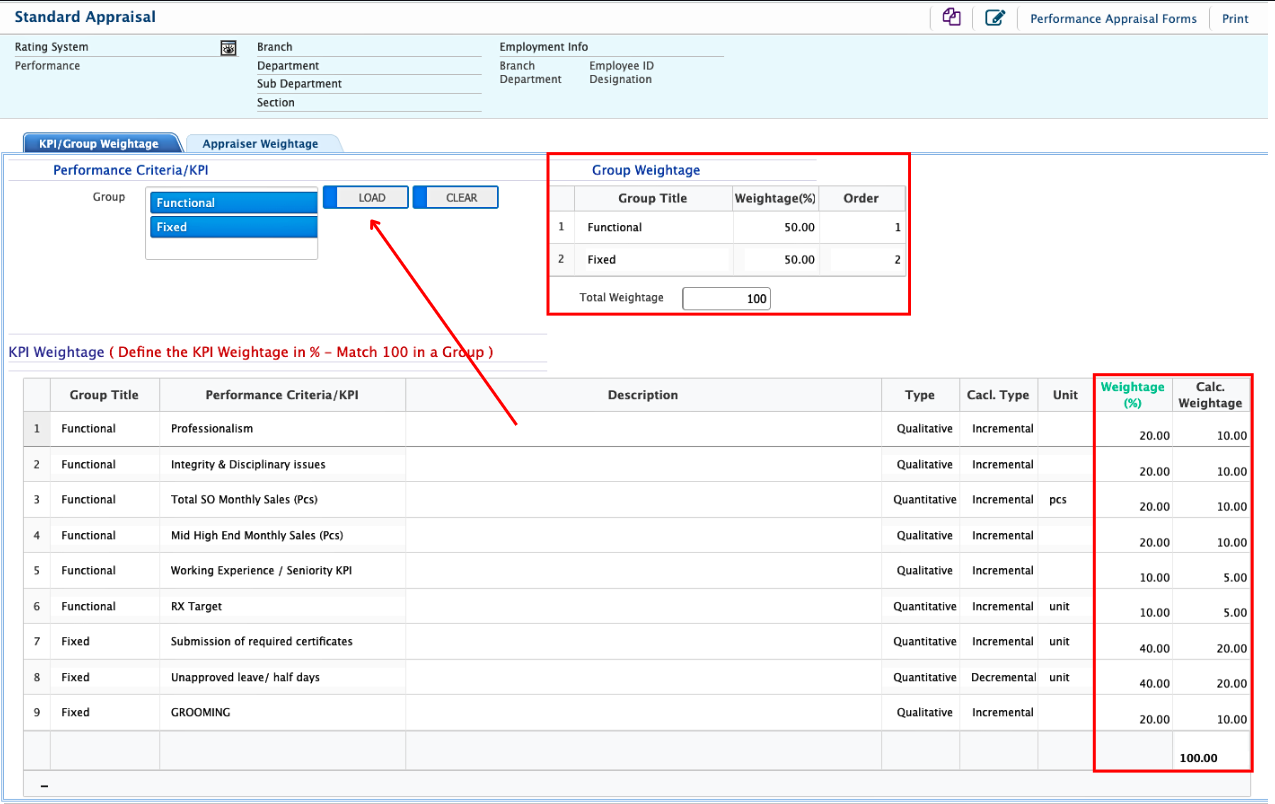
After adding an appraisal form, it will appear in the Performance Appraisal Form list. From here, users can activate, deactivate, or approve the form. To configure it, users must click on the form name.Inside the KPI Weightage section, users must first add a KPI group to the form. After selecting a group, the system automatically loads all KPIs defined under that group.Users can assign weightage to each KPI and set the group order. The total group weightage must always be 100%.Within each group, users can distribute weightage among the KPIs. The total criteria weightage inside a group must also be 100%.After assigning weightage, the system automatically recalculates the final contribution of each KPI group in the appraisal score.
Configure Appraiser Weightage
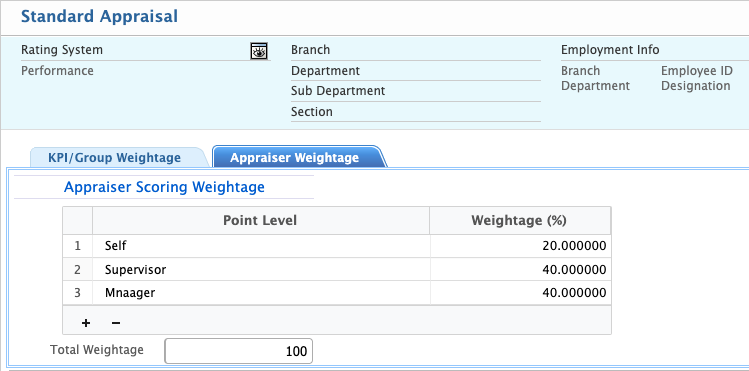
The next step is Appraiser Weightage. Users can add multiple appraisers to the appraisal form and assign weightage to each one. The total combined appraiser weightage must be 100%, distributed based on their evaluation role.