Appraisal Scoring & Finalization
In PrismERP, users can add scores for employee appraisals and the system calculates the final performance score based on the defined KPI weightage. The scoring is completed for all assigned appraisers, with progress tracked by the system. Once scoring is finished, users can verify and approve the appraisal. After approval, the appraisal is finalized and KPI reports can be generated.After creating the appraisal, users now need to add score. For this, users need to go to the Appraisal Index List and then click on the Add Score option.
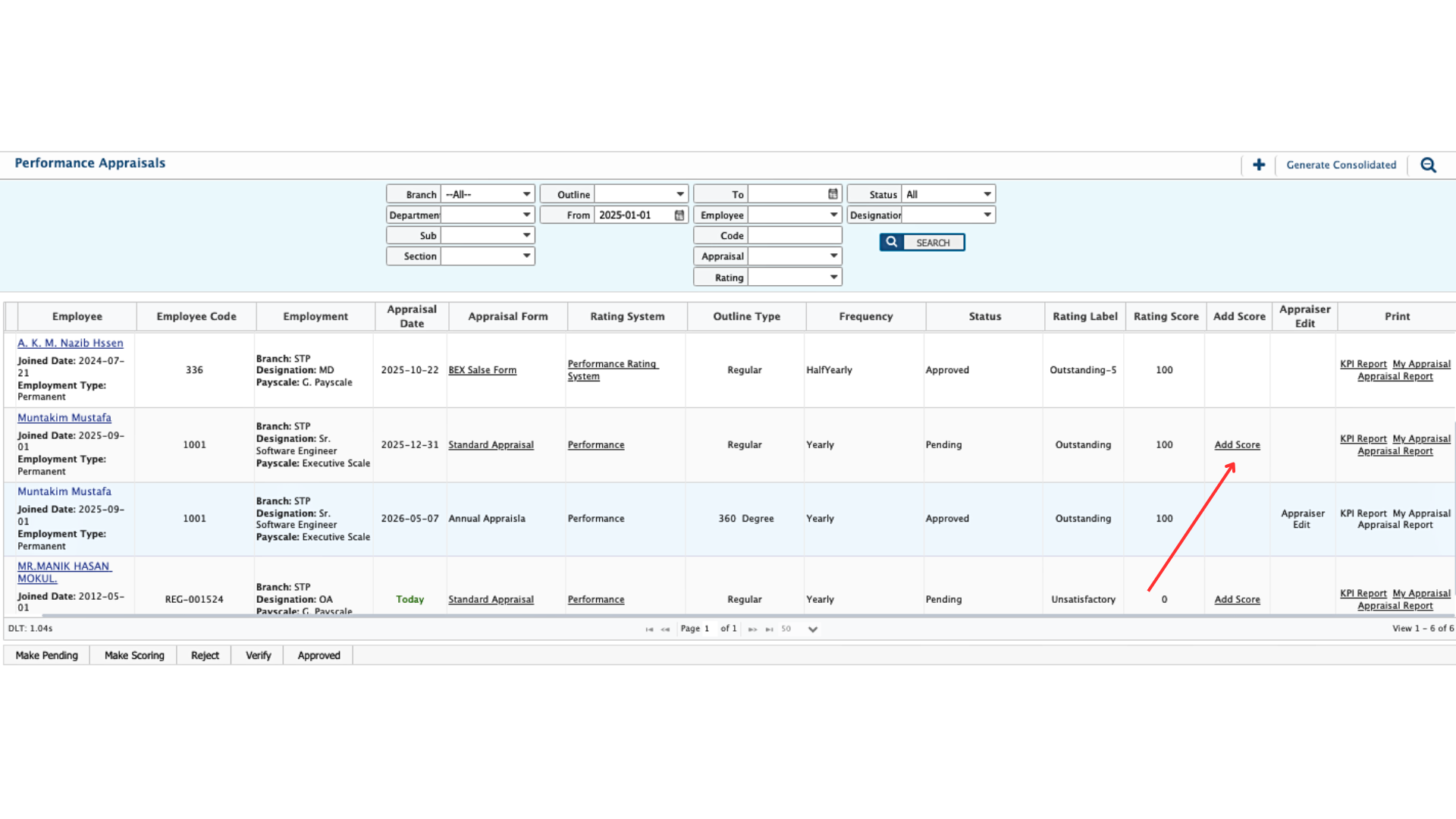
In the Add Score page, users need to select the appraiser from the dropdown menu and then add score for the assigned targets. If the KPI is quantitative, users need to enter the achieved score based on actual performance. If the KPI is qualitative, users can select a performance statement such as Good, Average, or Outstanding.Based on the entered scores and the KPI weightage defined in the appraisal setup, the system will automatically calculate the total performance score for the employee.
So the scoring needs to be done multiple times based on the number of assigned appraisers. If three appraisers are assigned, the scoring process must be completed three times, once for each appraiser.During the scoring process, the system will show how many levels of scoring are required based on the number of assigned appraisers. After each level is completed, the system will also display the progress, such as 2 out of 3 scoring completed, until all scoring levels are finished.
After the scoring level is completed, users can verify and approve the appraisal. Once verification and approval are completed, the appraisal process is considered finished. After that, users can download the KPI report in multiple formats.