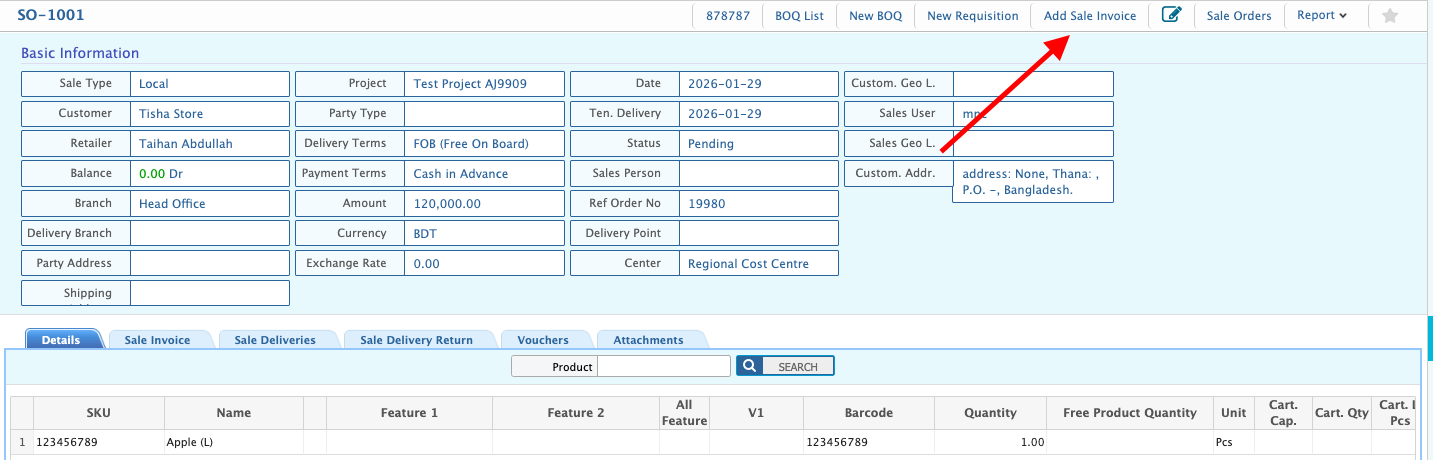
Sale Invoice from Sale Order
Sale Invoice from Sale Order in PrismERP allows users to generate invoices directly from existing sale orders, with all relevant details automatically carried over. Users can review and update party, branch, delivery, and payment information, select products and quantities, manage free products, and record delivery charges and payments. The system ensures accurate invoice creation while maintaining a clear link to the original sale order, reducing manual entry and potential errors.
| Field | Action |
|---|---|
| Party Type | Select the type of party. |
| Customer | Select the customer for whom the sale invoice is being created. |
| Branch | Select the branch under which the invoice is generated. |
| Retailer | Select the retailer for the sale invoice. |
| Invoice Date | Select the date of the sale invoice. |
| Due Date | Enter the payment due date for the invoice. |
| Delivery Date | Enter the expected delivery date for the order. |
| Terms | Enter or select payment or delivery terms. |
| Order Number | Enter the associated sale order number. |
| Payment Method | Select the payment method. |
| Center | Select the center handling the invoice. |
| Sale/Work Order | Select the related sale or work order. |
| Sales Person | Select the salesperson responsible for the invoice. |
| Territory Repr. | Select the territory representative, if applicable. |
| Inventory | Select the inventory from which items will be issued. |
| Project | Select the related project, if applicable. |
| Courier | Enter the courier service for delivery. |
| Item/Dept | Select the item or department. |
| Item | Select the specific item for invoicing. |
| Product | Select the product to add it to the sale invoice. |
| Quantity | Enter the quantity of the selected product. |
| Quantity | Enter the quantity to be invoiced. |
| Free Product | Select eligible free products linked with the sale invoice. |
| Free Product Quantity | Enter the quantity of any free products linked to the item. |
| Instruction | Enter any special instructions for the free product. |
| Delivery Charge | Enter applicable delivery charges. |
| Paid Amount | Enter the amount paid against the invoice. |
| Cash/Bank | Select the cash or bank account used for payment. |
| AIT Account | Select the AIT account for recording advance income tax. |
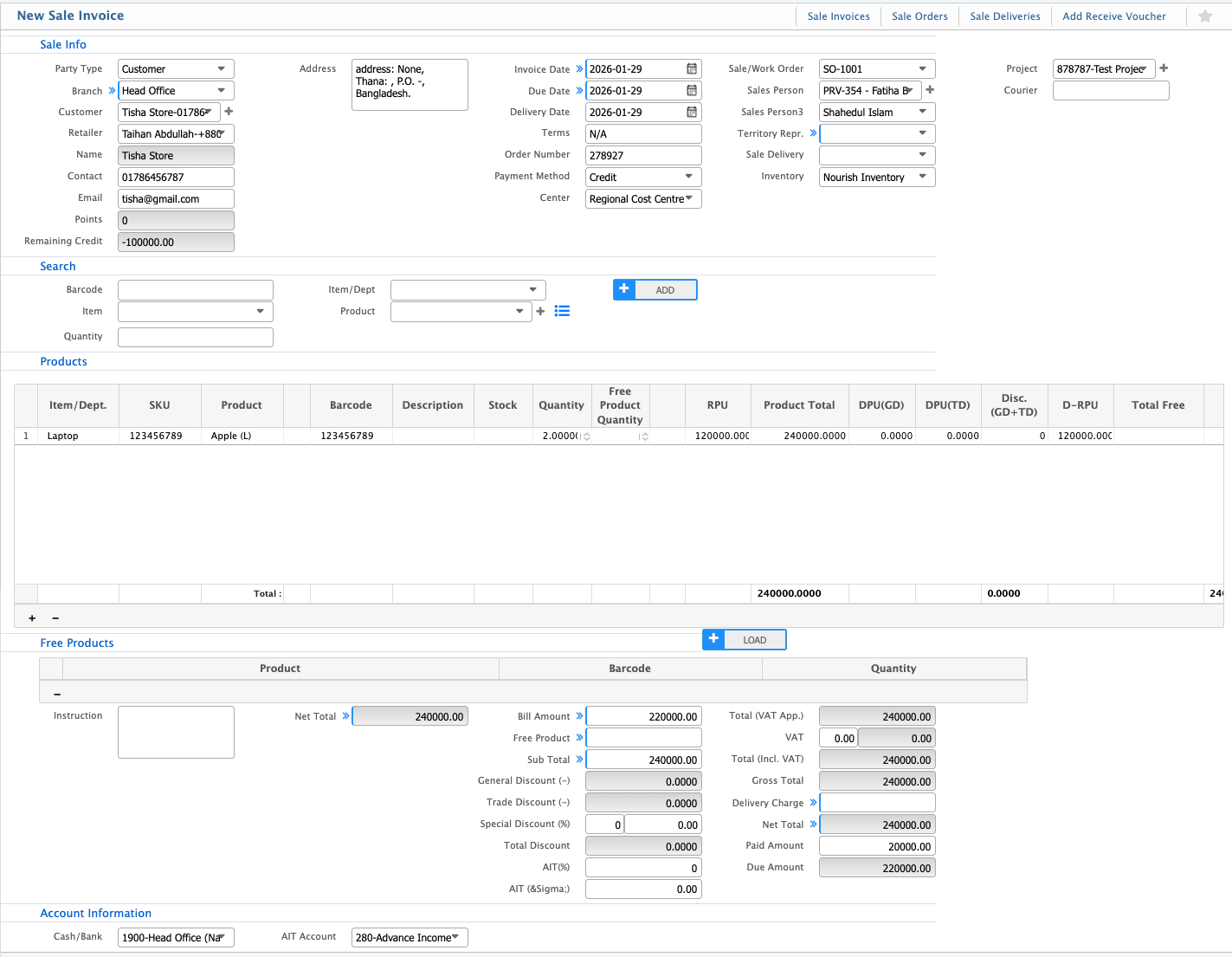
Sale invoices can also be created directly from the Sale Order list page. Opening an existing sale order provides the Add Sale Invoice option, which opens the sale invoice page with all relevant details from the order already populated.