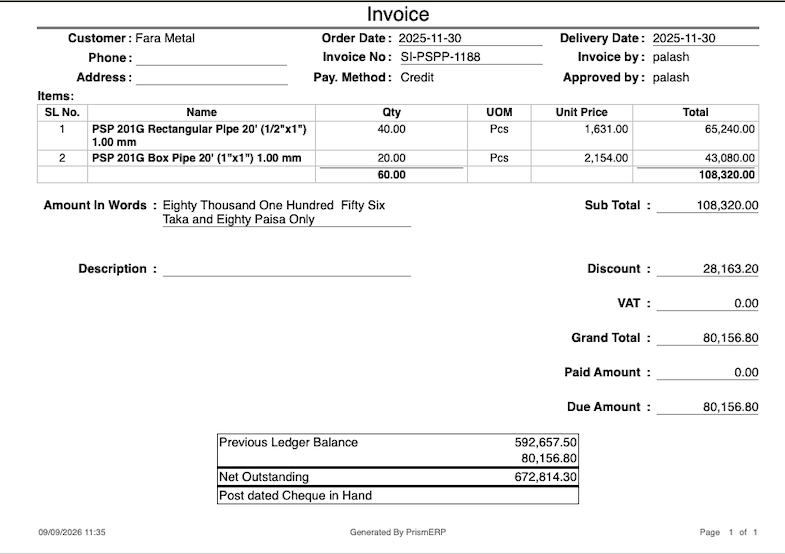
Sale Invoice
A Sale Invoice in PrismERP is used to record the sale of goods or services to a customer. It contains customer information, invoice and delivery dates, product details, quantities, prices, discounts, VAT, and payment information. Users can create an invoice by adding the required products and entering the relevant sales and payment details.
Add Sale Invoice
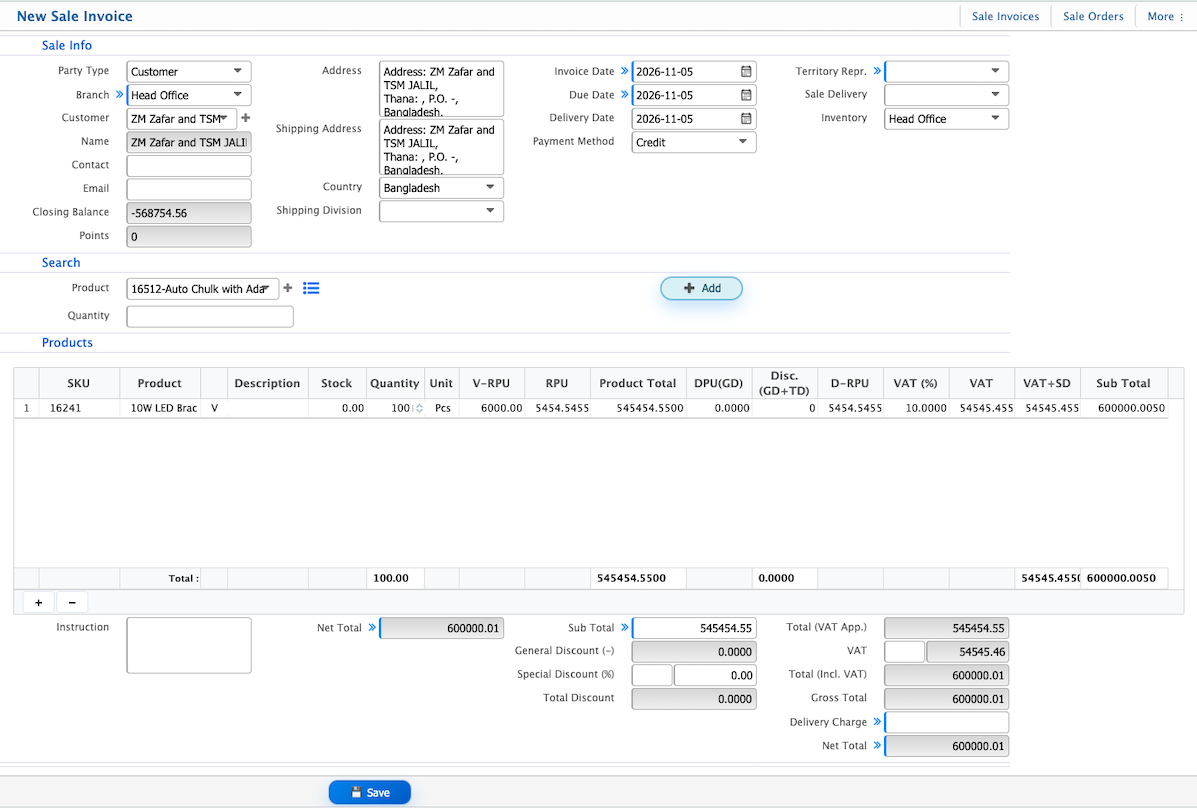
| Field | Action |
|---|---|
| Party Type | Select the type of party for the sale invoice, such as Customer. |
| Branch | Select the branch under which the sale invoice is created. |
| Customer | Select the customer for whom the invoice is being prepared. |
| Name | Enter or select the customer's name. |
| Contact | Enter the customer's contact number. |
| Enter the customer's email address. | |
| Closing Balance | View the customer's current closing balance. |
| Points | View the customer's available points. |
| Address | Enter or select the customer's address. |
| Shipping Address | Select the address where the products will be delivered. |
| Country | Select the shipping country. |
| Shipping Division | Select the relevant shipping division. |
| Invoice Date | Enter the date of the sale invoice. |
| Due Date | Enter the payment due date. |
| Delivery Date | Specify the expected delivery date. |
| Payment Method | Select the payment method for the invoice, such as Cash. |
| Territory Repr. | Select the territory representative associated with the sale. |
| Sale Delivery | Link a Sale Delivery record to the invoice, if applicable. |
| Inventory | Select the inventory from which the products will be issued. |
| Search Product | Search for a product by entering its name or code. |
| Product | Select the product to add to the invoice. |
| Quantity | Enter the quantity of the selected product. |
| Instructions | Enter any special instructions related to the sale or delivery. |
| Delivery Charge | Enter the delivery charge applicable to the invoice. |
Sale Invoices List
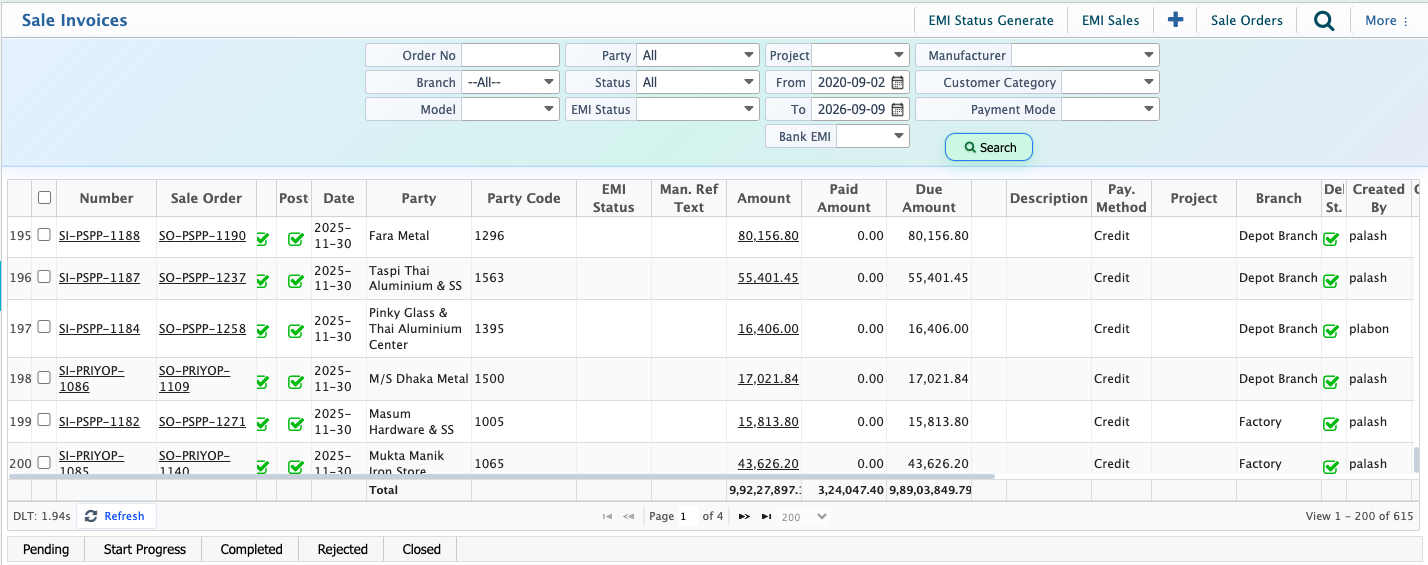
The Sale Invoices list is used to view and manage all sales invoices created in PrismERP. It displays important details such as invoice number, date, customer name, total amount, paid amount, and due amount. Users can search and filter invoices to find specific records. An invoice can be edited while it is in Pending status and submitted to the approval workflow for review. Each invoice can have one of the following statuses: Pending, Start Progress, Completed, Rejected, or Closed.
Sale Invoice Details
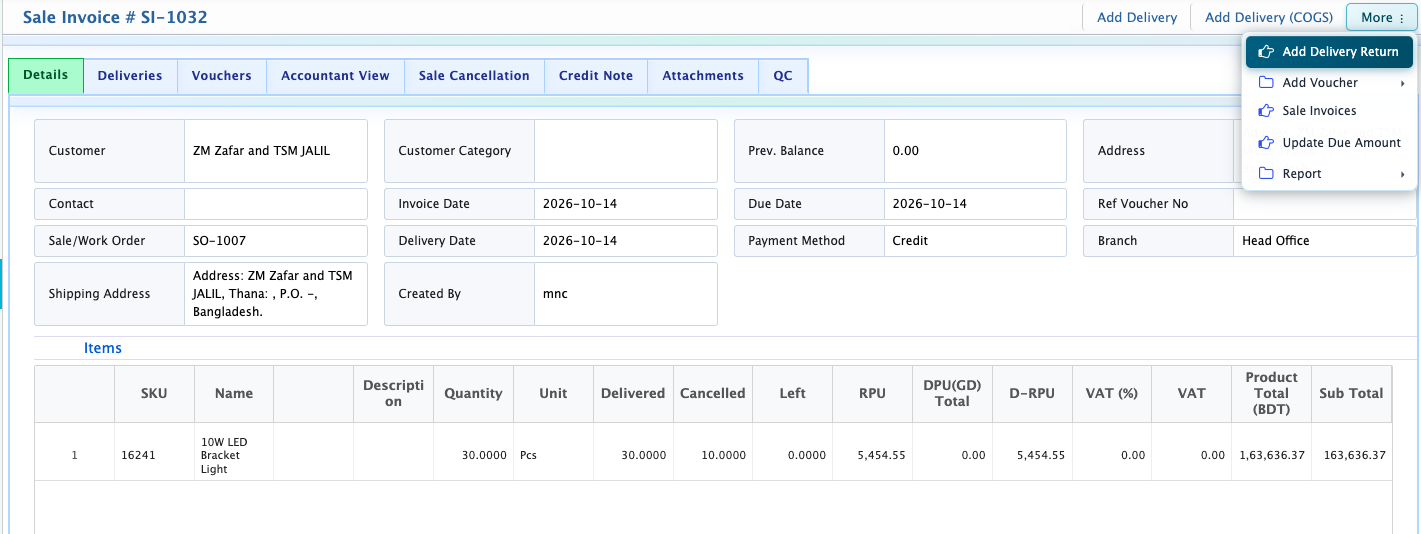
When users click on an invoice number from the Sale Invoices list, the Sale Invoice Details page opens. It displays the invoice information, including customer details, invoice and delivery dates, product details, quantities, pricing, discounts, VAT, and payment information. Users can also view related deliveries, vouchers, accounting information, attachments, and other records through the available tabs.
Available Action Items:
- Add Delivery: Create a delivery record against the sale invoice.
- Add Delivery (COGS): Create a delivery record with Cost of Goods Sold (COGS).
- Add Delivery Return: Record a return against the sale invoice.
- Add Voucher: Create an accounting voucher related to the invoice.
- Update Due Amount: Update the due amount of the invoice.
Sale Invoice Report
On the Sale Invoice List page, users can find the Report option. By clicking on it, users can open the invoice report, preview it, and download it in different formats.