Market Return
The Market Return feature in PrismERP provides a complete solution for managing returned products from customers and vendors. Users can define and maintain Market Return Purposes, add new Market Returns, and track all Market Return Deliveries. The system allows monitoring return status, processing Cash Returns, and applying A/R Adjustments while ensuring accurate VAT calculations. Branches, inventory, and involved parties are organized for easy management. Search, filter, report generation, and document attachment functionalities ensure accountability. Detailed views, deliveries, and Accountant View provide full control over financial and operational aspects, enabling efficient and transparent handling of all market returns.
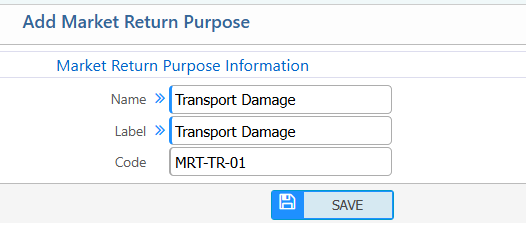
1. Add Market Return Purpose
| Field | Action |
|---|---|
| Name | Enter the name of the market return purpose. |
| Code | Enter a unique code to identify the market return purpose. |
2. Market Return Purpose List – Search & Actions
| Field | Action |
|---|---|
| Name | Search by market return purpose name to quickly locate a specific purpose. |
| Label | Search by the display label assigned to the market return purpose. |
| Code | Search by the unique code to identify a market return purpose. |
| Name | Filter by market return purpose name. |
| Label | Filter by display label. |
| Code | Filter by unique code. |
| Add | Add a new market return purpose by entering name, label, and code. |
| Edit | Edit the details of the selected purpose to update name, label, or code. |

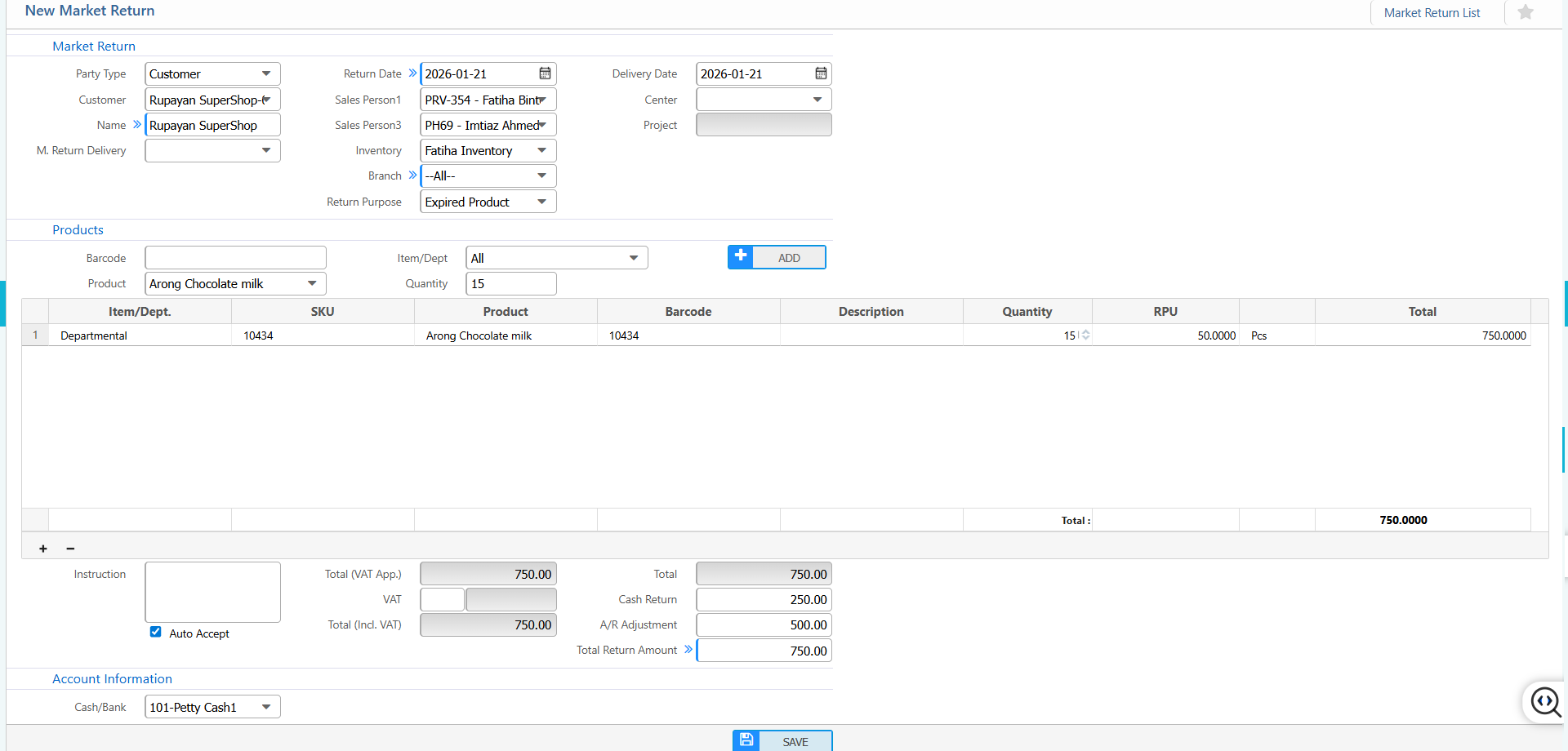
3. Add New Market Return
| Field | Action |
|---|---|
| Market Return Party Type | Select the type of party involved (Customer or Vendor). |
| Party Name | Select the name of the party returning the product. |
| M. Return Delivery | Select the market return delivery if applicable. |
| Return Date | Enter the date on which the market return is processed. |
| Sales Person1 | Select the primary sales person responsible for the return. |
| Sales Person3 | Select an additional sales person involved, if applicable. |
| Inventory | Select the inventory or stock location for the returned items. |
| Branch | Select the branch handling the market return. |
| Return Purpose | Select the reason for the market return. |
| Delivery Date | Enter the delivery date of the returned items. |
| Center | Select the center or unit handling the return. |
| Item | Select the item type of the product for return. |
| Products | Select the product for market return. |
| Quantity | Enter the quantity of products being returned. |
| RPU | Enter the return price per unit. |
| Instruction | Enter additional instructions for the return. |
| VAT | Enter the VAT applied to the return. |
| Cash Return | Enter the cash amount to be returned to the party. |
| A/R Adjustment | Enter any accounts receivable adjustments related to the return. |
| Account Information | Select the account (Cash/Bank) to process the return. |
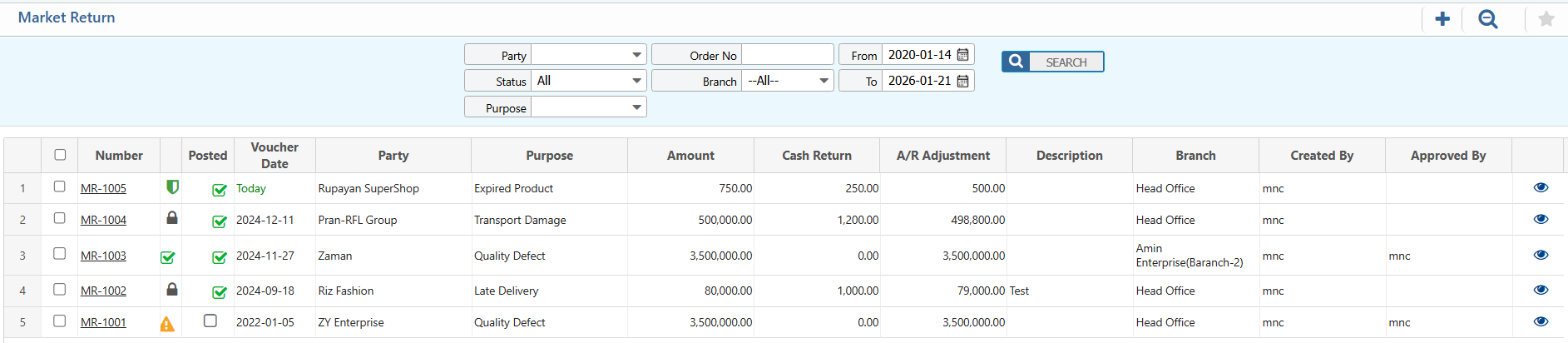
4. Market Return List – Search & Actions
| Field | Action |
|---|---|
| Party | Search by party name to locate returns associated with a specific customer or vendor. |
| Status | Filter by return status (Posted, Pending, Approved) and update as needed. |
| Purpose | Search by return purpose to find entries matching specific reasons. |
| Order No | Search by order number to locate related sales orders. |
| Branch | Filter by branch; default is “--All--” to include all branches. |
| From | Filter market returns starting from a specific date. |
| To | Filter market returns up to a specific date. |
| Add | Add a new market return entry to the system. |
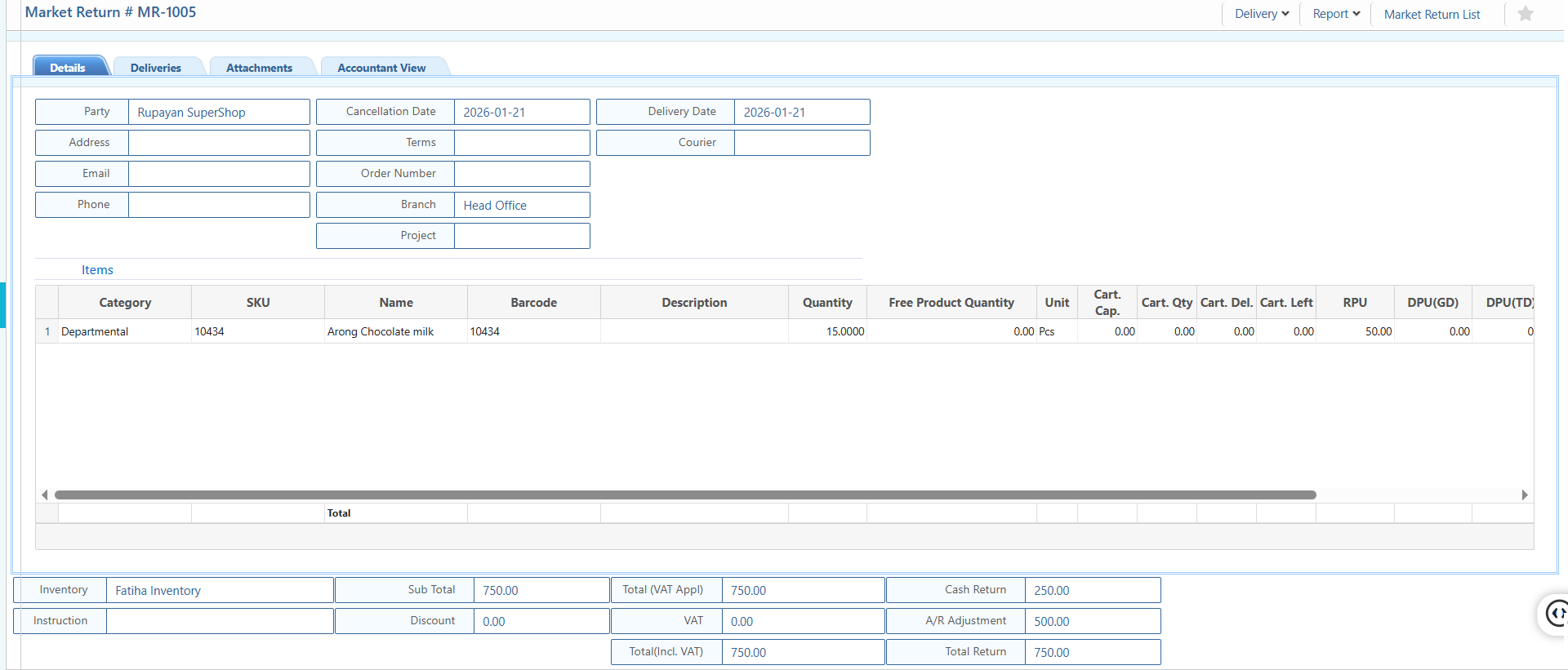
5. Market Return List – Details View & Action
| Field | Action |
|---|---|
| Delivery | Add Market Return Delivery for this return. |
| Report | Generate and download reports for this return in multiple formats. |
| Details | View and edit detailed information including product and amounts. |
| Deliveries | View all deliveries linked to this return with dates and quantities. |
| Attachments | Upload or view supporting documents or files. |
| Accountant View | Access accounting-related info such as Cash Return, A/R Adjustment, VAT, and total return amount. |
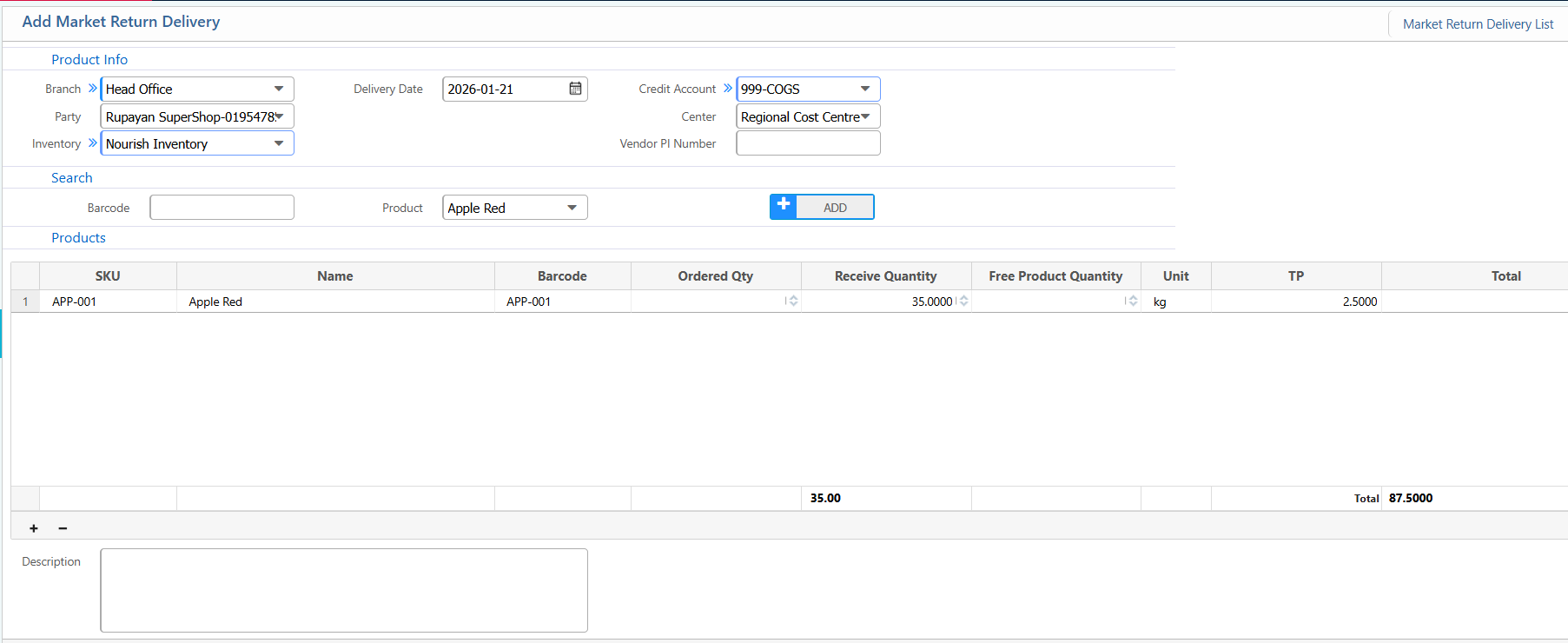
6. Add Market Return Delivery
| Field | Action |
|---|---|
| Branch | Select the branch responsible for processing the delivery. |
| Party | Select the party (Customer or Vendor) associated with this delivery. |
| Inventory | Select the inventory or stock location for dispatch. |
| Delivery Date | Enter the date of the market return delivery. |
| Credit Account | Select the credit account to record the delivery. |
| Center | Select the center handling this delivery. |
| Vendor PI Number | Enter the vendor’s PI number if applicable. |
| Search Barcode | Enter or scan the product barcode to locate the product. |
| Product – Name | Select the product being returned. |
| Ordered Quantity | Enter the originally ordered quantity. |
| Received Quantity | Enter the quantity received in this delivery. |
| Free Product Quantity | Enter any free quantity included in this delivery. |
| TP | Enter the transfer price (TP) per unit. |
| Description | Enter notes or special instructions related to this delivery. |