Territory Management
A territory defines who owns what, who is the resource assigned to the territory. You use rules to define the scope of a territory. The scope of a territory tells you which accounts, products, and sales area are parts of a territory.
Example:
We have created territory Territory 1. Now to specify which sales areas are the parts of Territory 1. We have to apply the rules.
Territory Type on PrismERP
A dynamic organizable territory type and the designation code with corresponding type can be added as per business policy.
Hierarchy/ Parent-Child Territory Type and Territory Area
Any territory type consisting of one or more sub-territories is considered as a parent territory type as well as territory by the same way.
Creating Territory
Overview of Creating Territory Types and Territories.
- Purpose of Territory Hierarchies
- Creating Territory Types/Sub Type Add Corresponding Designation Code
- Creating Territory Area and Subarea
- Specifying Resources for a Territory Area.
- Territory Determination to the Business Transactions.
- Operational Model on PrismERP
- Recommendation
- Features
Overview of Creating Territories
PrismERP territory management can help you to configure the whole territory solution by yourself. For example, you can define your own policy/naming convention, designation for sales team, hierarchy. And you can add Territory type with its parent-Child relationship, that means Territory Type and Sub-types [Ex. Nation >> Region 1, Region 2, …. Region N] can be definable here.
Purpose of Territory Hierarchies
The purpose of having territory hierarchies is to make the territory assignments and searches more efficient. Territory hierarchies also have the ability to store the parent-child relationship among territories.
Creating Territory Types/Sub Type Add Corresponding Designation Code
Navigation to Add Territory Type
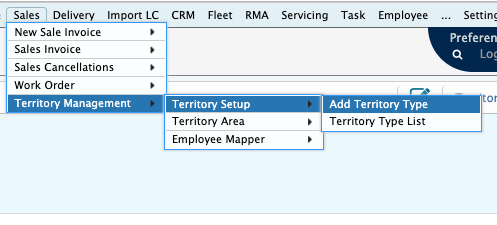
Add Form

- Name: Territory Type Name [Region]
- Parent: If there have a Parent of this type [Nation]
- Lead(Designation): Designation Code for the Region or for this Territory type.
List Page
Navigation Territory Type List

Details View

Creating Territory Area and Subarea
Navigation to Add Territory Area

Add Form:

- Territory Type: Nation. Select your territory Type that you already defined earlier, by selecting from combo.
- Name: Here name is for your new territory area name that you want to assign under a specific type.
- Parents: Parents refer for the Parent Area. If your current Area is a child under another area then select the Parents area from this combo.
- Location Assignment Part [Division, City, Thana]
Notes: PrismERP provides all location under a country in database
Location Hierarchy - Division >> City >> Thana.
You may assign one or many divisions under a Territory Area. Like Nation is a territory area and all divisions under the country are assigned to Nation.
You can also assign one Division only and also specify a few defined City under a single Division. As well as you can specify some Thana’s out of all the Thana under a City.
After posting all data then navigate the list page where you will find these Areas with details. And a ‘Territory Area Organogram’ will be built automatically for visit at a glance.
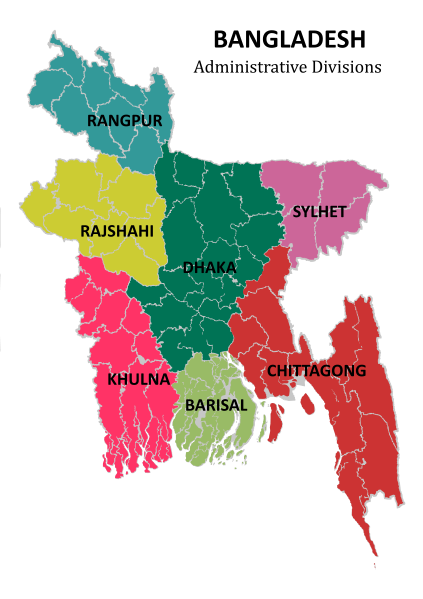
Fig: A MAP of Bangladesh with Division [Not a part of application]
Navigation to Territory Area List

Details View

**Navigation to Territory Area Organogram

Fig: Territory Area Organogram
Specifying Resources for a Territory Area.
Navigation to Add Sales Team Member
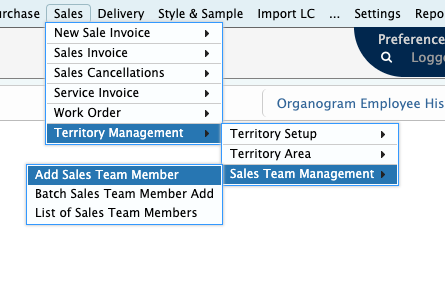
Assigned Sales Team Member
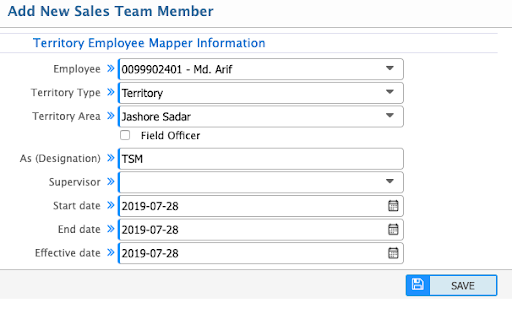
- Employee: Regional Sale Manager Name selection from employee combo.
- Territory Type: Select the territory type we made earlier and have to be assigned for this employee.
- Territory Area Name: Select Territory area name from selection combo.
- As (Designated): Auto appears from existing configuration.
- Supervisor: The person who is the parents layer Manager of the Region.
- Start Date: Employee beginning date on the specific area for start he is responsible.
- End Date: Employee expiry date on the specific area.
- Effective date: The date the Application traces him as responsible for the area.
- Field Officer:
There is a checkbox may use for the ending layer for example the following list showed the ending layer namely Territory where TSM refer for Territory Sales Manager but there may be many have many Field Officers(FO) under a TSM.

For example, say Mr. Arif is a TSM on Territory =“Jashore Sadar”. Now we have to add a few FO under TSM [Mr. Arif], so navigate again to Add sales team members.
Navigation to Add Sales Team Member
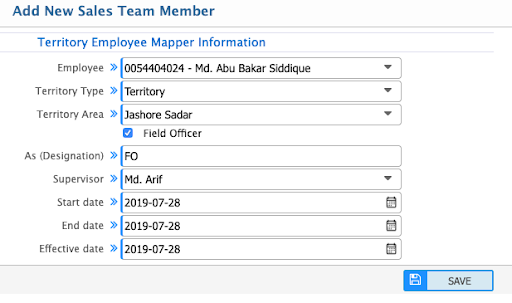
- Select the FO name from Employee combo then Territory Type and then Territory Area.
- Then select the Checkbox namely Field Officers, then “As (Designation)” field will be filled by the designation namely “FO”.
- Select the Supervisor (TSM) by selecting from Supervisor Combo. Say, Mr. Arif is the Supervisor.
- So, now Md. Abu Bakar Siddique (FO) under Mr. Arif (TSM). I hope the relationship is clear. Navigate to the list pages.
Navigation List of Sales Team Member

Sales Team/Batch Assign:
Navigation to Batch Sales Team Member Add

Add Form: Batch Team Member add.

Closer View:
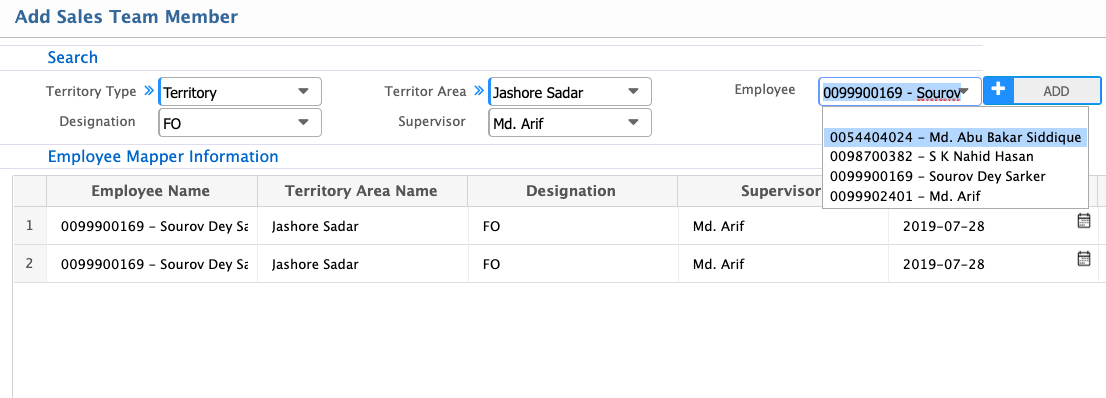
Notes:
- Switch Supervisor: You can change your supervisor from here.
- Transfer: You can transfer the employee to another Area.
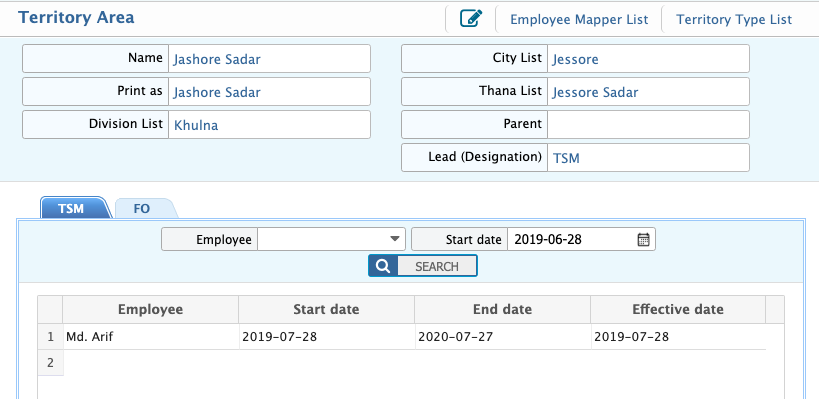
After all, the above configuration visited the List of Territory Type, List of Territory Area where you will see the impact.
Territory Type View and List:
Navigation Territory Type List


Territory Area View and List:
Navigation Territory Area List

Territory Determination to the Business Transactions.
Rules:
When your Sales Person/SR who works on sales orders, creates a business transaction with the responsible employee then the Territory Management Modules automatically determines or trace the territory for the Sale Orders as well as business transaction as well as for collection from the Party.
Also, you can assign a supervision for a Party then the party location can also be determined by the responsible person.
Condition: This is mandatory to assign an employee to this Territory.
SALES TRANSACTION:

COLLECTION TRANSACTION:

Operational Model on PrismERP
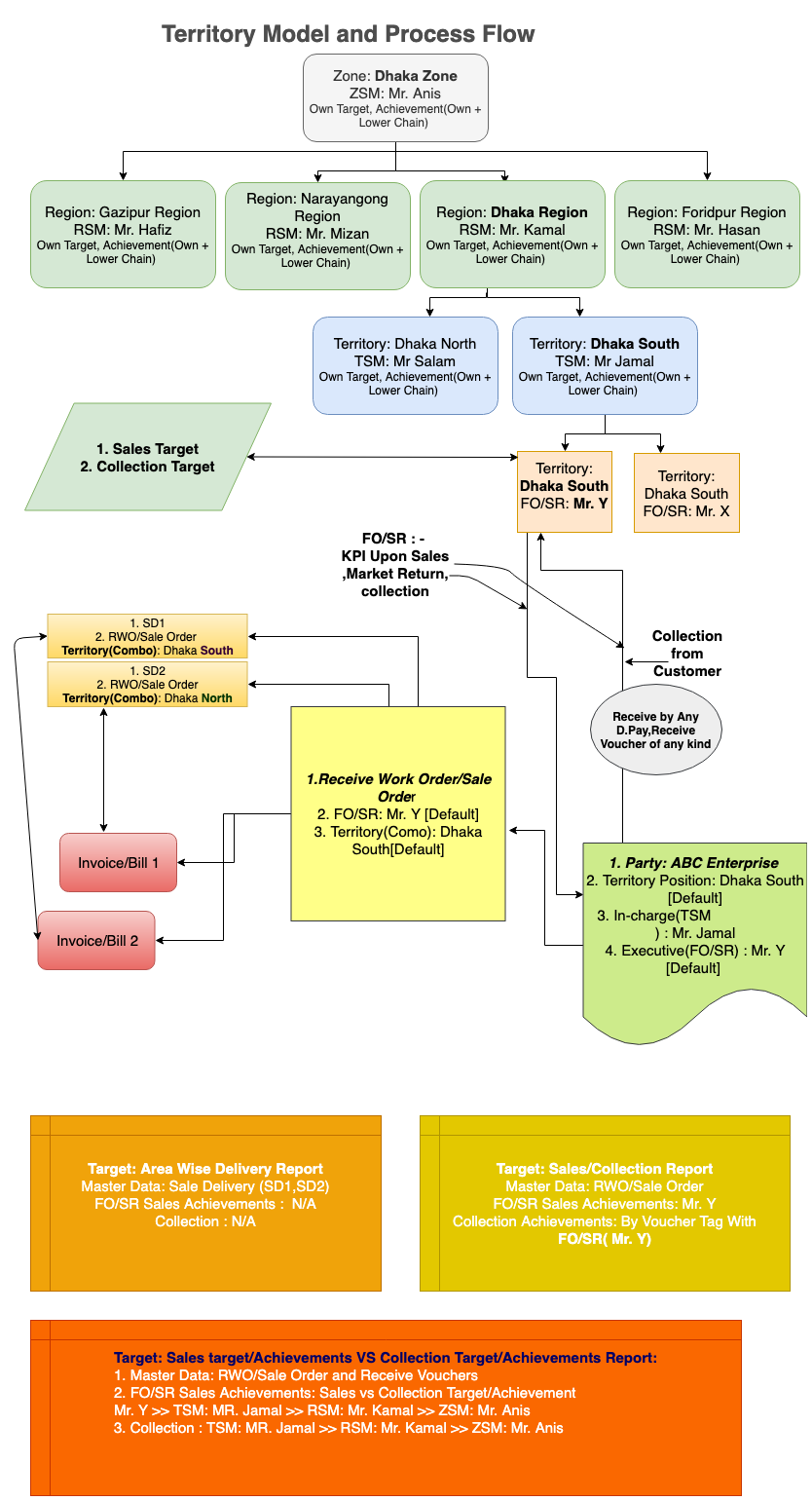
Fig: Territory Model and Process Flow.
Recommendation
When you use territory management, it’s a recommendation that you assign only one employee per position.
Features:
- Territory Type
- Territory Type Hierarchy
- Territory List and Details View
- Team Designation for the Position
- Territory Area
- Territory Area List and Details View
- Employee Transfer
- Supervisor Switch
- Single Employee Assign
- Batch/Team Assign
- Employee Start Date- End Date for a Territory.
- Effective Date of for an employee to a territory.
- Territory Area Organogram
- The all reports related territory will be generated by this configuration.