🔄 Territory Transfer / Change – PrismERP
The Territory Transfer/Change feature in PrismERP allows administrators to reassign territories from one employee to another with ease. This functionality is crucial for managing workforce changes such as promotions, role changes, or territory realignments.
By enabling seamless transfers, PrismERP ensures business continuity and proper territory coverage during transitions.
When sales teams undergo structural changes — such as transferring an employee to a different region or replacing an outgoing team member — this module allows you to:
- Transfer a territory or area from one sales representative to another.
- Reassign field officers under new supervisors.
- Retain historical logs of previous assignments.
- Maintain continuity in sales tracking and reporting.
📍 Navigation to Batch Sales Team Member Add
🔧 Step-by-Step Guide to Territory Transfer
➤ 1. Navigate to the Batch Assignment Page
Go to Batch Sales Team Member Add
This page allows you to transfer multiple territories or reassign employee roles in bulk or individually.
➤ 2. Locate the Employee for Transfer
You can use the search filters to find:
- Employee Name
- Designation (e.g., TSM, FO)
- Territory Type or Area
- Current Supervisor
➤ 3. Switch Supervisor / Transfer Territory
Use the following fields:
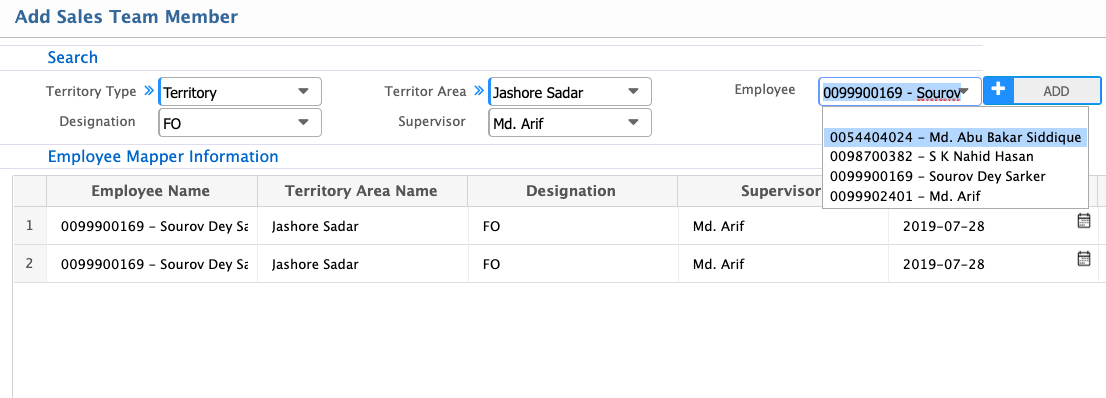
- Employee: Select the employee being reassigned.
- Territory Type & Area: Choose the territory they are leaving or joining.
- New Supervisor (If applicable): Select a new supervisor if the reassigned employee is part of a hierarchy.
- Effective Date: Set the date from which the new assignment will take effect.
✅ Check the "Switch Supervisor" box if you're only changing reporting relationships (e.g., FO under new TSM).
➤ 4. Save the Transfer
Once changes are filled in:
- Click "Save" to complete the reassignment.
- The system will automatically deactivate the previous assignment and activate the new one from the selected effective date.
Interface Previews
Territory Transfer Form:

Closer View with Switch Supervisor:
Use Cases
| Scenario | Example |
|---|---|
| 🔄 Employee Reassignment | Move FO from “Zone A” to “Zone B” |
| 🧑💼 Supervisor Change | Assign FO to a new TSM |
| Department Shift | Move a sales representative to a different region |
| 📆 Temporary Coverage | Assign an employee temporarily to another territory during leave of absence |
📝 Best Practices
- Always set the Effective Date accurately to ensure transaction traceability.
- For permanent transfers, end the previous assignment by setting an End Date.
- Maintain a clean supervisor hierarchy to avoid confusion in field operations.
- Document reasons for transfer in internal notes (outside the system if required).