Candidate Records & Processing
Candidate Management in PrismERP is used to handle all candidate-related activities throughout the recruitment process. It covers adding new candidates individually or in bulk, managing their personal and professional information, and tracking their application progress under specific vacancies.
Users can store complete candidate profiles, including personal details, family information, education history, training records, and work experience. This section also supports bulk import of candidates, allowing large volumes of data to be uploaded efficiently into the system. Once added, all candidates are organized in a central list where their status and recruitment progress can be monitored, filtered, and managed easily.
Add New Candidate
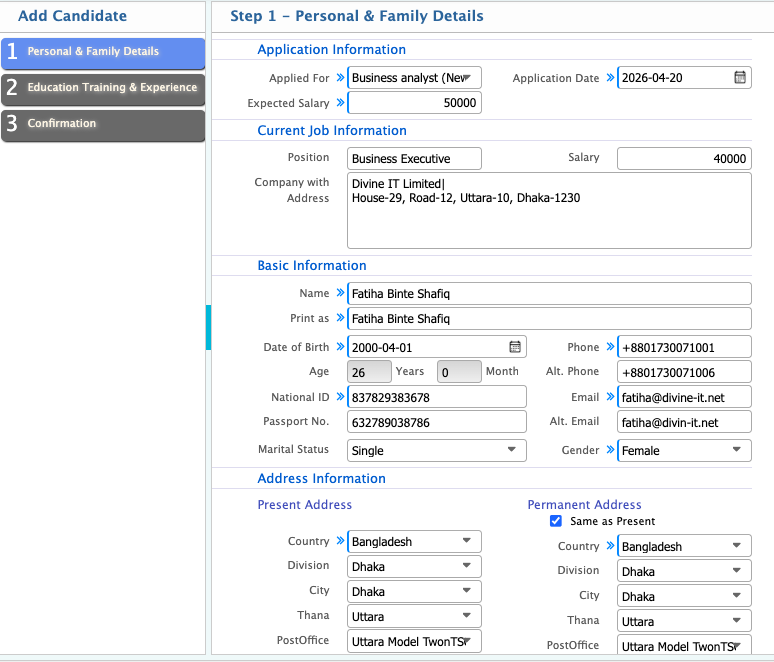
From the Vacancy Posting List, users can add candidates directly to a selected vacancy. While adding a candidate, they can enter complete personal information along with family details, educational background, training records, and work experience. After filling in all required information, the user can review the details and confirm the entry to successfully save the candidate in the system under the selected vacancy.
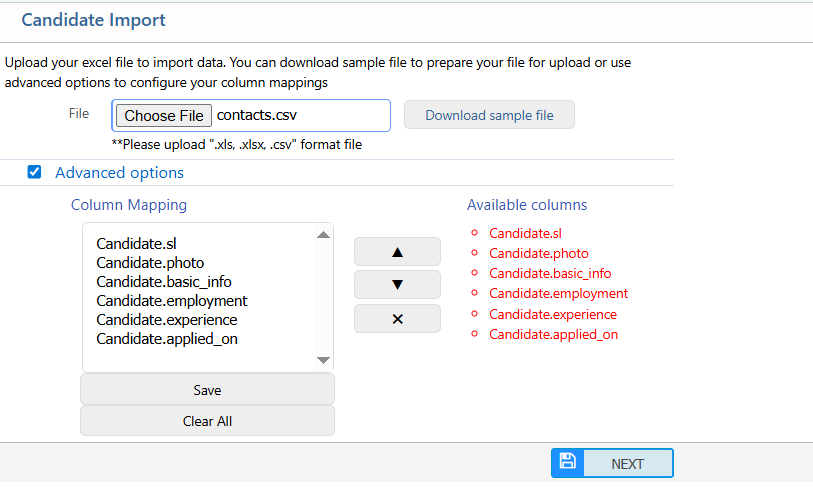
Instead of adding candidates one by one, users can also upload candidates in bulk from the Vacancy Posting List. This is done by importing candidate data directly into the system through a file upload. Users can prepare the data with required personal details, family information, education, training, and experience, and then upload it in bulk at once. After uploading, the system processes the file and adds all valid candidate records under the selected vacancy, making it easier to handle large volumes of applications.
| Field | Action |
|---|---|
| File | Choose the Excel or CSV file you want to upload. Only formats ".xls, .xlsx, .csv" are supported. |
| Download Sample File | Download a sample file to understand the correct structure for preparing your data. |
| Advanced Options | Access advanced configuration options to customize column mappings before uploading. |
| Column Mapping | Map the columns in your uploaded file to the system fields to ensure data is imported correctly. |
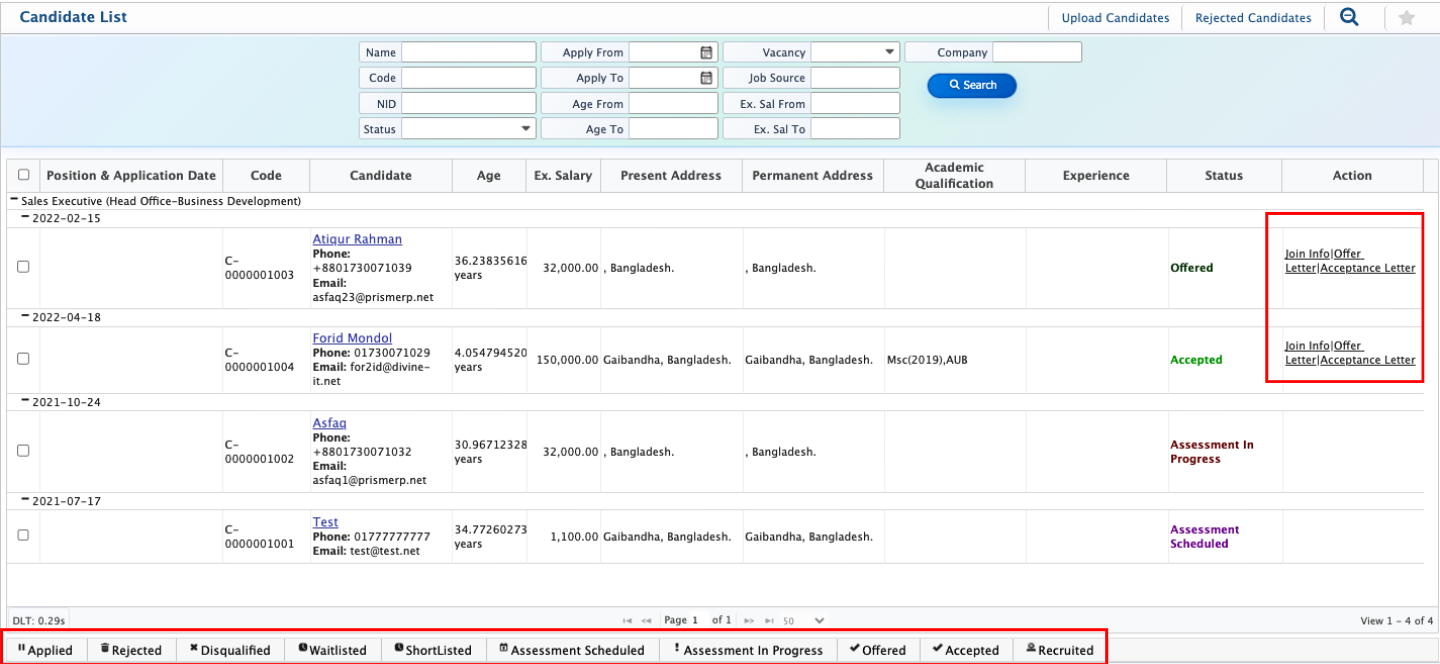
After adding candidates to the system, they appear in the Candidate List where all candidate records are displayed with details such as name, code, NID, status, applied vacancy, and application dates. Users can filter and search candidates using different criteria including application status, date range, age range, job source, expected salary range, and company address to quickly locate specific profiles. From this list, users can also view or manage joining information, generate offer letters, and create acceptance letters based on the recruitment stage and requirement.