Job Configuration & Allocation
The Job Configuration & Allocation section in PrismERP is used to define job roles and manage manpower distribution across the organization. It includes setting up job templates with details such as responsibilities, qualifications, salary structure, and evaluation criteria. It also handles job allocation, where manpower is assigned to different departments, sections, and designations based on organizational requirements.
This section is prepared before recruitment activities begin, ensuring that job roles and staffing needs are clearly structured. All job templates and allocations are maintained in their respective lists, where users can search, filter, update, or remove records whenever required.
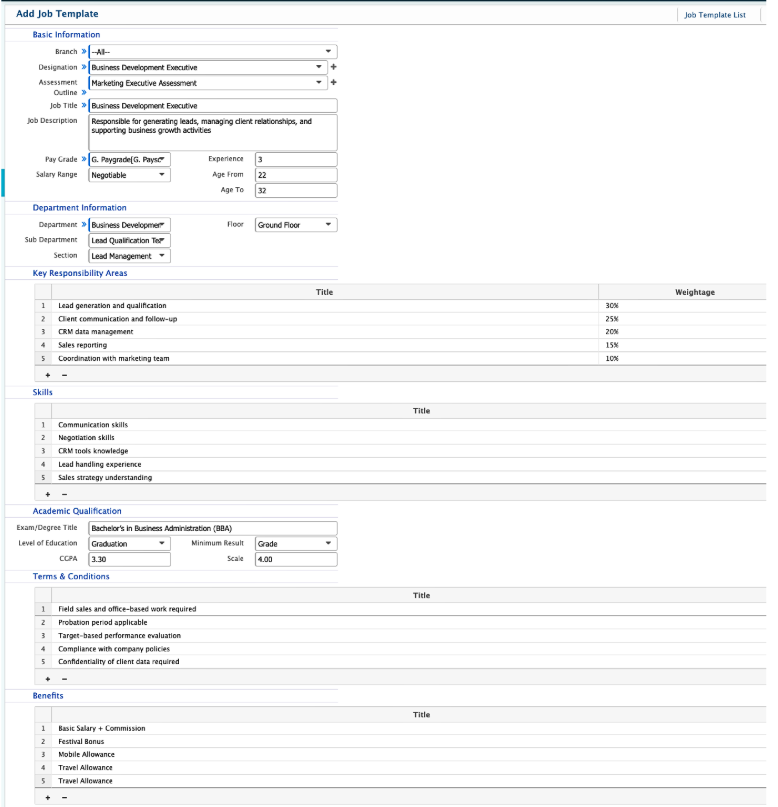
| Field | Action |
|---|---|
| Branch | Select the branch where this job template will be assigned, depending on the organizational location. |
| Designation | Enter the official designation for the role, defining the position title within the company structure. |
| Assessment Outline | Select the relevant assessment outline that will be used to evaluate candidates for this role. |
| Job Title | Enter the official job title that will be displayed for this position in the system. |
| Job Description | Enter or attach a detailed job description outlining the roles, duties, and expectations for this position. |
| Pay Grade | Select the appropriate pay grade that defines the salary structure for this position. |
| Salary Range | Enter the expected salary range for the role based on company standards or budget. |
| Experience | Enter the required years of professional experience needed for this position. |
| Age From | Enter the minimum age requirement for candidates applying for this role. |
| Age To | Enter the maximum age limit allowed for candidates for this position. |
| Department | Select the department under which this role falls within the organizational hierarchy. |
| Sub Department | Select the specific sub-department where this role is assigned for better classification. |
| Section | Enter the section name under the sub-department to further define the organizational structure. |
| Floor | Enter the floor location of the office where this role will be based. |
| Responsibility | Enter the key responsibilities associated with the role and add multiple points if required. |
| Skill | Enter the required skills for the role and include additional skills if needed. |
| Exam/Degree Title | Enter the required academic degree or examination title for eligibility. |
| Level of Education | Enter the minimum education level required for this position. |
| Minimum Result | Enter the minimum academic result or grade required for consideration. |
| Marks (%) | Enter the minimum percentage of marks required, if applicable for the role. |
| Terms & Conditions | Enter any terms and conditions related to employment, role requirements, or company policies. |
| Benefits | Enter the employee benefits and add multiple if needed. |
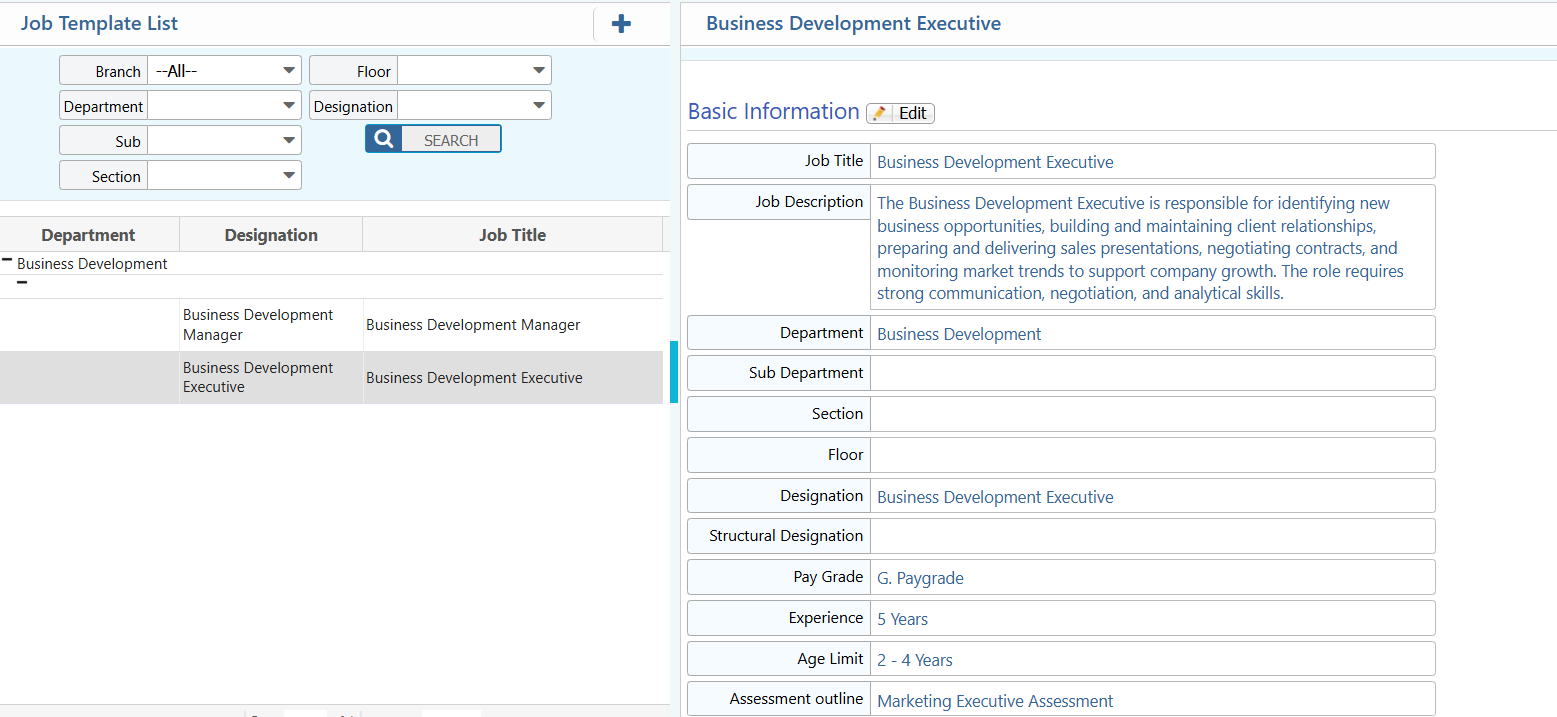
After adding a job template, it appears in the Job Template List where all created templates are displayed with their branch, department, sub-department, section, floor, and designation. Users can filter the list using these fields to quickly locate specific job templates. Each template remains fully editable, allowing updates to job details, responsibilities, skills, or requirements whenever needed. New job templates can also be added directly from the list page at any time.
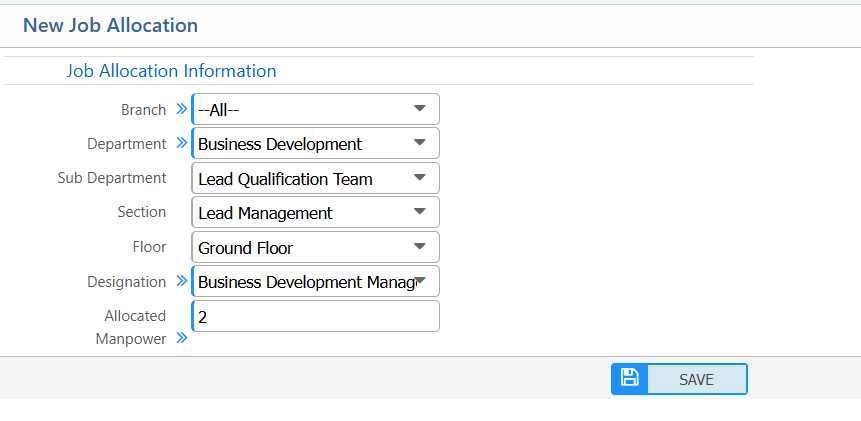
Add Job Allocation
| Field | Action |
|---|---|
| Branch | Select the branch where the job allocation applies. |
| Department | Select the department for which the job allocation is being done. |
| Sub Department | Select the sub-department under the chosen department. |
| Section | Select the section under the sub-department. |
| Floor | Enter or select the floor of the office where the allocated manpower will work. |
| Designation | Select the designation for which manpower is being allocated. |
| Allocated Manpower | Enter the number of employees allocated for the selected branch, department, section, and designation. |
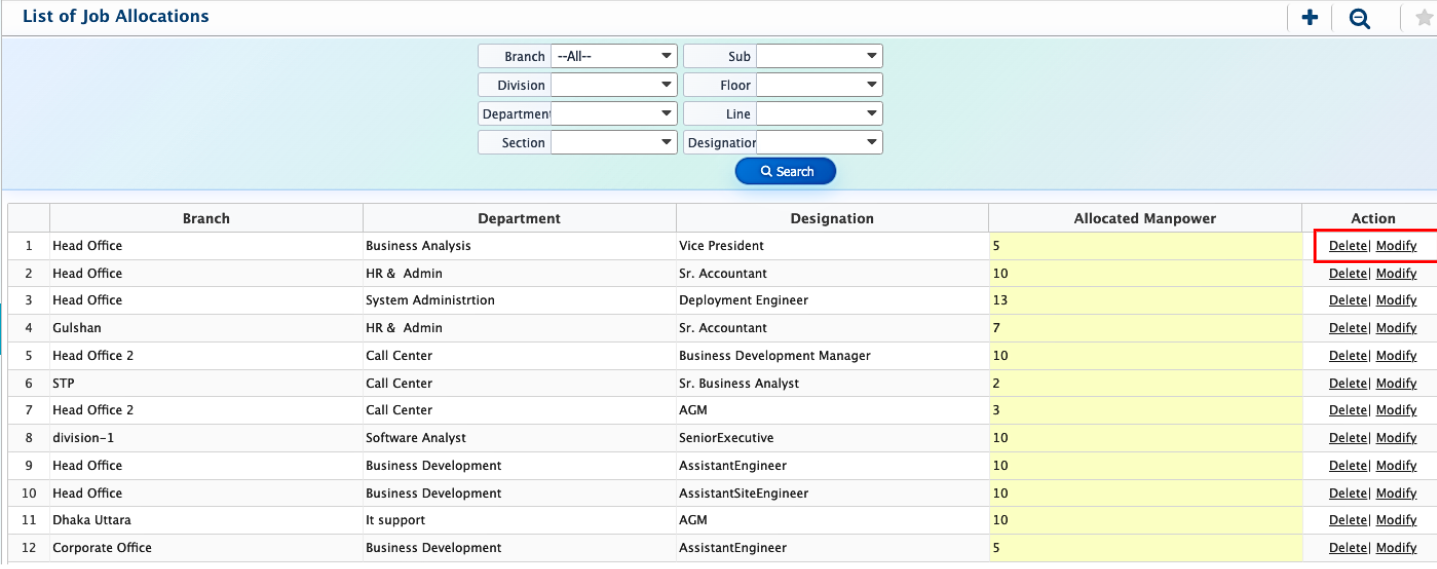
After creating a job allocation, it appears in the Job Allocation List where all allocated manpower records are displayed along with their branch, division, department, section, sub-section, floor, line, and designation. Users can filter the list using these fields to quickly find specific allocation records. Each job allocation can be modified whenever changes are required, including updating manpower numbers or related details. Existing allocations can also be deleted from the list when they are no longer needed.