Rack Management
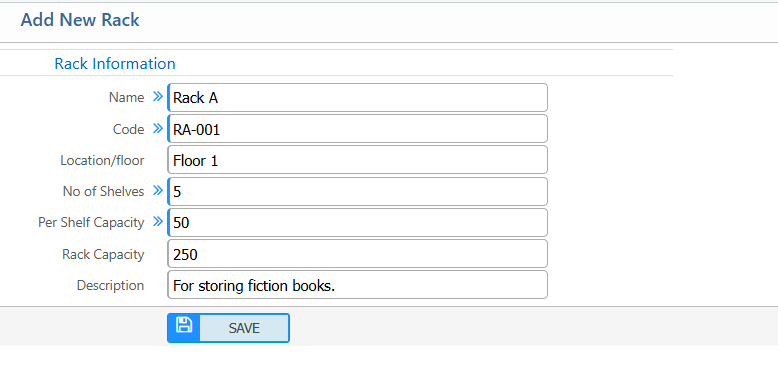
Rack Management feature in the PrismERP is used to define and manage book storage racks. Users can add a new rack by entering details such as name, code, location or floor, number of shelves, per shelf capacity, and description to identify each rack.
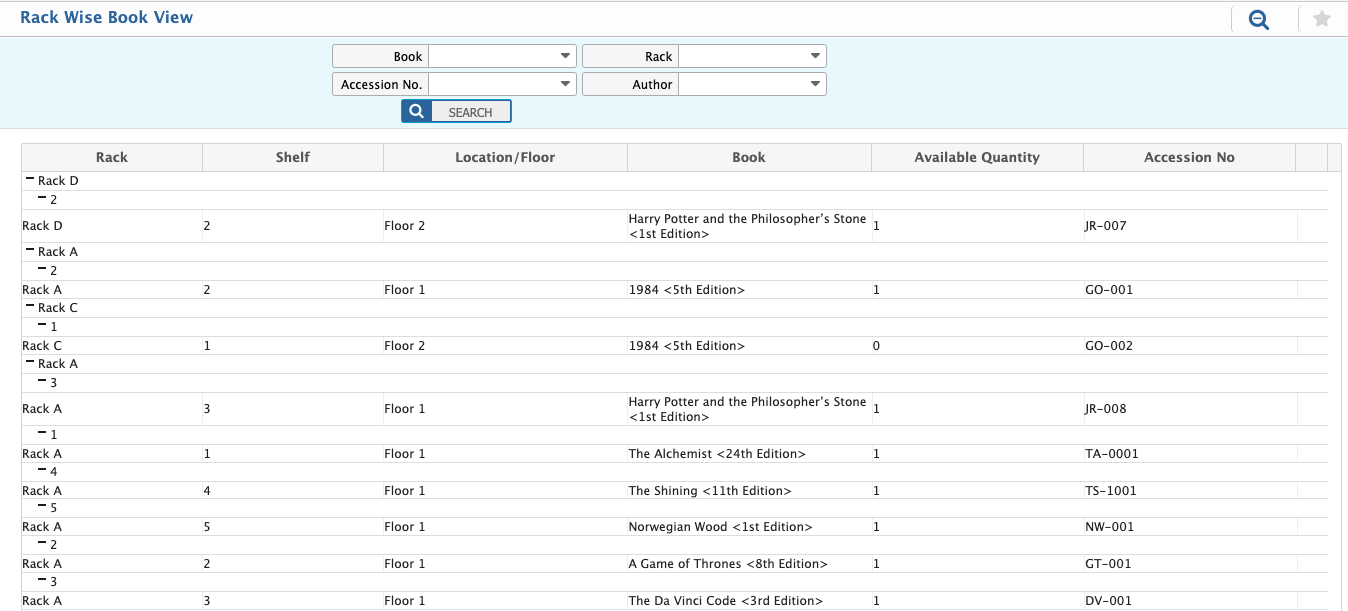
After creating a rack, it becomes available in the system where users can search and view its details. Books can be added to a rack by assigning accession numbers and shelf numbers. The system also provides a Rack Wise Book View where users can view racks along with the books stored inside them and apply filters such as book title, rack, accession number, and author.
Add New Rack
| Field | Action |
|---|---|
| Name | Enter the name of the rack for easy identification. |
| Code | Assign a unique code to the rack for tracking purposes. |
| Location/Floor | Specify the location or floor where the rack is placed. |
| No of Shelves | Enter the number of shelves in the rack. |
| Per Shelf Capacity | Define the maximum capacity (number of items or weight) per shelf. |
| Description | Provide additional notes or details about the rack. |
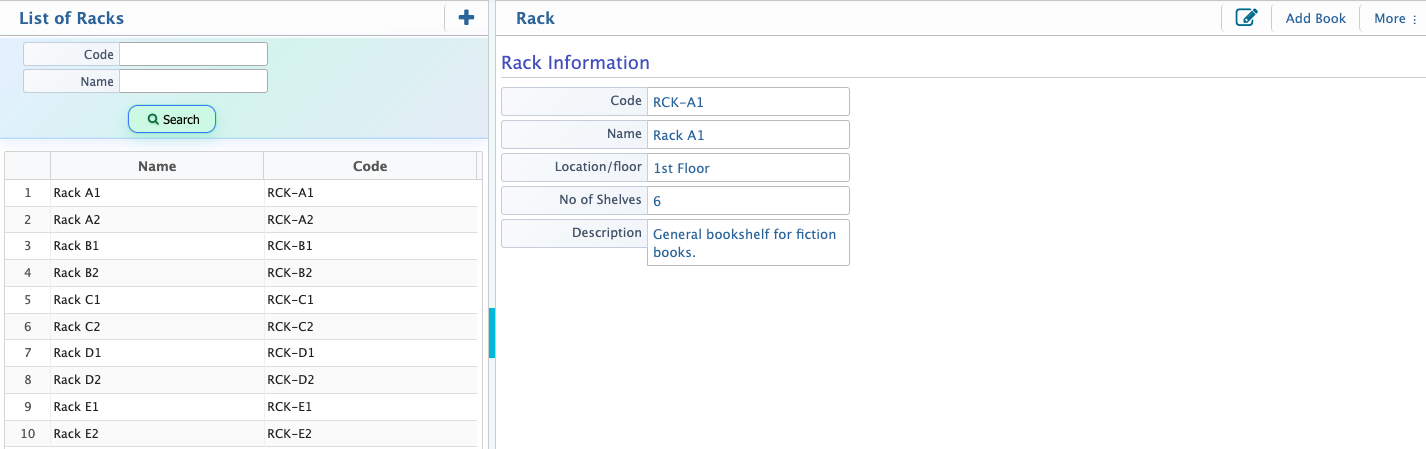
After adding a rack, it will be available in the system where users can search it using its unique code or name. Users can view the basic details of the rack, including location, shelves, capacity, and description. Books can be added to the selected rack as needed. The rack information can also be edited, such as updating the name, code, location, or capacity to keep the records accurate and up to date.
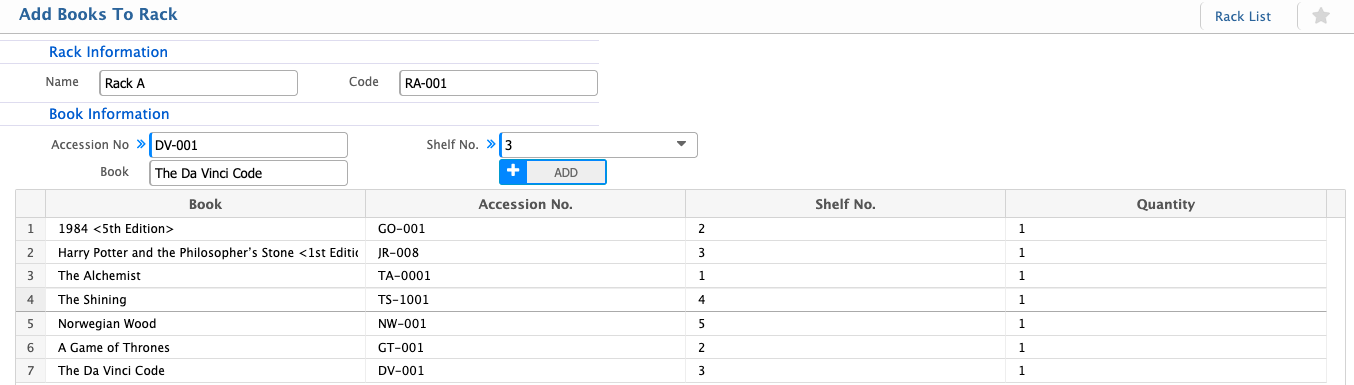
Add Books to Rack
| Field | Action |
|---|---|
| Accession No. | Enter the accession number of the book to be added to the rack. |
| Shelf No. | Specify the shelf number within the rack where the book will be placed. |
Rack Wise Book View
In the rack-wise book view, users can see an overall view of each rack along with the books stored inside it. They can filter books by Book title using full or partial names, by Rack to view specific storage locations, by Accession No. for exact identification, and by Author to find books written by a particular author.