Bank Account Reconciliation
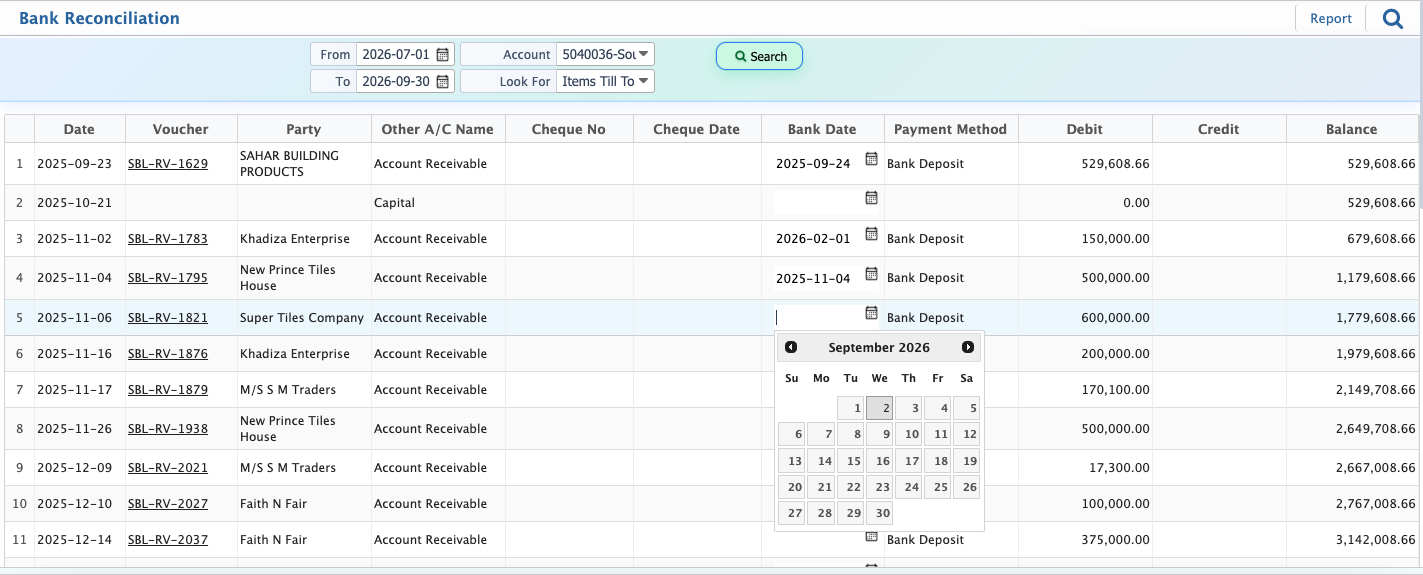
Bank Account Reconciliation in PrismERP is used to compare and match the transactions recorded in the system with the actual entries shown in the bank statement. It helps ensure that all deposits, withdrawals, and other bank activities recorded in PrismERP are aligned with the official records provided by the bank. The reconciliation process is carried out for a specific bank account within a selected time period, allowing users to review transactions in an organized way.Users begin the process by selecting a date range that defines the period for reconciliation. After choosing the relevant bank account, the system loads all vouchers and transactions recorded within that period. These entries are displayed in a structured list, showing details such as transaction dates, voucher references, and related financial information for review.
Each voucher can be checked against the bank statement to confirm whether it has been cleared, pending, or requires adjustment. The reconciliation date is used to set the balance date, and the system updates the account balance accordingly based on the selected entries. If any mismatch or difference is found between system records and bank statements, it can be identified during this step for further review.PrismERP system also provides reporting options where users can define a report date range and generate reconciliation reports. These reports summarize the reconciliation status of the selected account and period. Users can preview the report before printing or generate a physical copy for documentation and audit purposes.Overall, Bank Account Reconciliation in PrismERP maintains structured control over bank-related transactions by ensuring that system records and bank statements remain aligned, with clear visibility of all matched and unmatched entries within the selected accounting period.
| Field | Action |
|---|---|
| Date Range | Select the required start and end date to define the reconciliation period. |
| Account | Select the bank account to be reconciled. |
| Search | Click to load all vouchers within the selected date range and account. |
| Voucher List | Review the displayed list of vouchers along with their transaction dates for reconciliation. |
| Reconciliation Date | Select the balance date to reconcile the listed entries; the system adjusts the balance automatically. |
| Report Date Range | Select the date range for the reconciliation report. |
| Preview / Print | Click Preview to view the report or Print to generate a hard copy of the reconciliation report. |