Provident Fund Configuration
Provident Fund Configuration in PrismERP is the first step required before starting PF calculation in payroll. It is used to define the basic setup, including which employee types are eligible for PF, how PF-related transactions are recorded in accounts, and how employee and employer contributions are calculated.
It also includes the rules for PF processing, such as the salary component used for calculation, applicable percentages, and other configuration settings that define how PF is applied in the system.
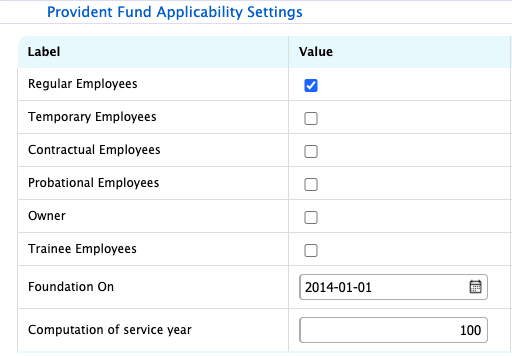
Provident Fund Applicability Settings
Provident Fund Applicability Settings in PrismERP are used to decide which groups of employees will get Provident Fund benefits and from when the system should start calculating PF. Through this setup, the organization can simply enable or disable PF for different employee types like regular, temporary, contractual, probationary, trainees, or even owners if required. It defines the starting point of PF calculation and how an employee’s service period will be counted in the system.
| Field | Action |
|---|---|
| Regular Employees | Select to enable or disable PF applicability for regular employees |
| Temporary Employees | Select to enable or disable PF applicability for temporary employees |
| Contractual Employees | Select to enable or disable PF applicability for contractual employees |
| Probational Employees | Select to enable or disable PF applicability for probationary employees |
| Owner | Select to enable or disable PF applicability for owners |
| Trainee Employees | Select to enable or disable PF applicability for trainee employees |
| Foundation On | Enter the effective start date from which PF calculation will begin |
| Computation of Service Year | Enter the rule/value used to calculate employee service duration |
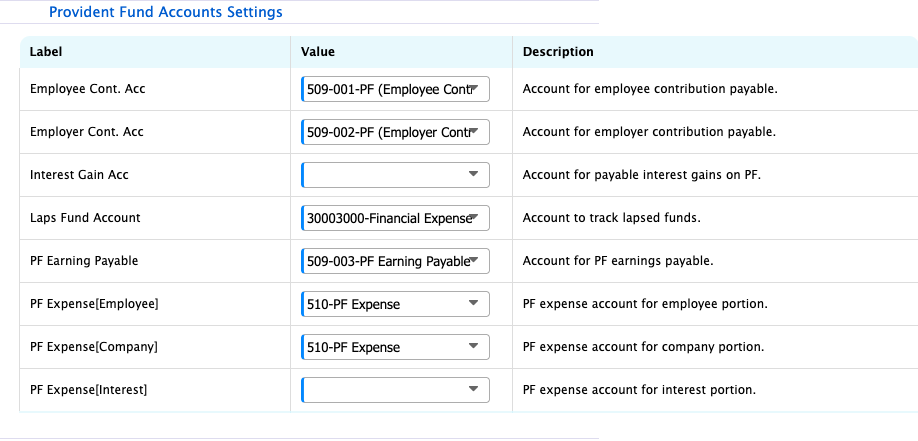
Provident Fund Accounts Settings
Provident Fund Accounts Settings help decide where all PF-related amounts should be recorded in the accounting system. Through this setup, employee contributions, employer contributions, interest, and other PF expenses are linked with the correct ledger accounts.
| Field | Action |
|---|---|
| Employee Cont. Acc | Select the account used to record employee PF contribution payable |
| Employer Cont. Acc | Select the account used to record employer PF contribution payable |
| Interest Gain Acc | Select the account used to track interest earned on PF balances |
| Laps Fund Account | Select the account used to record lapsed or unclaimed PF funds |
| PF Earning Payable | Select the account used to record PF earnings payable |
| PF Expense [Employee] | Select the expense account for employee PF contribution |
| PF Expense [Company] | Select the expense account for employer PF contribution |
| PF Expense [Interest] | Select the expense account for PF interest portion |
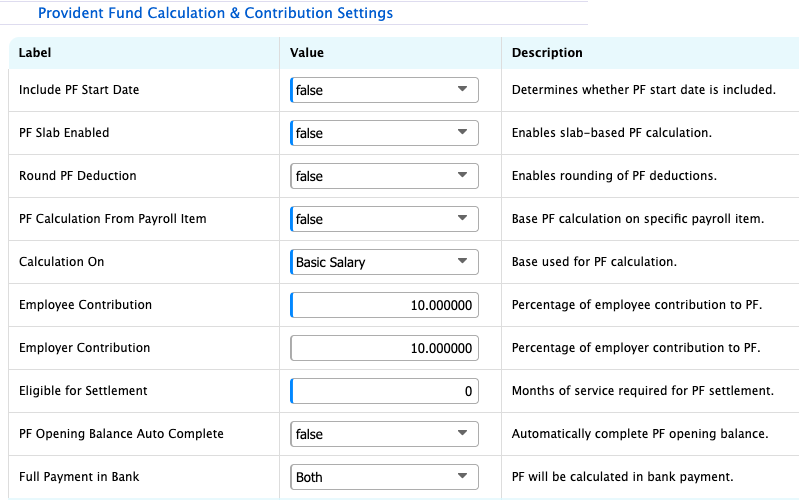
Provident Fund Calculation & Contribution Settings
Provident Fund Calculation & Contribution Settings define the rules for how PF is calculated for each employee. This includes selecting the salary component used for calculation, setting the employee and employer contribution percentages, and controlling how the system applies rounding on PF amounts.
It also allows the organization to decide additional conditions like whether PF should be calculated from specific payroll items, whether slab-based calculation is used, and how settlement eligibility is determined based on service period.
| Field | Action |
|---|---|
| Include PF Start Date | Select to include or exclude the PF start date in calculation |
| PF Slab Enabled | Select to enable slab-based PF calculation |
| Round PF Deduction | Select to enable rounding of PF deduction amounts |
| PF Calculation From Payroll Item | Select to calculate PF based on specific payroll items |
| Calculation On | Select the salary component (e.g., Basic Salary) used for PF calculation |
| Employee Contribution | Enter the percentage of salary deducted as employee PF contribution |
| Employer Contribution | Enter the percentage contributed by the employer |
| Eligible for Settlement | Enter the minimum service duration required for PF settlement |
| PF Opening Balance Auto Complete | Select to auto-complete PF opening balances |
| Full Payment in Bank | Select how PF payments will be processed through bank transactions |