Assign Sales Team Member
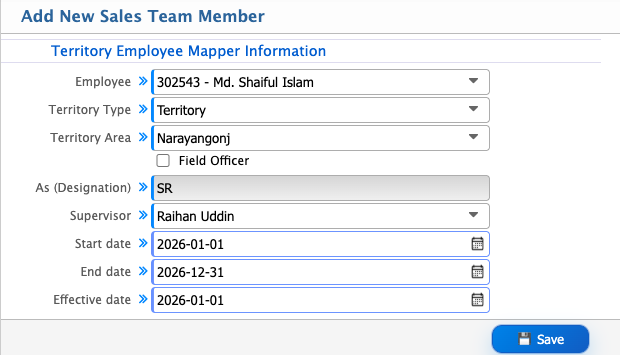
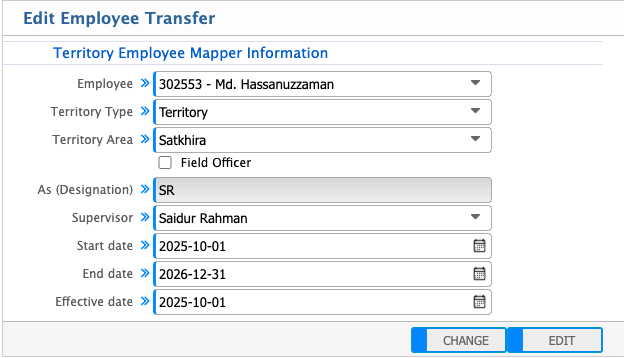
The Add Sales Team Member feature in PrismERP is used to assign employees to specific territory structures.Here, an employee is selected and mapped to a Territory Type and Territory Area along with a supervisor.Start date, end date, and effective date are used to define the assignment period.There is also a batch option to assign multiple employees at once under a territory.All assigned records are then shown in the Sales Team Member list with their mapping details.
Add Sales Team Member
| Field | Action |
|---|---|
| Employee | Select the employee to be assigned to a territory. |
| Territory Type | Select the territory type under which the employee will be mapped. |
| Territory Area | Select the specific territory area for assignment. |
| Field Officer | Enable the checkbox to mark the employee as a field officer under the selected designation. |
| Supervisor | Select the supervising employee responsible for this mapping. |
| Start Date | Enter the start date from which the assignment becomes active. |
| End Date | Enter the end date for the assignment validity. |
| Effective Date | Enter the date when the mapping becomes operational. |
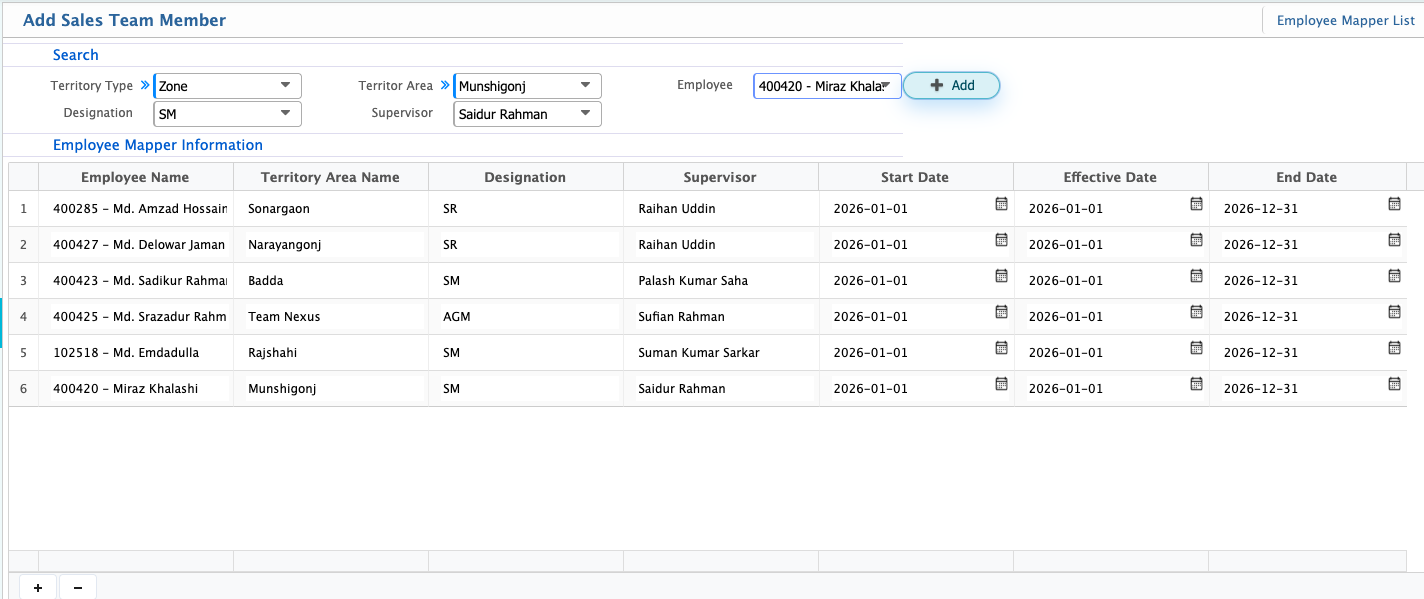
Users can add sales team members in batch instead of adding them one by one in PrismERP. This makes it easier to assign multiple employees to territory areas at the same time, along with their designation and supervisor.
| Field | Action |
|---|---|
| Search Territory Type | Enter or select a territory type to filter mapping records. |
| Territory Area | Select the territory area for assigning employees. |
| Employee | Select one or multiple employees for batch assignment. |
| Designation | Select the designation for the assigned employees within the territory structure. |
| Supervisor | Select the supervisor responsible for the assigned employees. |
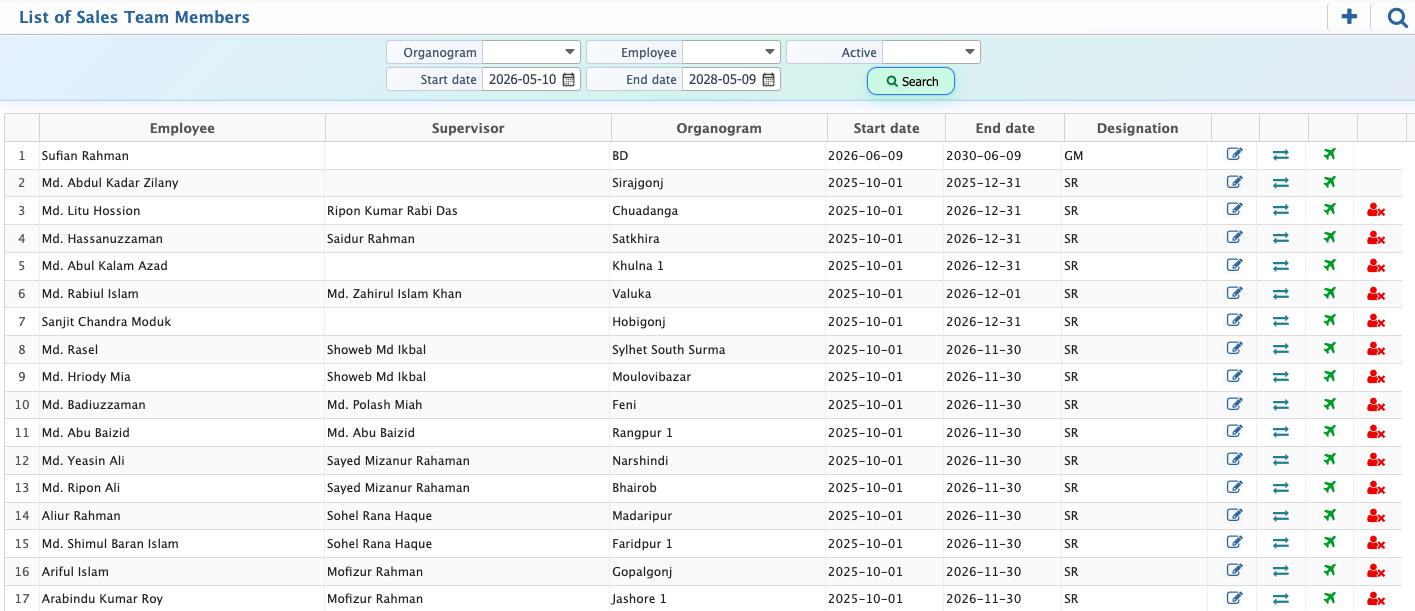
After adding a Sales Team Member, the record becomes available in the List of Sales Team Members in PrismERP. This list displays all assigned employees along with their organogram location, supervisor, designation, start date, and end date. Each entry represents an active mapping of an employee within the territory-based sales structure.From this list, users can manage existing assignments.
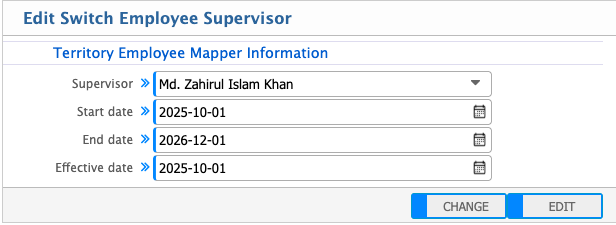
Users can also switch the supervisor, which updates the reporting relationship while keeping the employee’s territory assignment unchanged.
Employees can be transferred from one territory or organogram node to another based on organizational requirements.In addition, employees can be released from the system when their assignment is no longer required, which ends their active mapping within the organogram.
After assigning a sales team member to a territory, the system automatically reflects that mapping during transaction activities.When creating a Sales Order or Invoice, a Territory Representative field appears based on the assigned territory setup.The same behavior is also applied in Collection, where the related territory representative is shown for reference during the collection process.