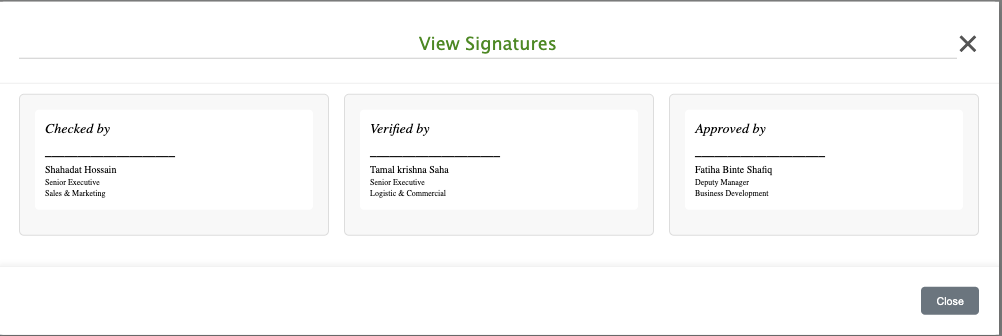
Signature Set-up
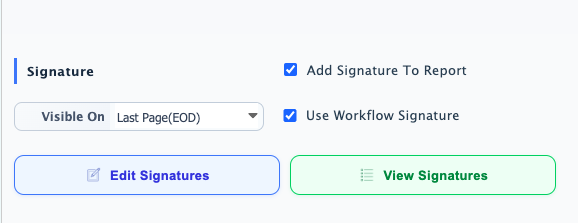
In PrismERP, the Signature feature is used to include approval or verification signatures within the report output. It is typically used in workflow-based documents where different levels of approval need to be shown in the final report.Users can enable this feature using the Add Signature to Report option. Once enabled, a signature configuration panel becomes available where multiple signatories can be added.
The Visible On option is used to define where the signature section will appear in the report. Users can set it to display on all pages or specifically on the Last Page (EOD), depending on the reporting requirement. In most cases, it is set to Last Page (EOD) so that all signatures are displayed at the end of the report output.
Users can add multiple signature entries using the + Add Signature option. After adding, the configured signatures can also be viewed in the list, where each entry is displayed with its assigned employee and settings.
Each signature entry can be created in two ways. Users can either select an employee from the dropdown list or manually insert a signature without selecting an employee. When an employee is selected, the system automatically loads the employee’s name, designation, and department. For manual entries, users can directly define the signature details without linking it to an employee record.
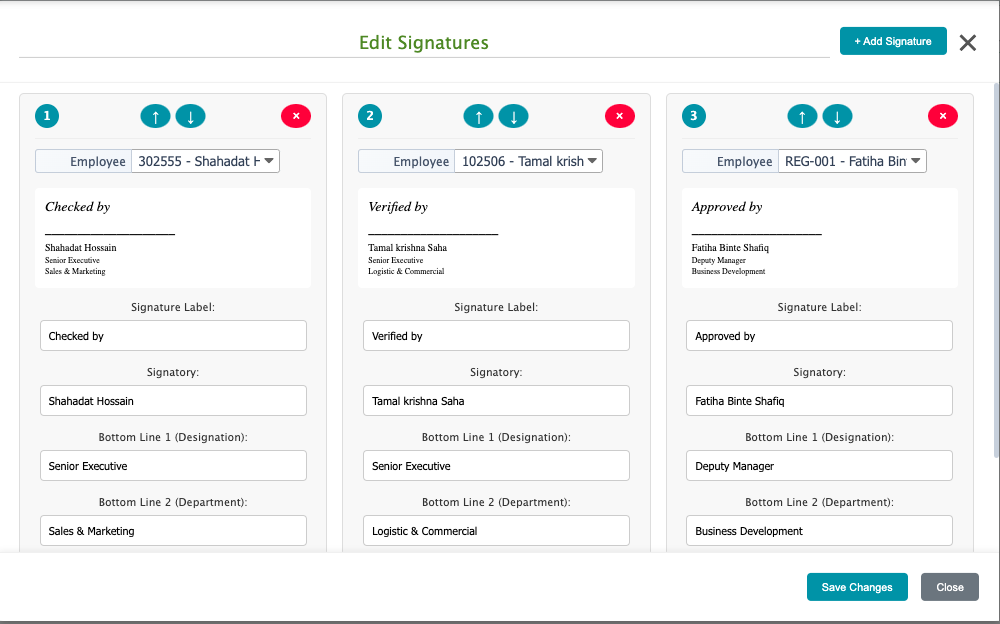
Each entry also includes a Signature Label, which can be entered manually by the user. This label defines the role of the signatory in the workflow, such as Checked By, Verified By, or Approved By. As the document moves through the approval process, the signatures of the respective responsible employees are reflected in the report based on this configuration.Each signature block also shows the employee details, including designation and department, below the signature label for reference in the final output.
The ↑ and ↓ buttons are used to adjust the sequence of employees based on the system’s employee list order. Clicking the ↑ button moves the selection to the previous employee in the system-defined list, while clicking the ↓ button moves it to the next employee in that sequence.Additionally, users can control the placement of each signature block in the report using the Alignment option. This allows the signature to be positioned according to the report layout, such as left alignment or other supported positions.