Receive Work Order
The Receive Work Order feature in PrismERP is used to record and manage work orders received from vendors after processing or service completion. Users can enter vendor, branch, product, delivery, and payment-related information along with references to the original work order.After creation, the record appears in the Receive Work Order List, where users can search, filter, and track work orders easily. The system also supports multilevel approval workflow and status tracking. From the Details View, users can review related products, vouchers, attachments, invoices, and create sale delivery or sale invoices when required.
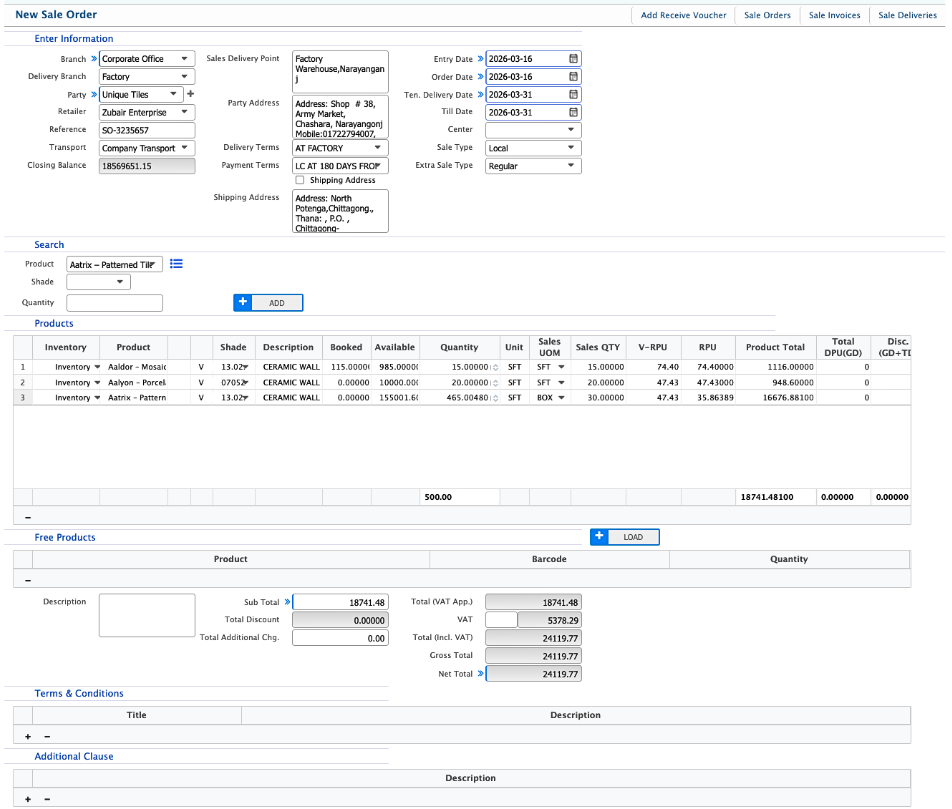
Add Receive Work Order
| Field | Action |
|---|---|
| Branch | Select the branch where the received work order will be recorded. |
| Delivery Branch | Select the branch where the received items will be delivered. |
| Party | Select the vendor or party from whom the work order is received. |
| Reference | Enter any reference number related to the received work order. |
| Transport | Select the transport method used for receiving the items. |
| Closing Balance | View the current balance related to the selected party. |
| Sales Delivery Point | Select the delivery location where the items will be received. |
| Party Address | Select or confirm the address of the vendor or party. |
| Delivery Terms | Select the delivery terms agreed with the vendor. |
| Payment Terms | Select the payment terms applicable to the received order. |
| Shipping Address | Select the address where the items are shipped. |
| Entry Date | Enter the system entry date when the receive work order is recorded. |
| Order Date | Enter the original order date associated with the work order. |
| Ten. Delivery Date | Enter the tentative delivery date of the received items. |
| Till Date | Enter the last valid date related to the order or delivery if applicable. |
| Center | Select the center or operational unit responsible for the transaction. |
| Sale Type | Select the type of sale such as Local or other available options. |
| Extra Sale Type | Select any additional sale classification if applicable. |
| Product | Select the product received from the work order. |
| Shade | Select the shade or variation of the product if applicable. |
| Quantity | Enter the quantity of product. |
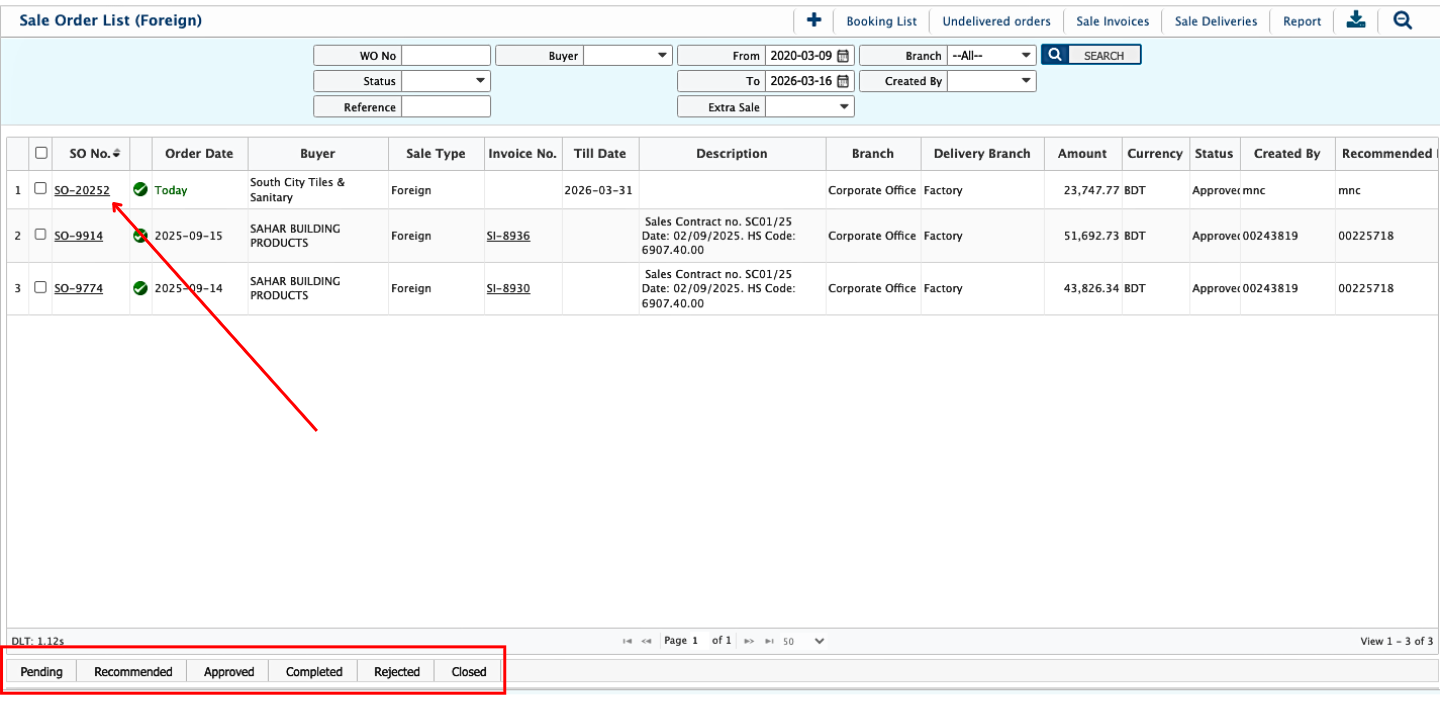
After creating the Receive Work Order, the record will appear in the Sale Order (Foreign) list page. From this list, users can search and filter work orders using different fields to quickly locate specific records.Work orders can also be sent to approval workflow where they pass through a multilevel approval hierarchy. Users can view workflow status and workflow matrix. Status can be updated to pending, recommended, approved, completed, rejected, and closed.
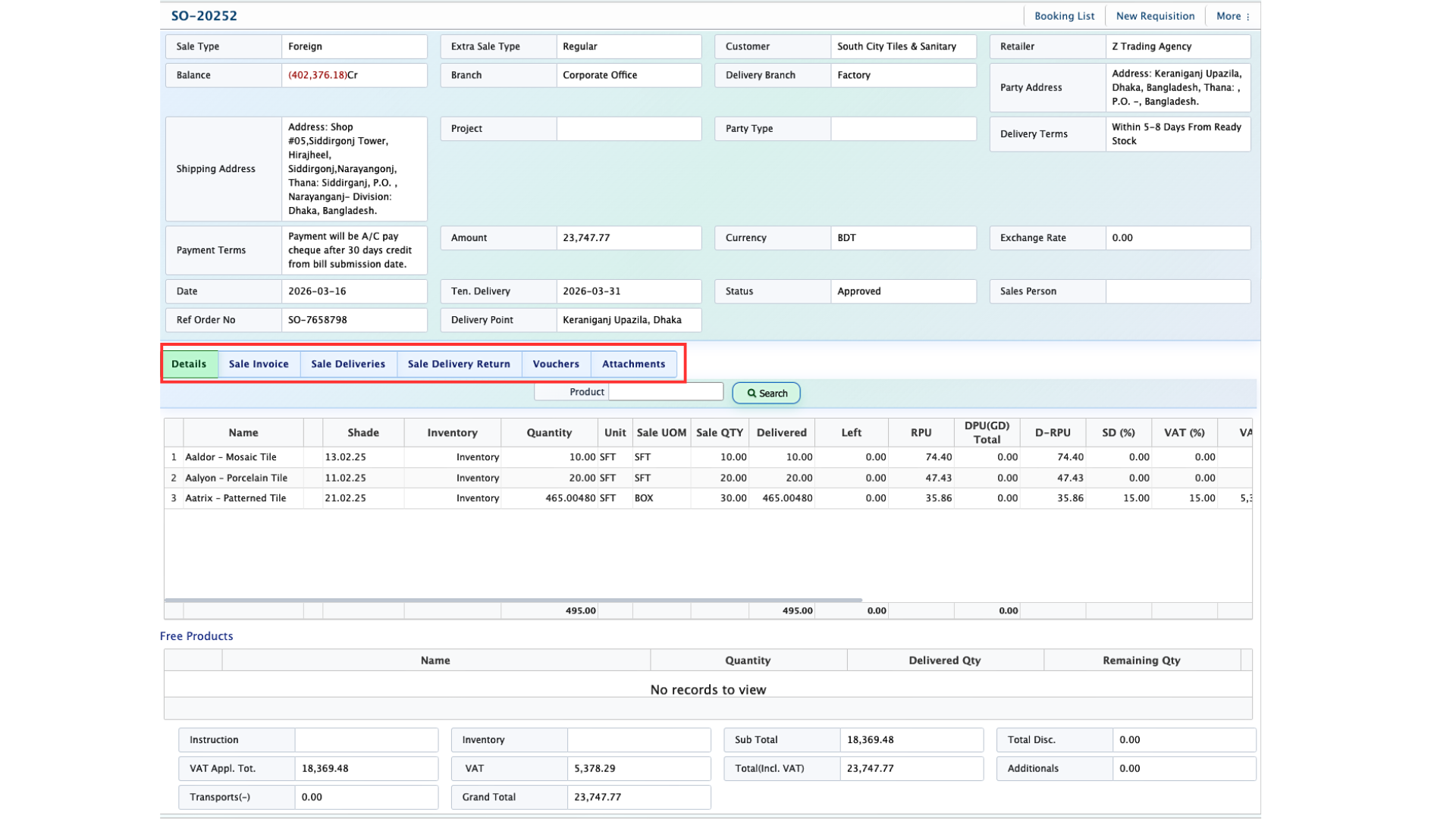
Clicking the Work Order Name from the list will open the Details View, where users can access all information related to the received work order. The details page provides a complete overview of the order, including received products, financial records, and supporting documents.Users can review associated vouchers, attachments, sale invoices, and other linked information. The system also allows users to add sale delivery and sale invoices for the work order if the items need to be delivered or distributed after receiving.