Movement Register
Movement Register in PrismERP allows tracking and managing all employee movements efficiently. Users can add and maintain modes of travel, define purposes of visit, and submit movement register applications with detailed information. The system supports batch entries, assigns charging codes, and captures conveyance details. Movement applications can be viewed, recommended, approved, rejected, or cancelled, while comprehensive filters and reports enable easy monitoring and management of employee movements.
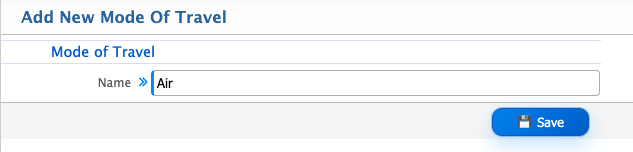
Add Mode of Travel
| Field | Action |
|---|---|
| Mode of Travel Name | Enter the name of the mode of travel (e.g., Bus, Air, Train, Car). |
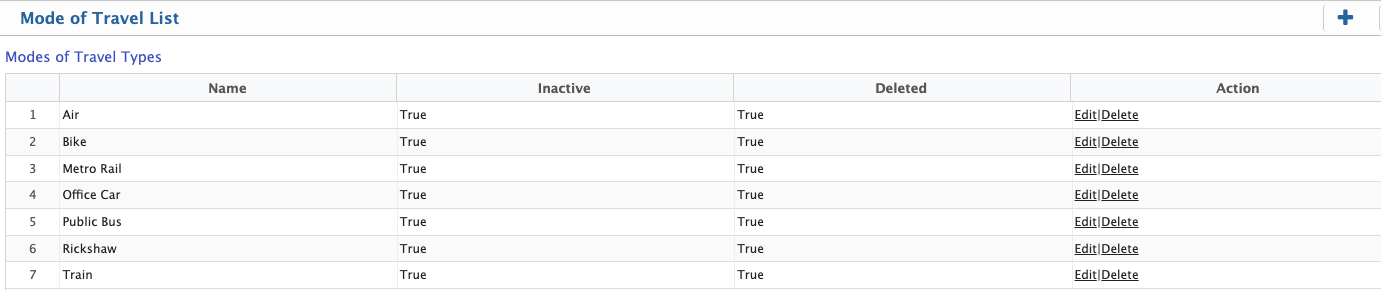
In the Mode of Travel List, users can add a new mode of travel, edit an existing entry to update its information, or delete a mode of travel if it is no longer required.
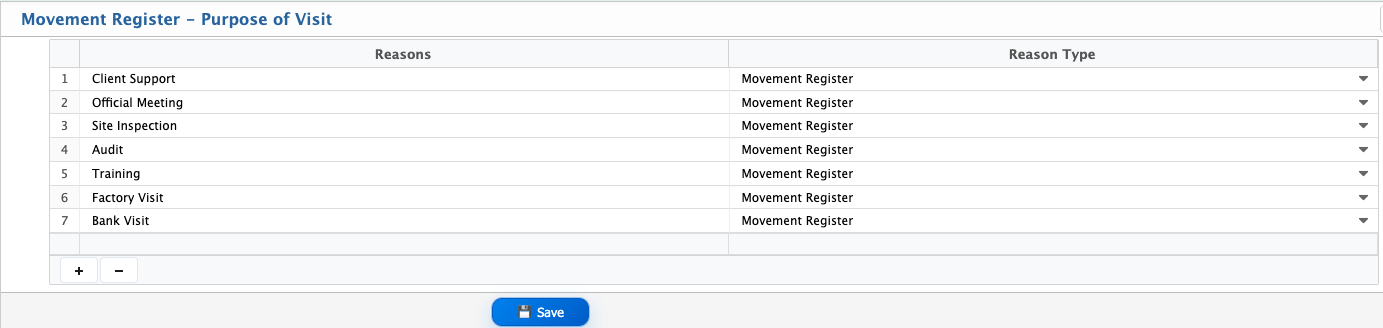
Add Movement Register Purpose
| Field | Action |
|---|---|
| Reasons | Enter the purpose of the visit. |
| Reason Type | Select the type/category of the reason. |
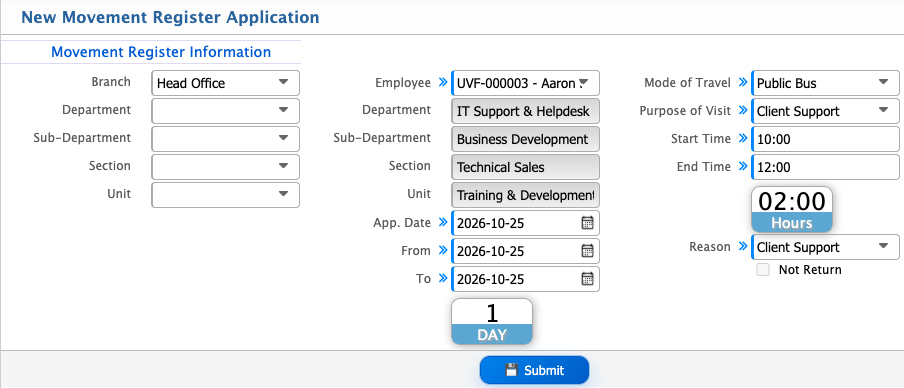
Add Movement Register Application
| Field | Action |
|---|---|
| Branch | Select the branch from which the movement request is being submitted. |
| Division | Select the employee’s division. |
| Department | Select the relevant department. |
| Section | Select the section under the department, if applicable. |
| Sub Section | Select the sub section under the selected section, if applicable. |
| Floor | Select the floor where the employee is assigned. |
| Employee | Select the employee for whom the movement register application is created. |
| App. Date | Select the application submission date. |
| From | Select the start date of the movement. |
| To | Select the end date of the movement. |
| Mode of Travel | Select the mode of travel for the movement. |
| Purpose of Visit | Select the purpose of the visit from the predefined list. |
| Start Time | Enter the start time of the movement. |
| End Time | Enter the end time of the movement. |
| Reason | Enter a brief reason describing the purpose of the movement. |
| Not Return | Enable this option if the employee will not return on the same day. |
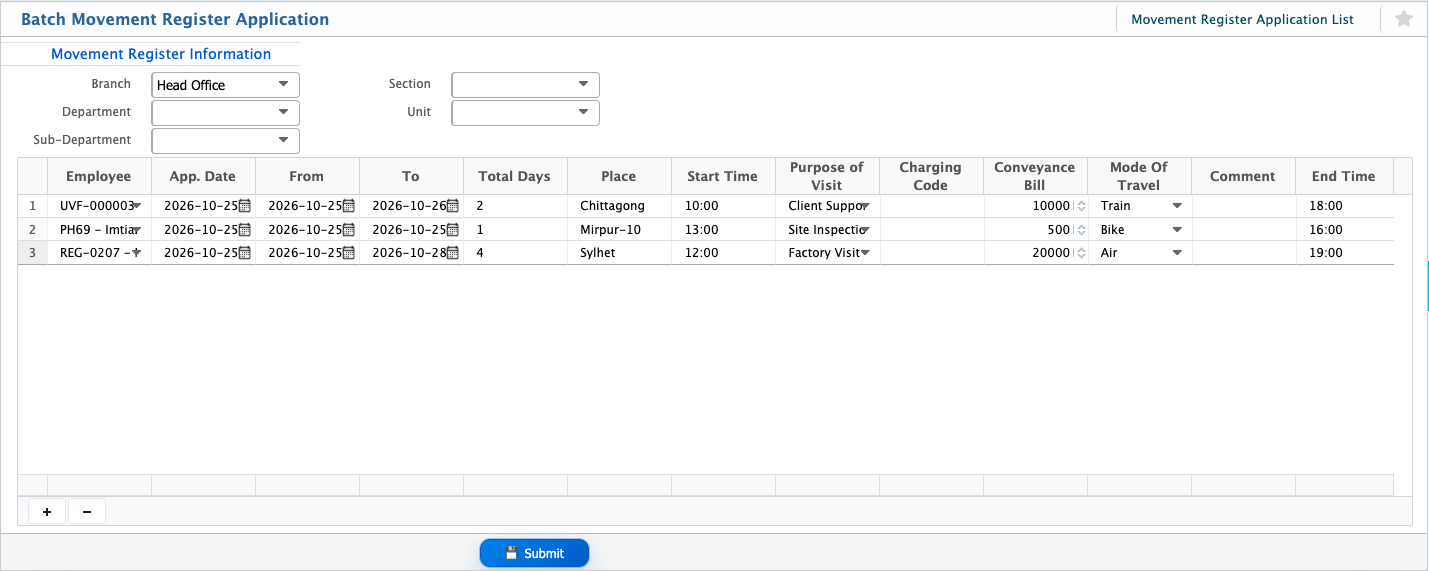
Batch Movement Register Application
| Field | Action |
|---|---|
| Branch | Select the branch for which the movement is recorded. |
| Division | Select the division of the employee. |
| Department | Select the department of the employee. |
| Section | Select the section under the department. |
| Sub Section | Select the sub-section under the section, if applicable. |
| Floor | Select the floor where the employee is assigned. |
| Employee | Select the employee for whom the movement register is being applied. |
| App. Date | Enter the application date for the movement. |
| From | Select the start date of the movement. |
| To | Select the end date of the movement. |
| Place | Enter the place/location of the visit or movement. |
| Start Time | Enter the start time of the movement. |
| End Time | Enter the end time of the movement. |
| Purpose of Visit | Select the purpose of visit from predefined reasons. |
| Charging Code | Enter the applicable charging code for the movement. |
| Conveyance Bill | Enter the conveyance bill number, if applicable. |
| Mode of Travel | Select the mode of travel used. |
| Comment | Add any additional remarks regarding the movement. |
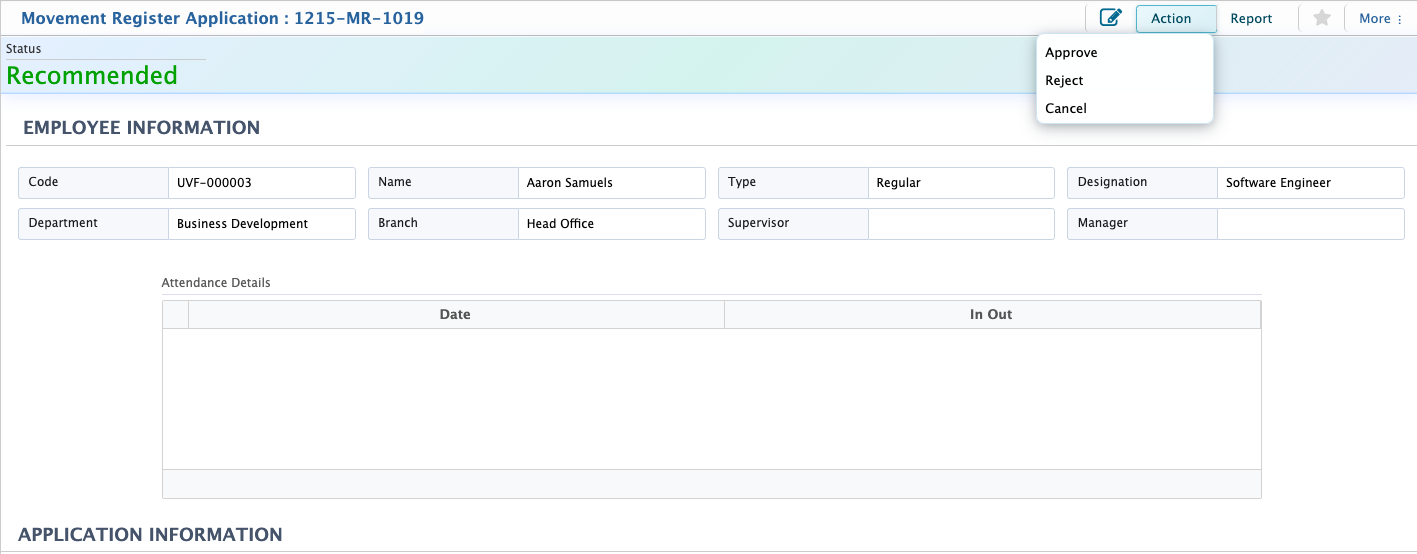
After adding a movement register application, users can view it in the Movement Register List, check its current status, and update the status as needed. They can also add a new movement register application directly from the list.
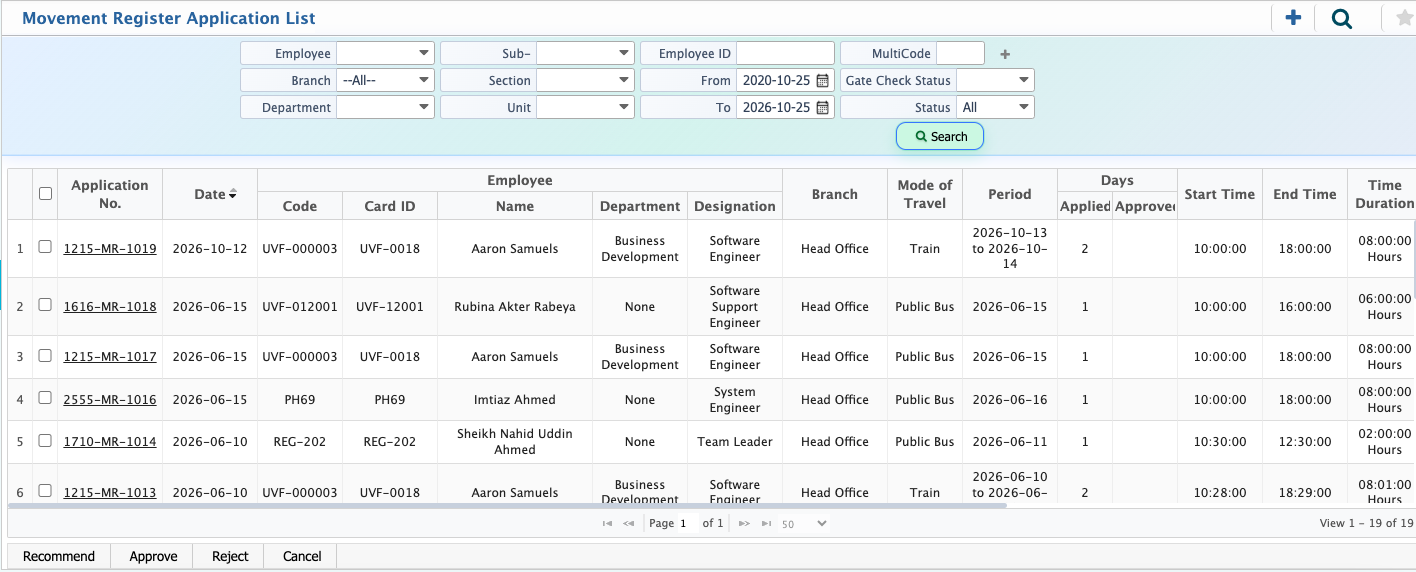
If users click on the application number, the Movement Register Application Details View will open. From here, they can view or edit the application details, recommend the application for approval, recommend and approve it, reject it with remarks, or cancel the application. Users can also generate and download movement register reports in different formats.