Leave Policy
In PrismERP, the Leave Policy is a centralized setup where all leave rules are defined and managed in one place. It includes configurations for leave types, applicability, eligibility, restrictions, carry forward, encashment, and special leave settings. Each section defines how leave is calculated, applied, and governed across the organization.After configuration, all policy details are available in a single screen where settings can be reviewed and updated whenever required.
Leave Policy Core
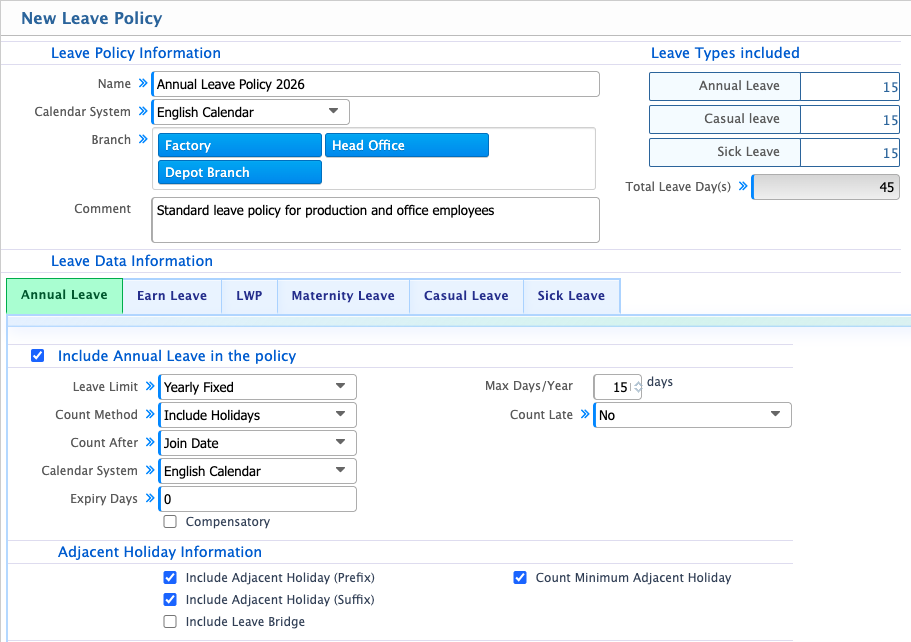
The Leave Policy Core section defines the main structure of a leave policy. It includes basic information such as policy name, calendar system, assigned branches, and optional comments for clarity and identification.This section also allows multiple leave types to be included under a single policy. Leave categories such as Annual Leave, Earn Leave, Sick Leave, Casual Leave, LWP, and Maternity Leave can be added through a tab-based selection. Each leave type follows its own defined allocation within the same policy structureFurther configuration controls how leave is calculated and managed. Rules such as yearly leave limits, calculation methods, inclusion of holidays, and eligibility after joining date define the overall behavior of the policy. Expiry settings determine how long unused leave remains valid, while adjacent holiday and leave bridging options control whether holidays before or after leave are included in continuous leave calculations.
Leave Policy Core Fields
| Field | Action |
|---|---|
| Name | Enter a clear and unique name for the leave policy to define the complete set of leave rules. |
| Calendar System | Select the calendar system used for leave calculation (e.g., English Calendar). |
| Branch | Select one or multiple branches where the policy will be applied. |
| Comment | Enter remarks or descriptions to explain the purpose or scope of the policy. |
| Leave Types Included | Select multiple leave types such as Annual Leave, Earn Leave, LWP, Maternity Leave, Casual Leave, and Sick Leave. |
| Annual Leave (Days) | Define the number of Annual Leave days allocated under this policy. |
| Include Annual Leave in the Policy | Enable or disable inclusion of Annual Leave in the policy structure. |
| Leave Limit | Define the leave allocation method such as Yearly Fixed. |
| Max Days/Year | Set the maximum number of leave days allowed per year. |
| Count Late | Define whether late attendance is included in leave calculation. |
| Count Method | Select the method used for leave calculation (fixed or accrual-based). |
| Include Holidays | Define whether official holidays are included in leave calculation. |
| Count After Join Date | Enable leave eligibility after employee joining date. |
| Expiry Days | Set the number of days after which unused leave expires. |
| Include Adjacent Holiday (Prefix) | Include holidays before leave start date in calculation. |
| Include Adjacent Holiday (Suffix) | Include holidays after leave end date in calculation. |
| Include Leave Bridge | Enable continuous leave calculation across holidays/weekends. |
| Count Minimum Adjacent Holiday | Define minimum adjacent holidays required for leave bridging. |