Employee Increment
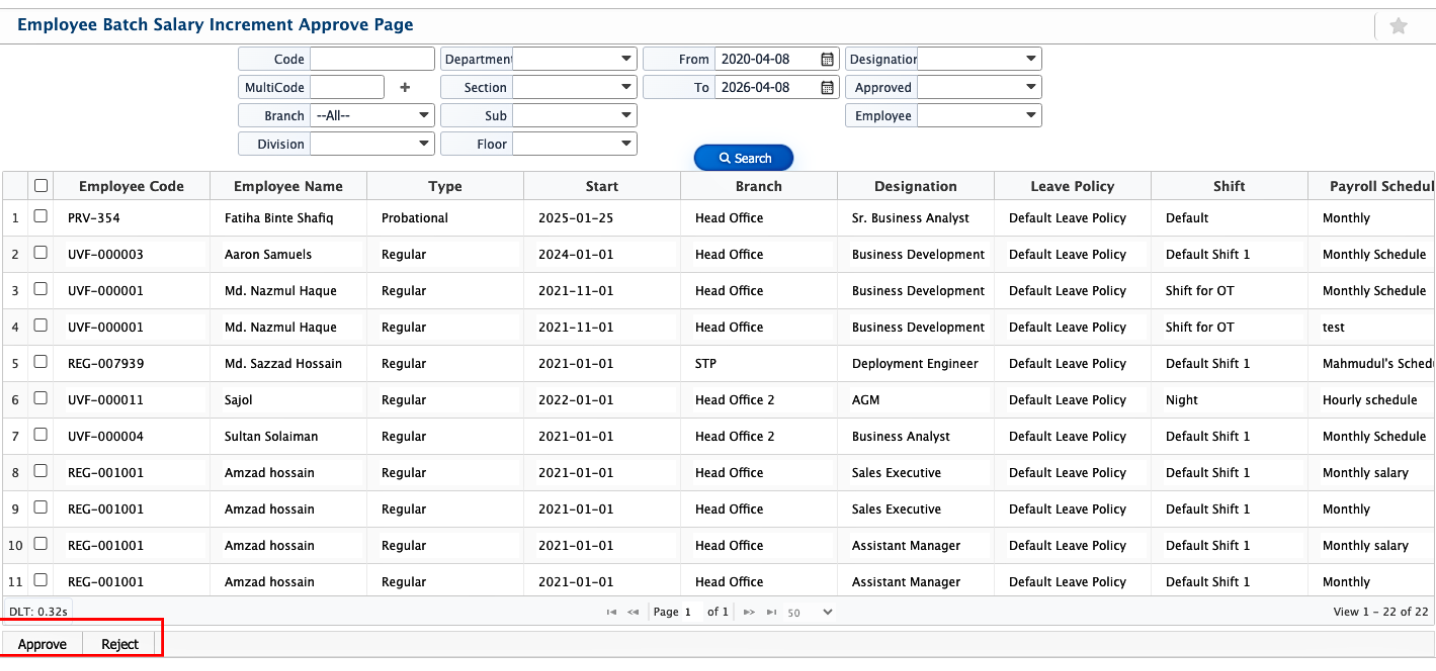
In PrismERP, the Employee Increment feature lets users update salaries for multiple employees in a single process. Users can create a new batch increment, select employees, choose the increment type and value, and set the effective date. All increments can then be viewed on the Batch Increment List page, where they can be searched, filtered, and approved or rejected as needed.
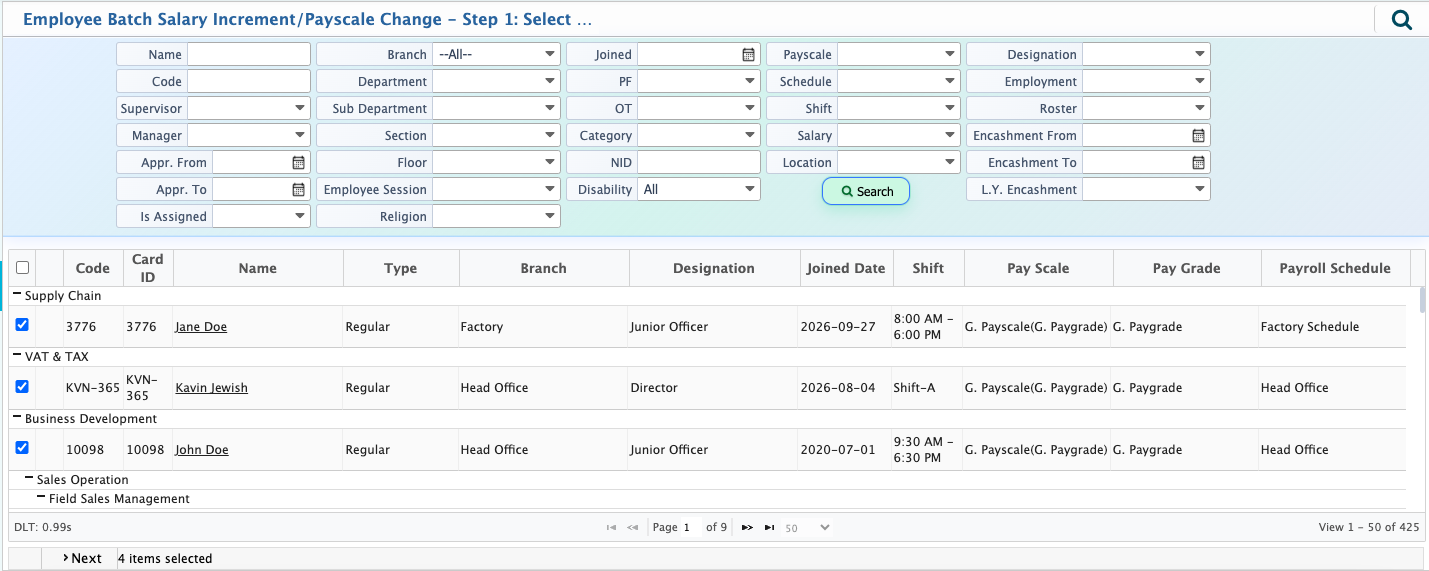
To begin, navigate to the New Batch Salary Increment page. Upon opening this page, a complete list of employees will be displayed. From here, select the employees who will receive the increment. If the list is large, the search panel can be used to quickly find specific employees using relevant filters. Once the required employees are selected, click Next to move to the next step.
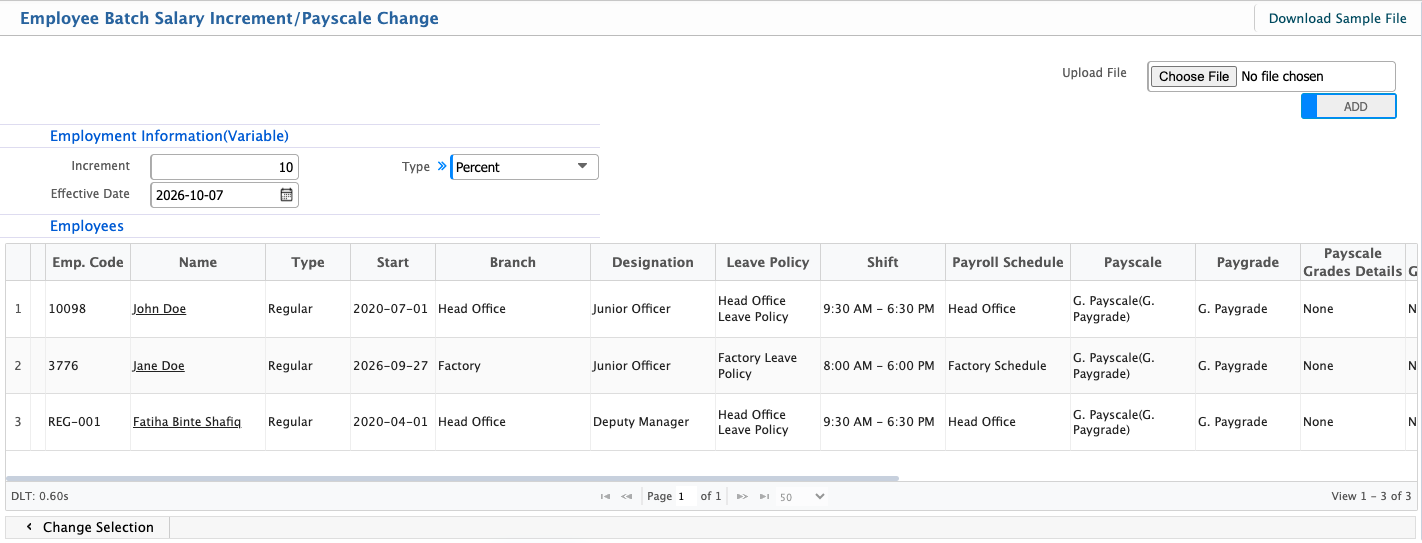
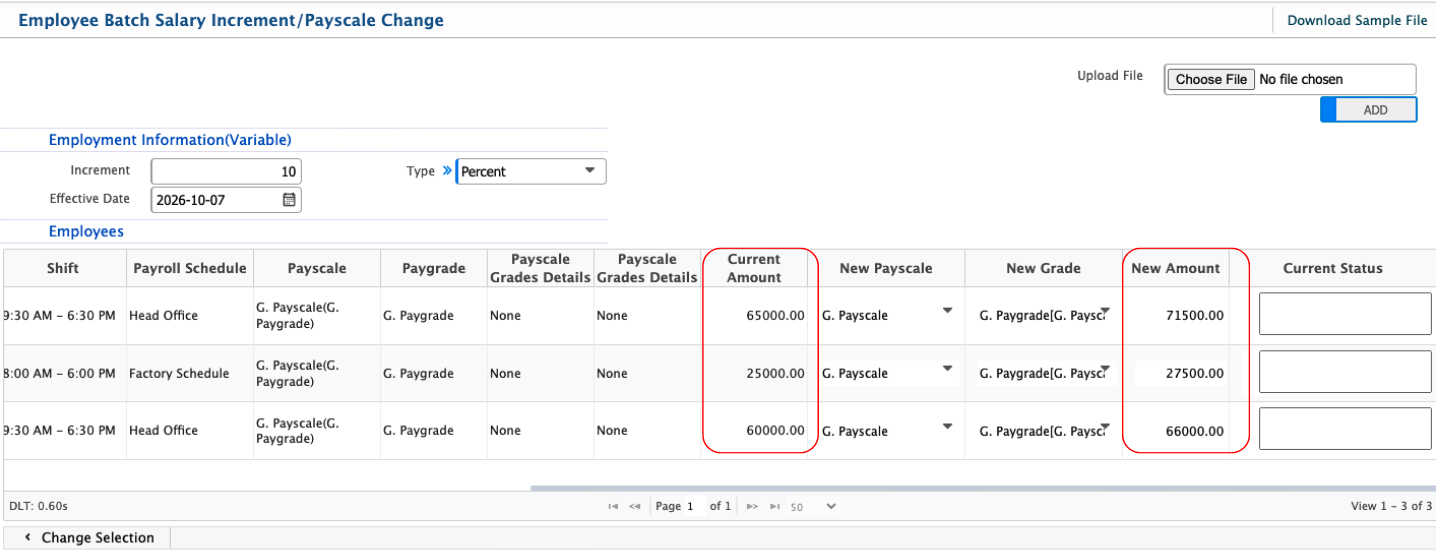
The following page is where the actual increment configuration is set. Here, choose the increment type based on the organization’s requirement—either Percent or Formula. If Percent is selected, enter the desired percentage value, and the system will automatically calculate the increment amount based on each employee’s gross salary. This allows quick and uniform adjustments across all selected employees.
If Formula is selected, a custom calculation can be defined (for example, x/9, where x represents the gross salary). The system will then use this formula to calculate the increment amount dynamically for each employee. This option is useful when increments depend on more specific or complex business rules.
Before finalizing, employee selections can still be adjusted if needed. Additionally, attachments can be uploaded to include supporting documents such as approval notes or policy references.
Add Batch Increment
| Field | Action |
|---|---|
| Type | Select the increment type (Percent or Formula) to determine how the increment will be calculated. |
| Increment Value / Formula | Enter the increment value. If Percent is selected, enter the percentage. If Formula is selected, input the calculation formula based on salary components. |
| Effective Date | Select the date from which the increment will be applied to the employee’s salary. |
Once a batch salary increment is added, it appears on the Batch Increment List page, displaying all employee details. Users can use the search and filter options to quickly find specific increments and can also approve or reject them directly from the list.