Employee Suspension
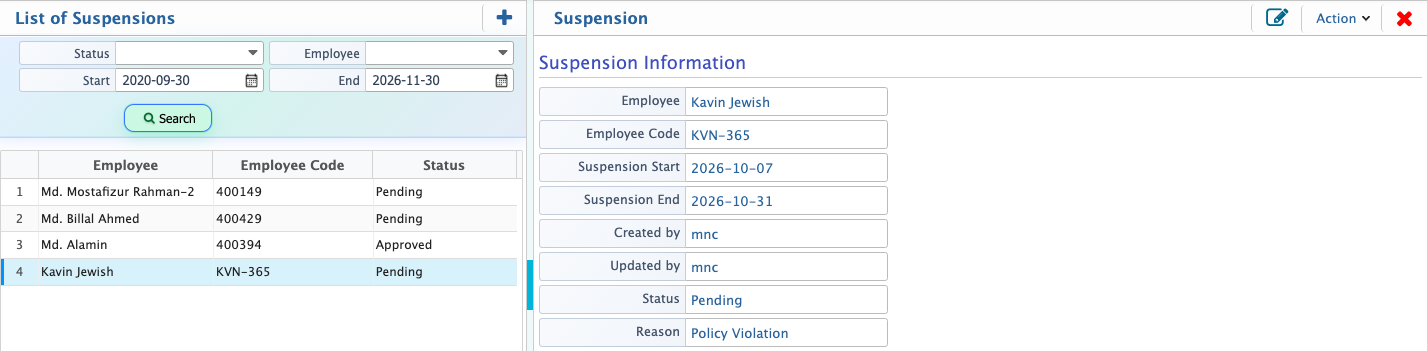
The Employee Suspension feature in PrismERP allows users to record and manage suspensions with clear details. Users can select the employee, set the start and end dates, and provide a reason for the suspension, ensuring accurate documentation.
Once a suspension is added, it appears on the Suspension List with all relevant information, including the employee, duration, and reason. Users can update the status as Pending, Approved, Rejected, or Withdrawn, and suspensions can be withdrawn if needed. The search and filter panel helps quickly locate specific records, making it easy to review and manage all suspension information.
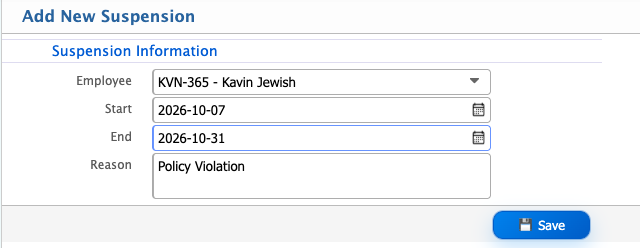
Add New Suspension
| Field | Action |
|---|---|
| Employee | Search and select the employee who is being suspended by name or employee code. |
| Start | Select the start date from which the suspension will take effect. |
| End | Select the end date until which the suspension will remain active. |
| Reason | Enter the reason for the suspension, providing context and justification for record-keeping. |
After adding a suspension, the record appears on the Suspension List in PrismERP, displaying all relevant details such as the employee, start and end dates, and the reason for suspension. Users can review the suspension and update its status as Pending, Approved, Rejected, or Withdrawn depending on the situation.
The search and filter panel allows users to quickly locate specific suspension records. Suspensions can also be withdrawn if necessary, and all actions are tracked in the system for clear record-keeping and management.