Employee Transfer
In PrismERP, the Employee Transfer feature provides a structured way to manage internal employee movements across branches, departments, and job roles. Users can create a transfer request by selecting the employee, specifying the new branch, department, section, designation, job location, and relevant attendance and payroll settings. The system also allows defining target shifts, leave and holiday policies, and employee groups for a smooth transition.
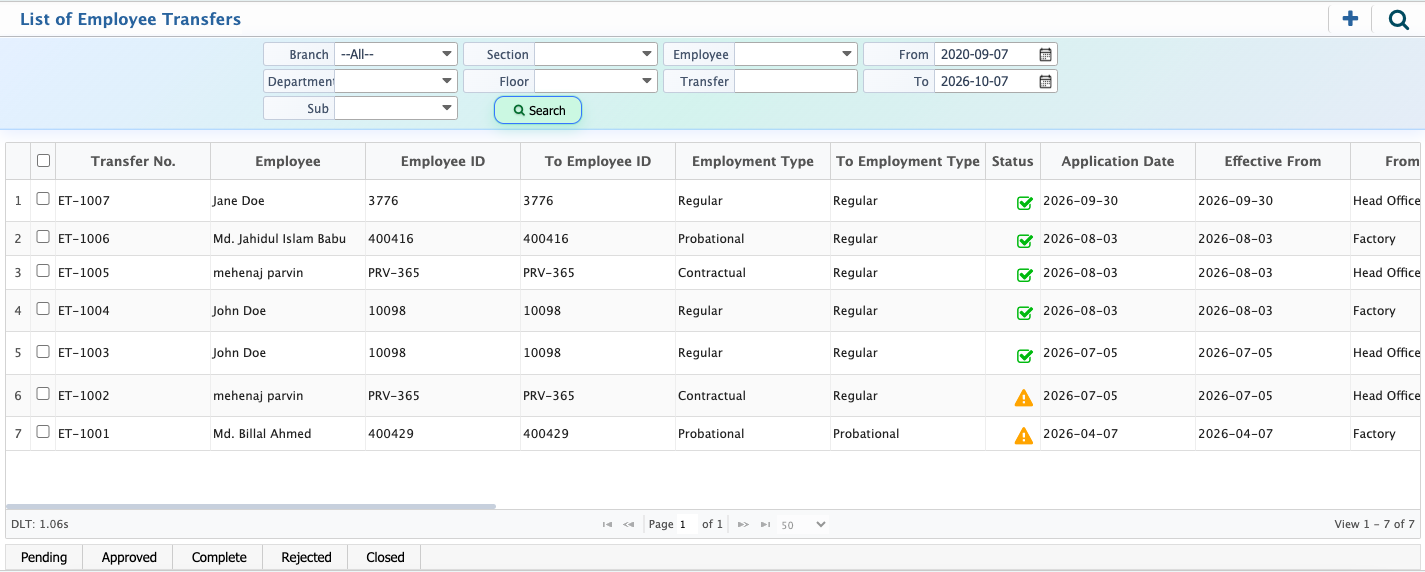
Once the transfer request is submitted, it appears on the Employee Transfer List with all relevant details. Users can update the status to Pending, Approved, Completed, Rejected, or Closed and track the progress at any time. The search and filter panel allows quick access to specific transfers, and requests can be routed through a multi-level approval workflow. Users can view the workflow status and approval matrix, providing full visibility into each stage of the transfer process.
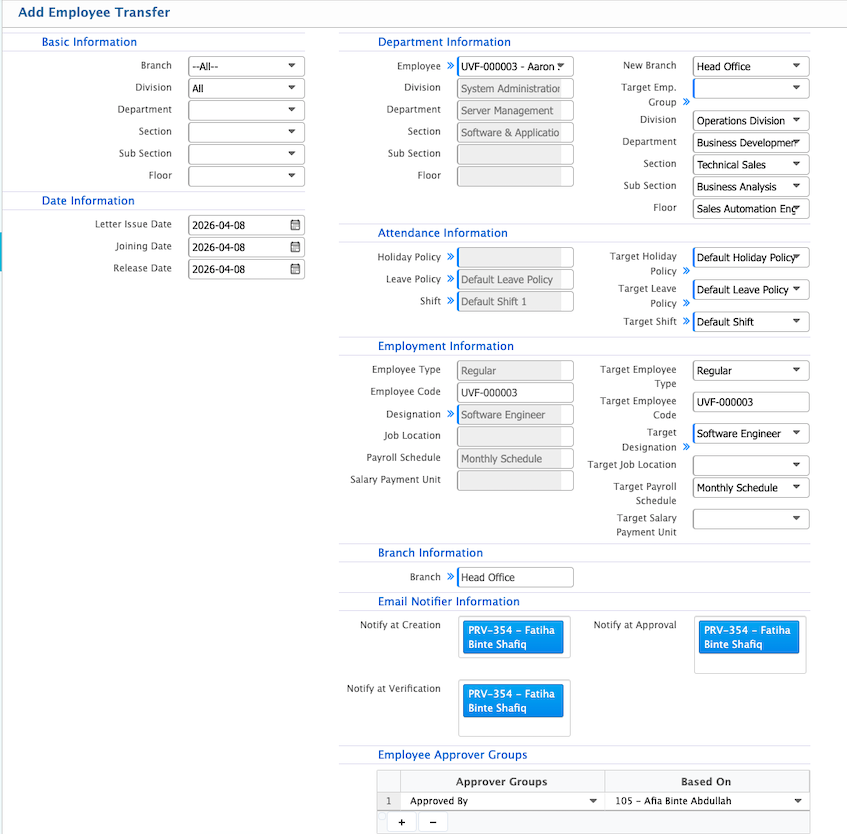
Add Employee Transfer
| Field | Action |
|---|---|
| Letter Issue Date | Select the date when the transfer letter is officially issued to the employee. |
| Joining Date | Select the date on which the employee will join the new position or location after transfer. |
| Release Date | Select the date when the employee will be released from the current role or department. |
| Employee | Search and select the employee by name or code to initiate the transfer process. |
| New Branch | Select the new branch where the employee will be transferred. |
| Target Employee Group | Select the employee group applicable after the transfer is completed. |
| Target Division | Select the new division where the employee will be reassigned. |
| Target Department | Select the new department for the employee after transfer. |
| Target Section | Select the new section under the target department. |
| Target Sub Section | Select the new sub section if applicable for further classification. |
| Target Floor | Select the new floor or operational location for the employee. |
| Holiday Policy | Select the current holiday policy assigned to the employee for attendance tracking. |
| Leave Policy | Select the leave policy that currently applies to the employee |
| Shift | Select the working shift currently assigned to the employee |
| Target Holiday Policy | Select the holiday policy that will be applied after the transfer. |
| Target Leave Policy | Select the leave policy that will be applicable after the transfer. |
| Target Shift | Select the new working shift that will apply after the transfer. |
| Job Location | Select the job location to define where the employee is currently assigned. |
| Payroll Schedule | Select the payroll schedule (e.g., Monthly Schedule) that determines salary processing. |
| Salary Payment Unit | Select the salary payment unit that defines how salary is structured or disbursed. |
| Target Employee Type | Select the employee type that will apply after the transfer is completed. |
| Target Designation | Select the new designation or job title for the employee after transfer. |
| Target Job Location | Select the new job location where the employee will be assigned. |
| Target Payroll Schedule | Select the payroll schedule that will apply after the transfer. |
| Target Salary Payment Unit | Select the salary payment unit applicable after the transfer. |
| Branch (Current) | Displays the current branch of the employee for reference (e.g., Head Office). |
| Notify at Creation | Select employees who will receive notifications when the transfer is created. |
| Notify at Approval | Select employees who will be notified when the transfer is approved. |
| Notify at Verification | Select employees who will be notified when the transfer is verified. |
| Approver Groups | Select the approver groups responsible for reviewing and approving the transfer request. |
| Based On | Select the criteria or rule based on which the approval workflow will be applied. |
After creating an employee transfer request, it appears on the Employee Transfer List page with all relevant details. From this list, users can update the transfer status as Pending, Approved, Completed, Rejected, or Closed based on the progress of the request.
The search and filter panel can be used to quickly find specific transfer records using different criteria. A transfer request can also be sent into the approval workflow, where it moves through multiple levels of approval according to the defined hierarchy before being completed. Users can track the progress by viewing the workflow status and approval matrix at any stage.