Employee Management
Users can use PrismERP to efficiently manage all aspects of employee information, from general records to payroll updates and employment status. The system provides tools for batch editing employee details, updating pay scales and grades, and activating or deactivating employees, allowing HR teams to maintain accurate and up-to-date employee records across the organization.
With features like Batch Edit, users can modify Employment Information, Department Information, and Attendance Information for multiple employees at once, while Batch Payscale Change enables updating pay scale and pay grade efficiently. Additionally, the Activate/Deactivate feature helps manage employee status, including options such as Salary Held Up, Inactive, or Unnoticed, ensuring streamlined HR operations.
Employee Batch Edit
Users can use the Batch Edit feature in PrismERP to update multiple employee records at once.
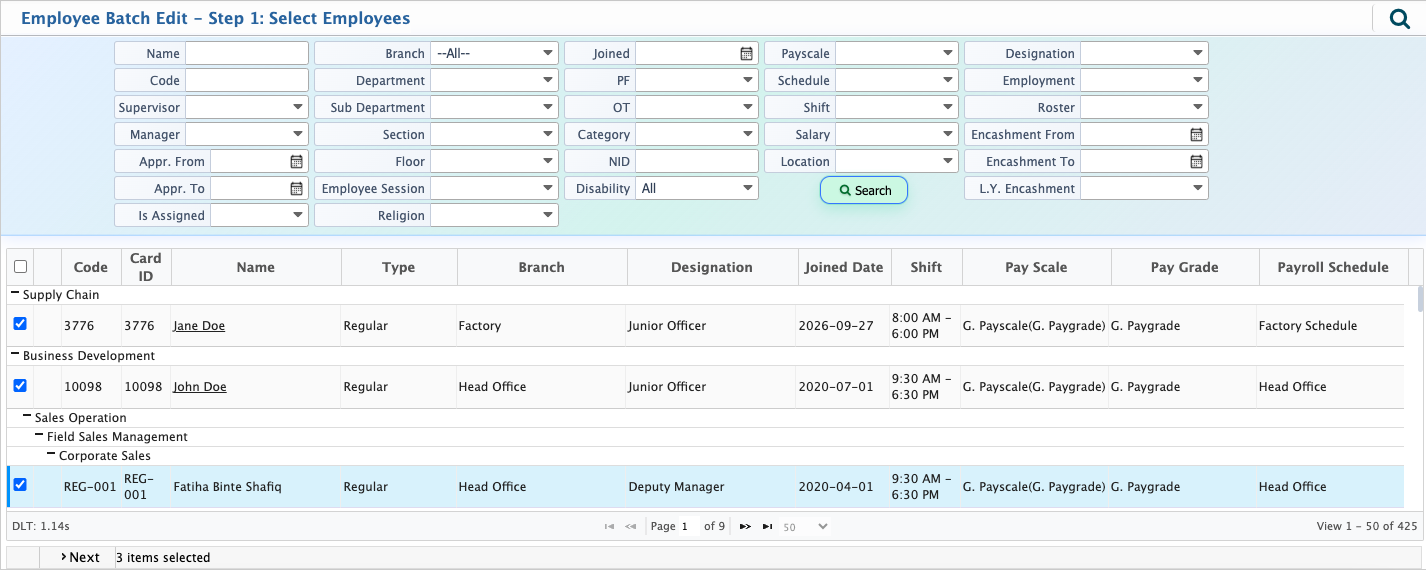
To begin, navigate to the Batch Edit option, where a list of employees will be displayed. Users can select the employees whose details need to be updated. Once the selection is made, click Next to open the Batch Edit page.
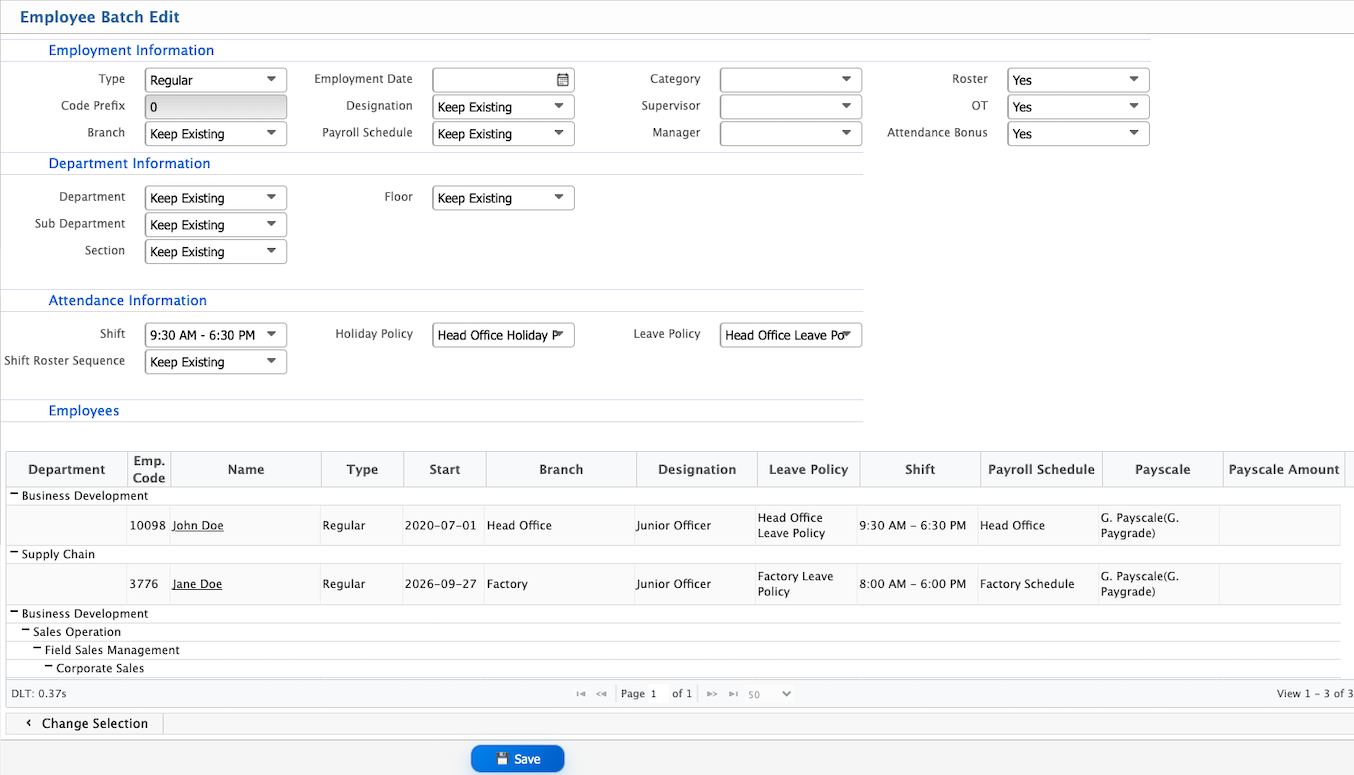
On the Batch Edit page, users can modify various employee details, including Employment Information, Department Information, and Attendance Information. User can also change the selected employee from the edit page.
| Field | Action |
|---|---|
| Type | Select the employment type for the selected employees. |
| Code Prefix | Select the code prefix assigned to the employees. |
| Branch | Select the branch for the employees or keep the existing branch. |
| Employment Date | Select the employment date for the employees. |
| Designation | Select the new designation or keep the existing designation. |
| Payroll Schedule | Select the payroll schedule or keep the existing schedule. |
| Team | Select the team for employees. |
| Supervisor | Select the supervisor for the employees. |
| Manager | Select the manager for the employees. |
| Division | Select the division for the employees or keep the existing division. |
| Department | Select the department for the employees or keep the current department. |
| Section | Select the section for employees or keep the existing section. |
| Sub Section | Select the sub section for employees or keep the current sub section. |
| Floor | Select the floor for the employees or keep the existing floor. |
| Shift | Select the shift assigned to employees or keep the existing shift. |
| Shift Roster Sequence | Select the shift roster sequence or keep the existing sequence. |
| Holiday Policy | Select the holiday policy or keep the current policy. |
| Leave Policy | Select the leave policy or keep the existing policy. |
Batch Payscale Update
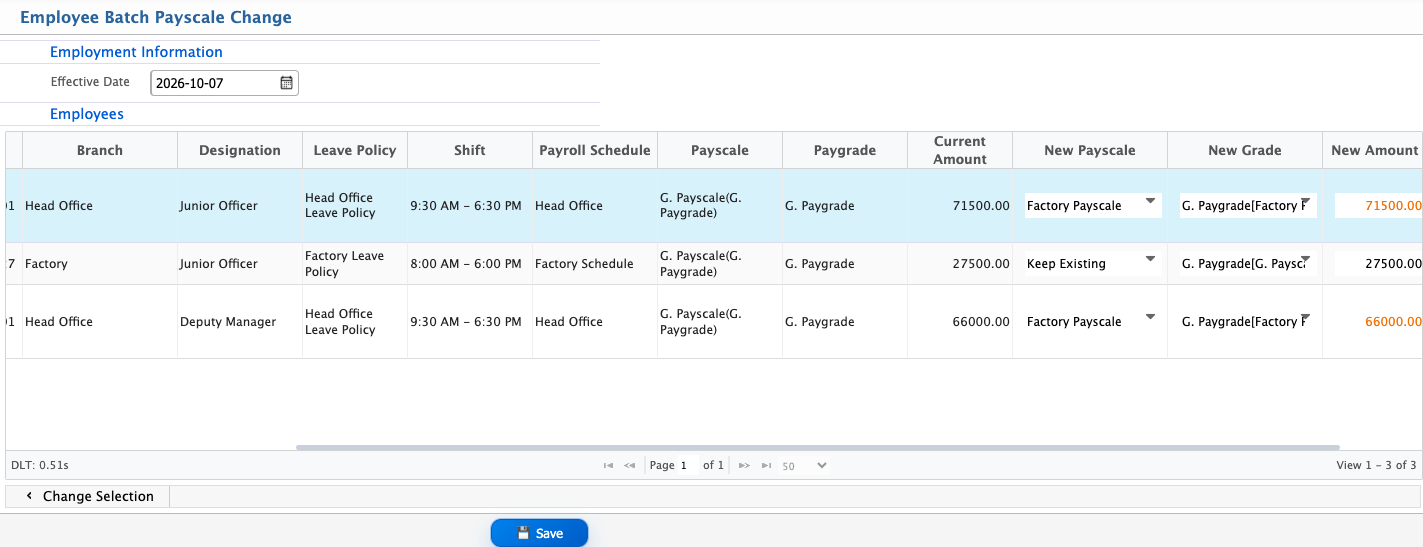
Users can use the Batch Payscale Change feature in PrismERP to update the pay scale and pay grade for multiple employees efficiently in a single operation.
To begin, navigate to the Batch Payscale Edit option in PrismERP, where a list of employees will be displayed. Users can select the employees whose pay scale and pay grade need to be updated. Once the selection is made, click Next to open the Batch Edit page.
On the Batch Edit page, users can update the Pay Scale and Pay Grade to new values for the selected employees. Users can also modify other relevant payroll information and change the selection of employees directly from the edit page before applying the updates.
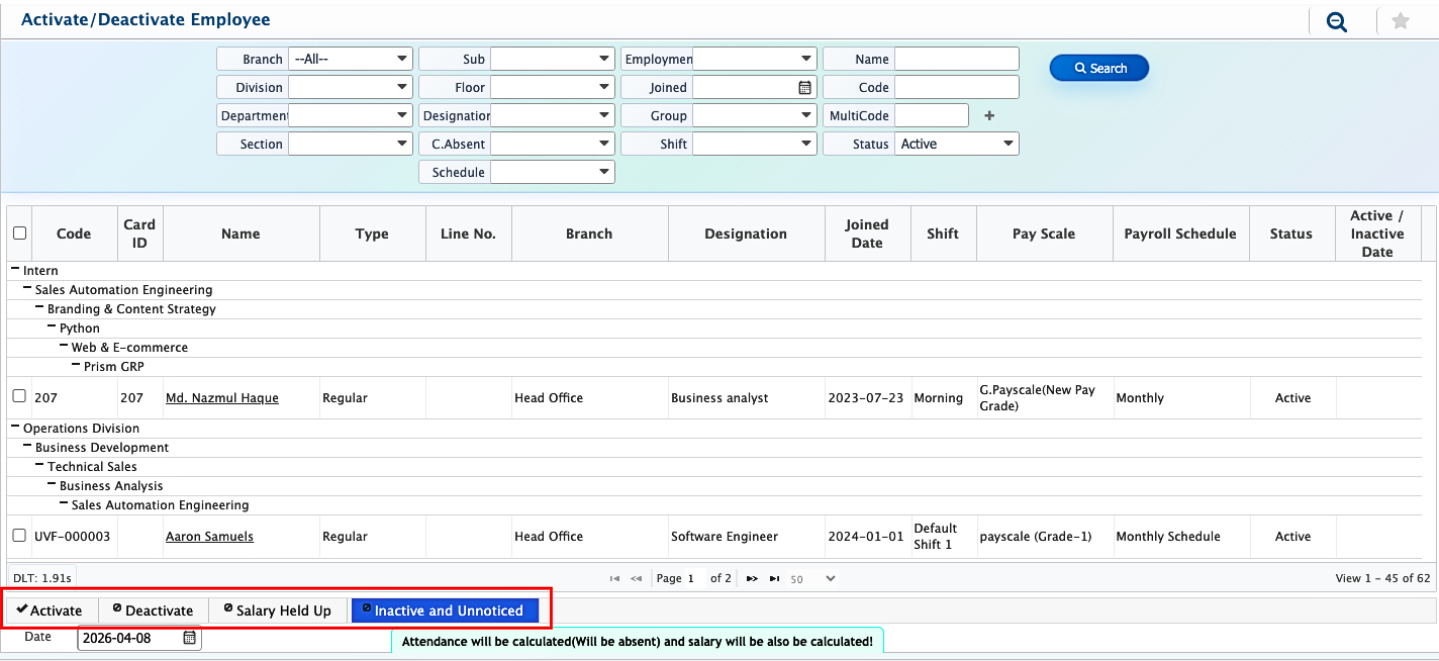
Employee Activation/Deactivation
In PrismERP, users can manage employee status in bulk through the Activate / Deactivate feature. Users can select employees, choose a date, and update their status as Activate, Deactivate, Salary Held Up, Inactive, or Unnoticed. This allows for efficient management of employee availability and payroll status across the organization.