Department Outline & Hierarchy
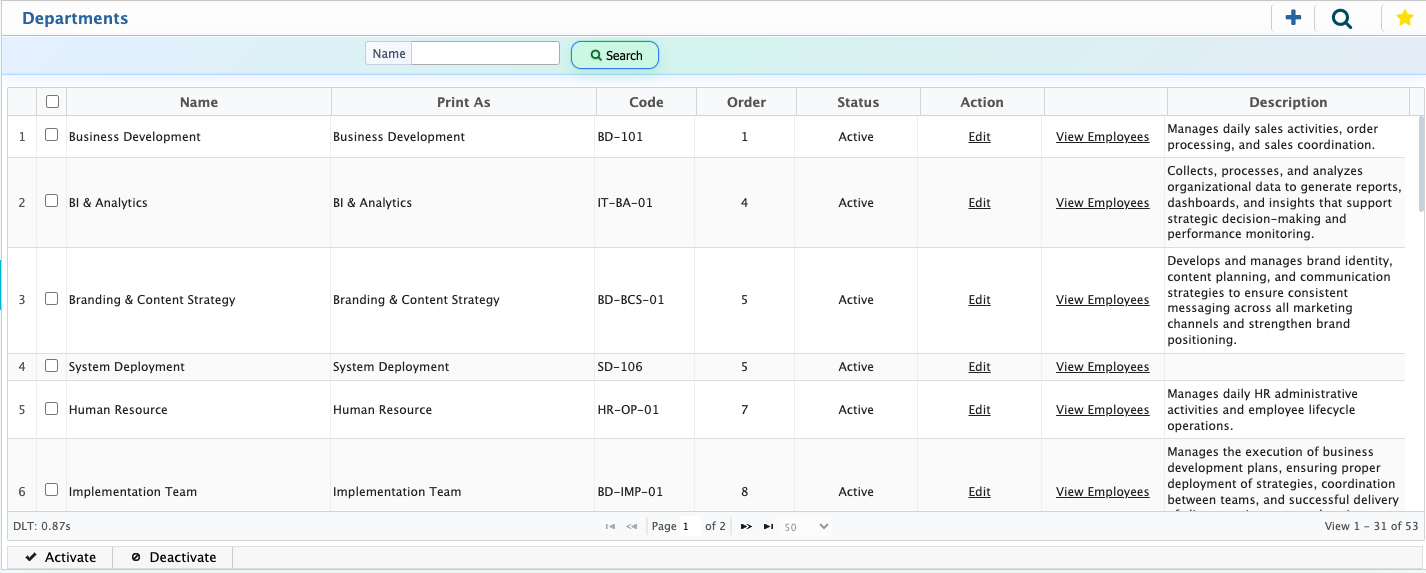
In PrismERP, users can manage company departments through the HCM module. They can add new departments by entering details such as name, code, order, print name, and description. Once added, departments appear in the Department List, where users can view, edit, or activate/deactivate them. The system also shows employees assigned to each department along with their sub-departments, sections, and floors.
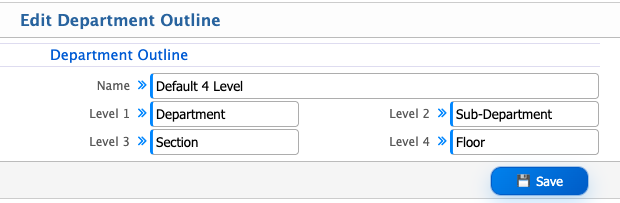
Departments can be organized visually using the Departmental Hierarchy Outline, where users can arrange units using drag-and-drop and update the level names as needed. The hierarchy can also be viewed as an organogram for a selected branch, displayed either by designation or position ID, showing the structure of departments and roles clearly.
Add New Department
| Field | Action |
|---|---|
| New Department | Enter the name of the new department to be added in the system. |
| Department List | View all existing departments in a structured list for reference. |
| Name | Enter the official name of the department as it will appear in PrismERP. |
| Code | Assign a unique department code for identification and record-keeping purposes. |
| Order | Specify the display order of the department in lists or dropdowns. |
| Print As | Enter the name that should appear on printed reports or documents. |
| Description | Add any relevant notes or details about the department. |
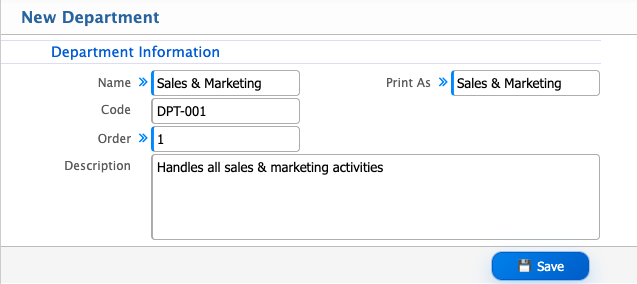
After adding a new department in PrismERP, the department appears in the Department List. Users can activate or deactivate the department as needed. Department information such as name, code, order, print name, and description can be edited at any time. Users can also view all employees assigned to that department, along with their associated sub-departments, sections, and floor
In PrismERP, users can organize the structure of departments using the Departmental Hierarchy Outline feature available within the HCM module. This feature allows users to visually arrange departments and define how different units are connected within the organization.
Users can select department names from a dropdown list and place them into the hierarchy using a simple drag-and-drop action. By dragging one department under another, a relationship is created between them. For example, if Server Management is placed under System Administration, it can be treated as a Section, and any department added beneath it can be defined as a Sub-Section. In this way, users can build multiple levels within the structure based on organizational needs.
Each level in the outline clearly represents how departments are grouped and how teams are structured. Users can rearrange the hierarchy at any time by dragging items to different positions, allowing the structure to be updated whenever there are changes in departments or reporting lines.
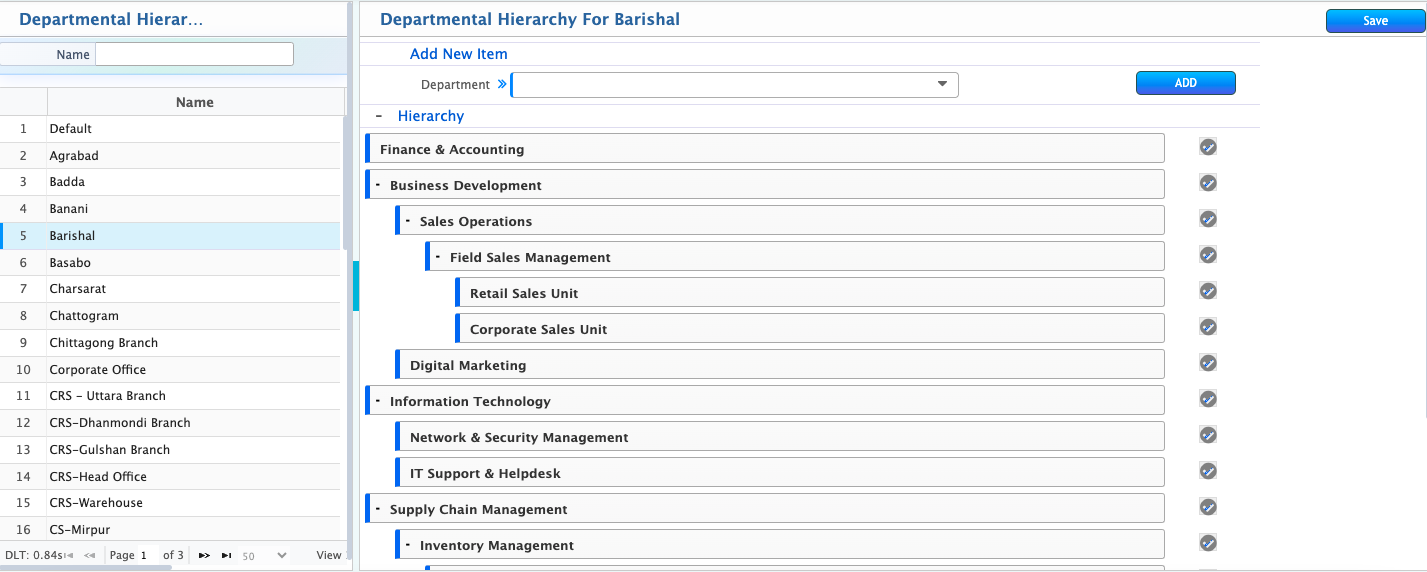
Users can view the department hierarchy as an organogram by selecting a branch. It can be displayed by designation or by position ID, showing the arrangement of departments and roles within the branch.
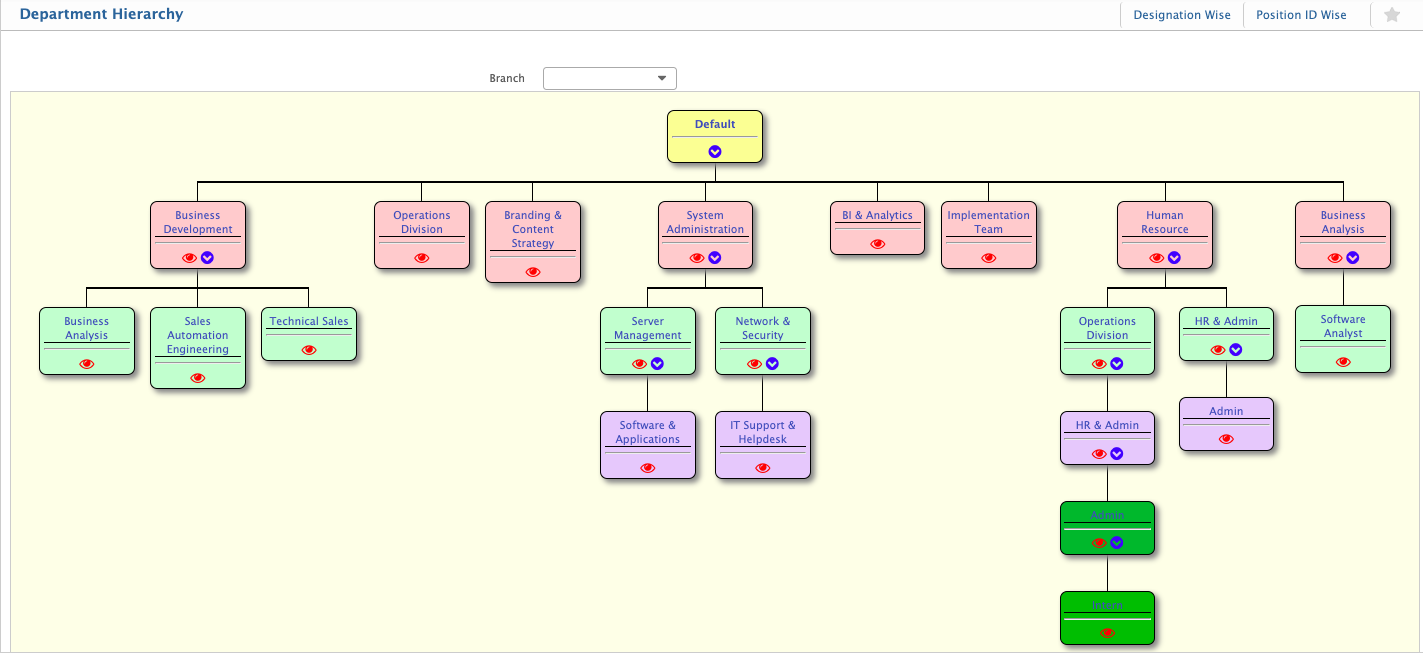
The Department Outline in PrismERP allows users to organize the company’s departments in a structured hierarchy. The outline consists of several levels, showing how main departments, sub-units, and their locations are arranged. Each outline is named for easy identification, and users can change the names of the levels to match their requirements.