Designation Setup
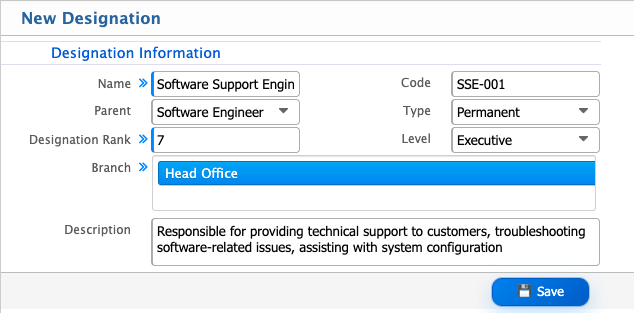
In PrismERP, users can manage employee designations from the HCM module. When adding a new designation, users can enter the designation name, select a parent designation to define its position in the hierarchy, assign a designation rank, and provide a unique code for record-keeping. The type of designation can also be selected, such as Permanent, Contractual, or Temporary, and the designation level can be defined, for example, Trainee, Junior, Senior, or Lead. Users can assign the designation to a specific branch and provide additional description or notes as needed.
PrismERP also allows users to define Designation Levels and link them to a Designation Type, such as Intern, Probational, Regular, Contractual, or Part-Time. These levels and types are maintained in separate lists where users can see all entries, their names, types, and codes.
All designations, levels, and types are displayed in their respective lists, and users can view the full details of each entry. Any information can be edited at any time, ensuring the records are up-to-date and properly organized.
Add New Designation
| Field | Action |
|---|---|
| Name | Enter the official name of the designation as it will appear in PrismERP |
| Parent | Select the parent designation if this role reports to or is under another designation in the hierarchy. |
| Designation Rank | Enter the rank or hierarchical position of the designation within the organization. |
| Code | Assign a unique code for the designation for record-keeping and system identification. |
| Type | Select the type of designation, such as Permanent, Contractual, or Temporary. |
| Level | Choose the designation level, indicating the hierarchical stage. |
| Branch | Select the branch where this designation is applicable or primarily located. |
| Description | Enter any additional notes or remarks about the designation, its responsibilities, or special instructions. |
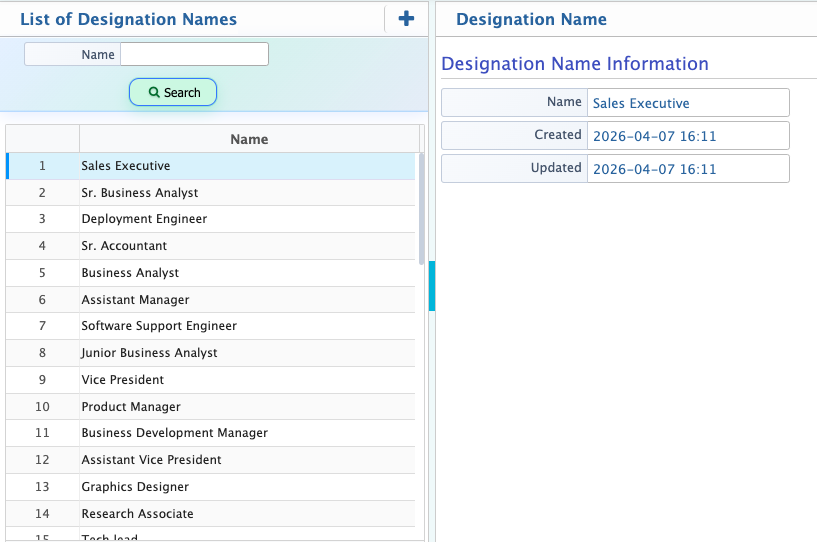
After adding a new designation in PrismERP, it appears in the Designation List. Users can view the full details of each designation, including its name, parent, rank, code, type, level, branch, and description. Users can also activate or deactivate the designation as needed, edit any of the information at any time, and view all employees assigned to that designation.
Add Designation Level
| Field | Action |
|---|---|
| Name | Enter the name of the designation level, such as Trainee, Junior, Senior, or Lead. |
| Type | Select the designation type associated with this level, such as Intern, Probational, or Regular. |
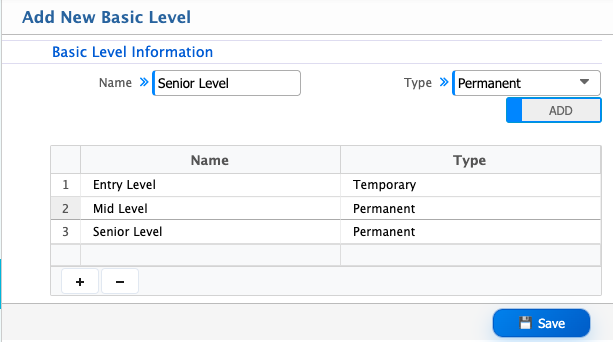
After adding new designation levels in PrismERP, all entries appear in the Designation Level List. Users can view the full list of levels along with their associated designation types and can edit any information whenever updates are needed.
Add Designation Type
| Field | Action |
|---|---|
| Name | Enter the name of the designation type, such as Intern, Probational, or Regular. |
| Code | Assign a unique code for the designation type for identification and record-keeping purposes. |
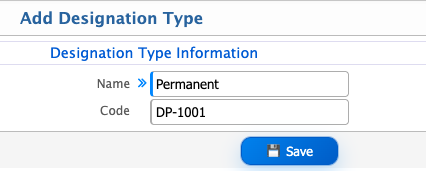
After adding a new designation type in PrismERP, it appears in the Designation Type List. Users can view the details of each designation type, including the name and code, and can edit the information at any time if updates are needed.
