Leave Application Process
Leave Application in PrismERP is used to manage employee leave requests in a structured workflow. It allows capturing employee details, leave type, duration, and approval information in a single form. The system supports delegation of work, attachment uploads, and configurable approval flows to ensure proper leave handling.
All submitted leave applications are maintained in a centralized list where records can be searched, filtered, and imported. Each application can be opened to view full details such as leave history, balance, and current status. The application then moves through different stages including recommendation, approval, rejection, or closure based on the configured workflow. Supervisor-wise views are also available to monitor leave distribution and employee leave balances.
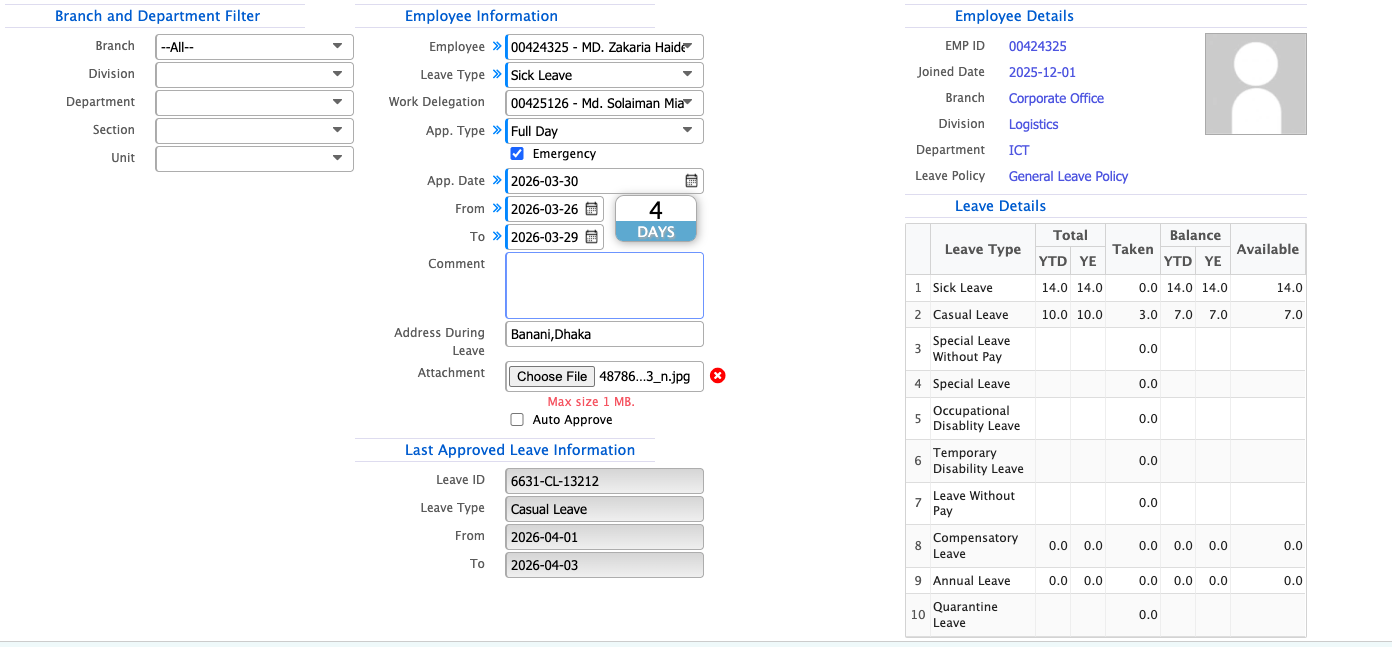
Add Leave Application
| Field | Action |
|---|---|
| Branch | Select the branch for which the leave application is being created or filtered. |
| Division | Select the division within the branch. |
| Department | Select the department within the division. |
| Section | Select the section within the department. |
| Unit | Select the unit within the section. |
| Employee | Select the employee for whom the leave is being applied or viewed. |
| Leave Type | Select the type of leave (e.g., Casual, Sick, Earned). |
| Work Delegation | Enter the employee who will handle assigned tasks during the leave period. |
| App. Type | Select whether the leave is Full Day or Half Day. |
| App. Date | Select the leave application date. |
| From | Enter the starting date and time of the leave period. |
| To | Enter the ending date and time of the leave period. |
| DAY | System-calculated total leave days based on From–To range. |
| Comment | Enter any remarks or notes related to the leave request. |
| Address During Leave | Enter the contact address during the leave period. |
| Attachment | Upload supporting documents if required. |
| Auto Approve | Enable or disable automatic approval for the leave request. |
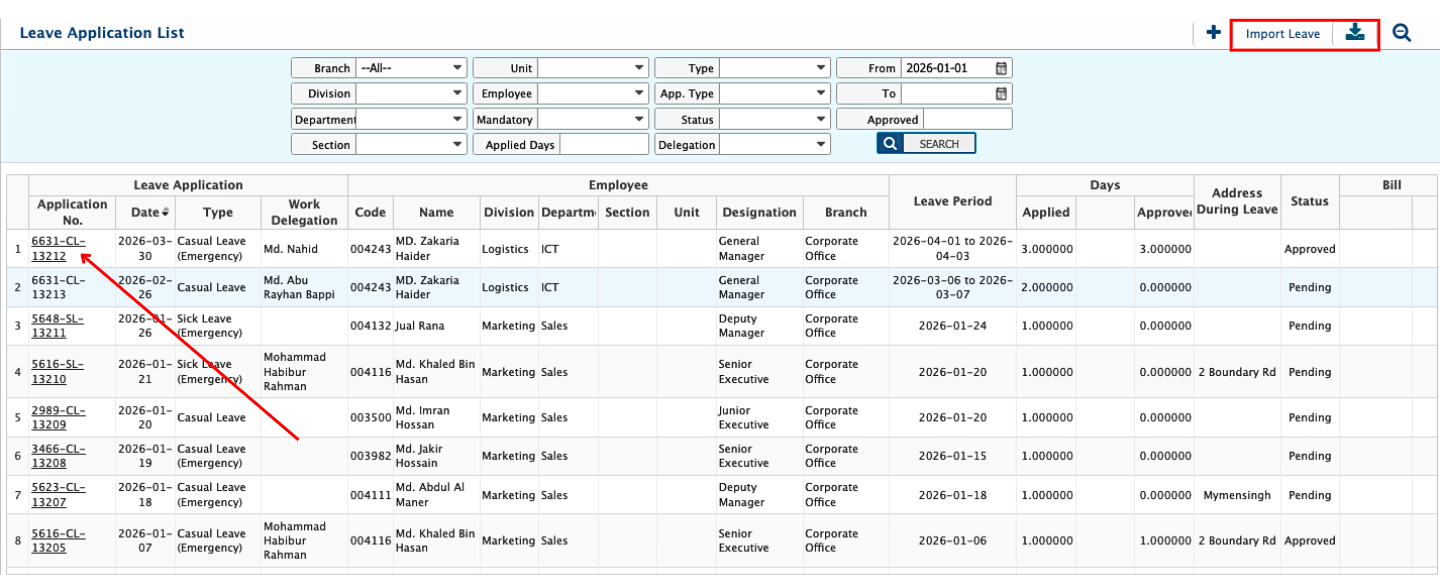
Leave Application List
After saving, all leave applications are displayed in the list view with employee name, leave type, and total leave days. The search panel allows filtering by multiple criteria to quickly locate specific records. Import functionality is also available for bulk data handling.
Leave Application Details
By selecting an application number, the details view opens. From this screen, the application can be recommended, approved, rejected, or closed. Employee leave history and available balance are displayed for reference. Pending applications can be edited, including adjustments to leave duration and attachments.
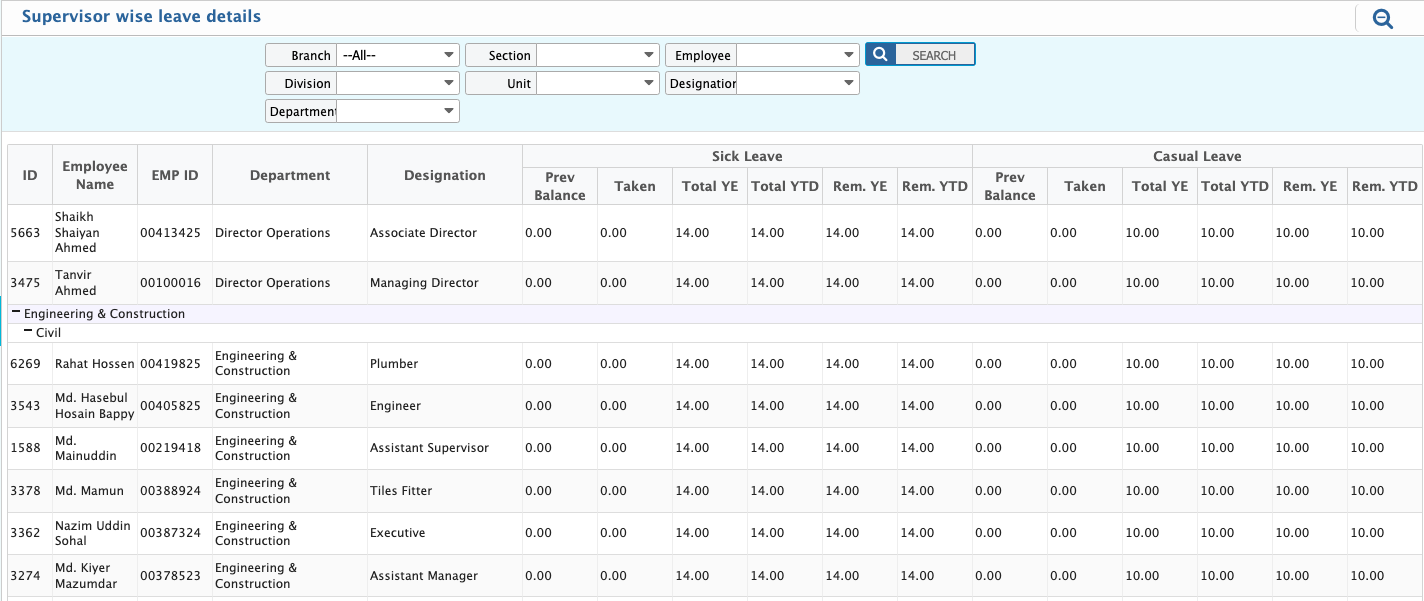
Supervisor Wise Leave Details
Supervisor-wise leave details provide a structured view of employees under each supervisor, including leave types and available leave balances. This helps in monitoring leave distribution across reporting lines.