Shift Roster
Shift Roster in PrismERP is used to manage how employee shifts are assigned and organized across different schedules. It supports multiple ways of handling shift allocation, including batch assignment, roster generation, shift rotation, and shift swapping. Users can select employees using organizational filters such as branch, department, section, and unit, and then apply shifts based on a specific date range or defined rules.
The system also allows shifts to be assigned in bulk, either as a single common shift or in a structured sequence depending on the requirement. Generated rosters can be viewed in a detailed table format with employee-wise and week-wise breakdowns, and can be searched, filtered, or edited when needed.
Shift rotation helps in assigning shifts in a repeating order for selected employees, while shift swap allows employees to exchange shifts based on approval workflows. All shift-related activities are maintained in an organized manner to ensure proper scheduling and control.
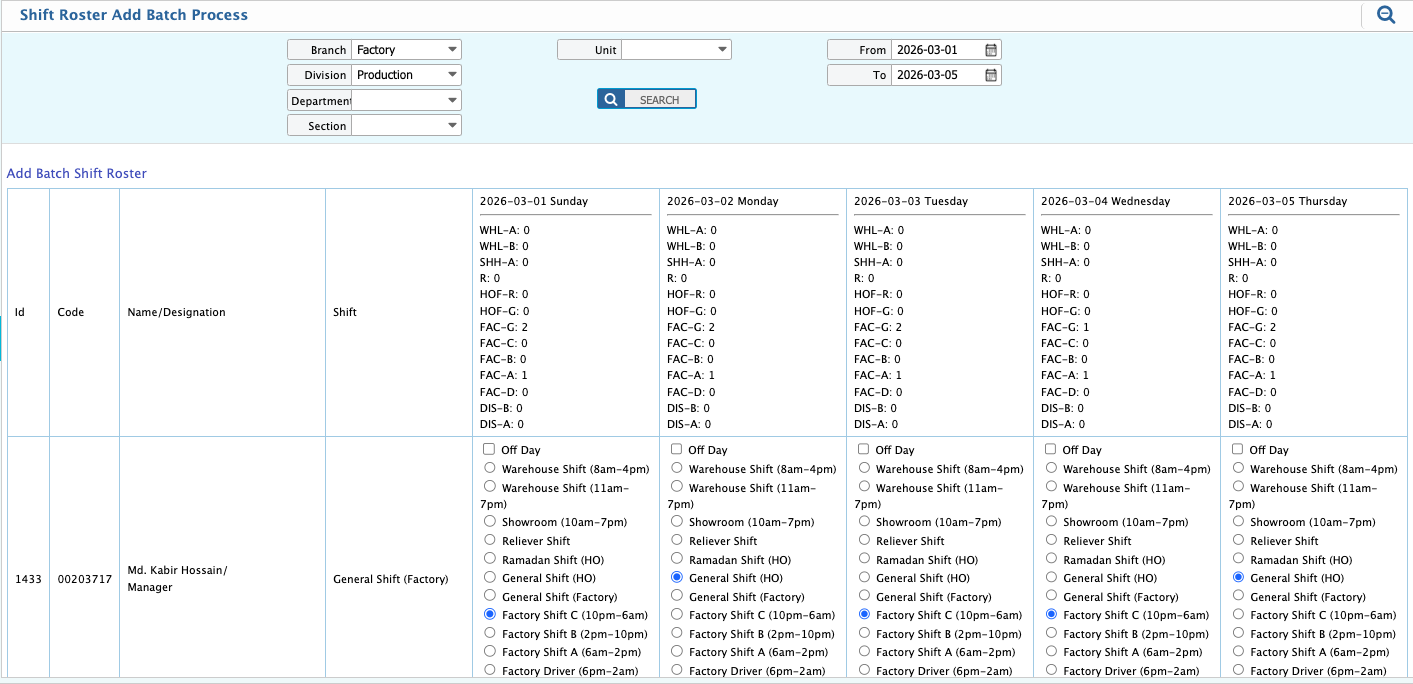
Add Shift Roster
Users can create a batch shift roster in PrismERP to assign shifts to multiple employees at once. First, users filter employees by selecting Branch, Division, Department, and Section, then define the required date range for the roster. After the employee list is loaded, users can assign a shift for all selected employees in bulk
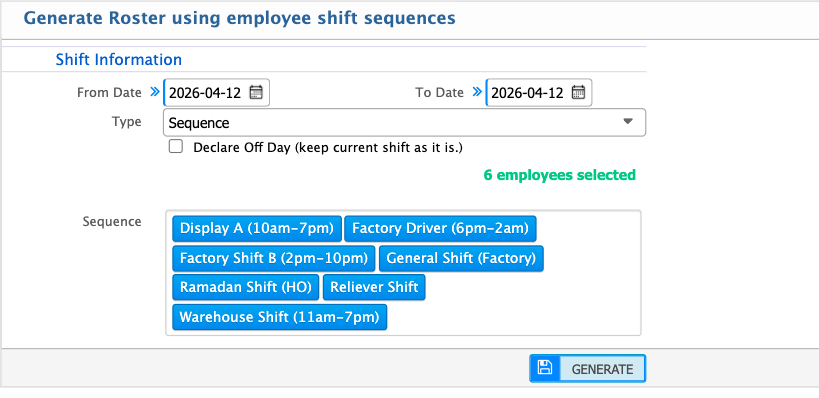
Generate Shift Roster
Shift roster generation lets users assign shifts to multiple employees at once based on a selected date range and configuration. Users first select the employees from the list and click the Generate option, which opens the roster setup page. From here, the From Date and To Date are defined, along with the Type (such as Sequence) and options like declaring off days while keeping the current shift unchanged. Users can then select the required shifts and apply them in sequence for the chosen employees, making bulk shift assignment quick and easy.
| Field | Action |
|---|---|
| From Date | Select the start date for the shift roster. |
| To Date | Select the end date for the shift roster. |
| Type | Select the roster generation type (e.g. Sequence,interval). |
| Declare Off Day (Keep Current Shift) | Enable to keep existing shifts unchanged on off days. |
| Select Shifts | Choose the shifts to be applied to selected employees. |
| Generate | Click to generate the shift roster for all selected employees. |
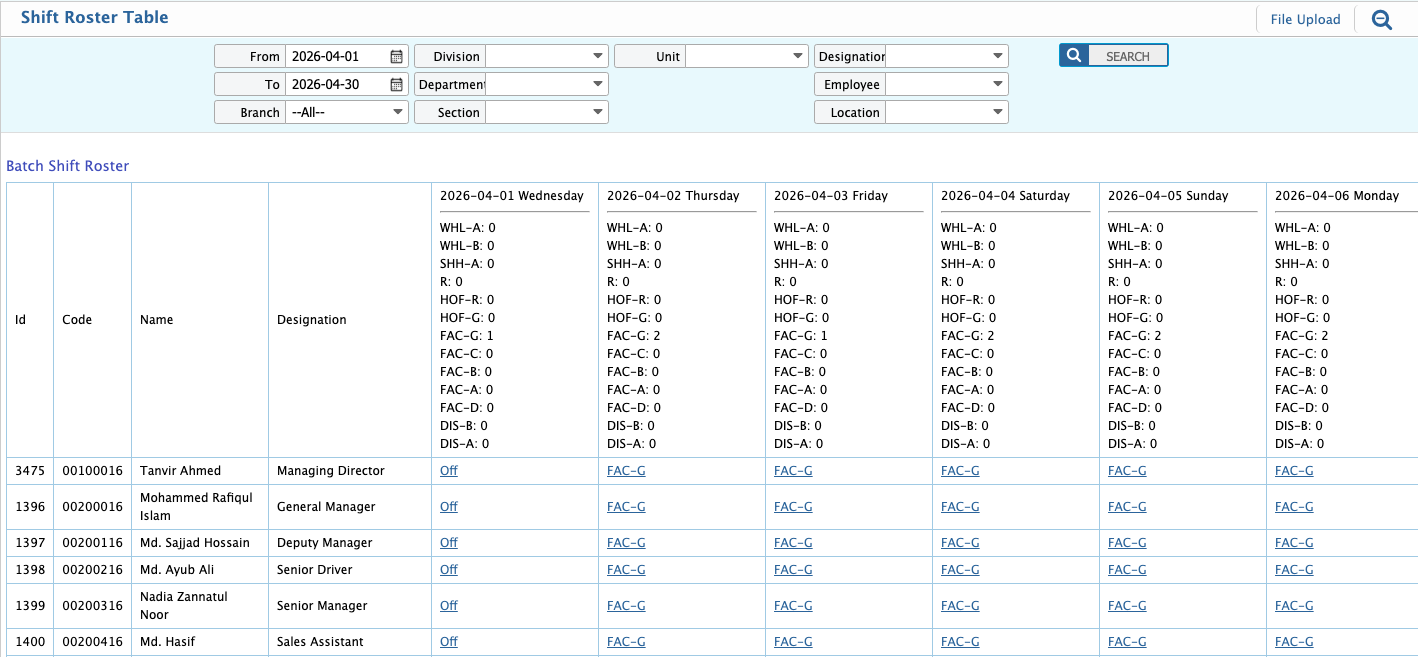
Users can view the shift roster in a table format with detailed employee information and a clear week-wise breakdown. The system allows searching and filtering by branch, department, or specific employees to quickly find relevant roster details. Users can also edit the roster at any time to update or adjust shift assignments as needed.
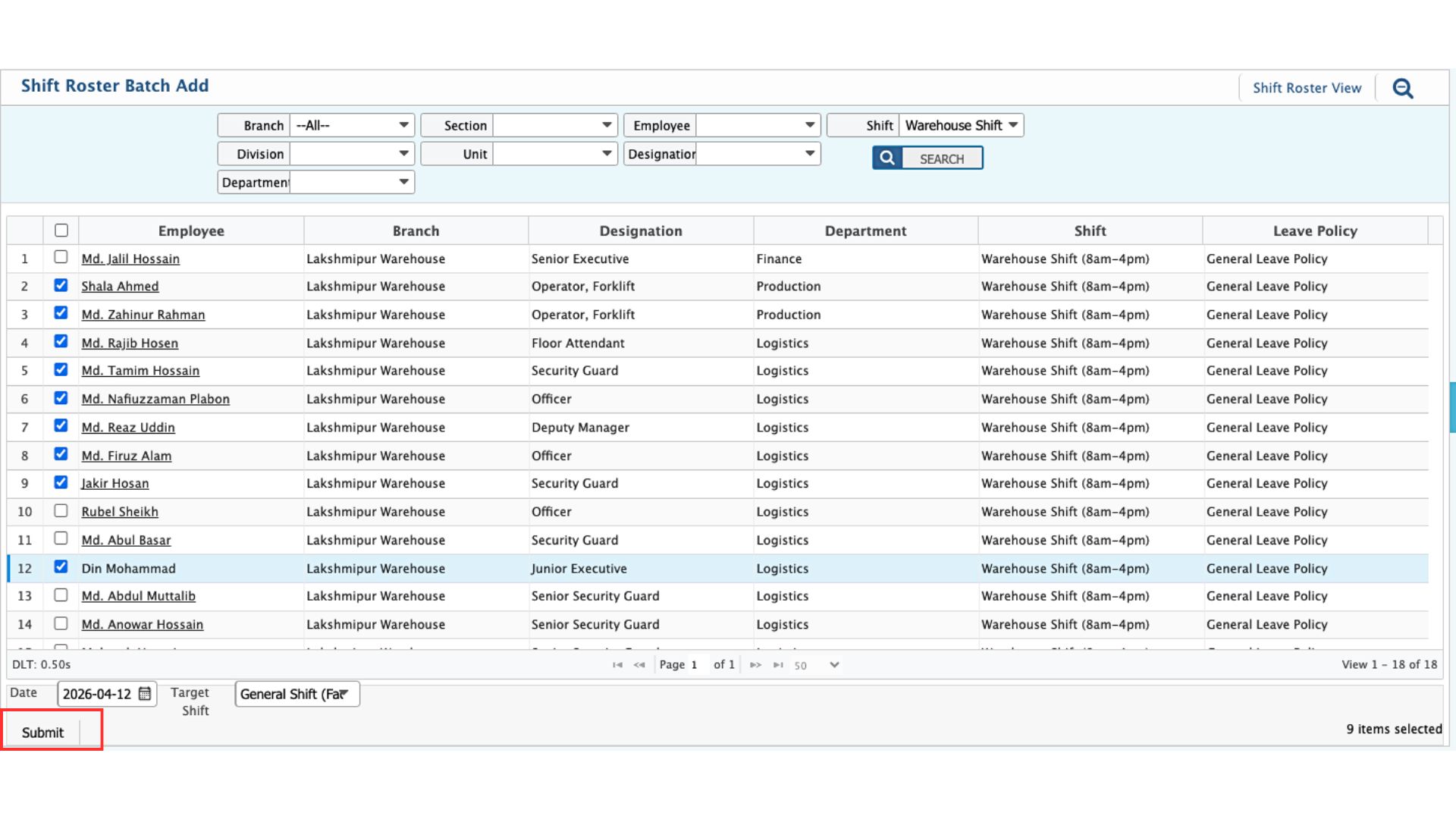
Shift Roster Batch Add
In the Shift Roster Batch Add page in PrismERP, users can assign a single shift to multiple employees at once. Employees can be filtered using options like Branch, Division, Department, Section, Unit, Designation, or specific employee selection. The system then displays a list of employees along with their details such as branch, designation, department, current shift, and leave policy. Users can review the list, select the required date, and choose a target shift to apply. This allows the same shift to be assigned to all selected employees in one action, making bulk shift updates quick and consistent.
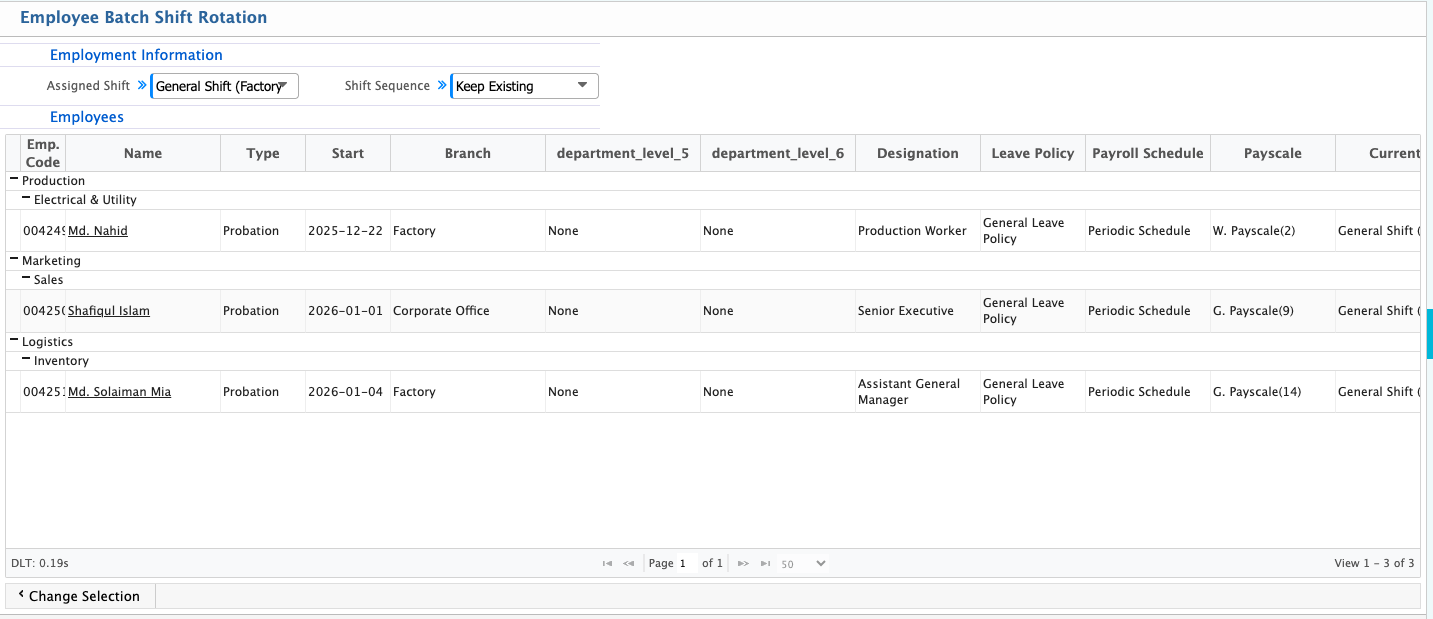
Shift Rotation
Users can also perform shift rotation in PrismERP by selecting the employees they want to rotate in batch. After selecting the employees, users can choose the assigned shift and define the rotation sequence. The system also allows users to modify the selected employees at any time before applying the rotation.