Attendance Adjustment
The Attendance Adjustment features in PrismERP are used to record and manage attendance exceptions such as late arrival and early exit. Users can create late and early out adjustments by selecting employees using filters like branch, department, section, sub section, and floor, along with specifying the adjustment date and remarks.
After submission, the records are displayed in separate lists where they can be searched and filtered based on different criteria. Requests in the pending state can be edited if required, and they can be approved or rejected after review. The system also includes a configuration option for late in and early out consumption policy, where rules are defined for how repeated occurrences are calculated and converted into absence.
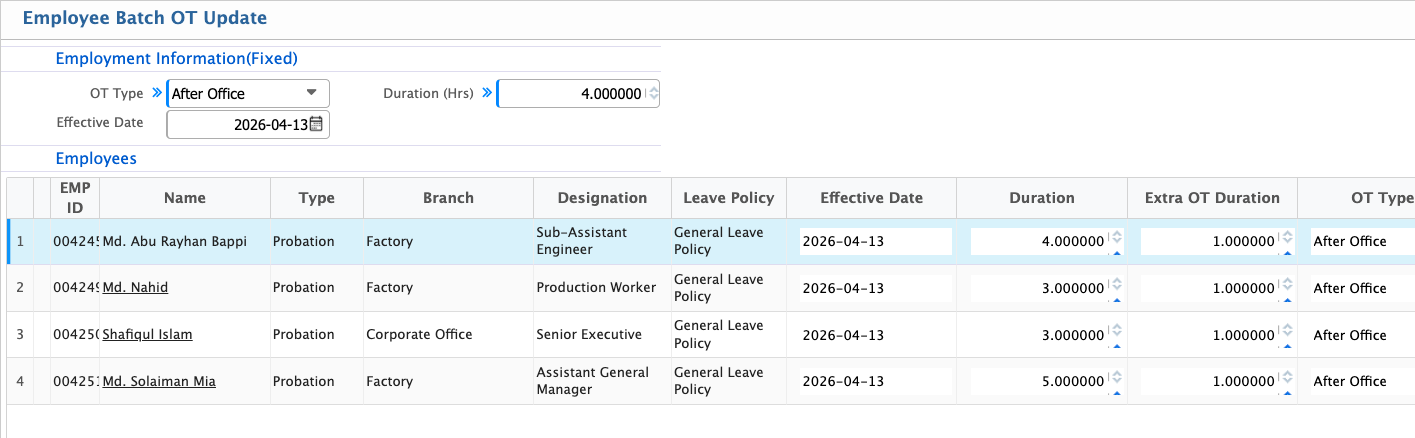
Along with adjustments, overtime records are maintained where OT type, duration, and effective date are defined for employees. OT entries can be managed individually or through batch updates for multiple employees. All records are stored in their respective lists with status tracking for proper review and control.
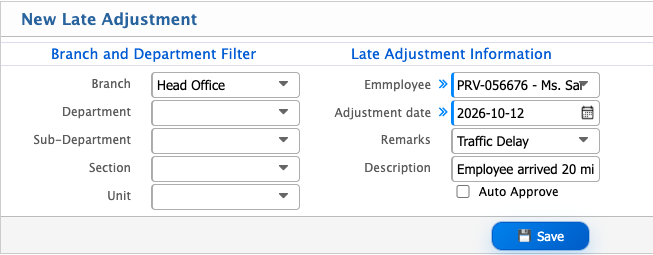
New Late Adjustment
| Field | Action |
|---|---|
| Branch | Select the branch (or All) to filter employees. |
| Division | Select the division for filtering. |
| Department | Select the department. |
| Section | Select the section under the department. |
| Sub Section | Select the sub section for more precise filtering. |
| Floor | Select the floor to narrow down the employee list. |
| Employee | Select the employee for whom the late adjustment is being applied. |
| Adjustment Date | Select the date for which the late adjustment is applied. |
| Remarks / Description | Enter the reason or description for the late adjustment. |
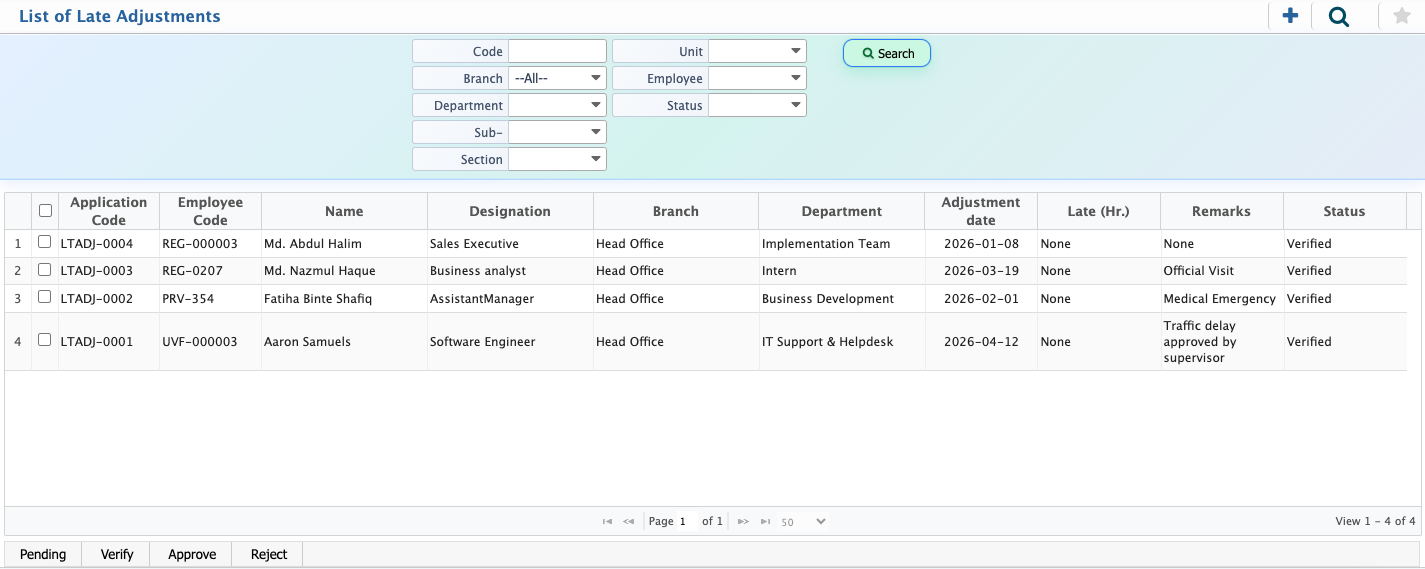
After adding a late adjustment, users can view all requests in the Late Adjustment List. The system provides a search and filter panel to quickly find specific records based on branch, department, employee, or date. Each request can be reviewed in detail, and in the pending state, the request can also be edited if any changes are required. Once verified, users can take action to approve or reject the request, ensuring proper validation before it is applied.
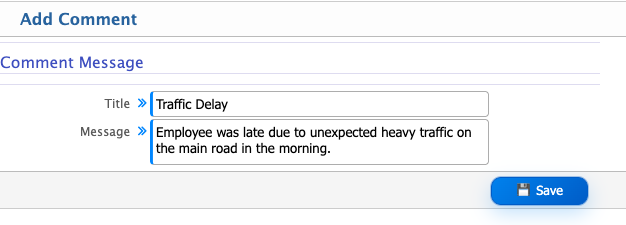
Add Late Adjustment Reason
| Field | Action |
|---|---|
| Title | Enter a short title for the late adjustment reason. |
| Message | Enter a detailed description explaining the reason for the late adjustment. |
Early Out Adjustment
| Field | Action |
|---|---|
| Branch | Select the branch (or All) to filter employees. |
| Division | Select the division for filtering. |
| Department | Select the department. |
| Section | Select the section under the department. |
| Sub Section | Select the sub section for more precise filtering. |
| Floor | Select the floor to narrow down employee list. |
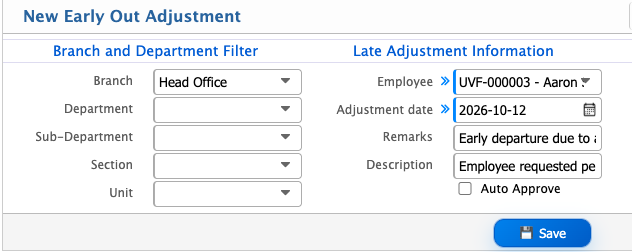
| Employee | Select the employee for whom the early out adjustment is being applied. |
| Adjustment Date | Select the date for which the early out adjustment is applied. |
| Remarks / Description | Enter the reason or description for the early out adjustment. |
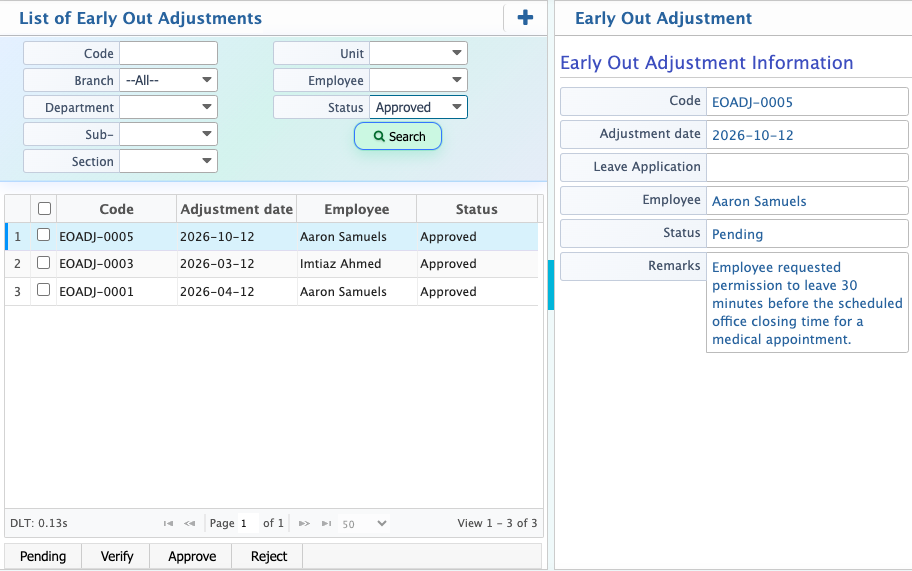
After adding an early out adjustment, users can view all requests in the Early Out Adjustment List. The system provides a search and filter panel to quickly find specific records based on branch, department, employee, or date. Each request can be reviewed in detail, and in the pending state, it can also be edited if any updates are required. Once verified, users can approve or reject the request.
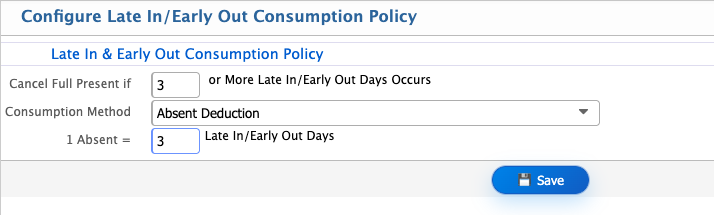
Users can configure the Late In & Early Out Consumption Policy in PrismERP to decide how repeated late arrivals or early exits are treated in attendance. It allows setting when full present status is affected and how many late or early-out days are counted as one absent, based on the company’s policy.
| Field | Action |
|---|---|
| Cancel Full Present if (Late In/Early Out Days) | Set the number of late/early-out occurrences after which full present status will be affected. |
| Consumption Method | Select how late/early-out will be converted (e.g. Absent Deduction). |
| 1 Absent = Late In/Early Out Days | Define how many late or early-out days will be treated as one full absent day. |
Overtime Register
| Field | Action |
|---|---|
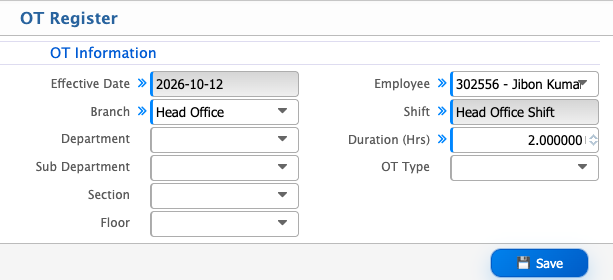
| Effective Date | Select the date from which OT records will be considered. |
| Branch | Select the branch (or All) to filter OT records. |
| Division | Select the division for filtering employees. |
| Department | Select the department. |
| Section | Select the section under the department. |
| Unit | Select the unit for more precise filtering. |
| Employee | Select the employee to view or generate OT records. |
| Shift | Select the shift associated with overtime calculation. |
| Duration (Hrs) | Enter total overtime duration in hours. |
| OT Type | Select the type of overtime (e.g., regular OT, holiday OT). |
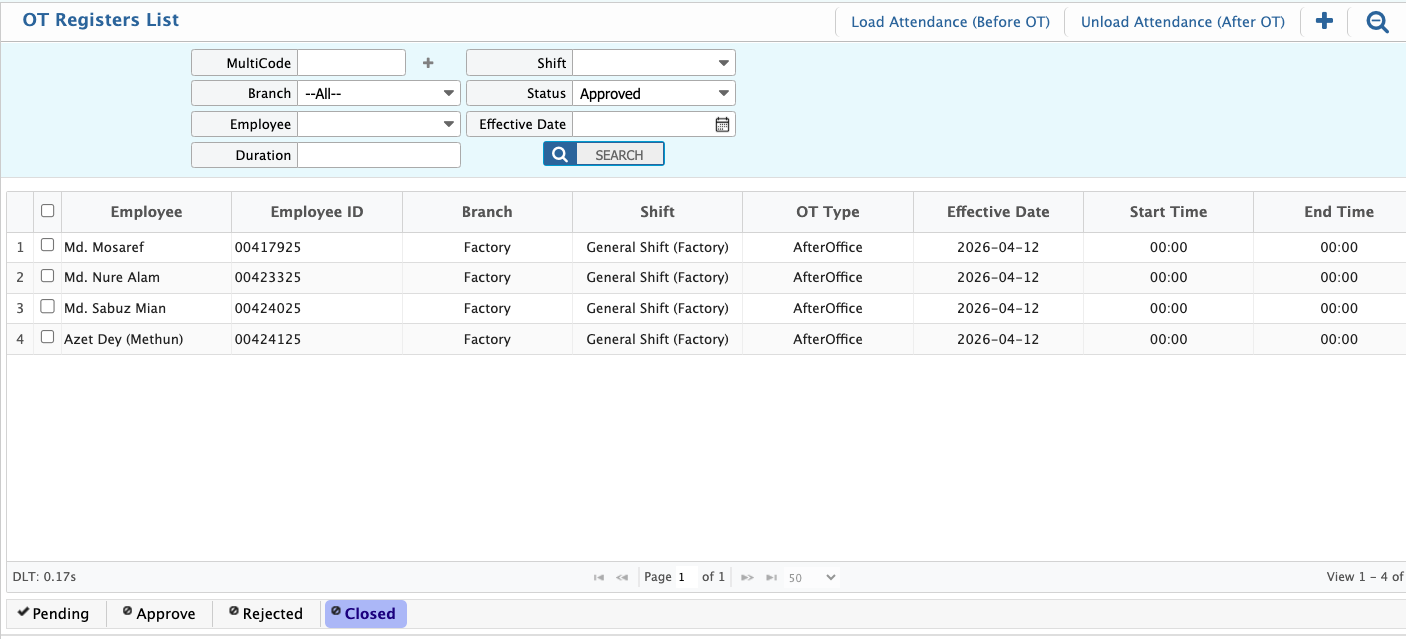
The OT Registers List in PrismERP shows all employee overtime records in one place with important details like employee ID, branch, shift, OT type, effective date, start and end time, duration, extra OT hours, and status. Users can easily filter the list by branch, employee, shift, duration, or status to quickly find what they need. It also includes options to load attendance before OT calculation and unload it after processing. Each record can be viewed in detail, and the status (Pending, Approved, Rejected, or Closed) helps track where each OT entry stands in the process.
The Employee Batch OT Update in PrismERP allows users to select multiple employees from the employee list and assign overtime details in bulk. After selecting employees, users can define key information such as OT type, overtime duration, and effective date, which will be applied to all selected employees.