Attendance Entry
The Attendance Entry feature in PrismERP manages all types of attendance inputs, including device uploads, manual entries, and direct device syncing. Users can upload attendance data using structured formats such as Card ID, Entry Date, and Entry Time, which are then automatically processed by the system. Manual attendance entry is also supported by selecting employees through filters like Branch, Department, Section, Sub Section, and Floor.
Attendance details such as date, time, and status can be recorded and saved easily. The system also allows reading attendance data directly from devices like the Main Gate for automatic import. After reviewing the records, users can post attendance data into the system. Attendance information can be filtered and managed before posting. Users can also correct or remove entries when needed.
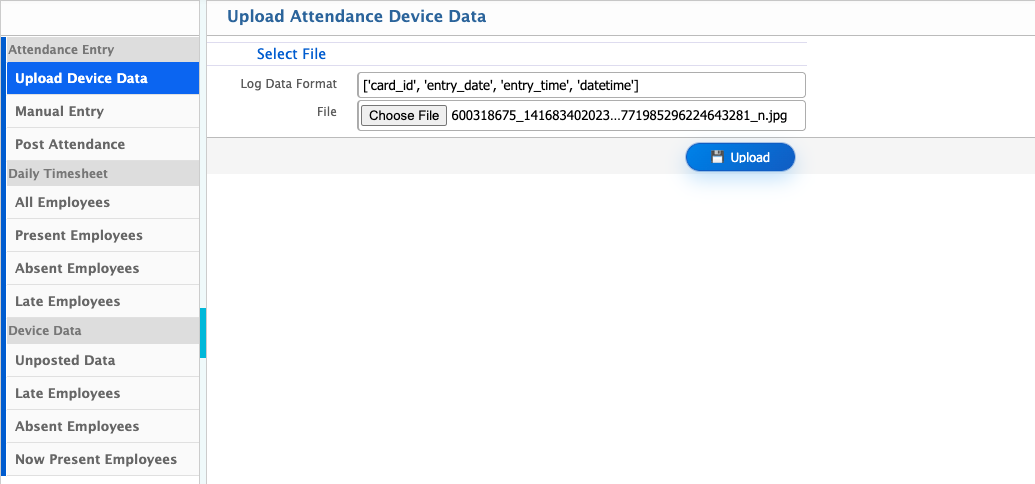
Users can upload attendance device data directly into the system. In the Upload Attendance Device Data section, users need to enter the required data in a structured format such as Card ID, Entry Date, and Entry Time. Users can also attach relevant files while uploading the data. Once submitted, the system automatically processes the uploaded attendance information and updates the attendance records accordingly.
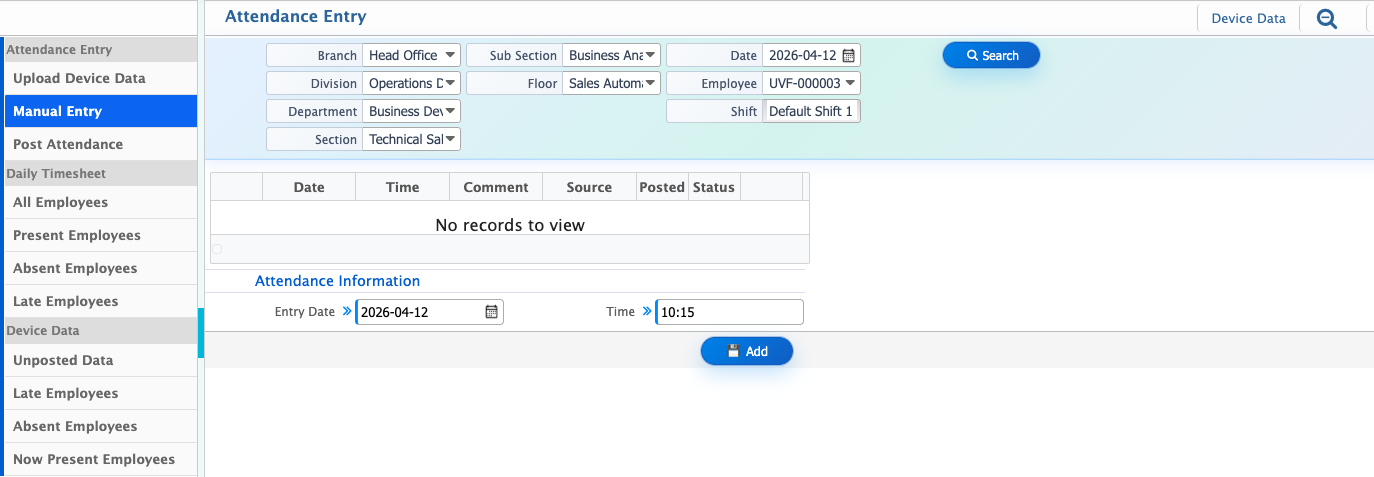
Users can also manually enter attendance information into the system by selecting employee details along with the relevant date and time. In the Attendance Entry module, users can filter data using organizational structure such as Branch, Division, Department, Section, Sub Section, and Floor to easily locate employees.
After selecting the employee and shift, users can enter attendance details including Date, Time, Comment, Source, Posted status, and Attendance Status. The entry is then saved into the system, and it will be reflected in the attendance records accordingly.
| Field | Action |
|---|---|
| Branch | Select the branch where the employee belongs (e.g. Head Office). |
| Division | Select the division for filtering employees. |
| Department | Select the department for narrowing employee list. |
| Section | Select the section under the department. |
| Sub Section | Select the sub section for more precise filtering. |
| Floor | Select the floor associated with the employee. |
| Date (Filter) | Select the date to view or manage attendance records. |
| Employee | Select the specific employee for attendance entry. |
| Shift | Select the employee’s assigned shift. |
| Date (Entry) | Enter the attendance date for the record. |
| Time | Enter the attendance punch time. |
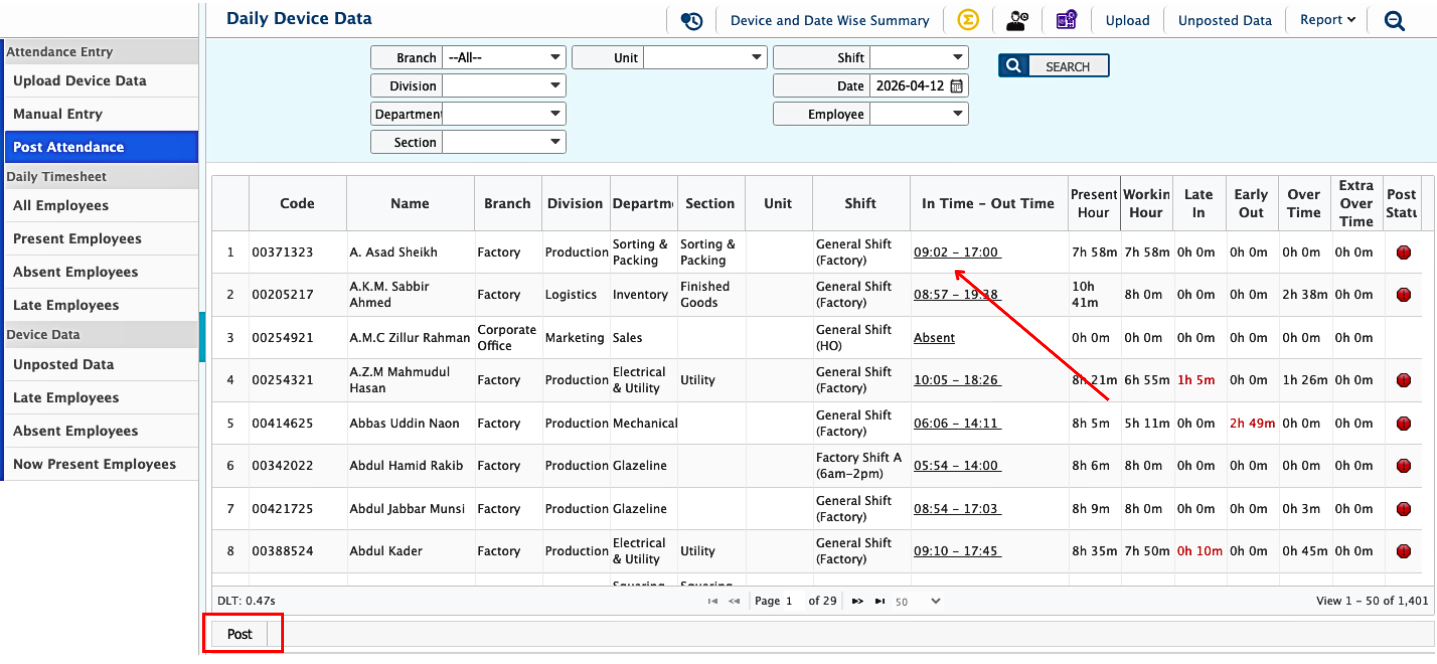
Users can also post device attendance data. In the Post Attendance page, users can view all company attendance information including in-time, out-time, overtime, and extra time records. The system allows users to filter data by branch, department, section, shift, date, or employee to quickly locate specific information. After reviewing the records, users can click the Post button to post the selected attendance data into the system.
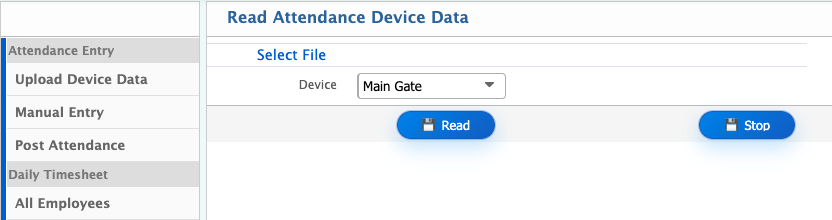
In the Read Attendance Device Data section, users can select a device from the available list (e.g. Main Gate) to import attendance records directly into the system.
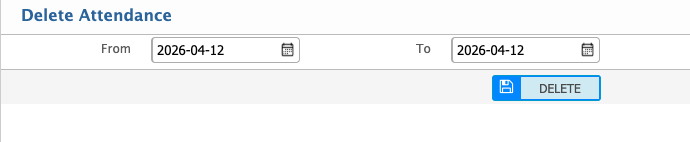
Users can delete attendance records for particular dates or date ranges from the system.